Update product stock
Restock or correct a product's quantity from your Inventory list — set the new count, pick a reason, and Crate records the change instantly with a full history trail.
Stock is the heartbeat of your catalogue. When new inventory arrives, an item sells out at a pop-up, or a count comes up short, you update the quantity from one place — the Inventory list — and Crate keeps the numbers honest everywhere they're shown.
Every adjustment is more than a new number. Crate records a stock movement with the reason you chose, so weeks later you can open a product's history and see exactly why its count changed. That trail is what stops "where did 12 units go?" from ever becoming a mystery.
Increase or decrease — same field
There's no separate "add stock" and "remove stock" form. The quantity box holds the product's new on-hand total: type a higher number to restock, a lower number to write some off. Pair it with the right reason — Received, Recount, Sold, Damaged or Correction — and the movement reads cleanly in the history.
Tip: Use the Low stock and Out of stock tabs at the top of the list to triage what needs restocking first, instead of scrolling the whole catalogue.
What "Available" really means
The numbers aren't all the same. On hand is the physical count in your store or warehouse. Committed is what's already been bought but not yet shipped. Available is what's left to sell — on hand minus committed. When you restock, you're setting on hand; Crate recalculates Available for you so your storefront never oversells.
-
1
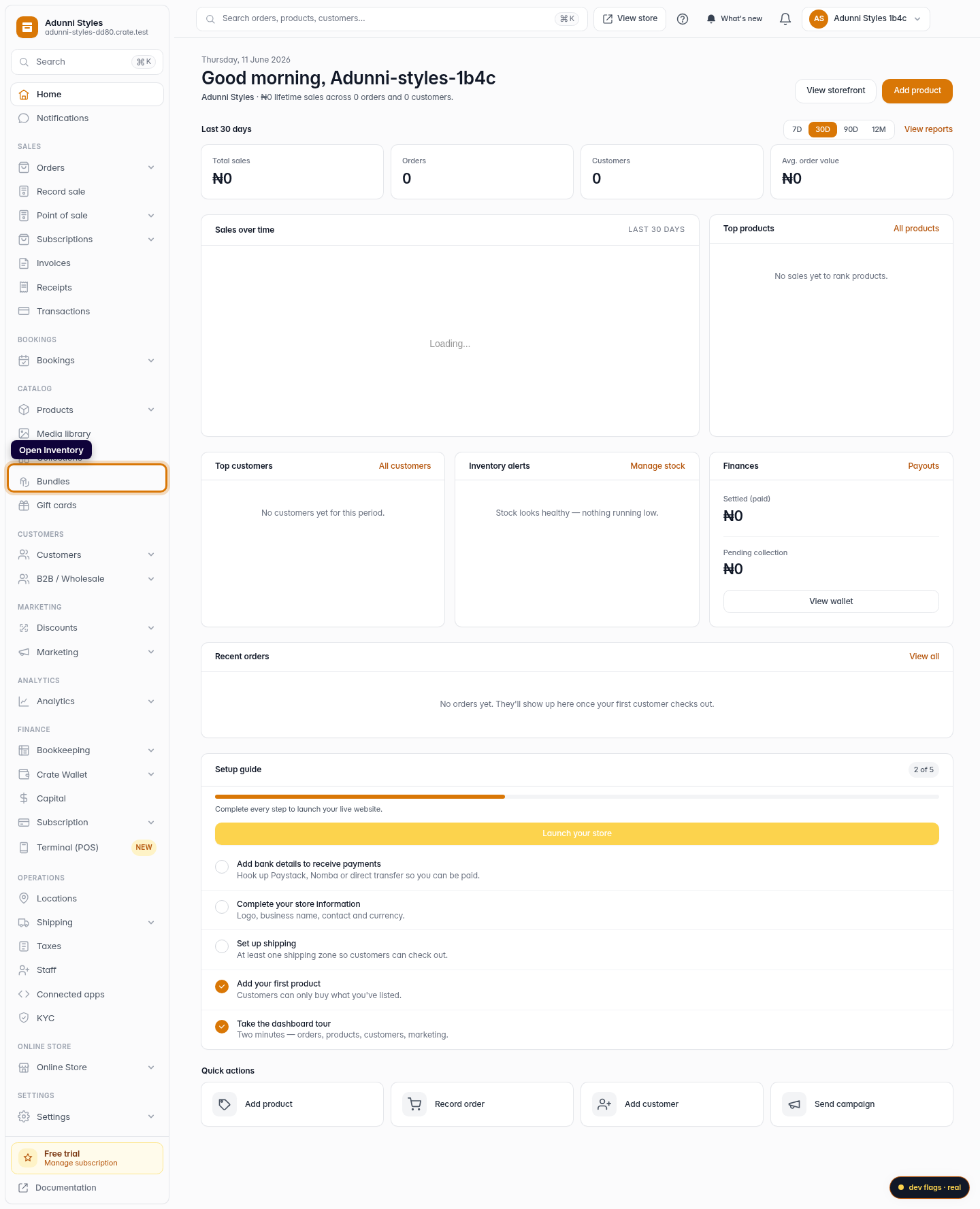
Open Inventory
From your Crate dashboard, open Inventory under the Catalog group in the left sidebar. This is the live stock list across every product you sell.
Web 
Mobile -
2
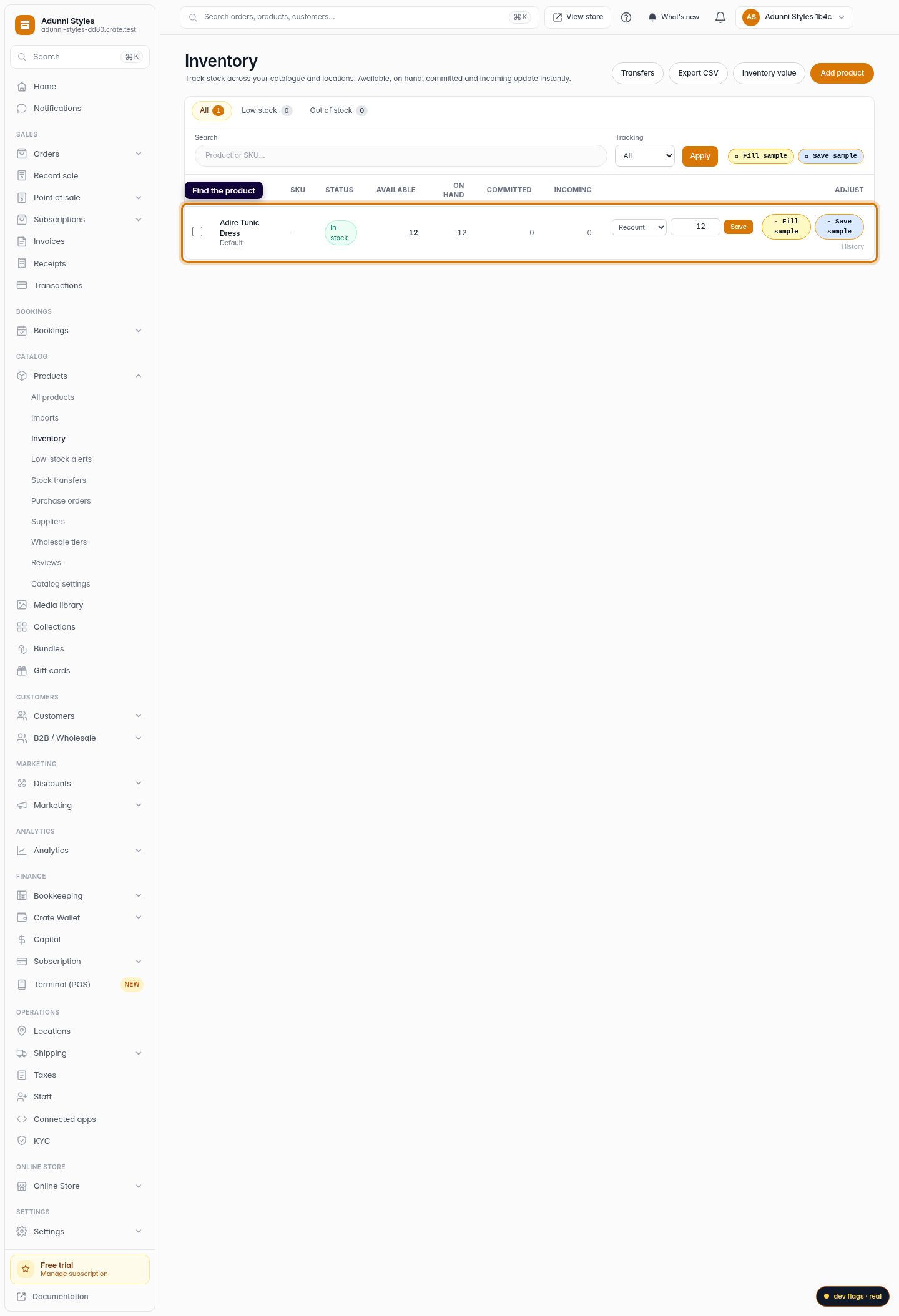
Find the product
Each row shows the product, its Available, On hand, Committed and Incoming counts. Use the search box or the Low stock and Out of stock tabs to jump to the item you want to restock.
Web -
3
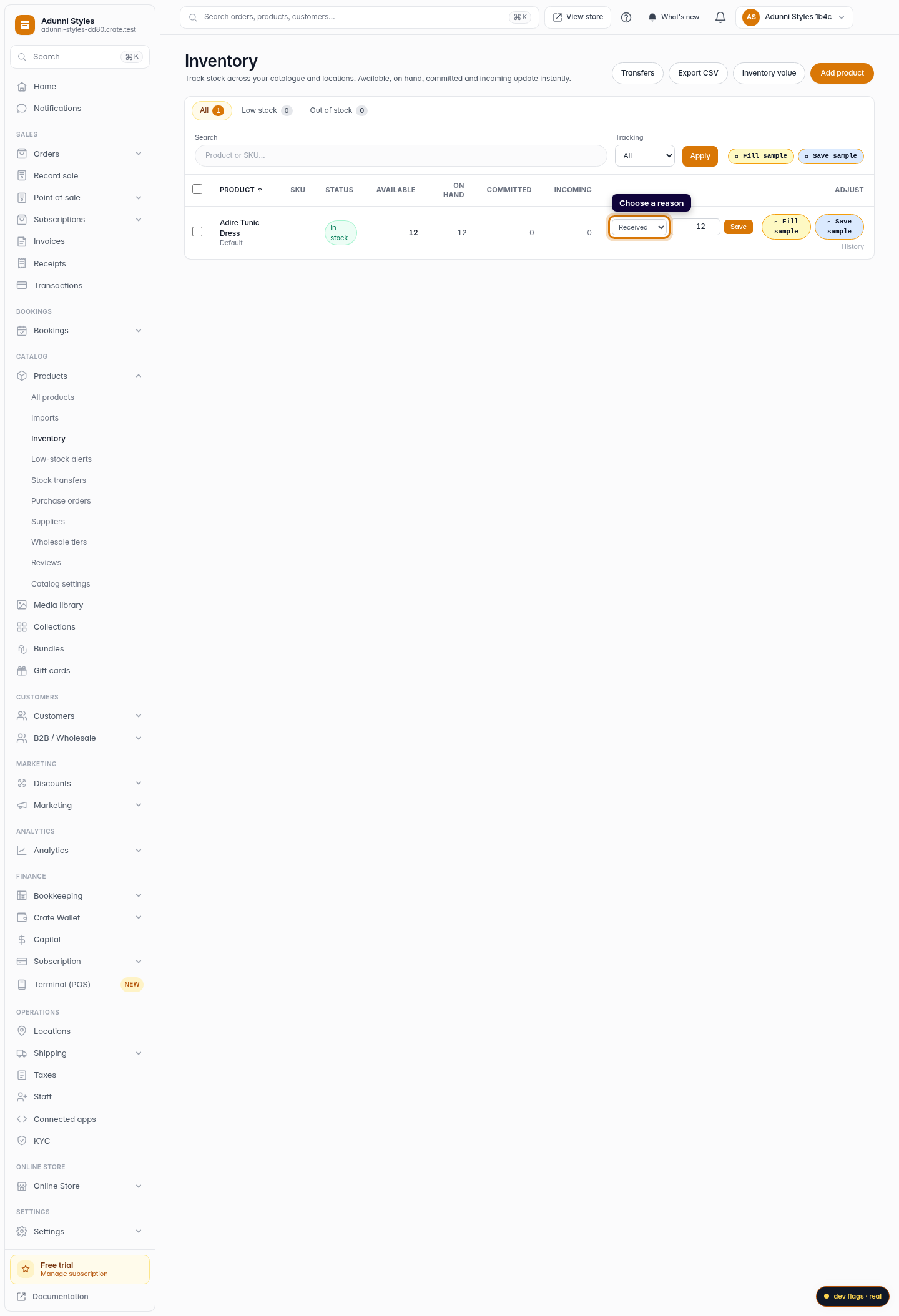
Choose a reason
On the product's row, pick a reason for the change — Received when new stock arrives, Recount after a physical count, Damaged to write items off, or Correction to fix a mistake. The reason is saved with the movement so your stock history always explains itself.
Web -
4
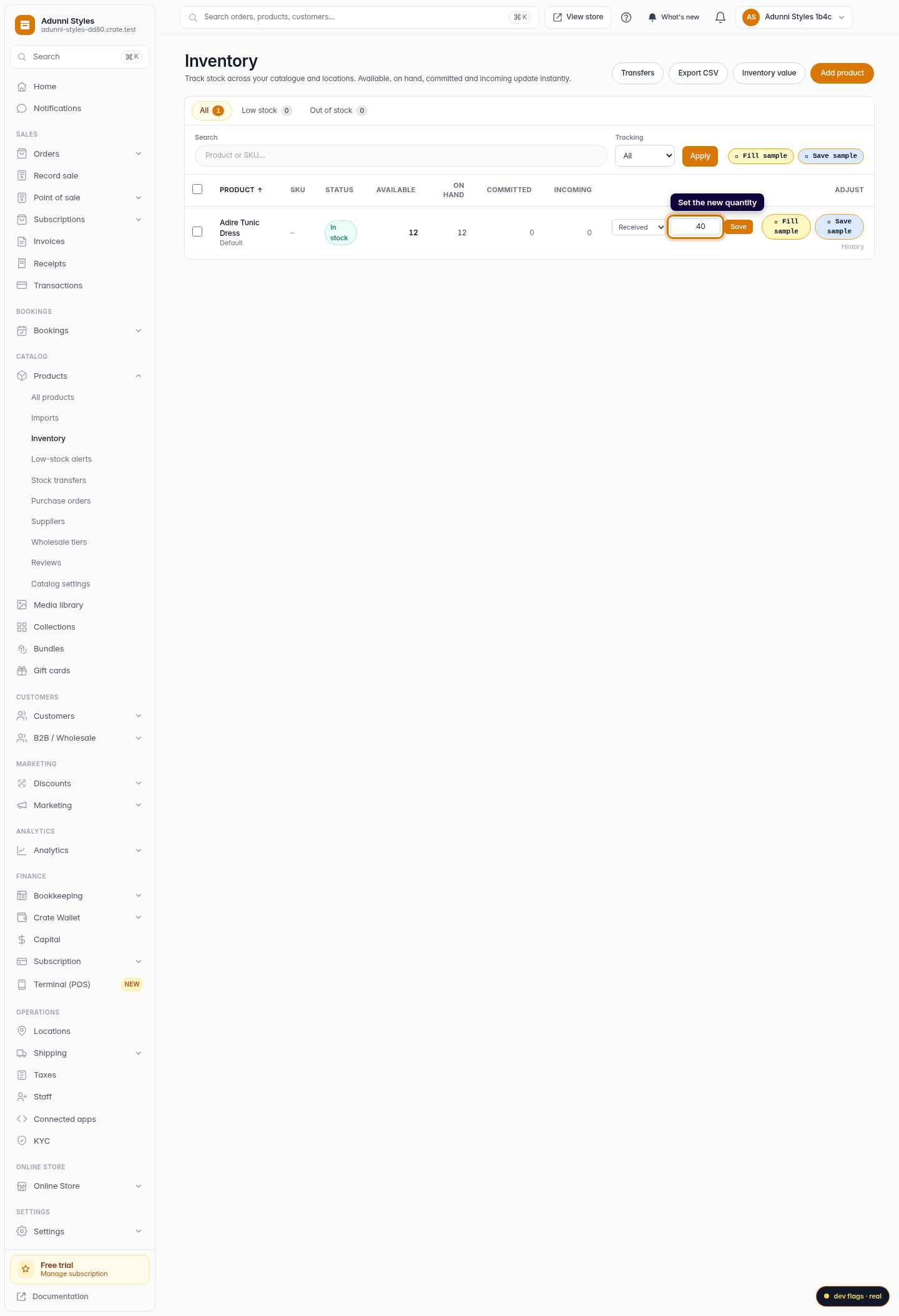
Set the new quantity
Type the new on-hand quantity in the number box. To remove stock, simply enter a lower number than what's there now — the same field handles increases and decreases.
Web -
5
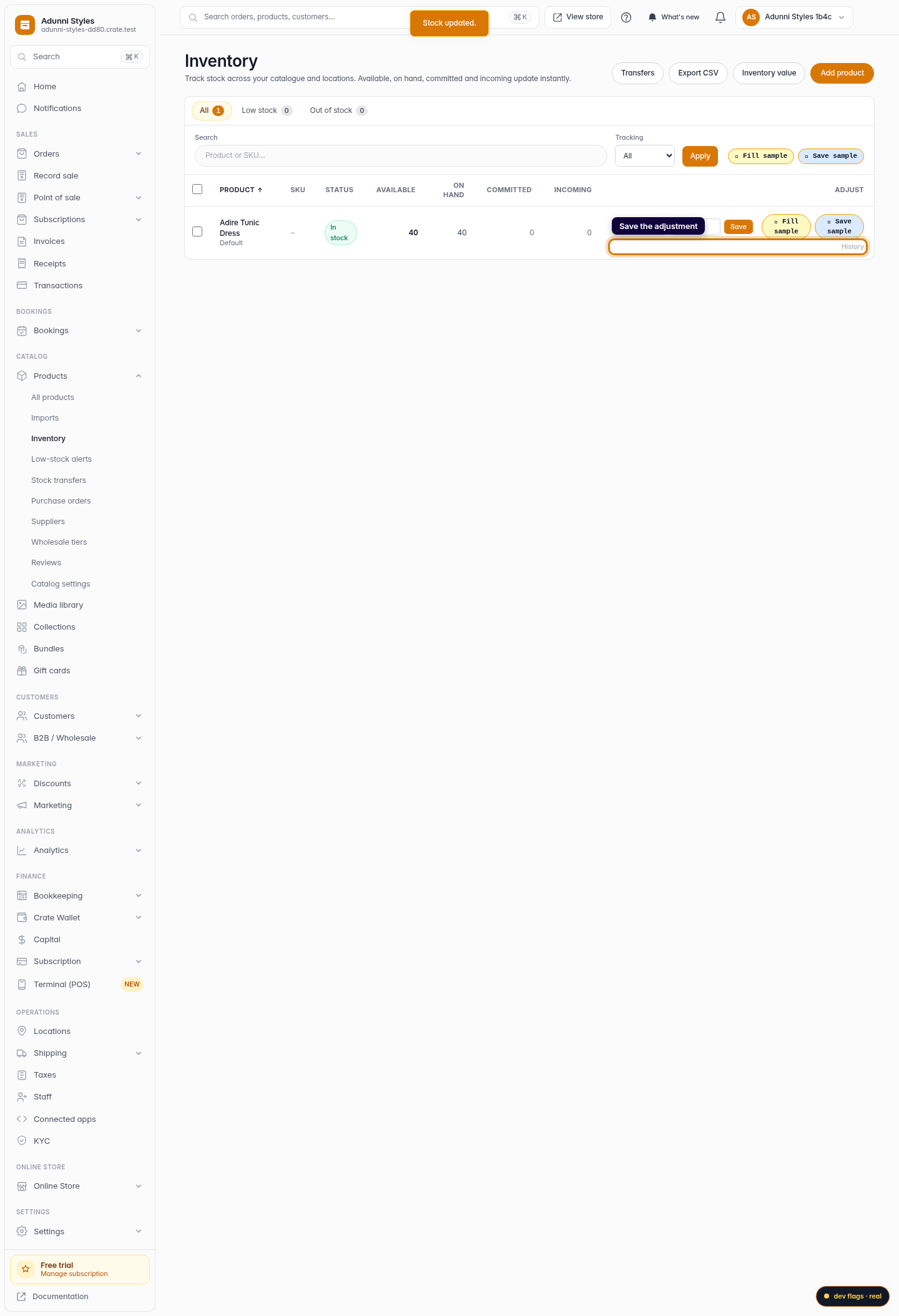
Save the adjustment
Click Save. The row updates instantly and Crate logs a stock movement. Open History on the row any time to see every change — what moved, when, by how much and why.
Web