Creating locations
Add a physical location — a shop, a warehouse, a pickup point — so you can track stock per site and offer local pickup at checkout. Set the address, opening hours and pickup options in one form.
A location in Crate is any physical place your business operates from — your shop, a warehouse, a market stall, or a partner pickup point. Adding your locations lets you track inventory per site, fulfil online orders from the right place, and offer customers local pickup at checkout.
What a location gives you
- Per-location stock — see how much of each product sits at each site, instead of one lumped-together number.
- Local pickup — let shoppers choose to collect here at checkout and skip the delivery fee.
- Smarter fulfilment — pick, pack and ship online orders from whichever location holds the stock.
Opening hours and pickup
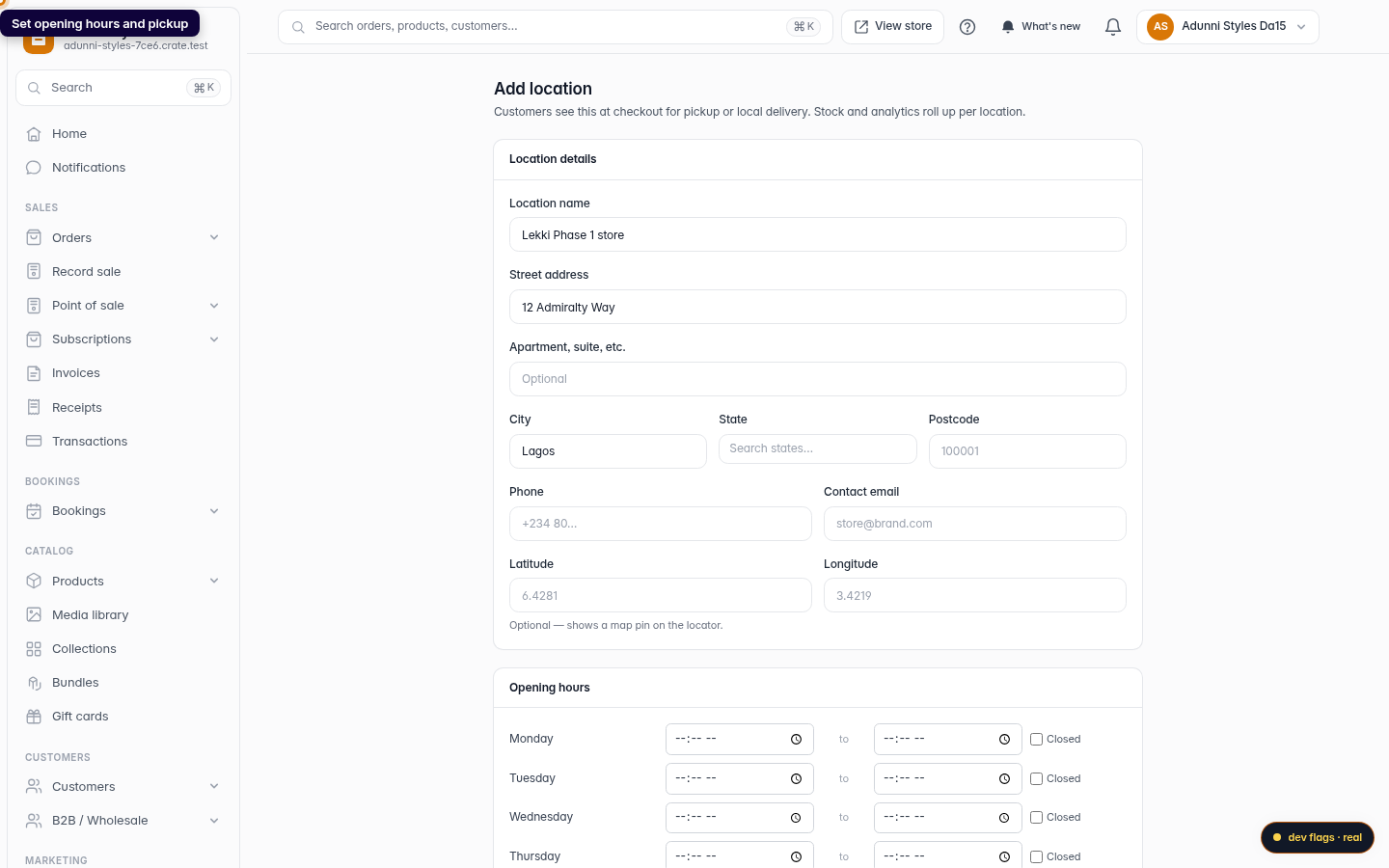
Set your opening hours day by day, and mark any day Closed when you're not trading. If customers can collect from this location, turn on Offer pickup at this location and add a short instruction — something like "Usually ready in 2 hours. Bring your order number." — so collection runs smoothly.
Tip: One location is marked your default. New stock and any unassigned inventory roll up there, so set your busiest site as the default. You can only have one default at a time.
After you save
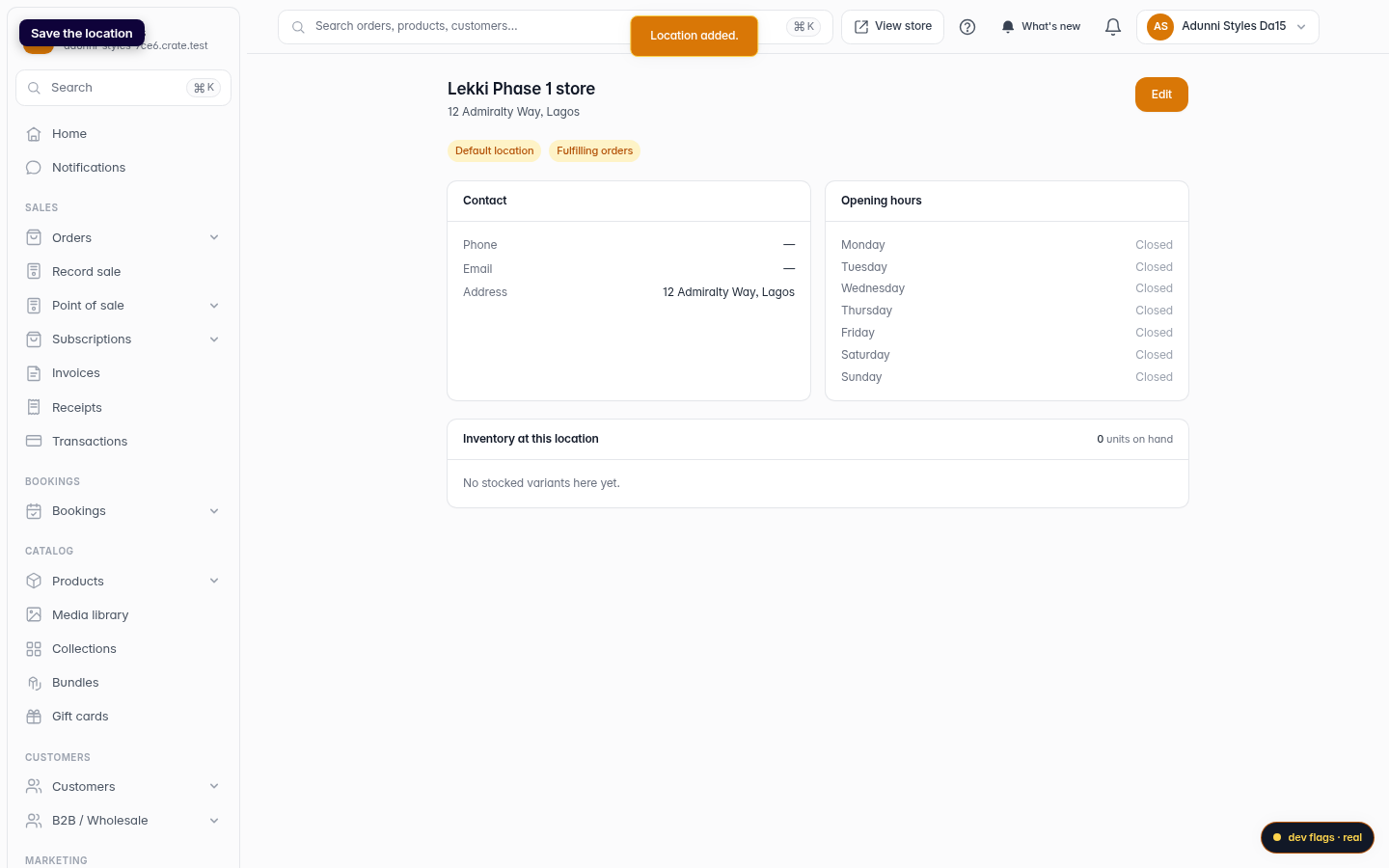
Your new location appears in the Locations list with its stock total. From there you can edit its details, view what's stocked at the site, or add more locations as your business grows.
-
1
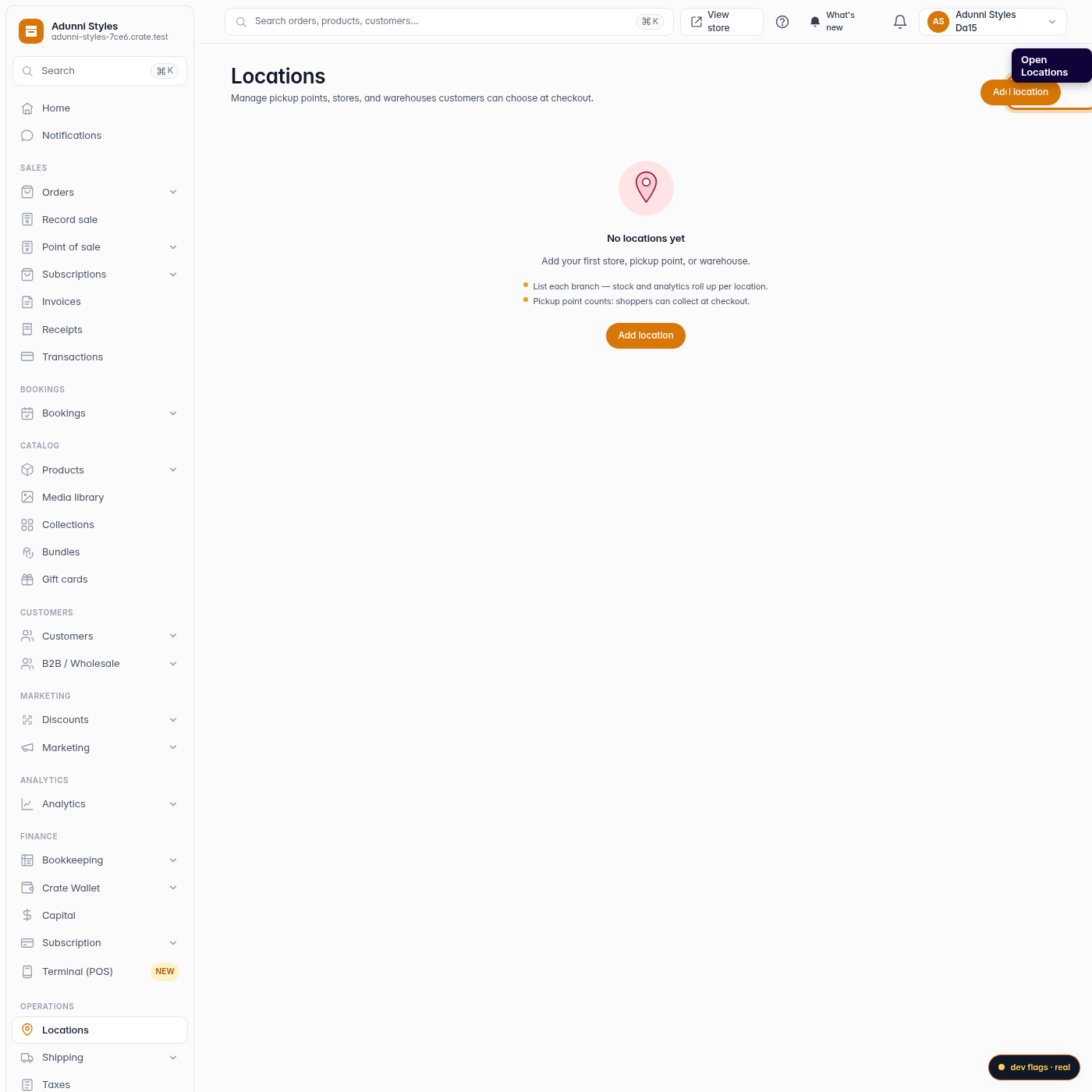
Open Locations
From your dashboard, open Locations. This is where your shops, warehouses and pickup points live.
Web -
2
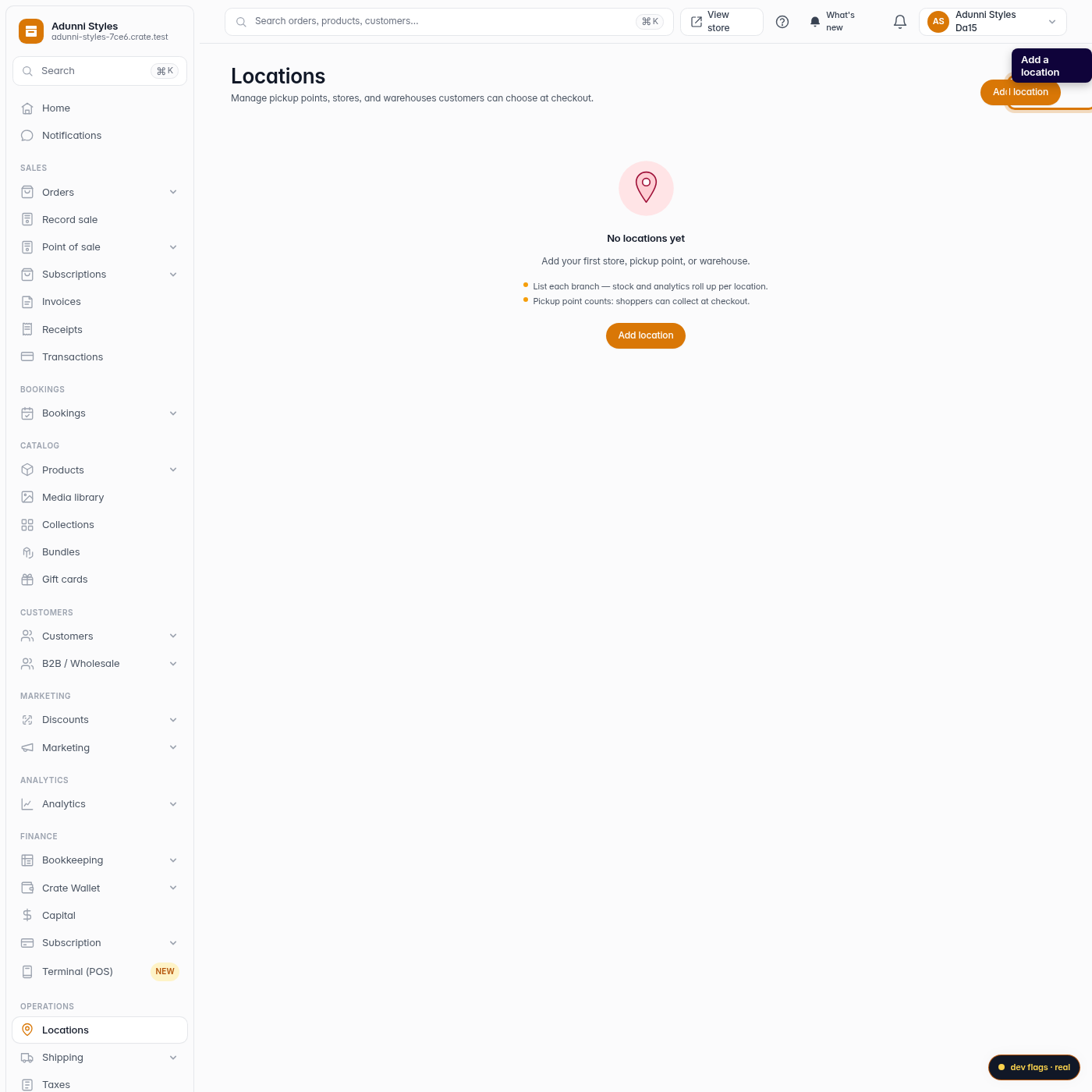
Add a location
Click Add location in the top-right.
Web -
3
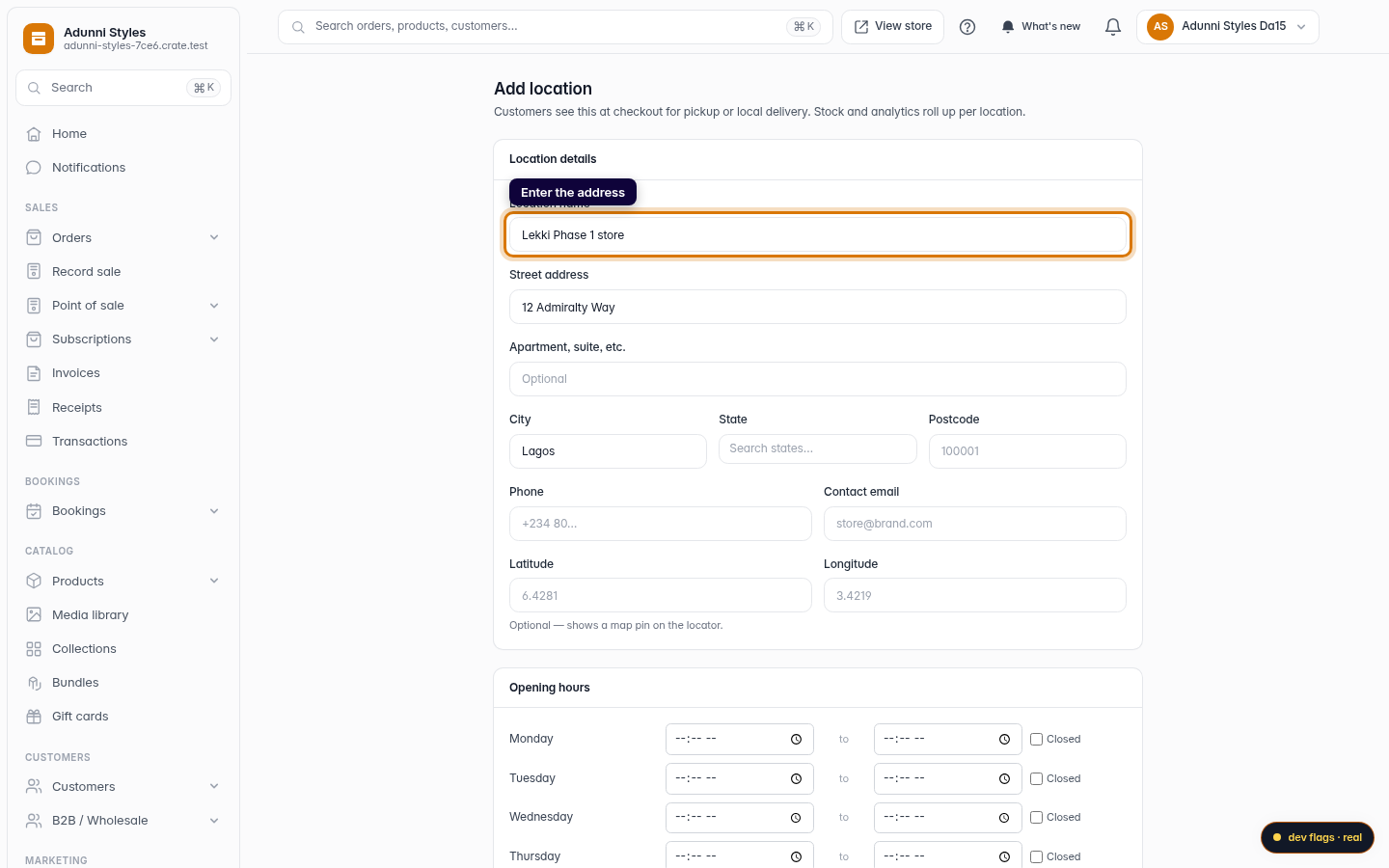
Enter the address
Give the location a name your team will recognise — like Lekki Phase 1 store — and fill in its street address, city and state.
Web -
4
Set opening hours and pickup
Add opening hours and, if customers can collect here, turn on Offer pickup at this location and add pickup instructions.
Web -
5
Save the location
Click Save location. Crate adds it and you can start fulfilling and tracking stock from this site.
Web