How to create a tax
Add a tax rate like VAT so Crate adds it at checkout. Give it a name and a percentage, set the jurisdiction, choose whether your prices already include it, and save — checkout handles the calculation for you.
If your business charges tax — VAT being the common one for Nigerian merchants — Crate can add it automatically at checkout. You set the rate up once and Crate does the maths on every qualifying order, so you don't have to add it by hand or work it back out later.
Inclusive vs exclusive pricing
The single most important choice is whether your listed prices already include the tax:
- Tick "Prices already include this tax" if the price a customer sees is the final, all-in price. Crate works the tax portion out within that price for your records.
- Leave it unticked if your prices are pre-tax. Crate then adds the tax on top at checkout, so the customer pays the price plus tax.
Getting this right keeps your totals honest and your reporting accurate.
Setting the rate
Enter the rate as a plain percentage — 7.5 for Nigerian VAT, not 0.075. The jurisdiction (country, and optionally state) controls where the rate applies, so a tax meant for one region doesn't get charged everywhere.
Tip: You can create more than one tax rate — for different regions or categories — and Crate applies the right one based on the order. To stop charging a rate, remove it from the Taxes page; existing orders keep the tax they were charged at the time.
-
1
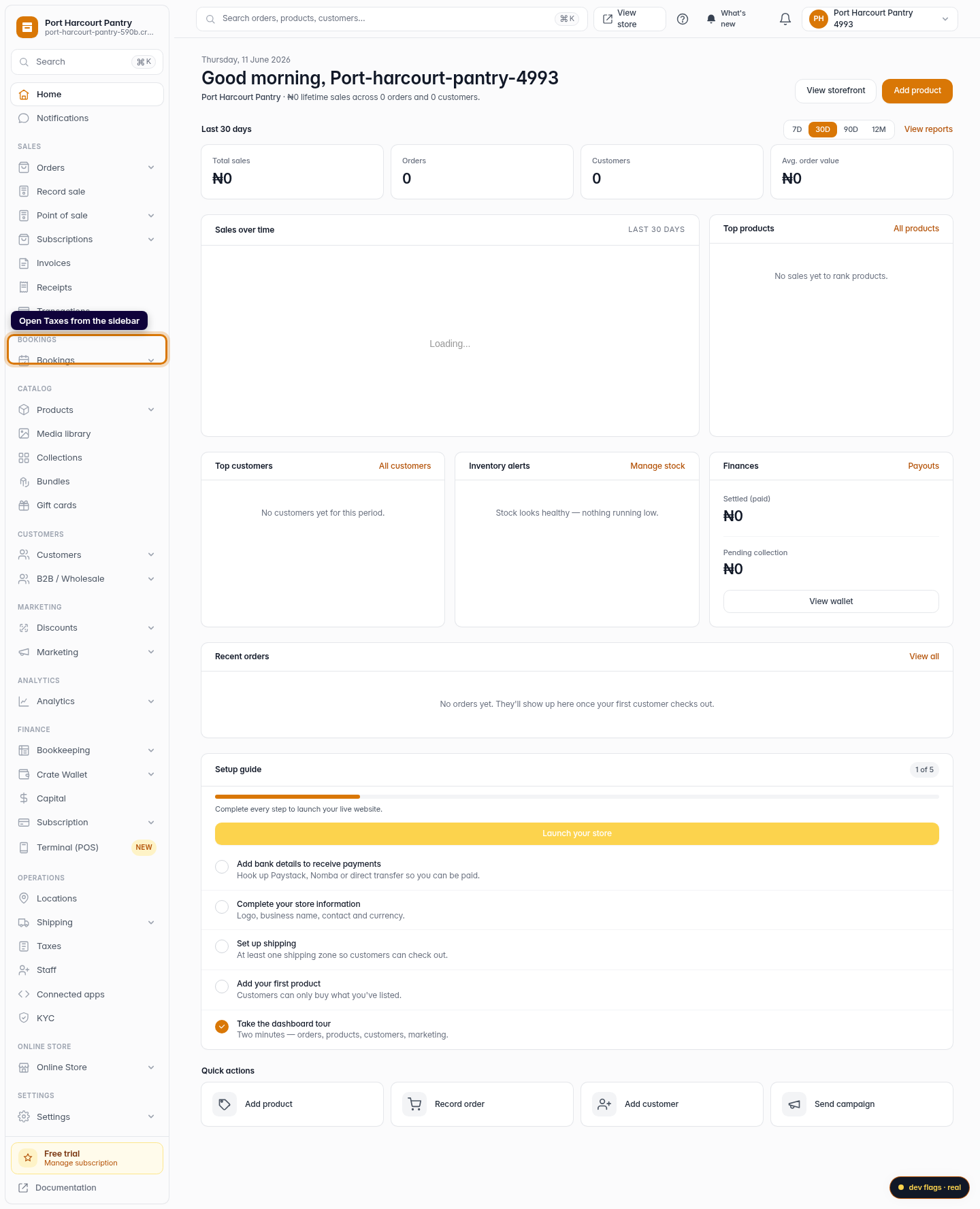
Open Taxes
From your Crate dashboard, open Taxes in the left sidebar. This is where you manage the tax rates Crate applies to orders.
Web -
2
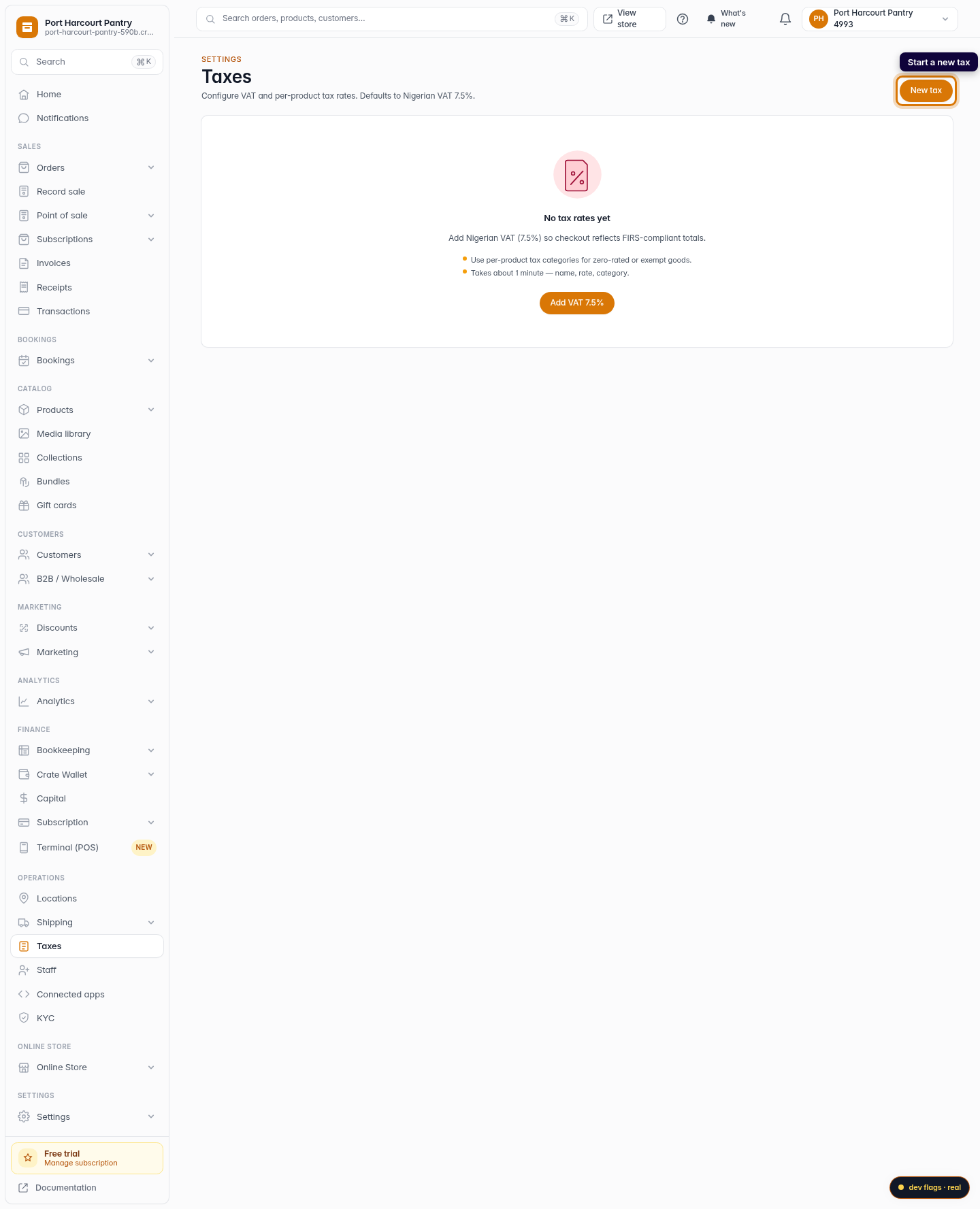
Start a new tax
Click New tax (or Create tax) to open the tax form.
Web -
3
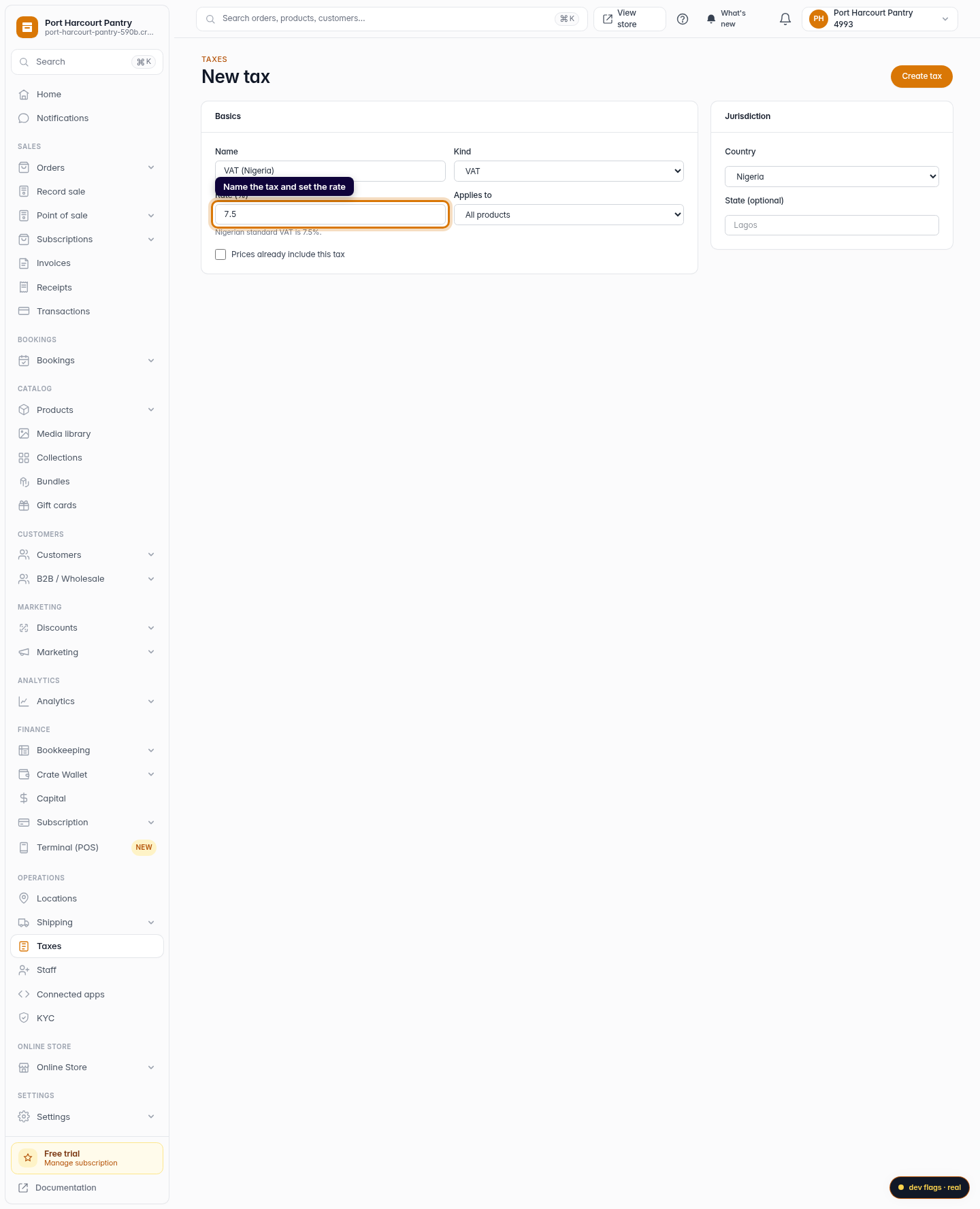
Name the tax and set the rate
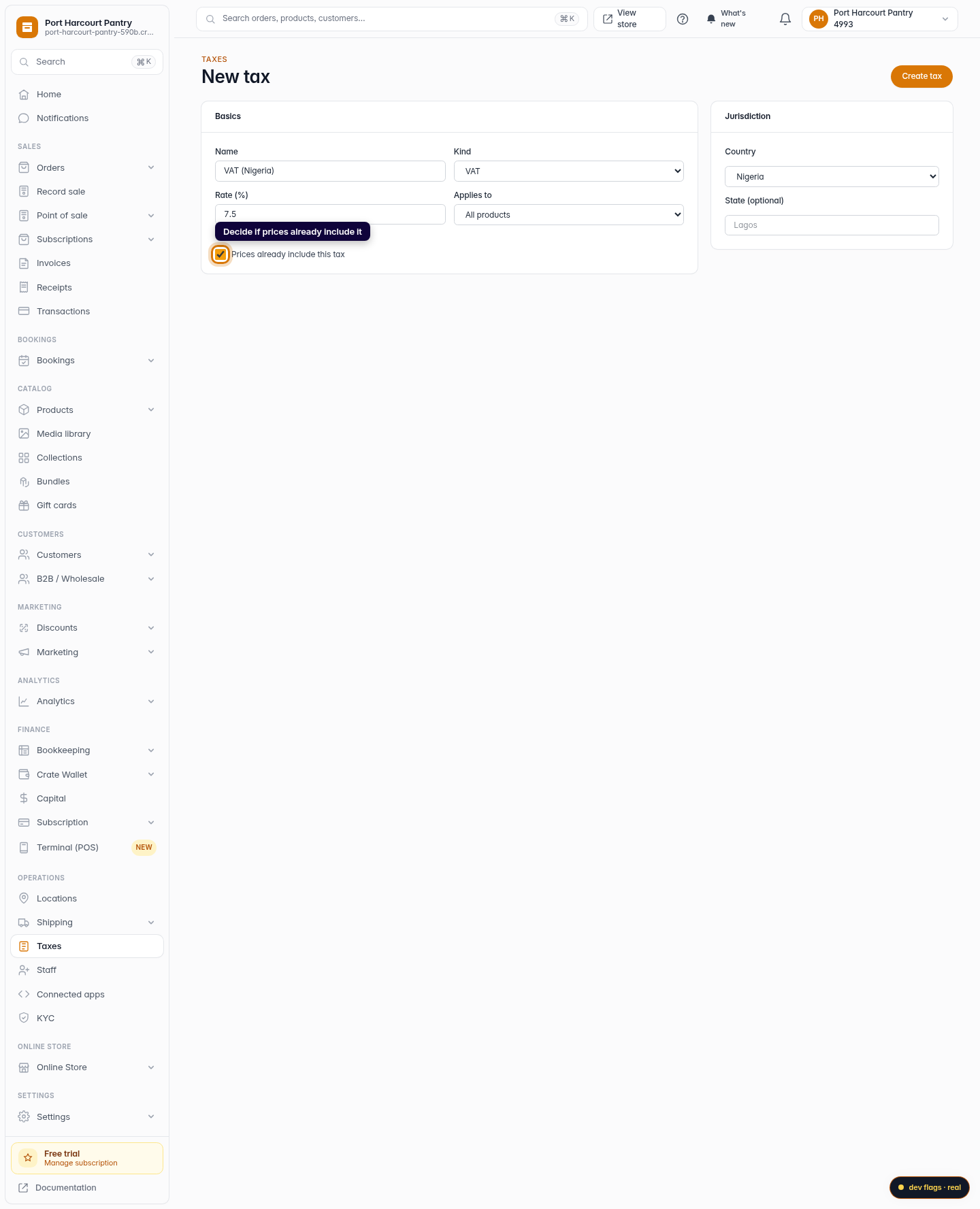
Give the tax a clear name like VAT (Nigeria) and enter the rate as a percentage. Nigerian standard VAT is 7.5%.
Web -
4
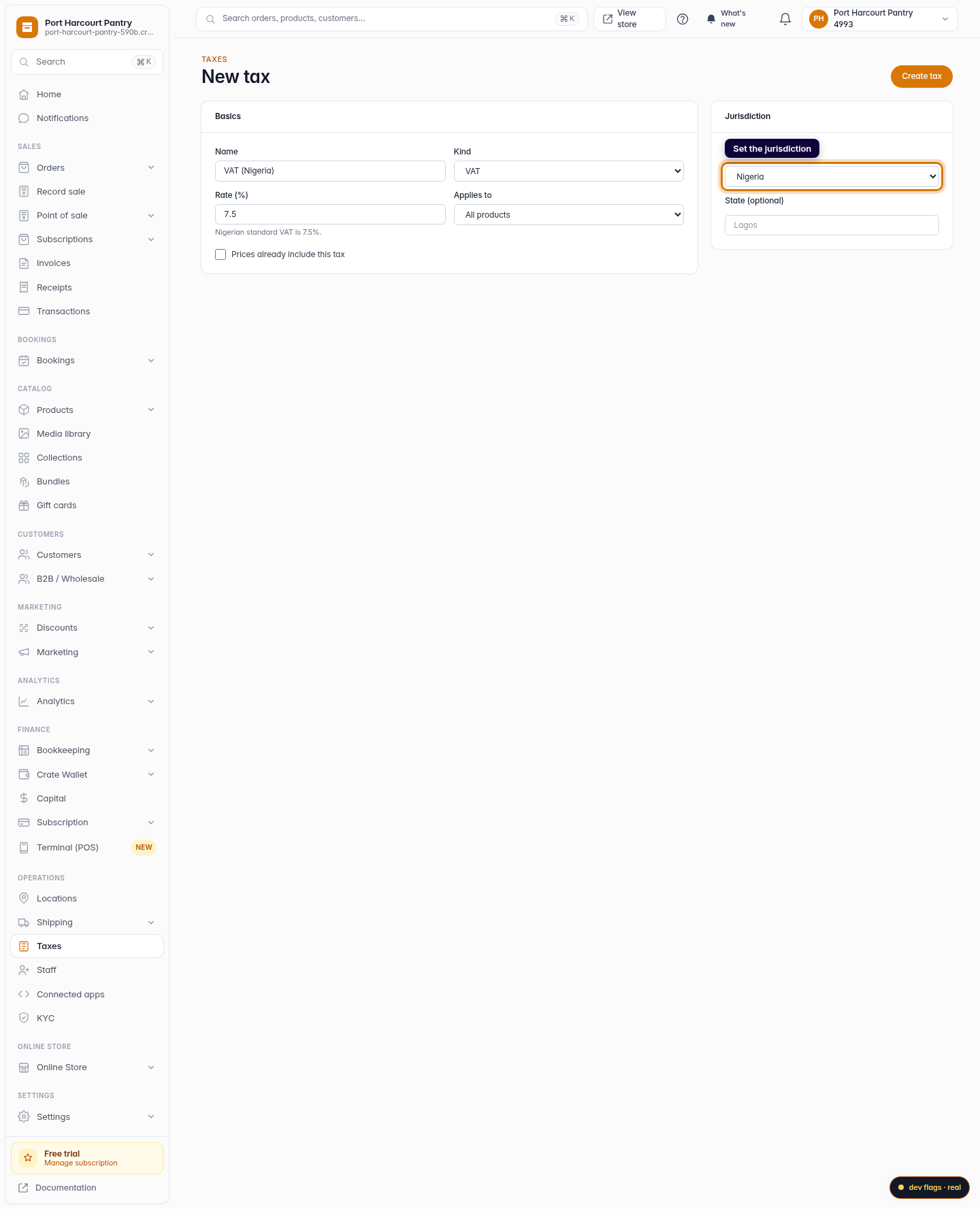
Set the jurisdiction
Choose the country (and optionally a state) the tax applies in, so it's charged only where it should be.
Web -
5
Decide if prices already include it
Tick Prices already include this tax if your listed prices are tax-inclusive. Leave it unticked to add the tax on top at checkout.
Web -
6
Create the tax
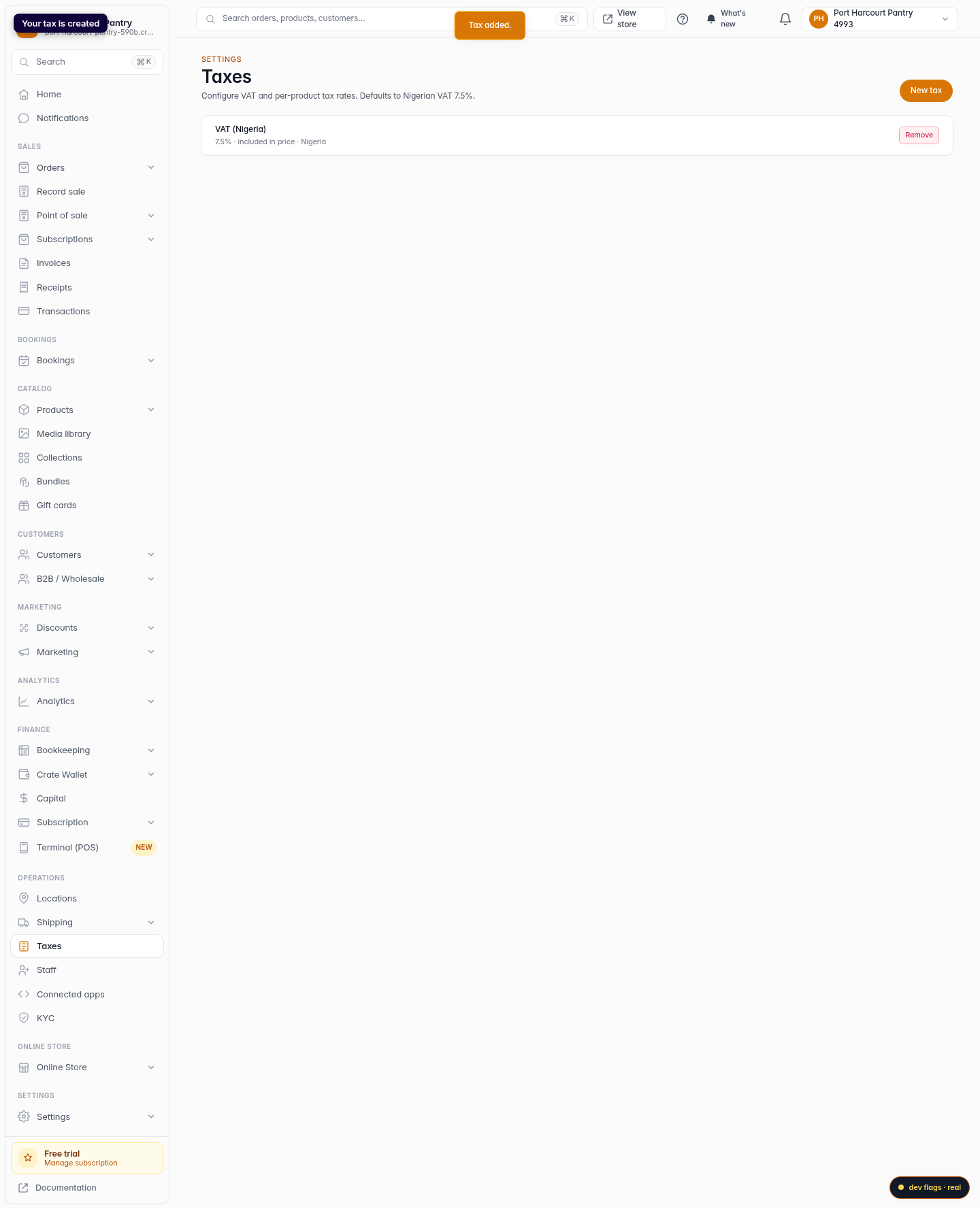
Click Create tax. Crate saves the rate and starts applying it to qualifying orders at checkout.
Web