Create, edit or delete a collection
Collections group related products into a browsable page — "New arrivals", "Aso ebi", "Detty December" — so shoppers find more of what they want and carts grow. Here's how to make one, change it, and remove it.
Collections are how you turn a flat product list into a storefront customers can actually browse. Group products by season, style or occasion — Aso ebi, New Arrivals, Detty December — and each collection becomes its own page and menu link, so shoppers discover more in one visit.
This guide covers the full lifecycle: creating a collection, editing it later, and deleting one you no longer need.
Manual vs automated
When you create a collection you choose how products join it:
- Manual — you hand-pick products one by one. Best for a curated edit like a lookbook.
- Automated — you set a condition (for example tag is
summer) and any matching product joins automatically. Best for collections that should keep themselves up to date.
You can switch a collection between the two at any time from its edit page.
Deleting is safe
Deleting a collection only removes the grouping — the storefront page and its menu link. Every product in it stays in your catalogue and in any other collections it belongs to. Nothing is sold, hidden or lost.
Tip: Not ready to show a collection yet? Instead of deleting it, edit it and tick Draft (hide from storefront). It stays in your dashboard but never appears to buyers until you're ready.
-
1
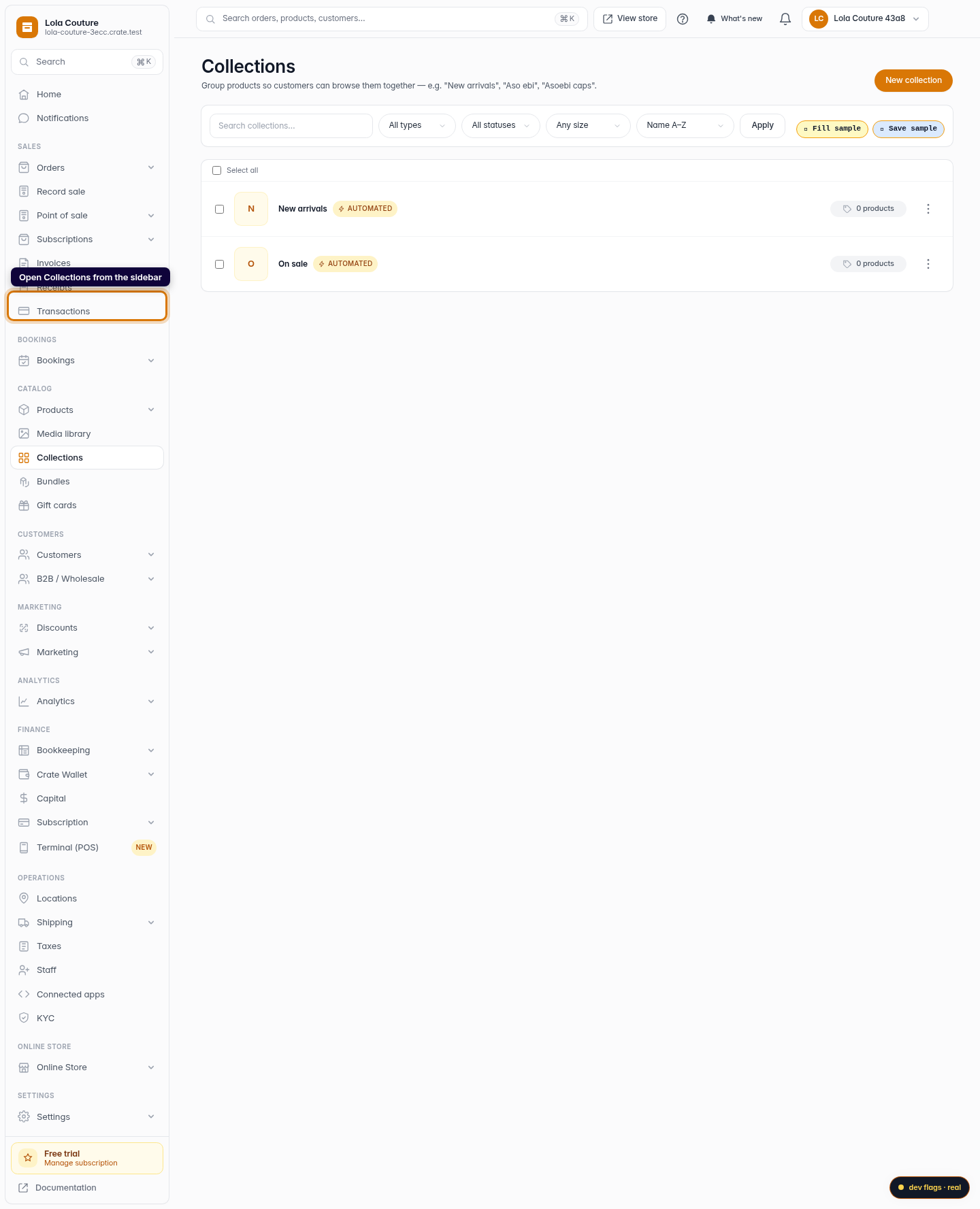
Open Collections
From your Crate dashboard, open Collections in the left sidebar. This is where every storefront grouping lives.
Web 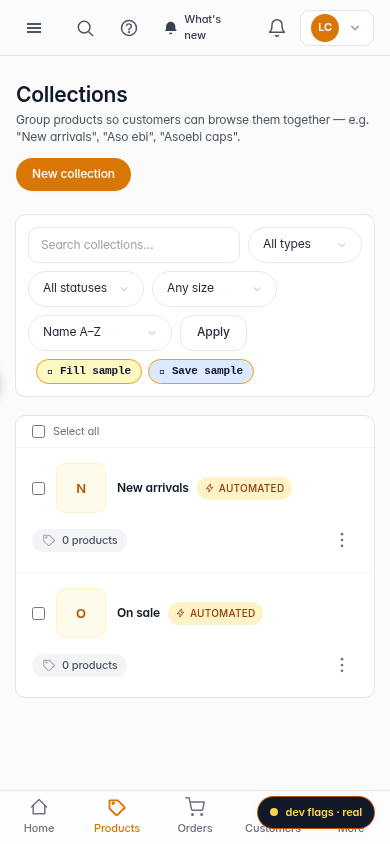
Mobile -
2
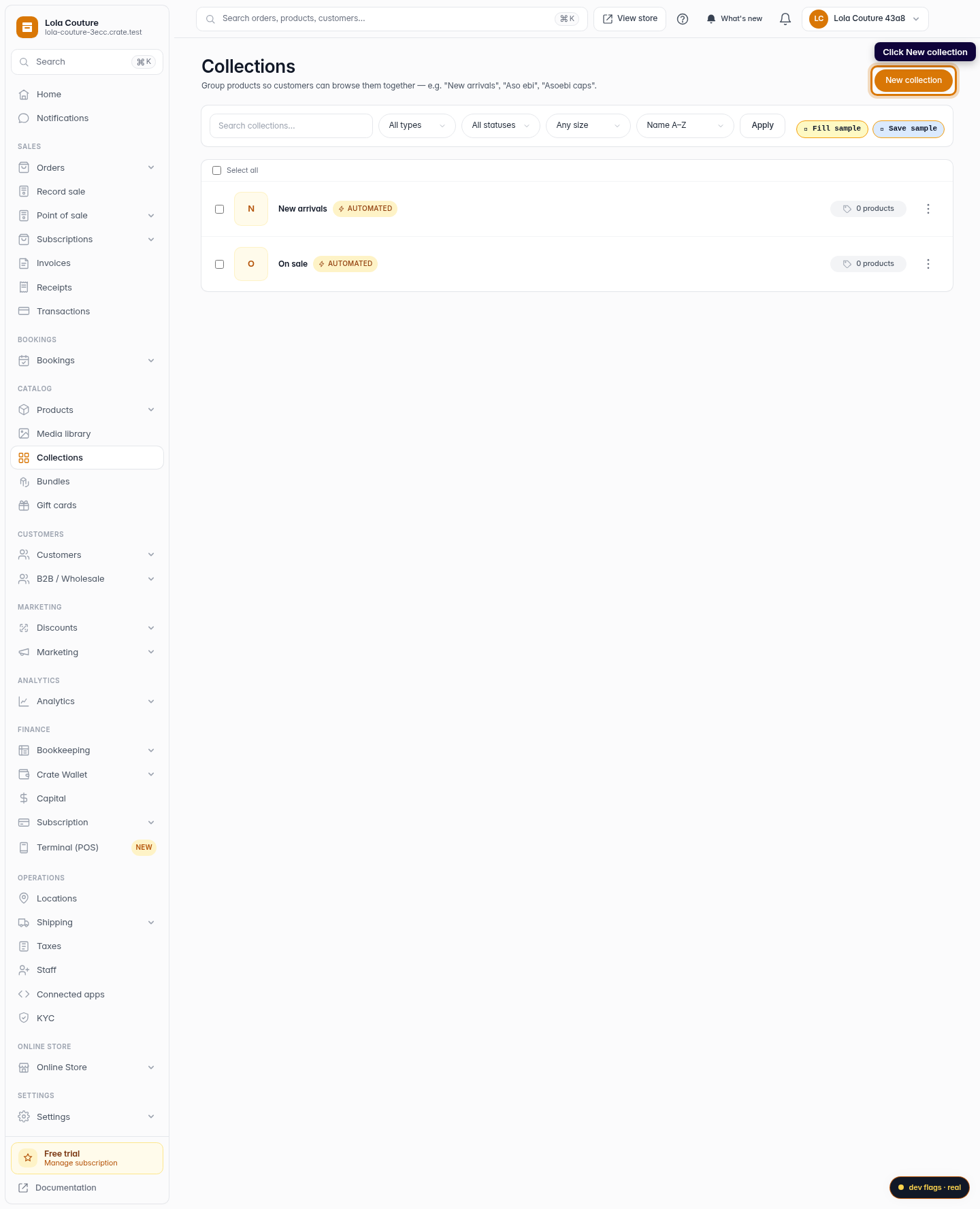
Start a new collection
Click New collection in the top-right corner.
Web -
3
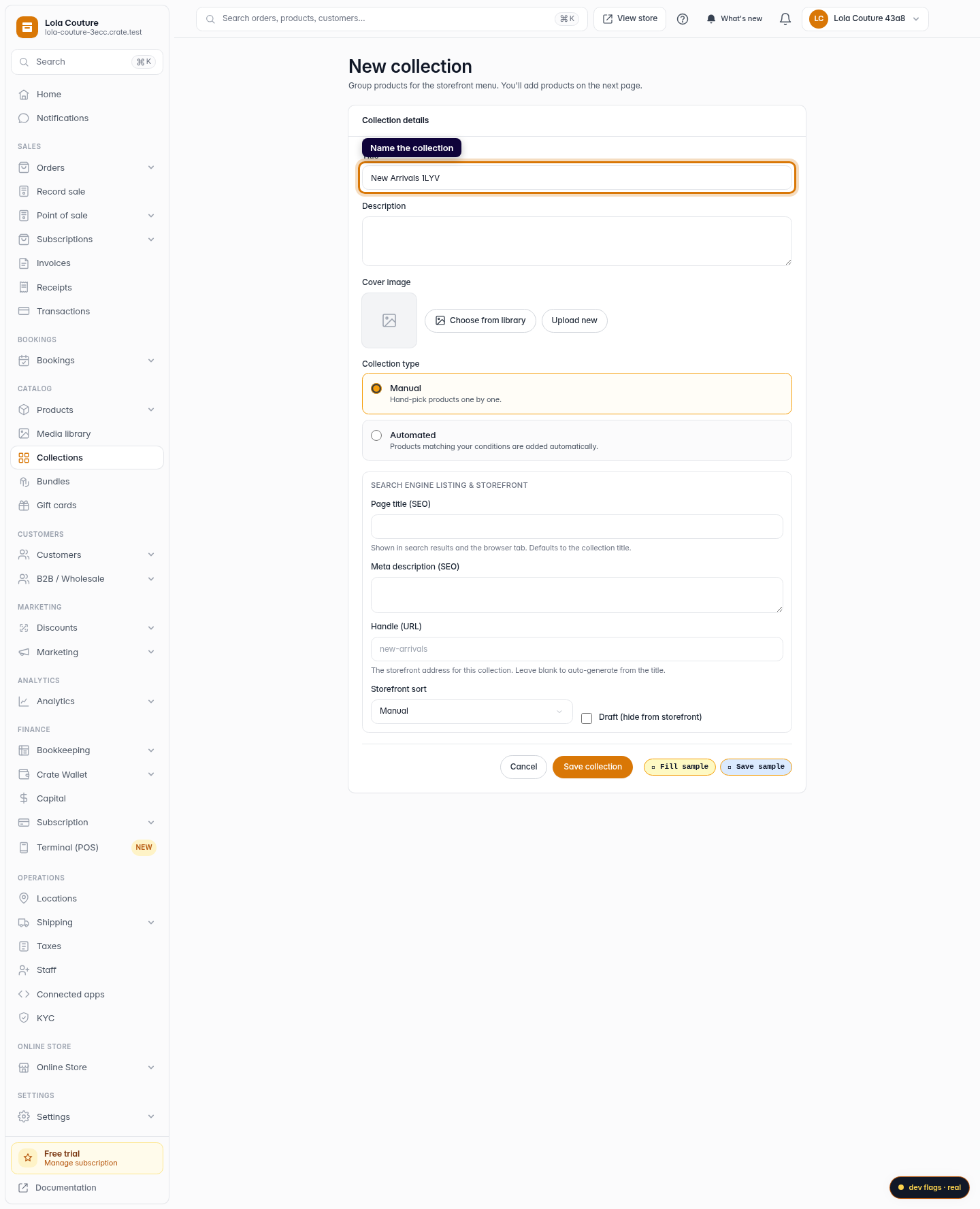
Name the collection
Give it a clear, shopper-facing name — for example New Arrivals. This becomes a menu link on your storefront automatically.
Web 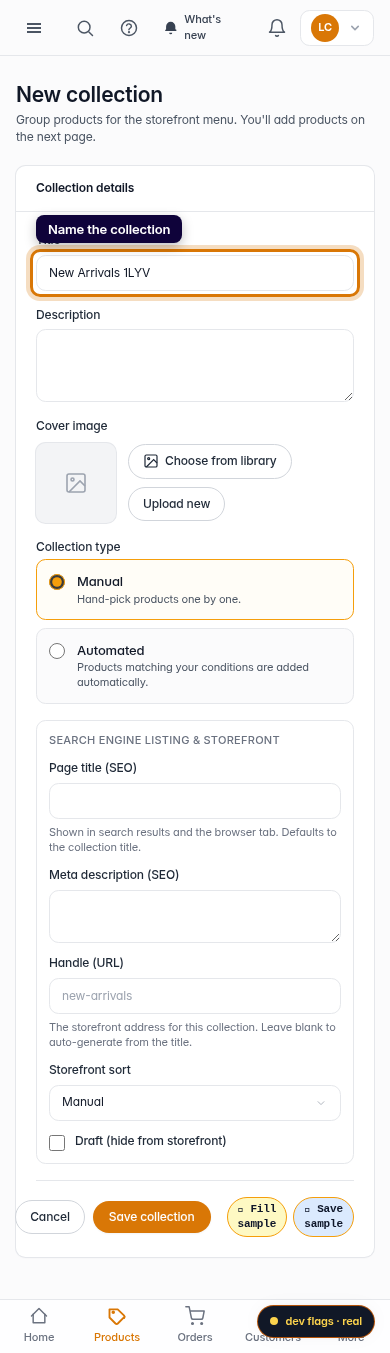
Mobile -
4
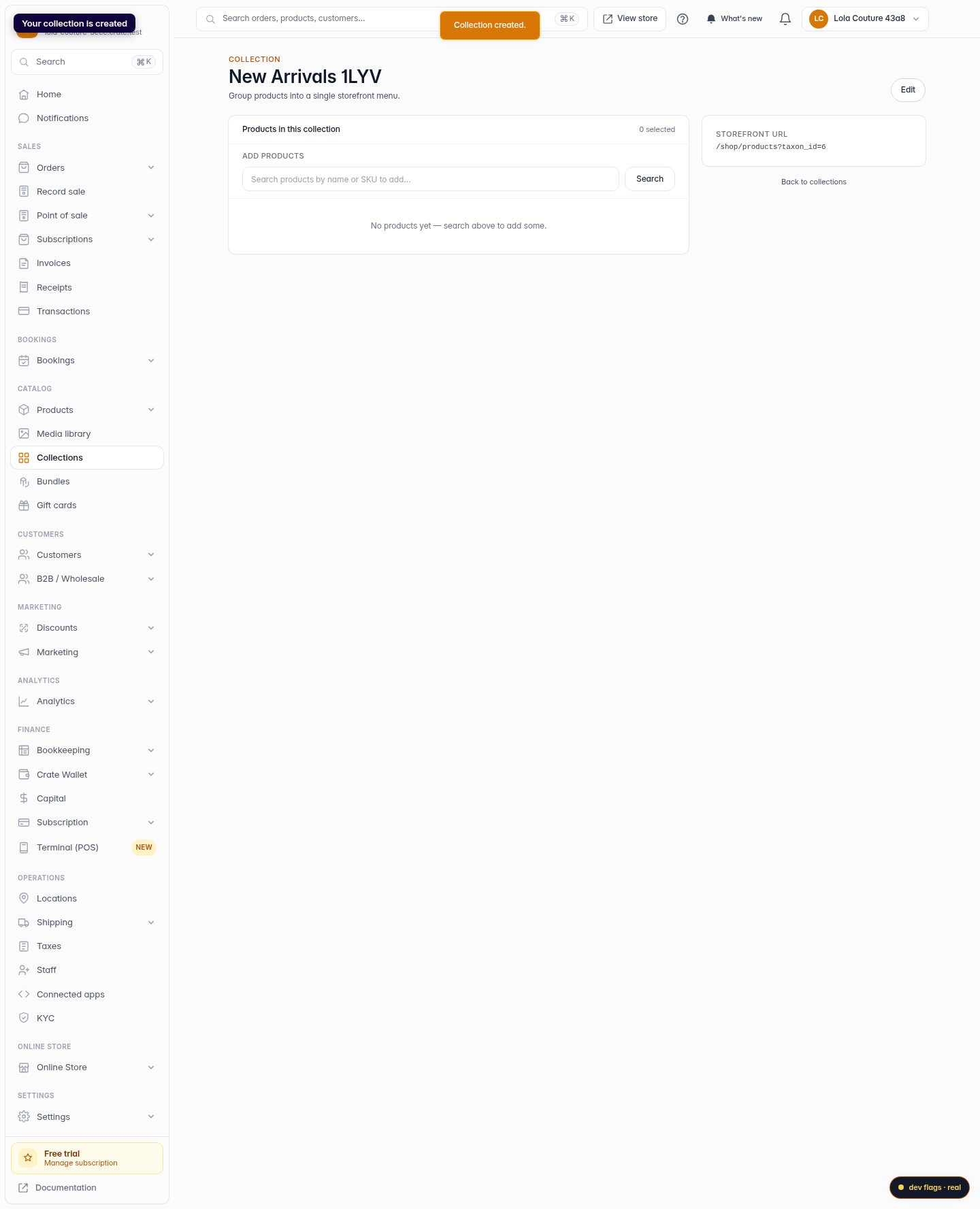
Save the collection
Click Save collection. Crate creates it and takes you to the collection page, where you add products.
Web -
5
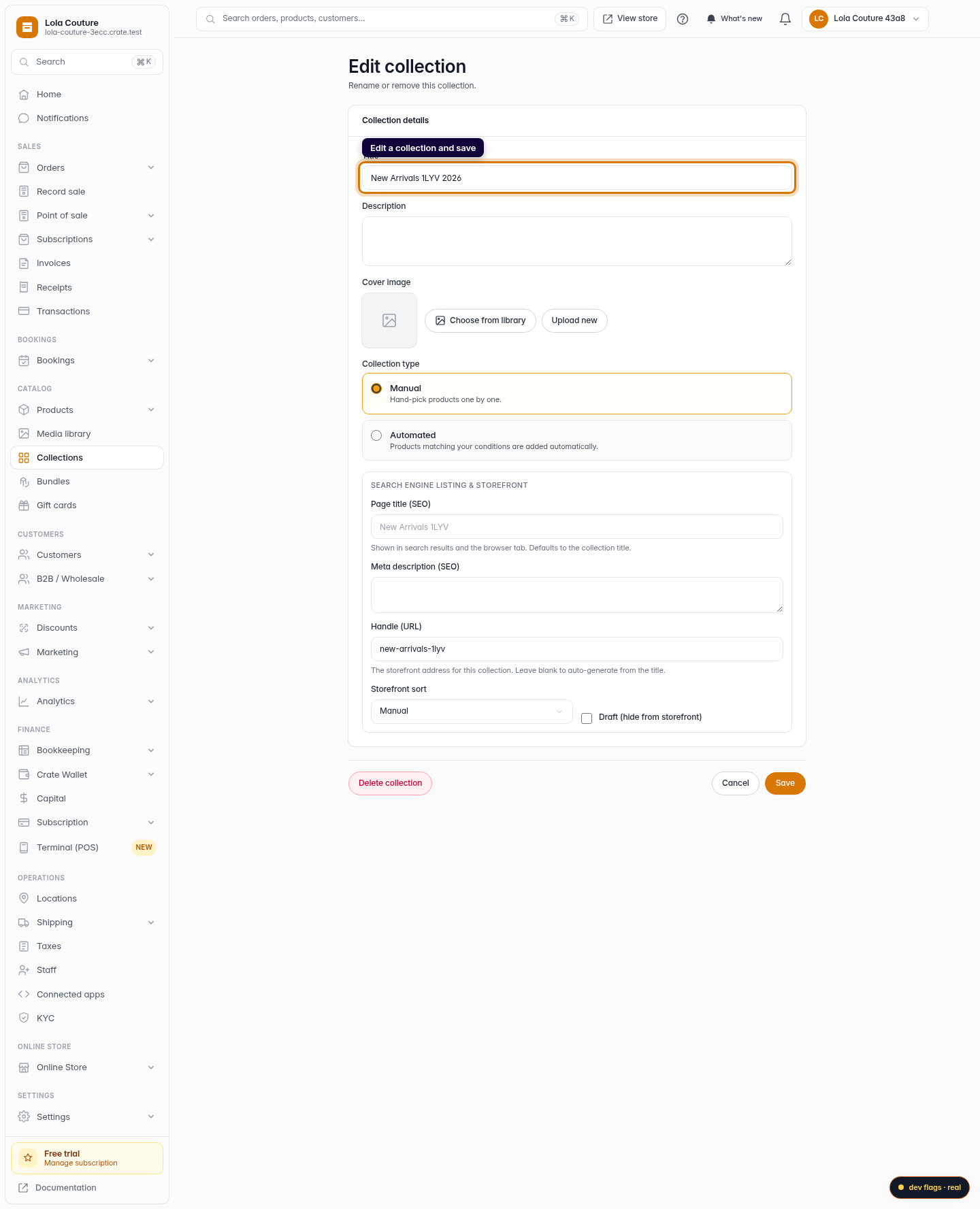
Edit a collection
Back on the Collections list, open a collection's actions menu (the ⋮ button) and choose Edit to change its name, description, type or storefront settings. Make your changes and save.
Web -
6
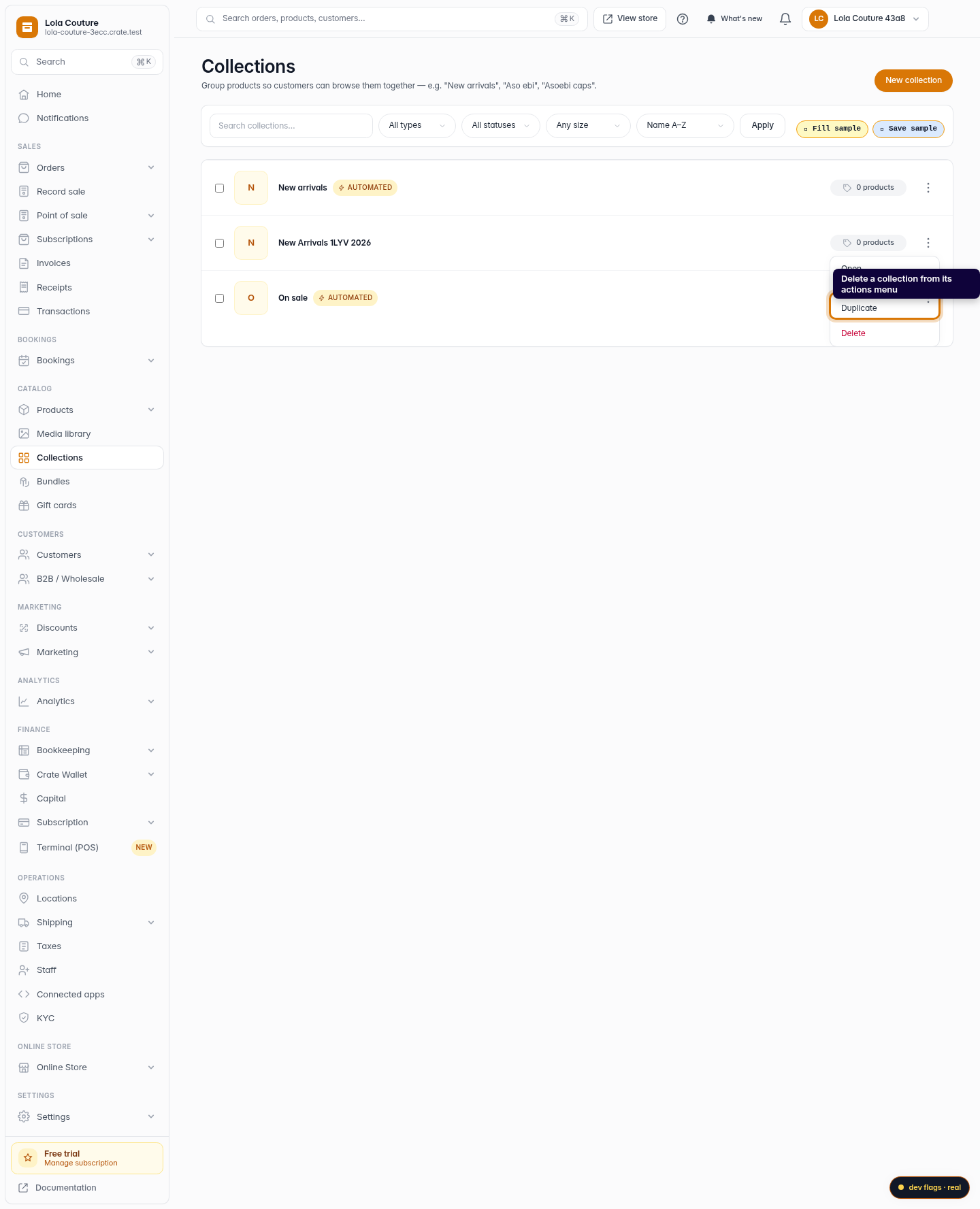
Delete a collection
To remove a collection, open the same actions menu and choose Delete, then confirm. The collection is removed from your storefront — your products stay safely in your catalogue.
Web