Export your orders
Download your orders as a spreadsheet — pick a date range, choose the columns you want, and get a CSV or Excel file for your records or accountant.
When you need your sales outside of Crate — for your accountant, your bookkeeping, or just a snapshot of a busy month — exporting turns your orders into a spreadsheet in a few clicks.
Shape the file before you download
Rather than dumping everything, Crate lets you tailor the export:
- Date range — limit the file to a specific period, like last month or a single campaign.
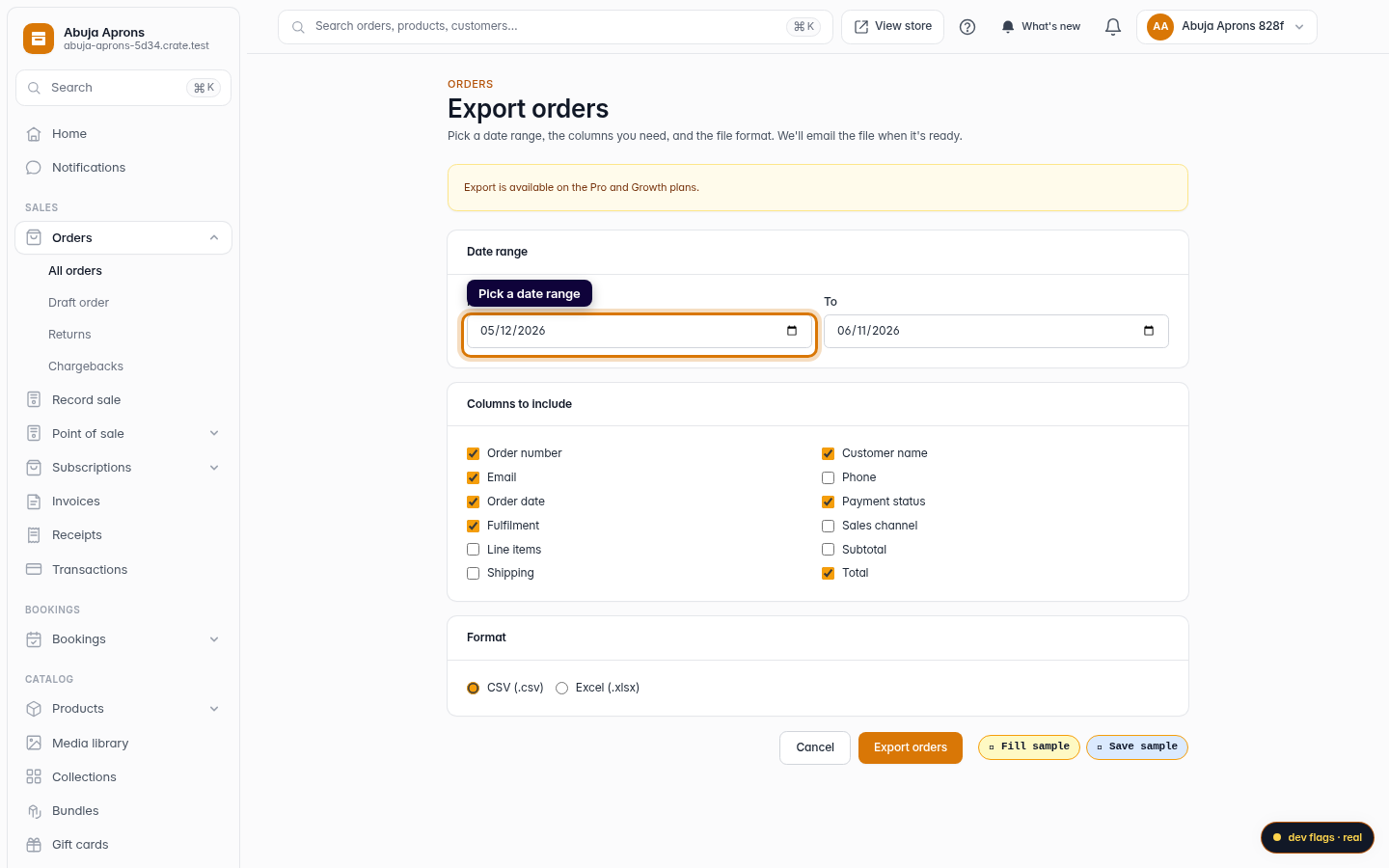
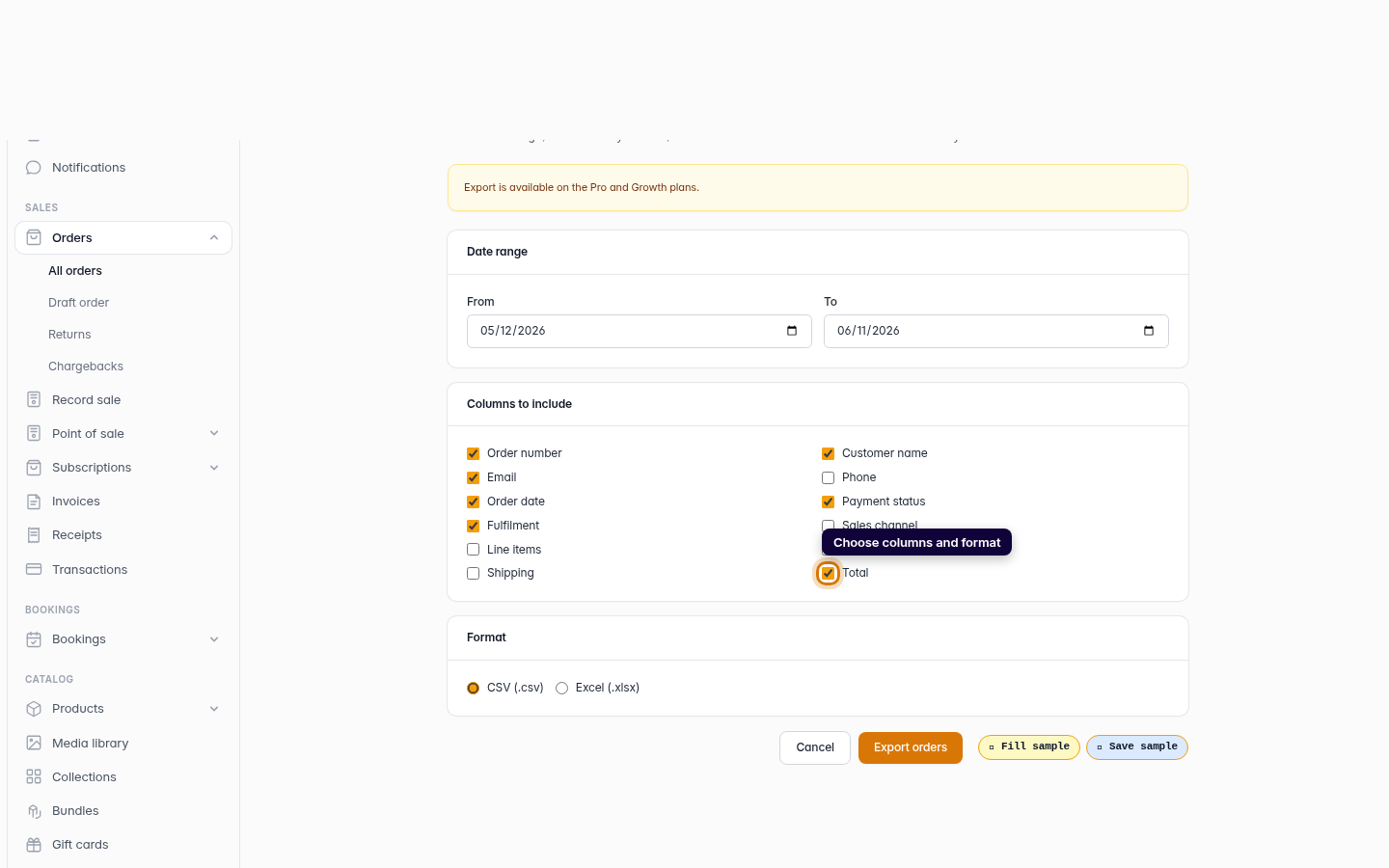
- Columns — include only what you need. Order number, customer name, email, order date, payment status, fulfilment, and total are on by default; phone, sales channel, line items, subtotal, and shipping are there when you want them.
- Format — download a CSV that opens anywhere, or an Excel file.
The export covers your completed orders, newest first, and every cell is written safely so spreadsheet apps display your data as plain text rather than trying to run it as a formula.
Opening the file
A CSV opens in Excel, Google Sheets, Numbers, or any spreadsheet tool. From there you can sort, total, filter, or hand it straight to whoever needs it. Exporting never changes your orders in Crate — it only takes a copy.
-
1
Open Orders
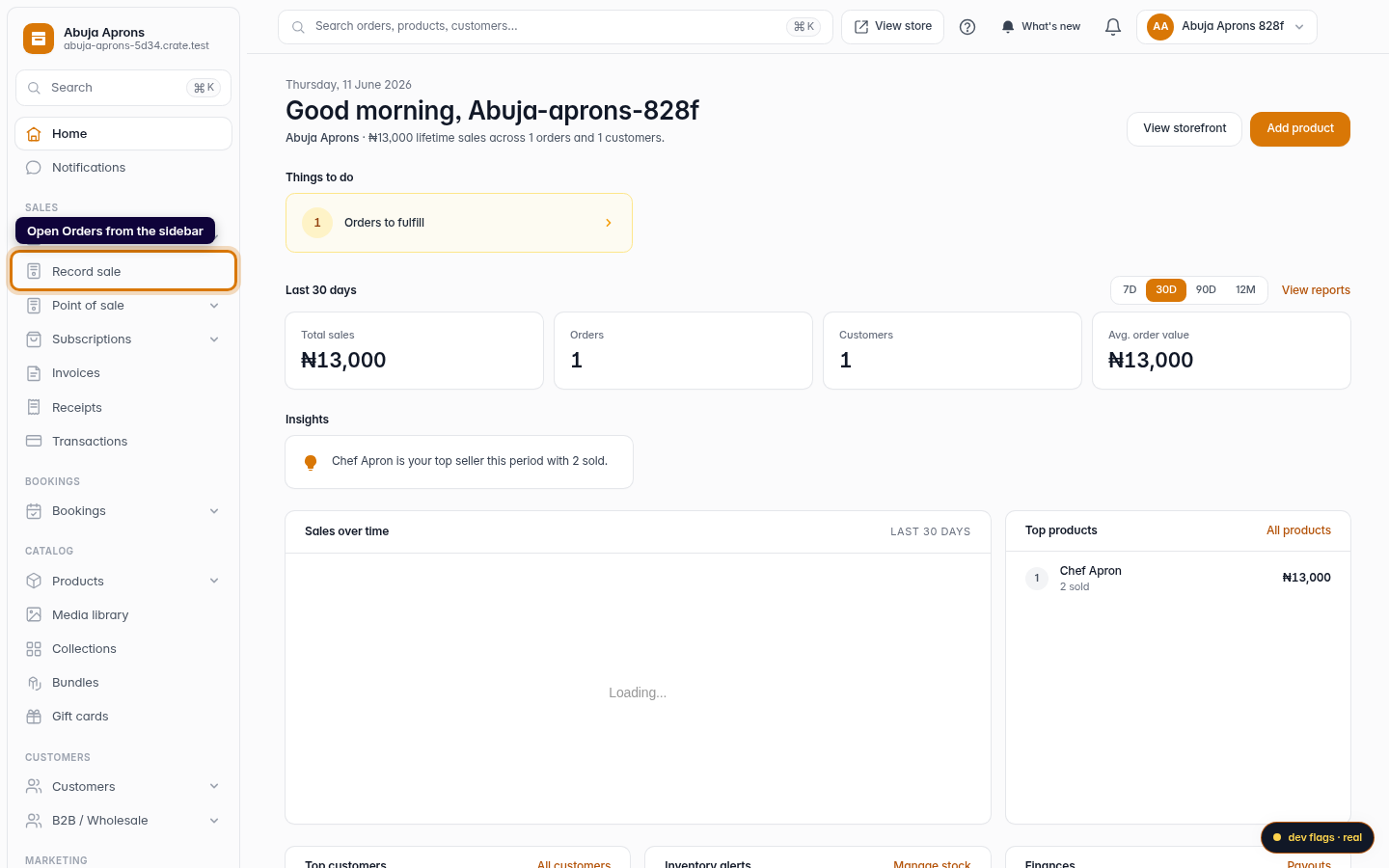
From your dashboard, open Orders in the left sidebar.
Web 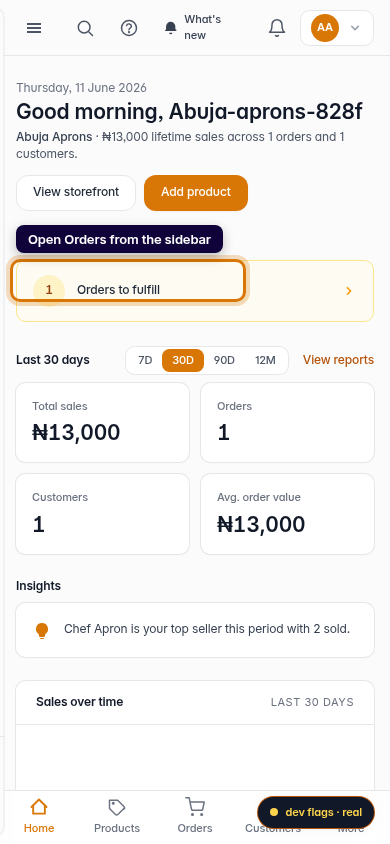
Mobile -
2
Click Export
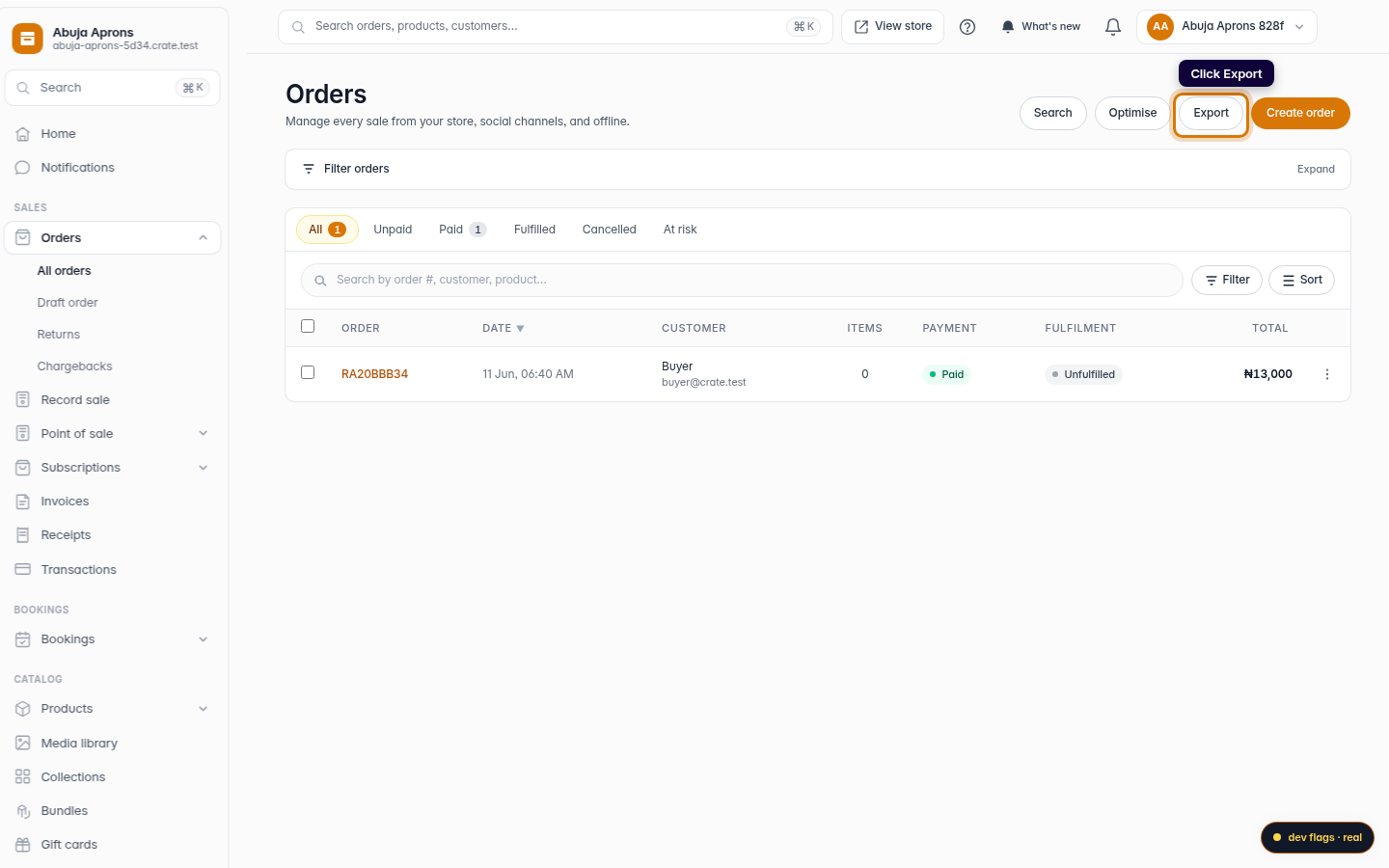
At the top of the orders page, click Export. This opens the export options.
Web -
3
Pick a date range
Choose the From and To dates so the file covers exactly the period you need.
Web -
4
Choose columns and format
Tick the columns you want in the file — order number, customer, payment status, total, and more — then pick CSV or Excel.
Web -
5
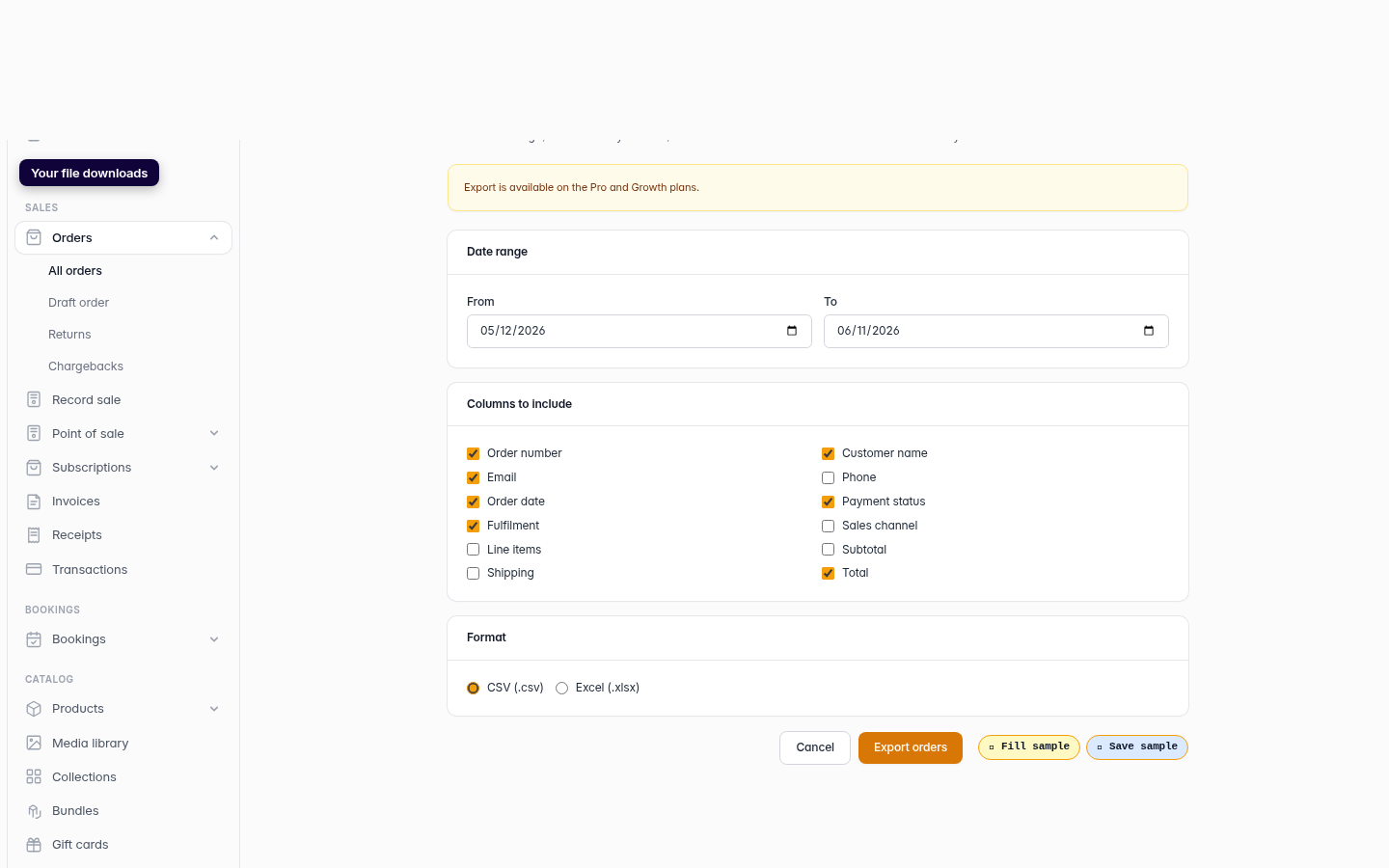
Download the file
Click Export orders. Crate builds the file with your chosen columns so you can open it in any spreadsheet app.
Web