Find an order by its number
Every Crate order has a unique order number shown on the orders list and the order page. Use it to search for and reopen any past order in seconds.
Every order Crate creates gets a unique order number — a short reference like R3F9A21C. It's how you and your customer refer to a specific purchase, and it's the fastest way to pull an order back up later.
Where the number appears
You'll see the same number everywhere an order shows up:
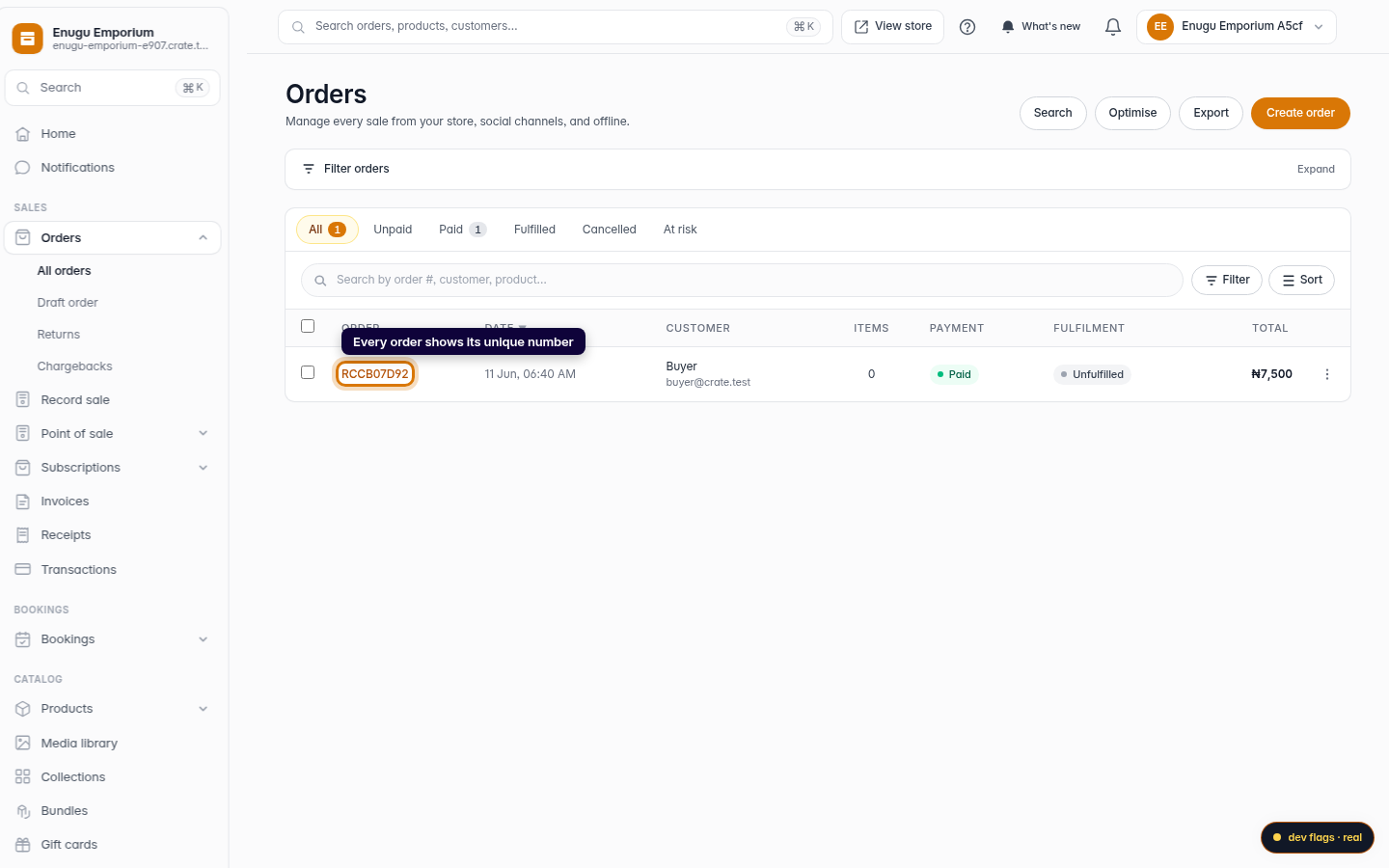
- In the Order column of the orders table.
- As the heading at the top of the order's detail page.
- On the order's invoice and receipt.
Because it's consistent across all of these, a customer can quote the number from their receipt and you can find the exact order straight away.
Searching for an order
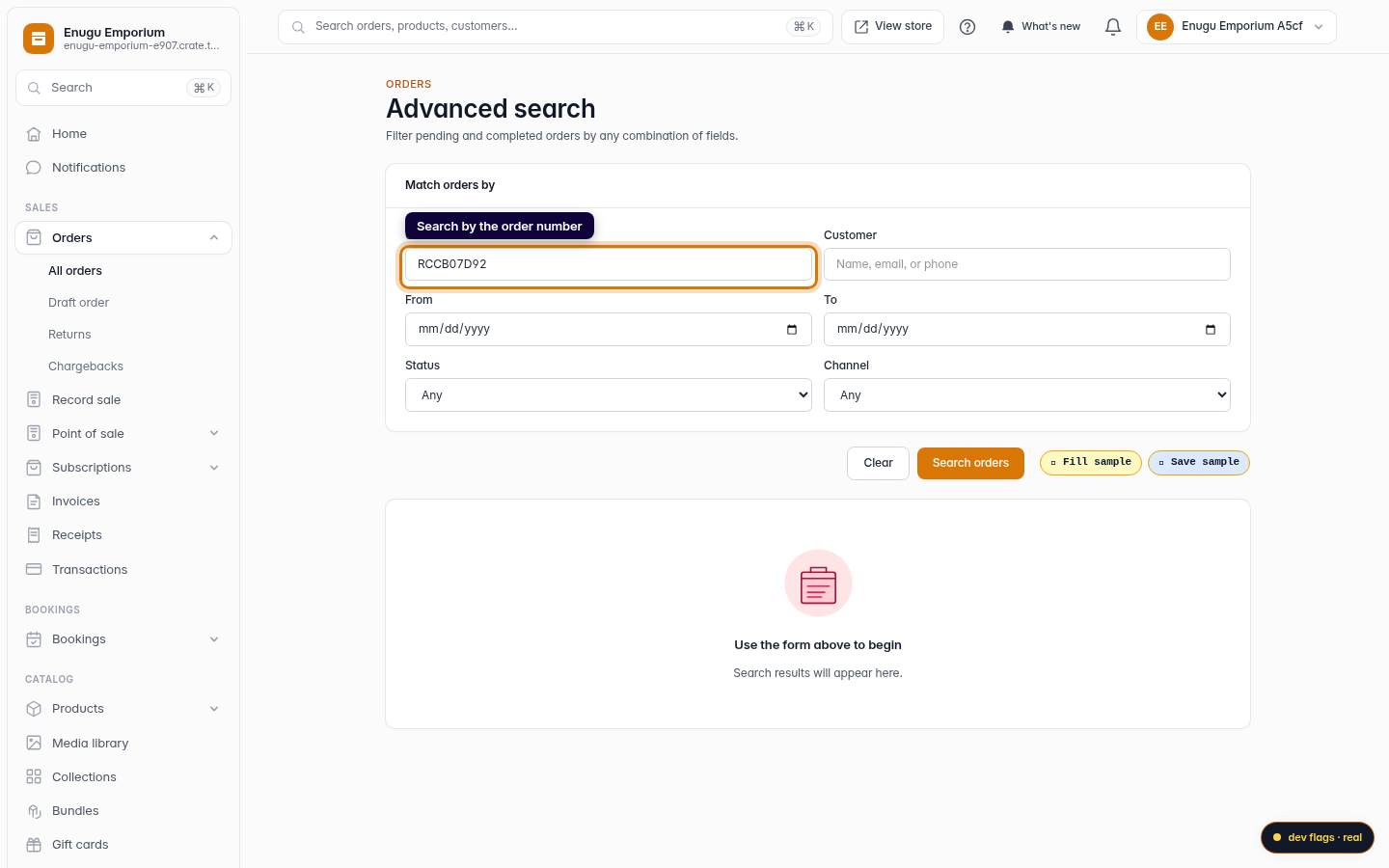
To jump to a specific order, open Search from the top of the orders page and type the order number. Search also matches the customer's name and email, so even if you don't have the number to hand, you can find the order by who placed it. You can also filter the orders list by date range, payment status, and sales channel to narrow things down. Click any result to open the full order.
-
1
Open Orders
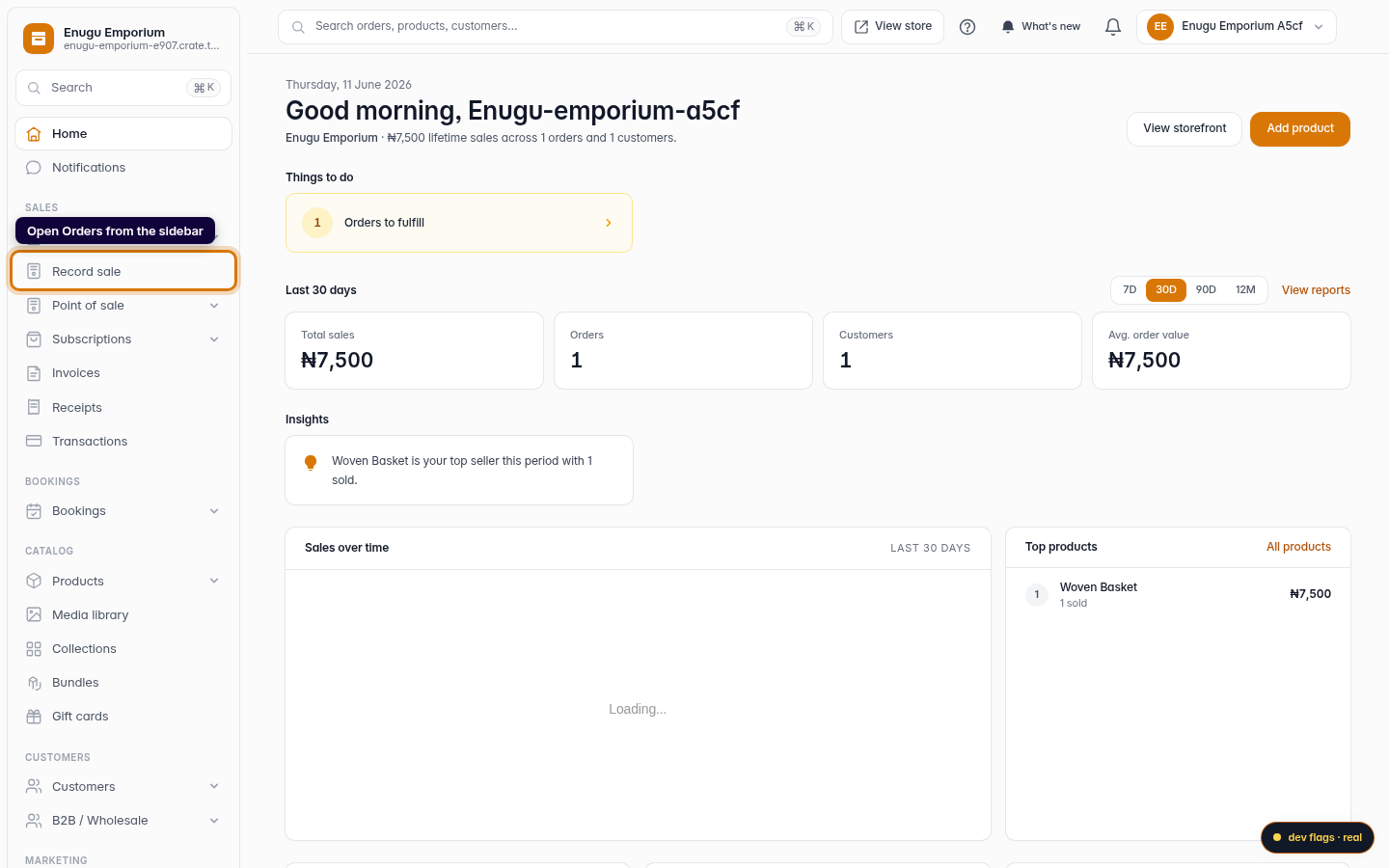
From your dashboard, open Orders in the left sidebar.
Web 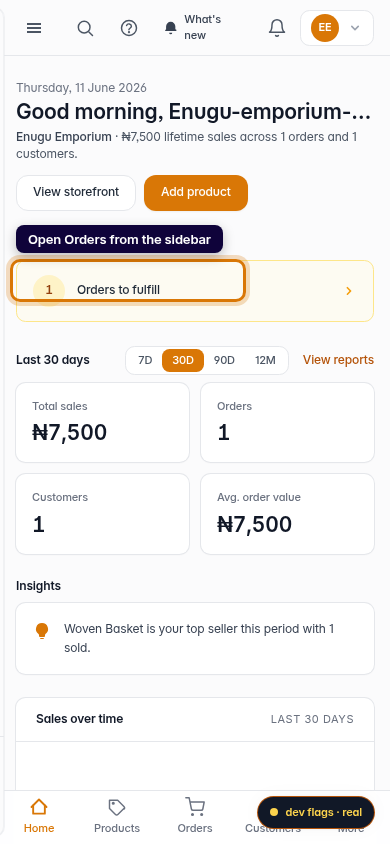
Mobile -
2
Spot the order number
Each row in the orders table shows the order's unique number in the Order column. It's also the heading on the order's own page.
Web -
3
Search by the order number
Open Search, type the order number (or the customer's name or email), and Crate returns the matching orders. Click one to open it.
Web 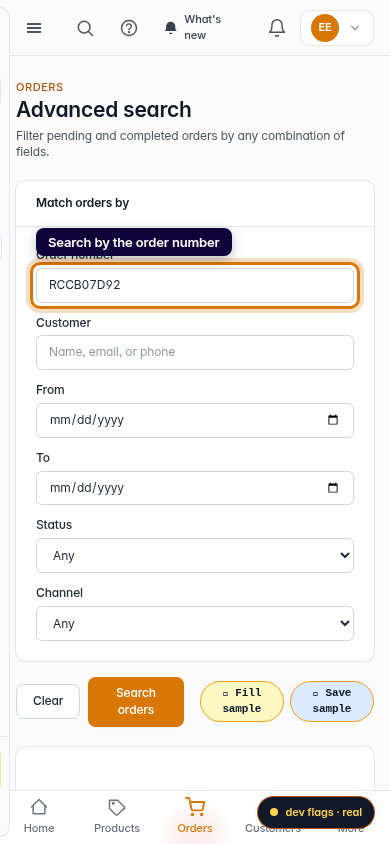
Mobile