Delete an order
Permanently remove an unpaid order from your records when it was a test, a duplicate, or a purchase the customer walked away from. Paid orders are protected — cancel those instead.
Sometimes an order shouldn't be in your records at all — a test you created while setting up, a duplicate, or a purchase the customer abandoned before paying. Deleting clears it out so your orders list stays clean and your sales numbers stay honest.
Delete vs. cancel
These two actions are deliberately different:
- Delete wipes the order completely, as if it never existed. It's only available while the order is unpaid.
- Cancel keeps the record but takes it out of your sales totals and restocks the items. Use cancel for an order that was paid, or any order you want a paper trail for.
Crate protects paid orders on purpose. If money has changed hands, deleting the record would leave your receipts and totals out of sync — so the Delete action is hidden and the server refuses it. Cancel or refund the order instead.
What happens when you delete
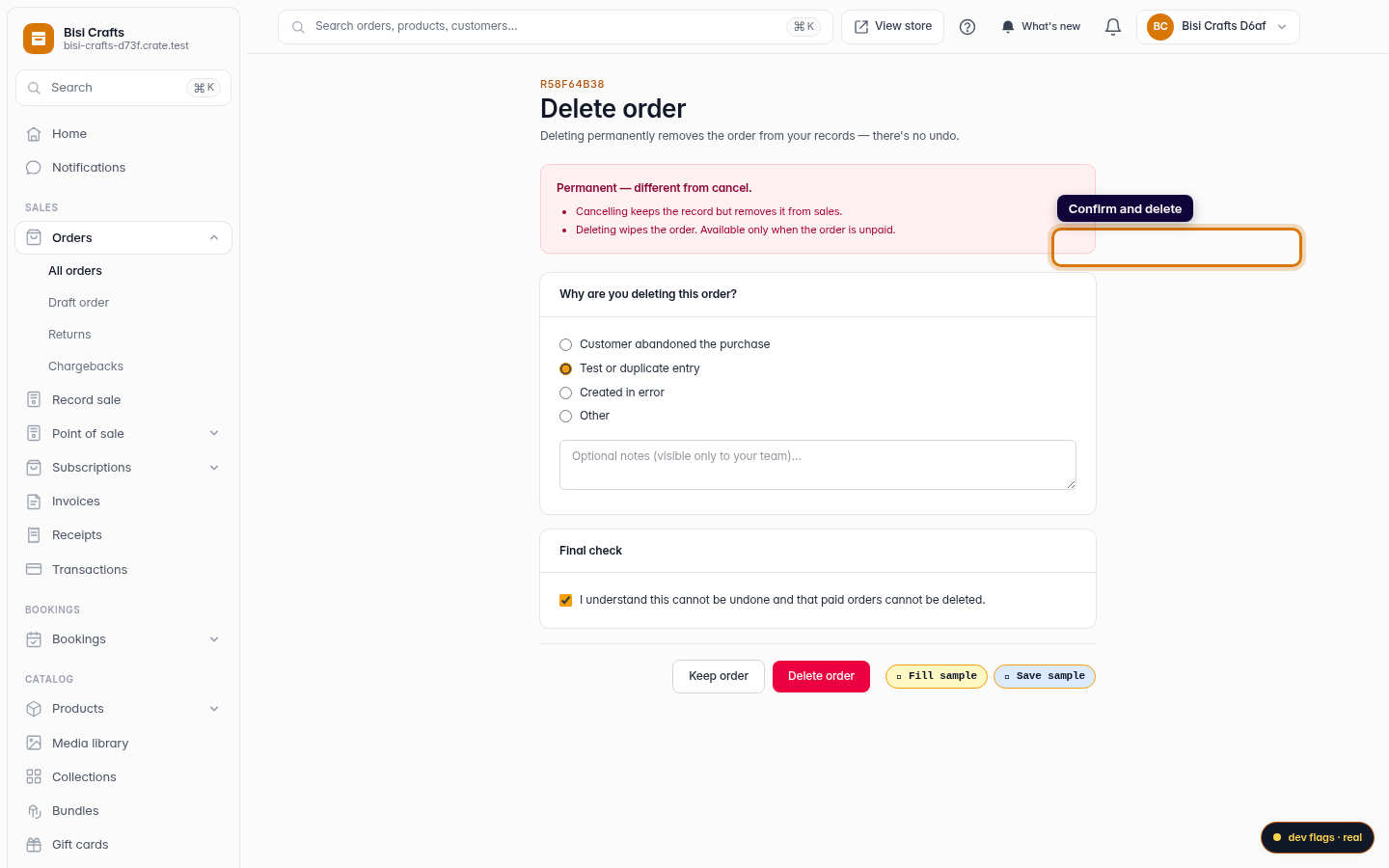
The order disappears from your orders list immediately and is removed from every status tab. There's no undo, which is why the confirmation page asks you to acknowledge that before the button unlocks. If you only want to stop fulfilling an order while keeping the record, cancel it instead.
-
1
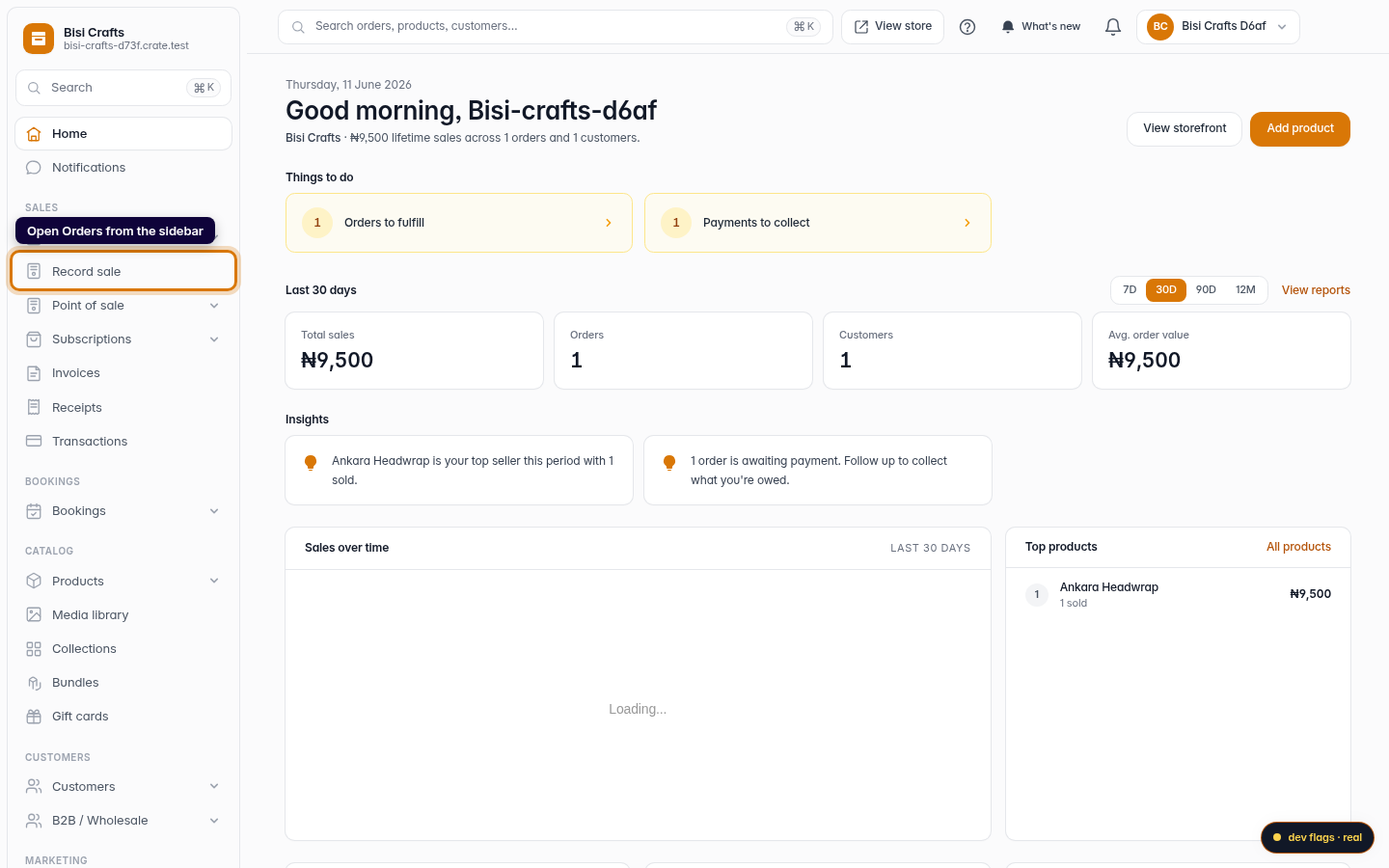
Open Orders
From your Crate dashboard, open Orders in the left sidebar. Every sale — from your storefront, social channels, and offline — lives here.
Web 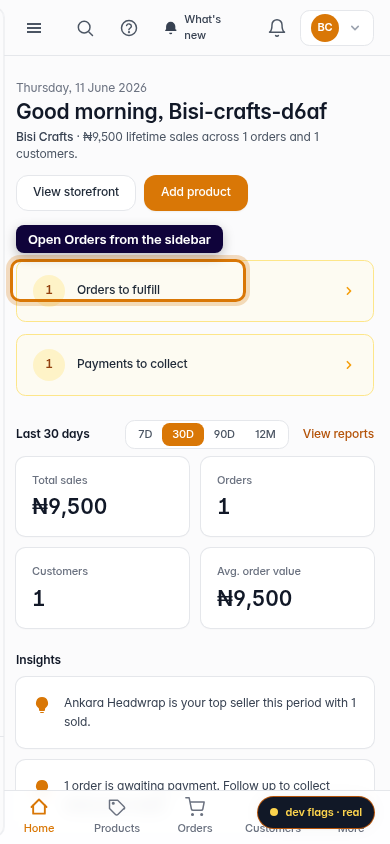
Mobile -
2
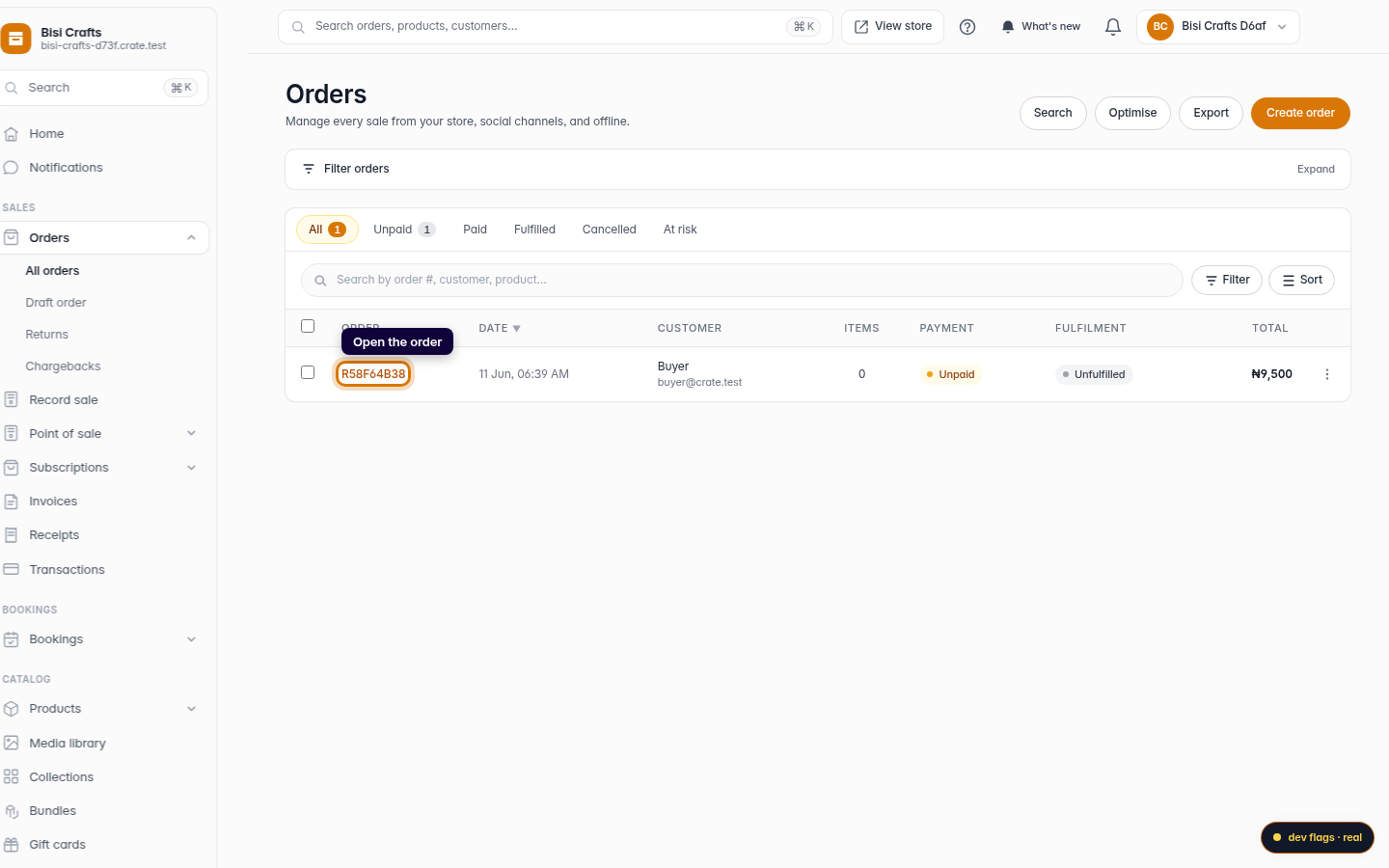
Open the order
Click the order you want to remove to open its detail page. Check the payment status first — only unpaid orders can be deleted.
Web -
3
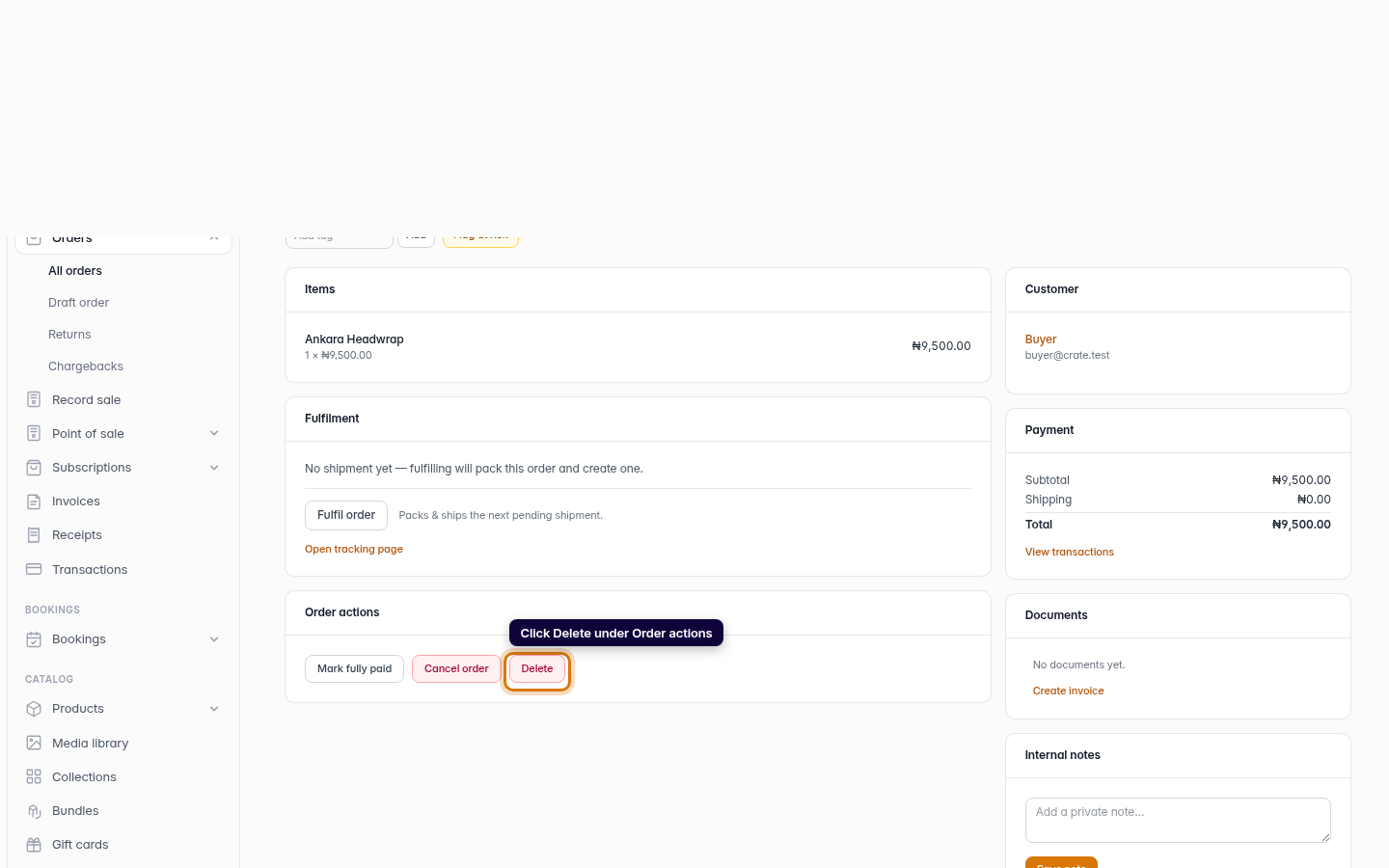
Choose Delete
Scroll to Order actions and click Delete. If the order has already been paid, Delete won't appear — cancel it instead.
Web -
4
Confirm the deletion
On the confirmation page, pick a reason, tick the box to acknowledge it can't be undone, and click Delete order. Crate removes the order for good and takes you back to your orders list.
Web