Find an order by its number
Got an order number from a customer or a receipt? Type it into the Orders search to jump straight to that order — Crate also matches on customer name, phone and email.
When a customer references their order — "I'm chasing order R… from last week" — the fastest way to pull it up is to search by its number.
Search from the Orders list
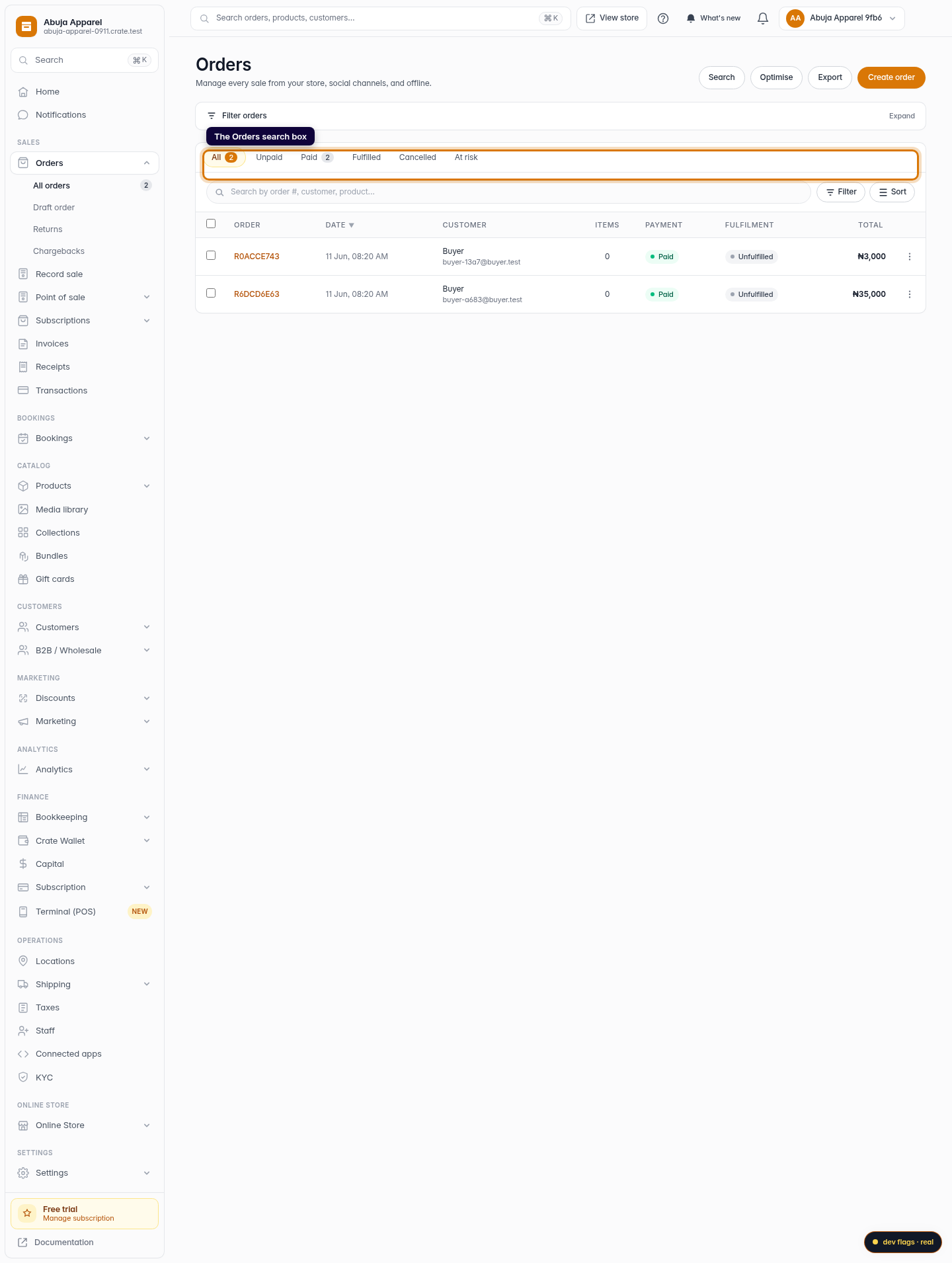
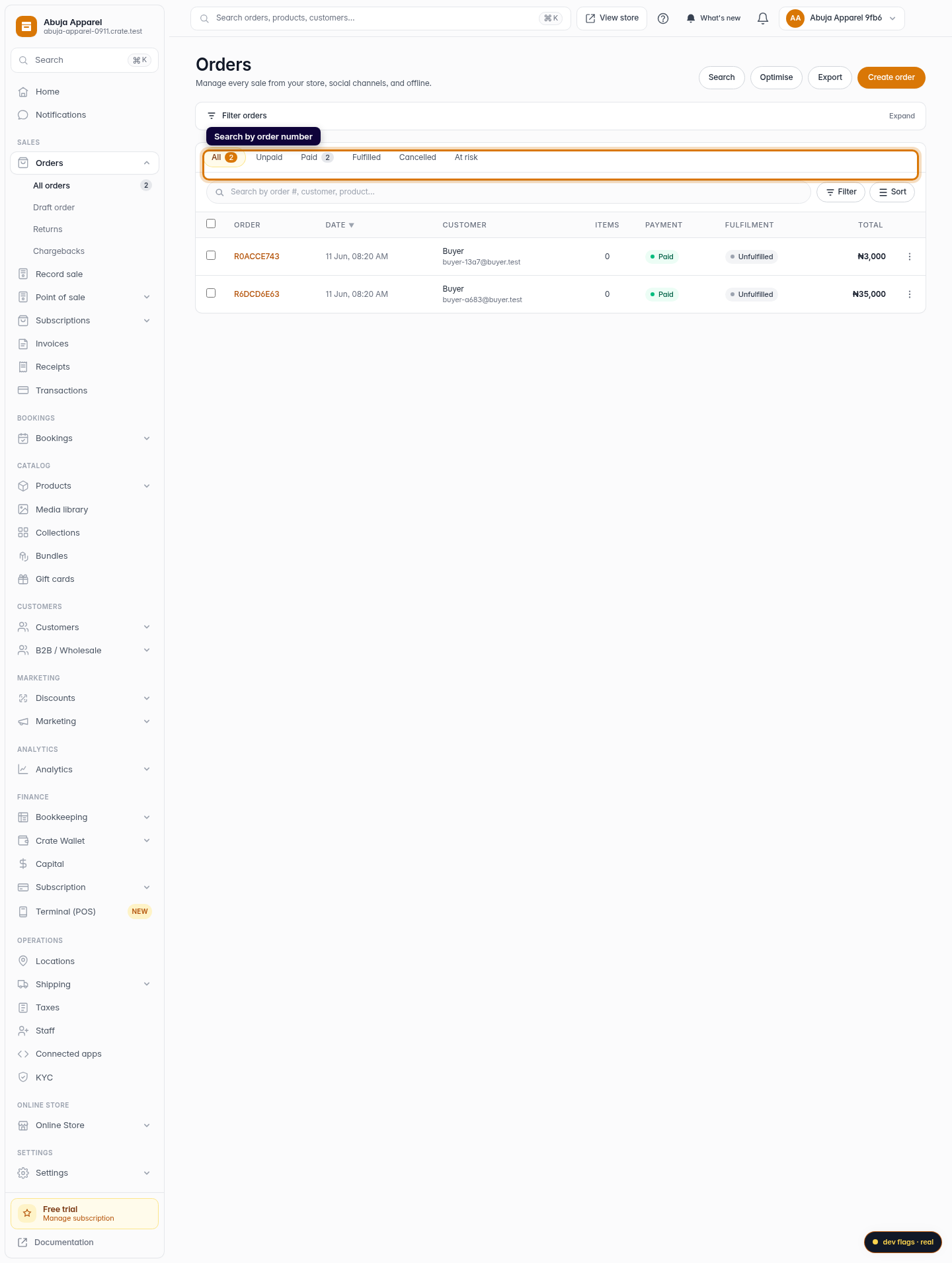
Open Orders and type the order number into the search box at the top of the list. Crate narrows the list to matching orders as you go. The same box also matches on customer name, phone and email, so you can find an order even when the buyer can't find their number.
Tip: You don't need the whole number — a partial match works. Searching for the tail of an order number is enough to surface it when your list is long.
Open and act on the order
Click the matching row to open the order. From there you have the full set of actions — record a payment, fulfil the order, refund, print a receipt or share it over WhatsApp — all keyed to that one order number.
For a refresher on where order numbers come from and where they appear, see How order numbers work.
-
1
Open Orders
From the dashboard, open Orders. The search box sits at the top of the list, above the order rows.
Web 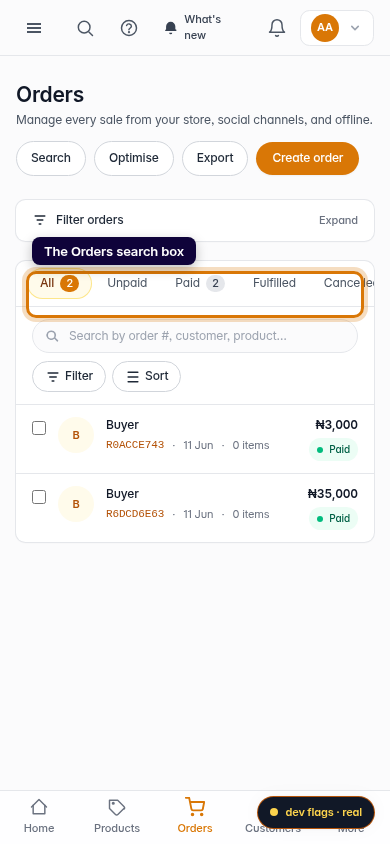
Mobile -
2
Search by order number
Type the order number into the search box. You can also search by customer name, phone or email if you don't have the number to hand.
Web -
3
Open the matching order
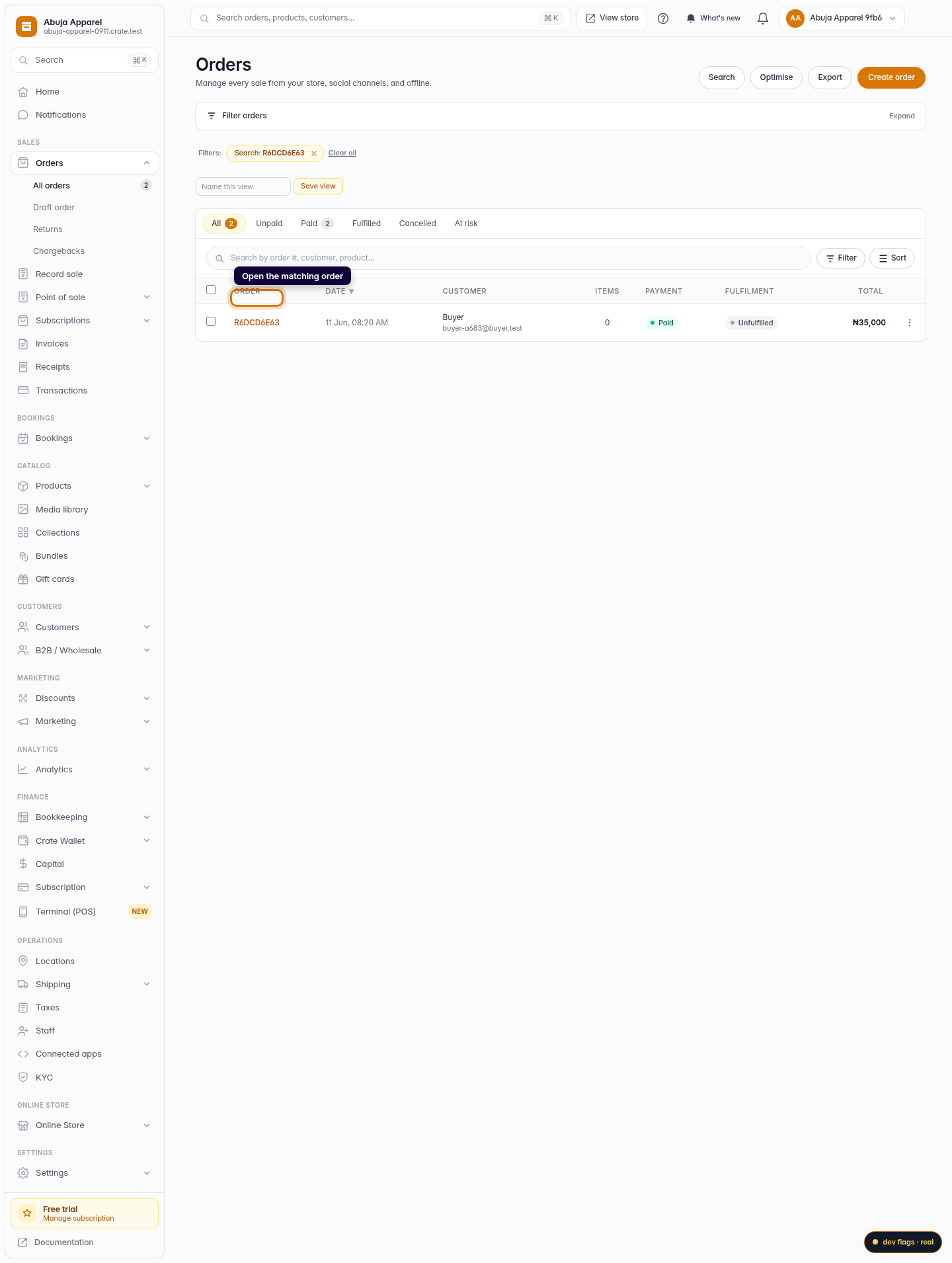
Crate filters the list to matching orders. Click the order to open its detail page, where you can record payment, fulfil, refund or print.
Web