Creating and adding products to a collection
Group related products into a collection — like "New arrivals" or "Sale" — so shoppers can browse them together in your storefront menu. Create the collection, then hand-pick the products that belong in it.
A collection is a group of products shoppers can browse together — "New Arrivals", "Sale", "Ankara Picks", whatever suits your store. Collections become menu items in your storefront, so they're how customers find their way around a growing catalogue.
Manual vs. automated collections
When you create a collection you choose how products join it:
- Manual — you hand-pick each product. Best for a curated edit like a lookbook or a featured set.
- Automated — products join automatically when they match a condition you set (for example, every product tagged summer). Set it once and new matching products appear on their own.
This guide covers the manual flow, which is the most common starting point.
Adding products
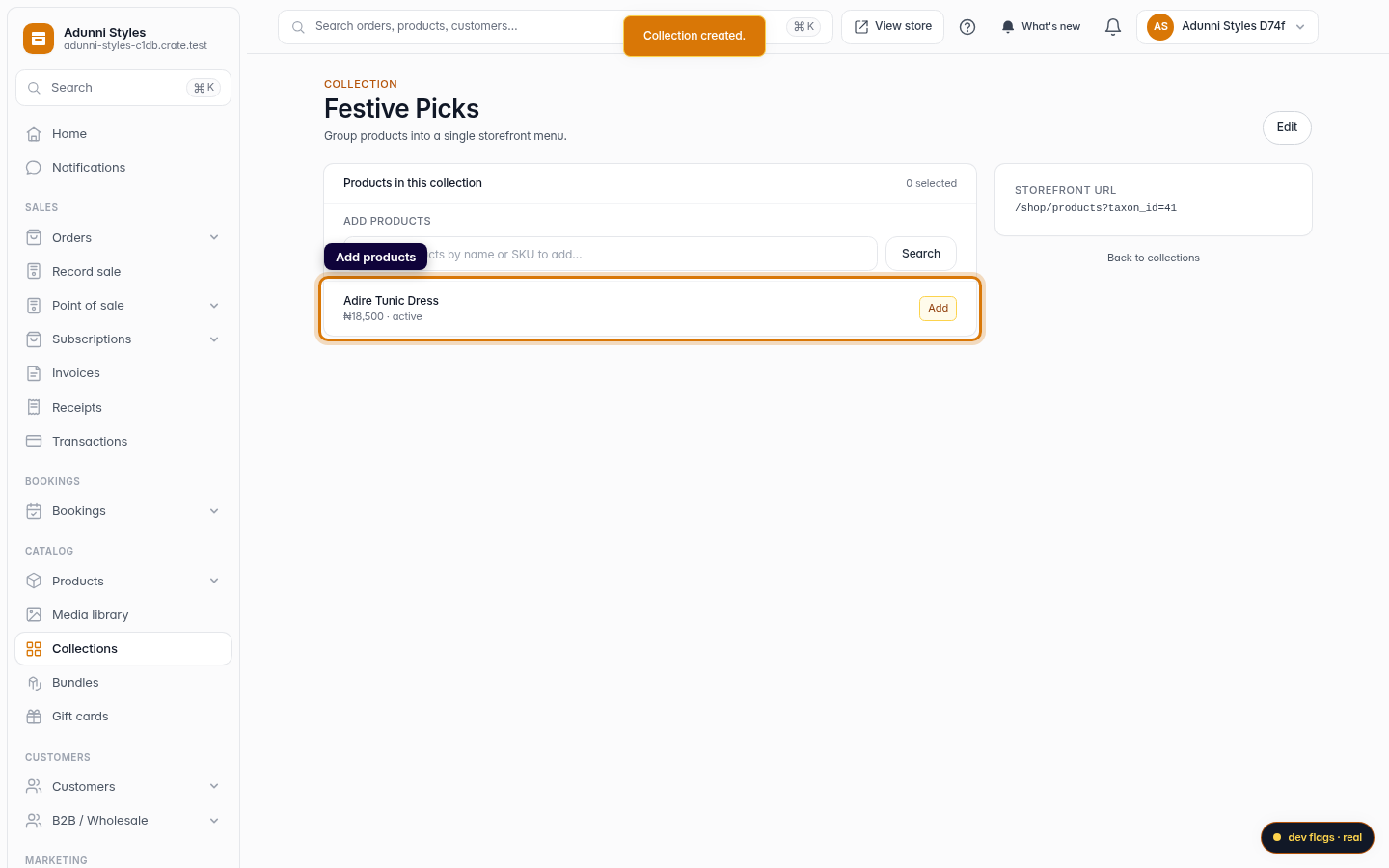
On the collection page, search your catalogue by name or SKU and click Add beside each product. Products already in the collection show an Added badge so you never add one twice. To take a product out, click Remove — it stays in your catalogue, it just leaves this collection.
Tip: A product can live in as many collections as you like. The same dress can sit in both New Arrivals and Sale without you re-uploading it.
Where it shows up
Once your collection has products, it's available to add to your storefront navigation so shoppers can browse it directly. Removing a product from a collection never deletes the product itself — your catalogue stays intact.
-
1
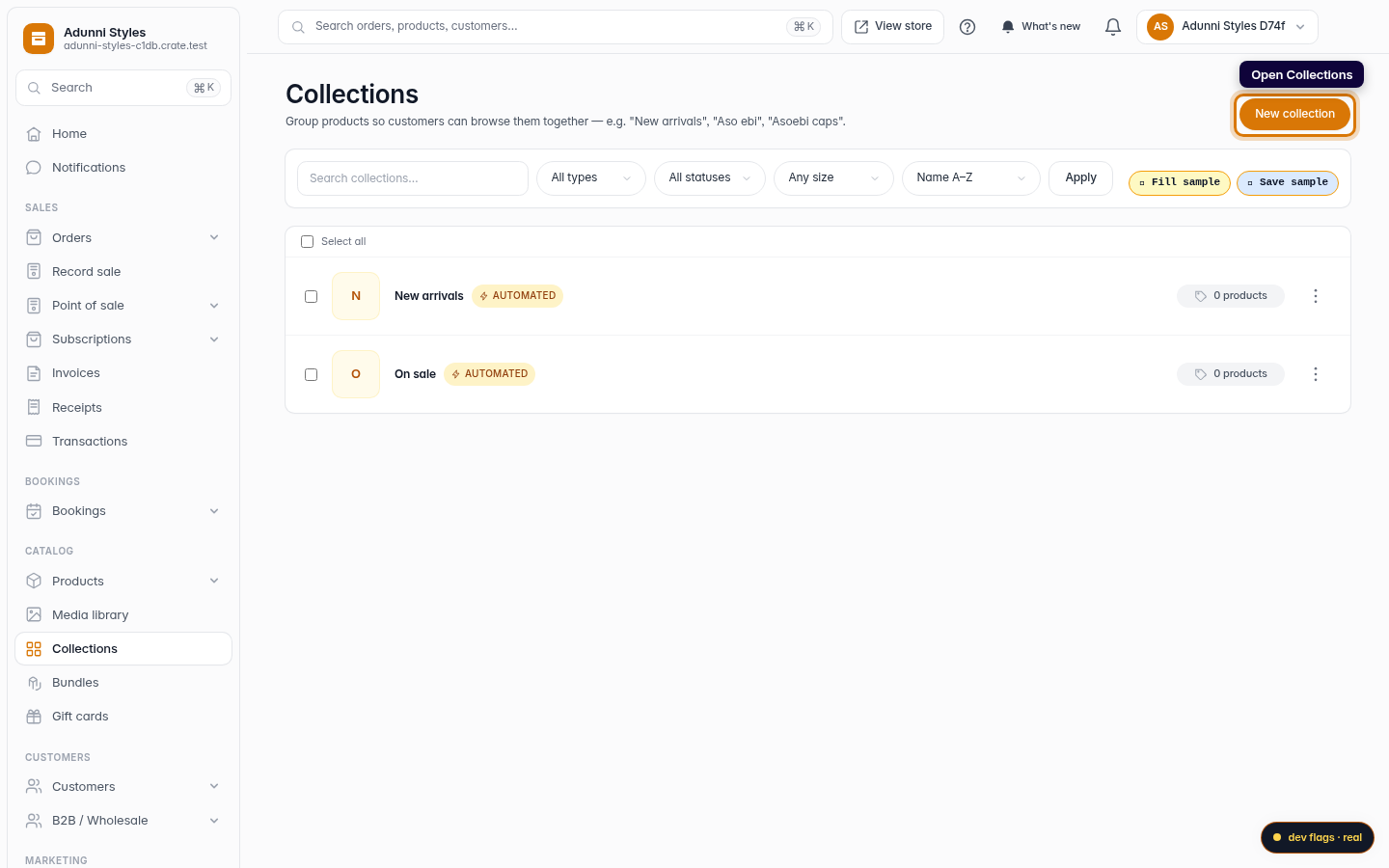
Open Collections
From your dashboard, open Collections. This is where you group products for your storefront menu.
Web -
2
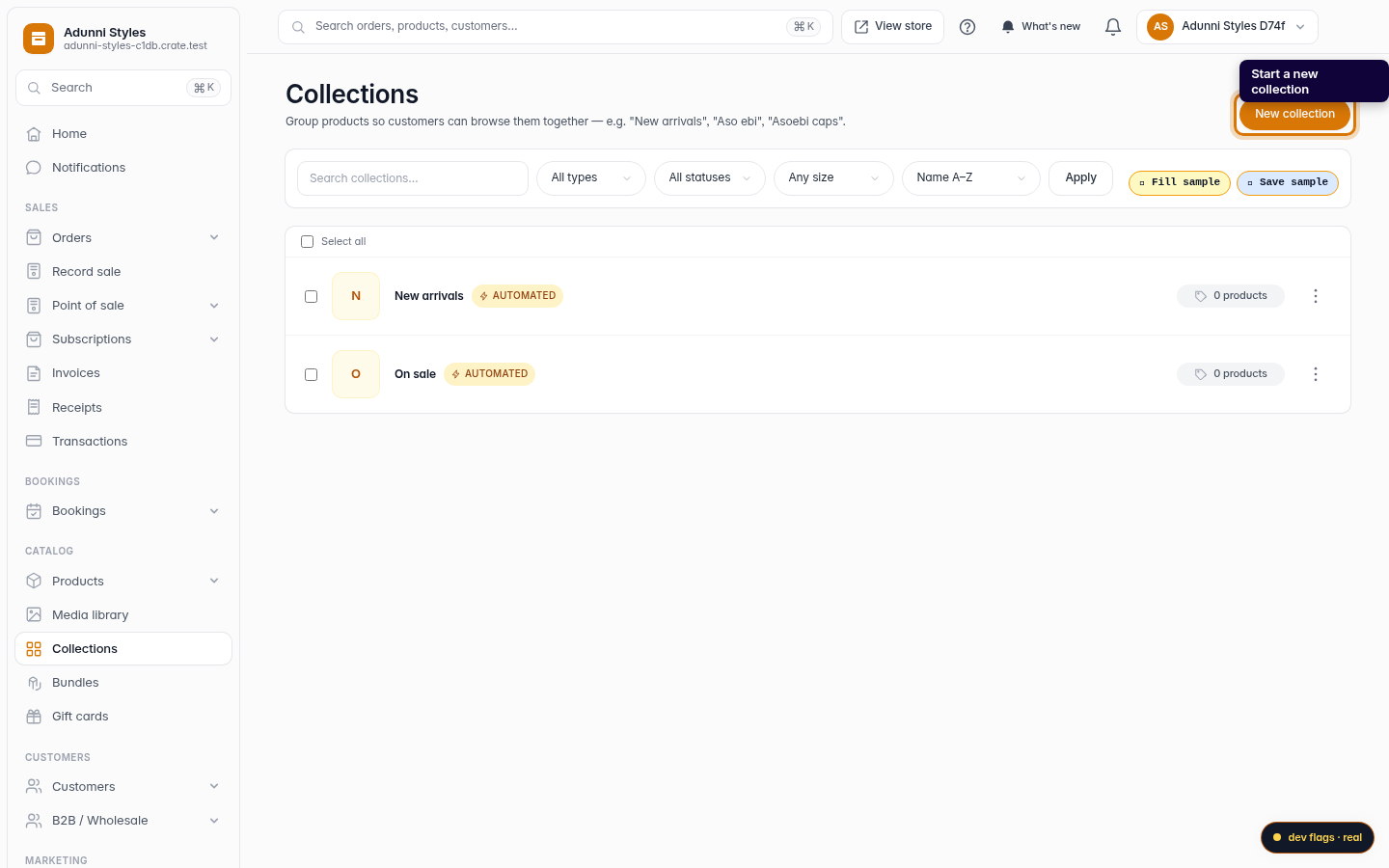
Start a new collection
Click New collection in the top-right.
Web -
3
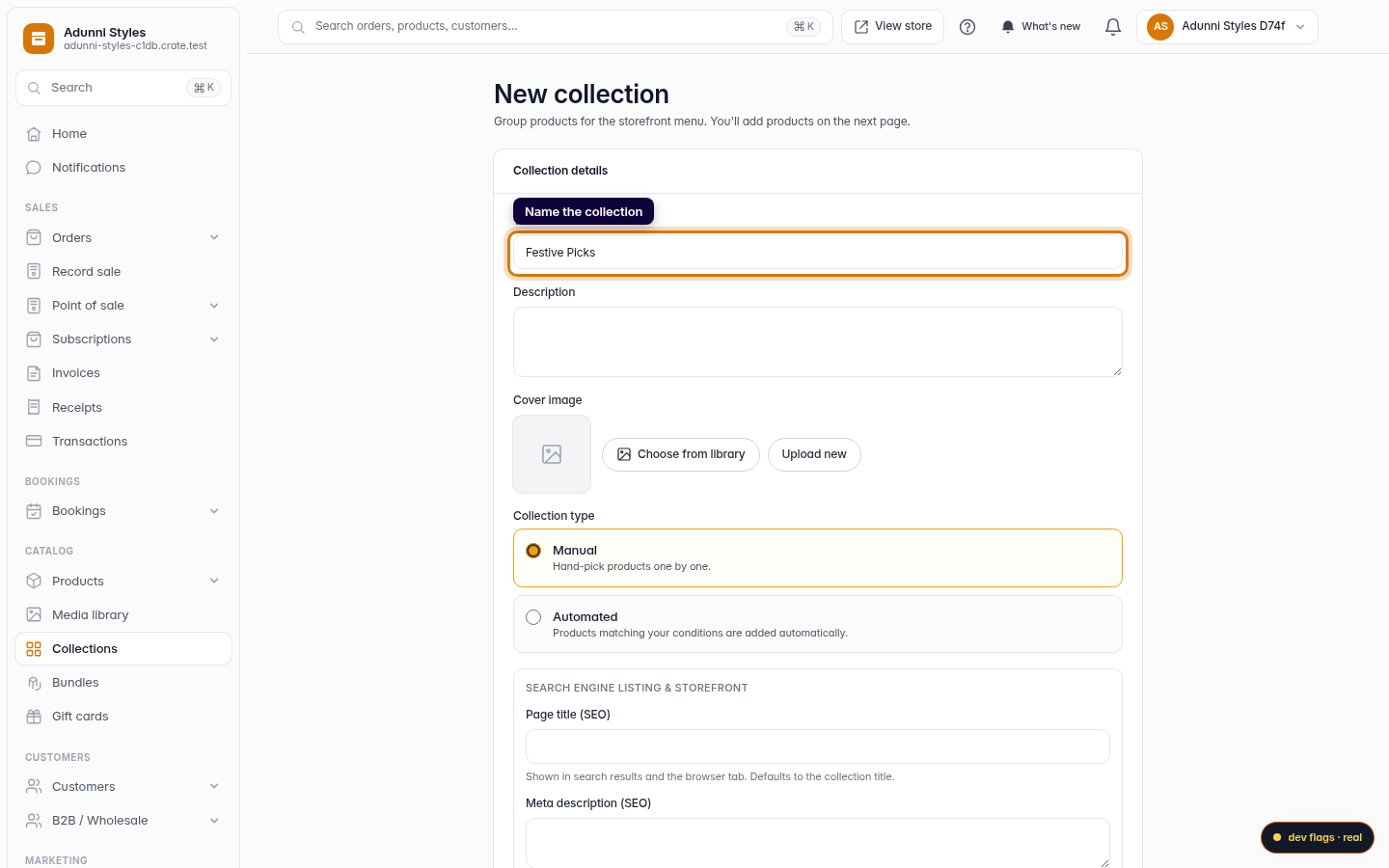
Name the collection
Give it a clear title shoppers will understand — for example Festive Picks. Leave the type set to Manual so you can hand-pick the products.
Web -
4
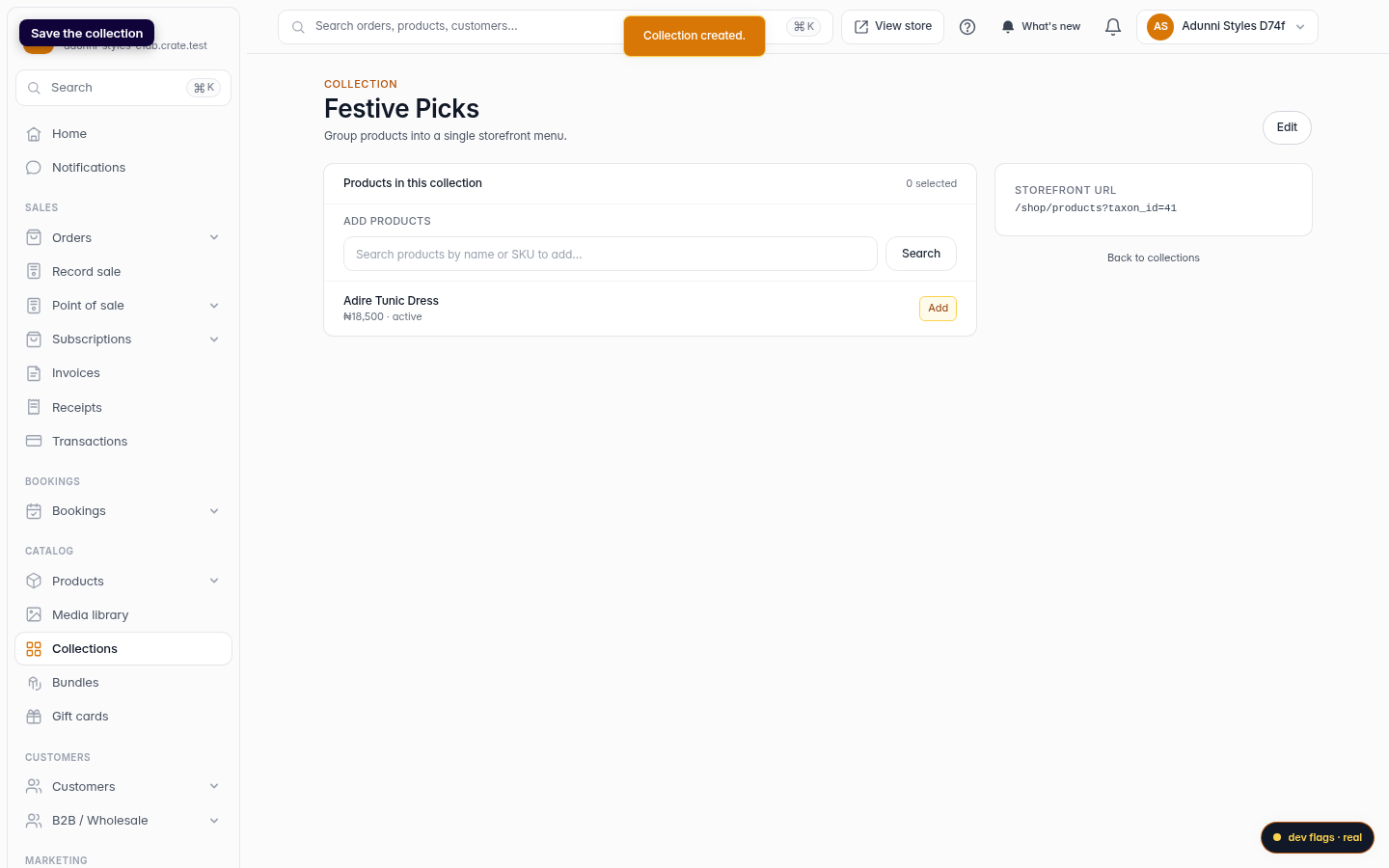
Save the collection
Click Save collection. Crate creates it and takes you to the collection page, where you add products.
Web -
5
Add products
Search your catalogue and click Add next to each product you want in the collection. Added products show an Added badge.
Web