How to bulk edit products
Update price, stock or status across many products at once. Pick what to change, choose an action like "increase by %", select the products, and Crate applies it to every one in a single pass.
Editing products one at a time is fine for a handful — but when you're running a sale, adjusting for a new cost price, or restocking after a delivery, doing it product by product is slow. Bulk edit lets you make the same change across dozens of products in a single action.
What you can change in bulk
- Price — set, raise or lower the selling price across the selection.
- Discounted price — apply or clear a sale price in one go.
- Stock — set or adjust counts after a delivery or stock-take.
- Status — flip products between active, draft and archived.
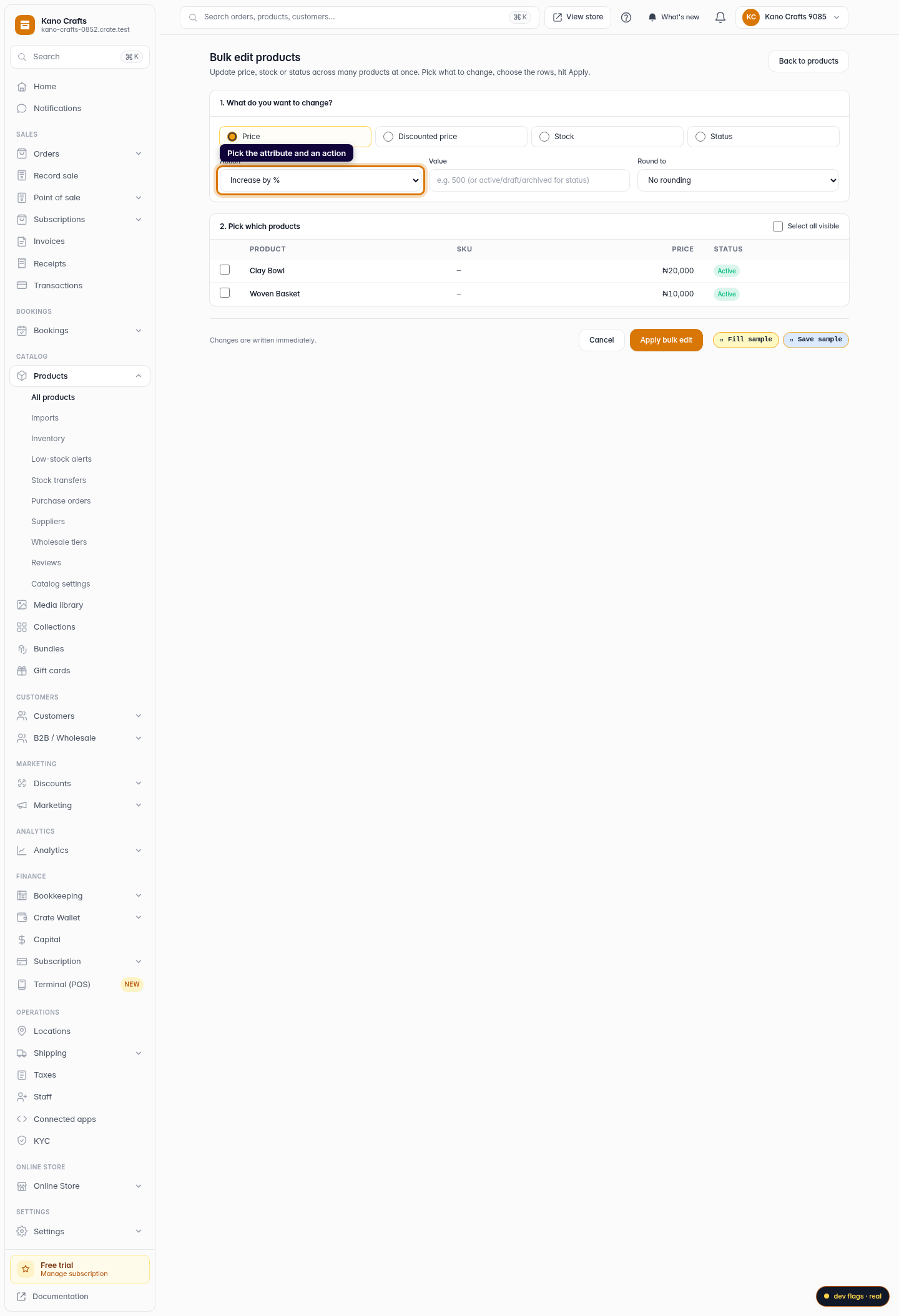
For price and stock you're not limited to setting a flat value. Choose Increase by, Decrease by, Increase by % or Decrease by % to shift everything proportionally — handy for a "10% off everything" weekend or an across-the-board cost adjustment.
Keep prices clean with rounding
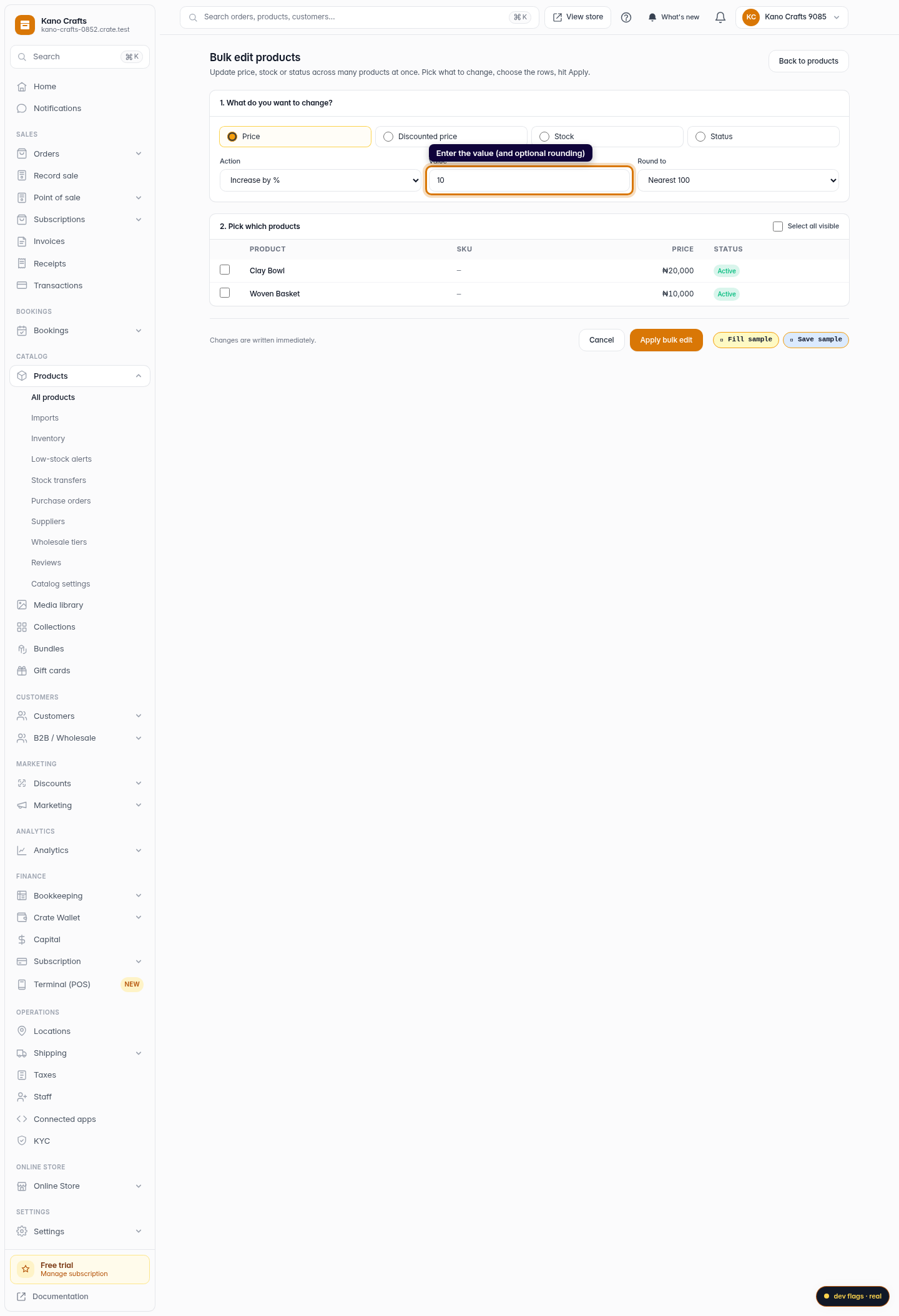
When you increase prices by a percentage you can end up with awkward numbers like ₦8,415. The Round to option snaps each result to the nearest 50, 100 or 500 so your catalogue stays neat without a second pass.
Tip: Changes are written immediately — there's no separate save step after you Apply. If you only want to change a couple of products, you can still edit them individually from the product page.
-
1
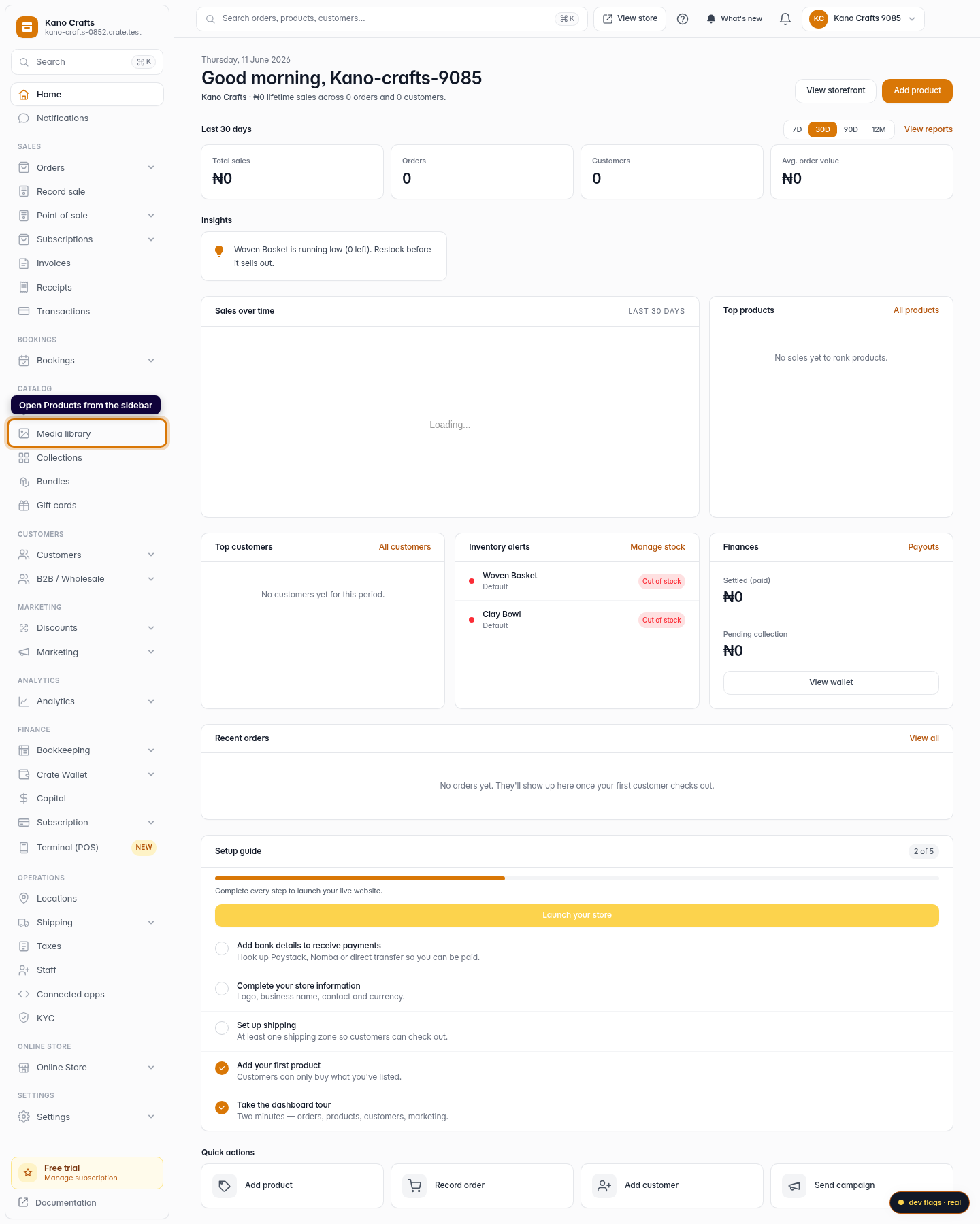
Open Products
From your Crate dashboard, open Products in the left sidebar.
Web -
2
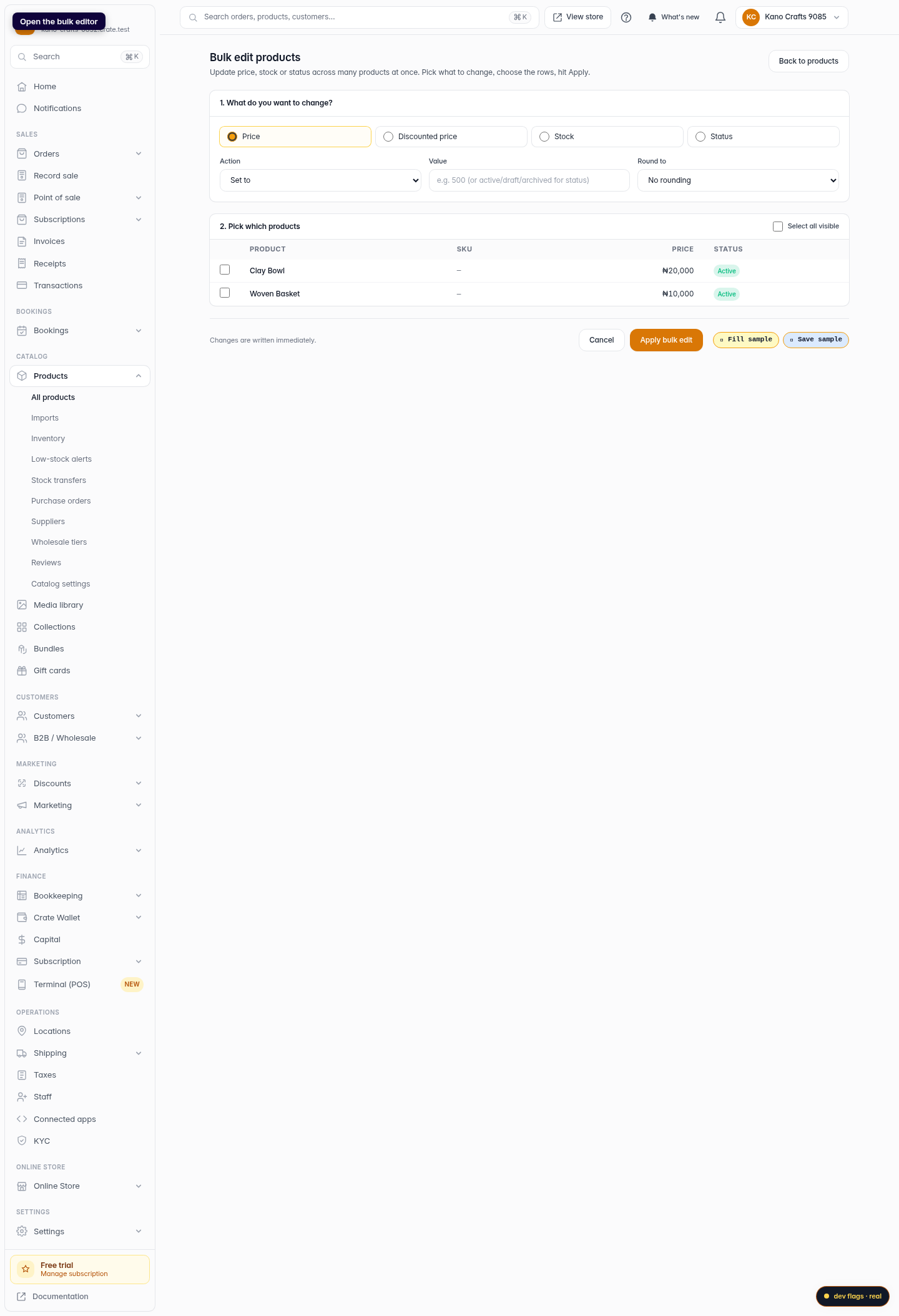
Start a bulk edit
Click Bulk edit to open the bulk editor. It lists your products with checkboxes so you can act on as many as you like at once.
Web -
3
Choose what to change
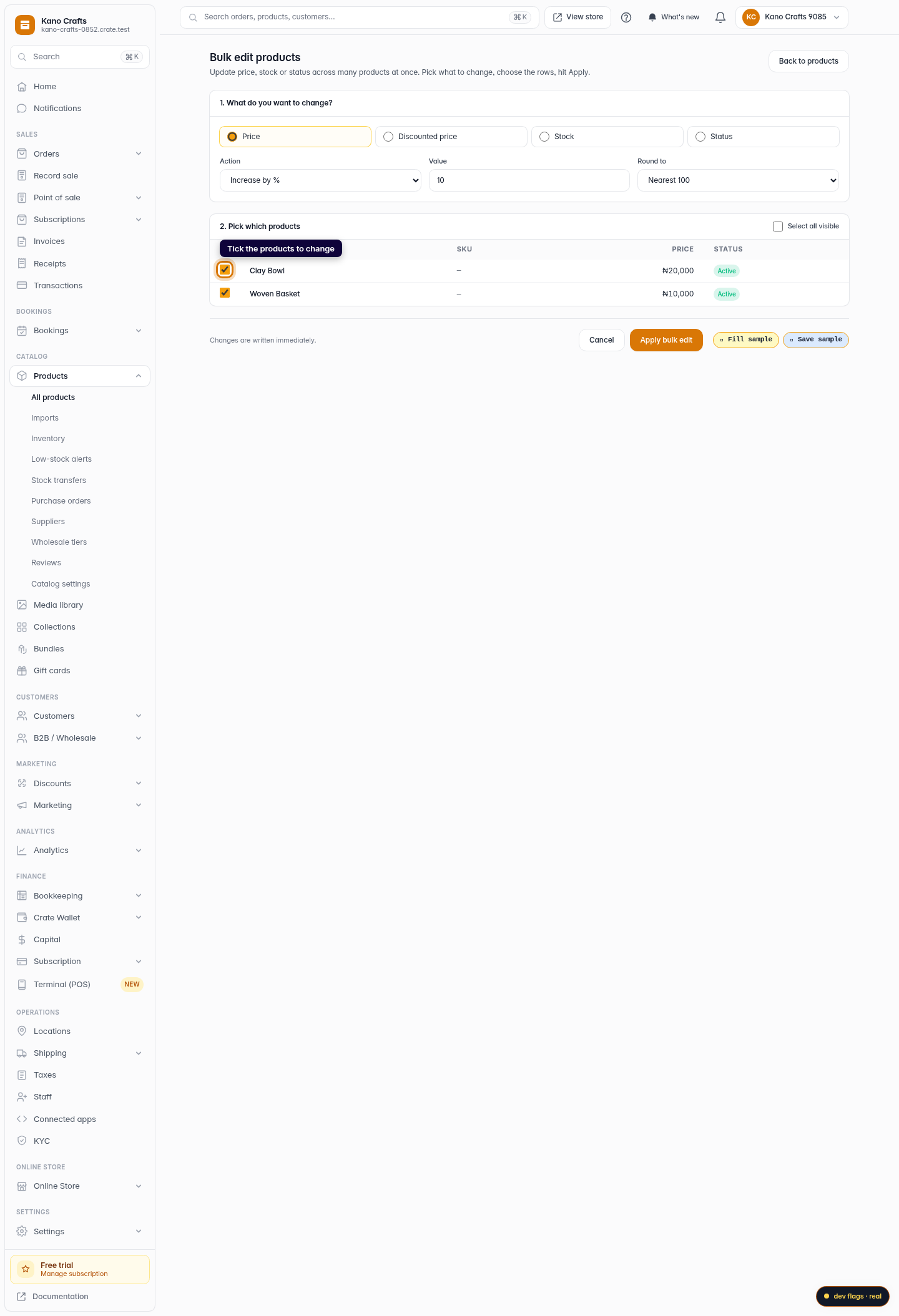
Pick the attribute you want to update — Price, Discounted price, Stock or Status — then choose an action. For numbers you can set a value, increase or decrease by an amount, or increase/decrease by a percentage.
Web -
4
Enter the value (and rounding)
Type the value to apply — for example 10 with "Increase by %" to raise prices 10%. Optionally round the result to the nearest 50, 100 or 500 so your prices stay tidy.
Web -
5
Select the products
Tick the products you want to change, or use Select all visible to grab the whole page at once.
Web -
6
Apply the change
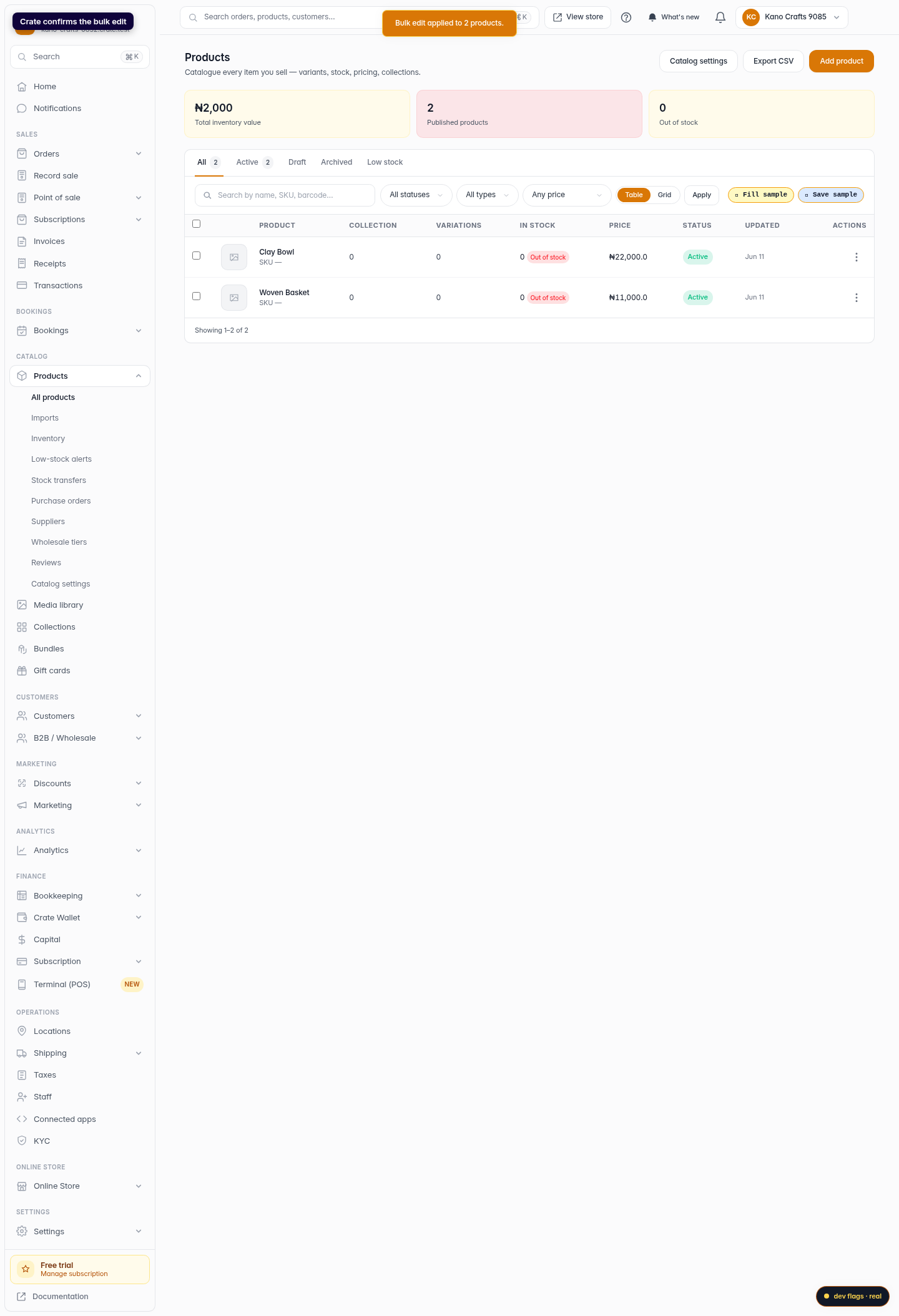
Click Apply bulk edit. Crate updates every selected product in one pass and confirms how many were changed.
Web