Creating an order, invoice or receipt
Record a sale you took off-platform — over Instagram, WhatsApp, a phone call or at the counter. Crate logs the order, captures payment status, and generates a receipt or invoice you can send straight to the customer.
Not every sale starts on your storefront. Plenty happen in an Instagram DM, a WhatsApp chat, a phone call, or right across the counter. Recording those orders in Crate keeps your sales figures, stock and customer list complete — and gives you a receipt or invoice to send without reaching for a separate app.
Receipt or invoice — it depends on payment
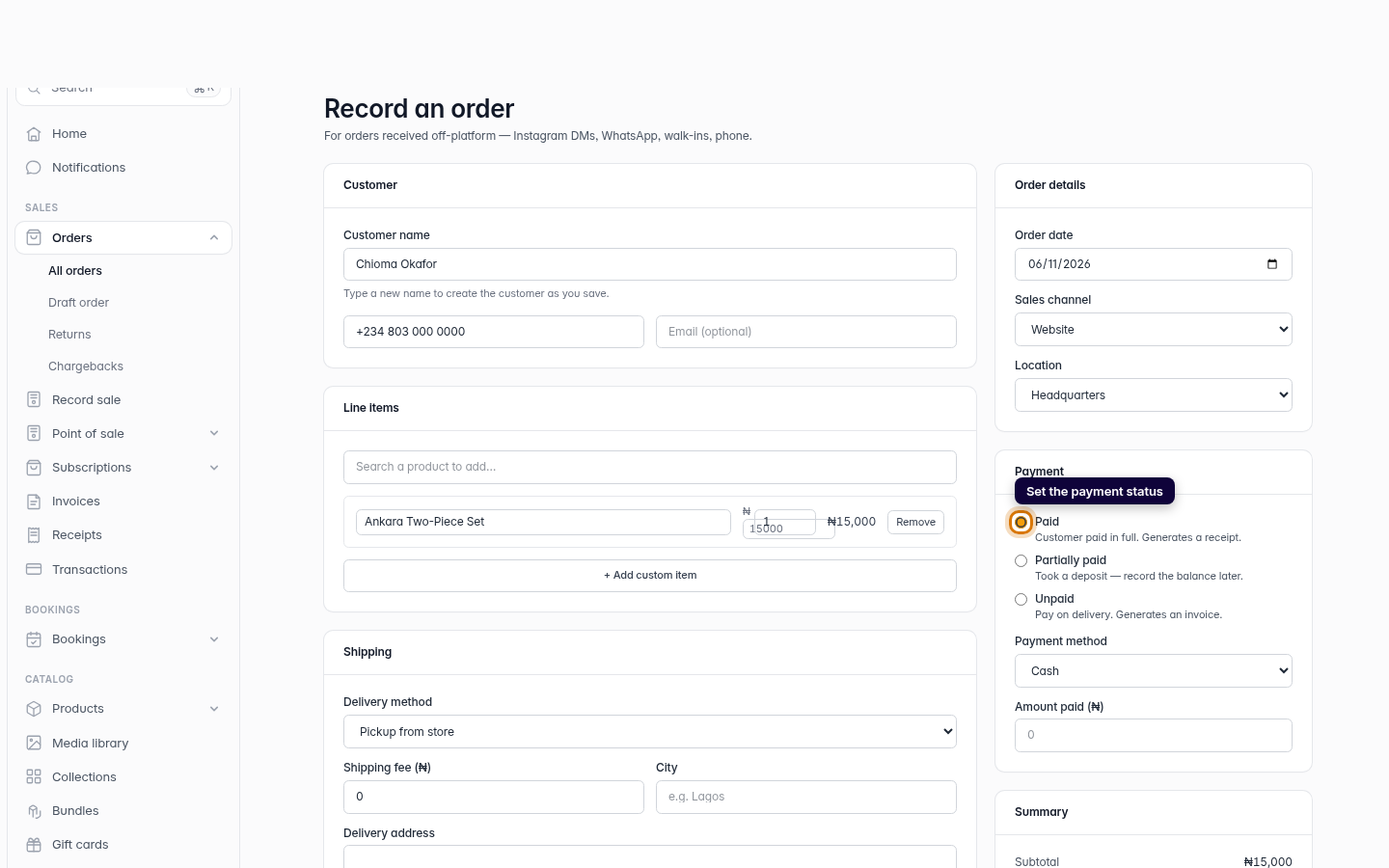
The document Crate produces follows the payment status you choose:
- Paid — the customer has settled in full. Crate generates a receipt as proof of payment.
- Partially paid — you took a deposit. Record the balance later from the order.
- Unpaid — pay-on-delivery or pay-later. Crate generates an invoice you can send to request payment.
Catalogue items and custom lines
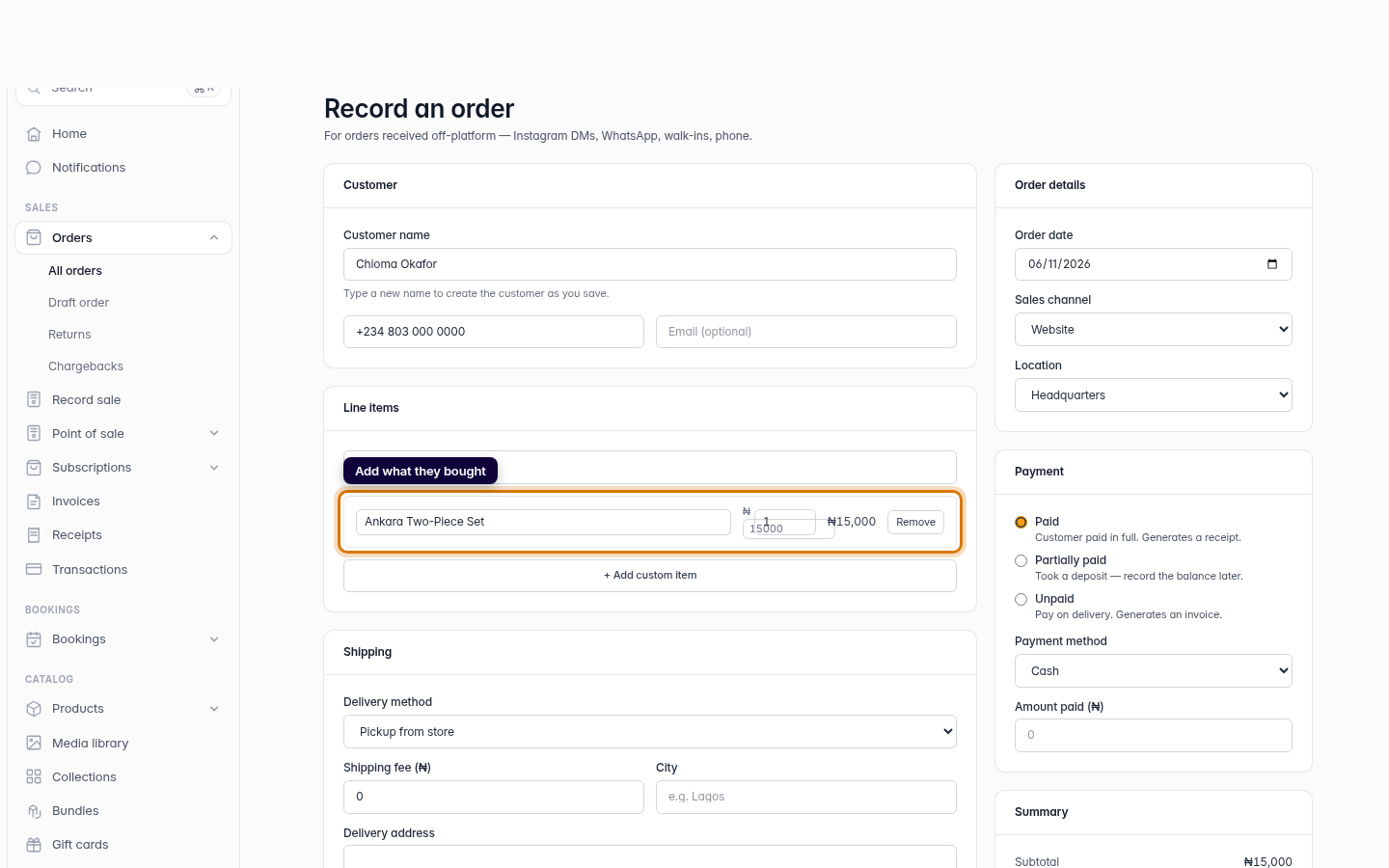
Search your catalogue to pull in a product at its saved price, or click + Add custom item to type a one-off line — handy for a bespoke piece, a bundle, or a service that isn't in your product list. Either way the line carries its own price and quantity, and the summary on the right updates as you go.
Tip: Set the sales channel (WhatsApp, Instagram, walk-in…) on the right so your analytics can later show you where your off-platform sales are really coming from.
After you save
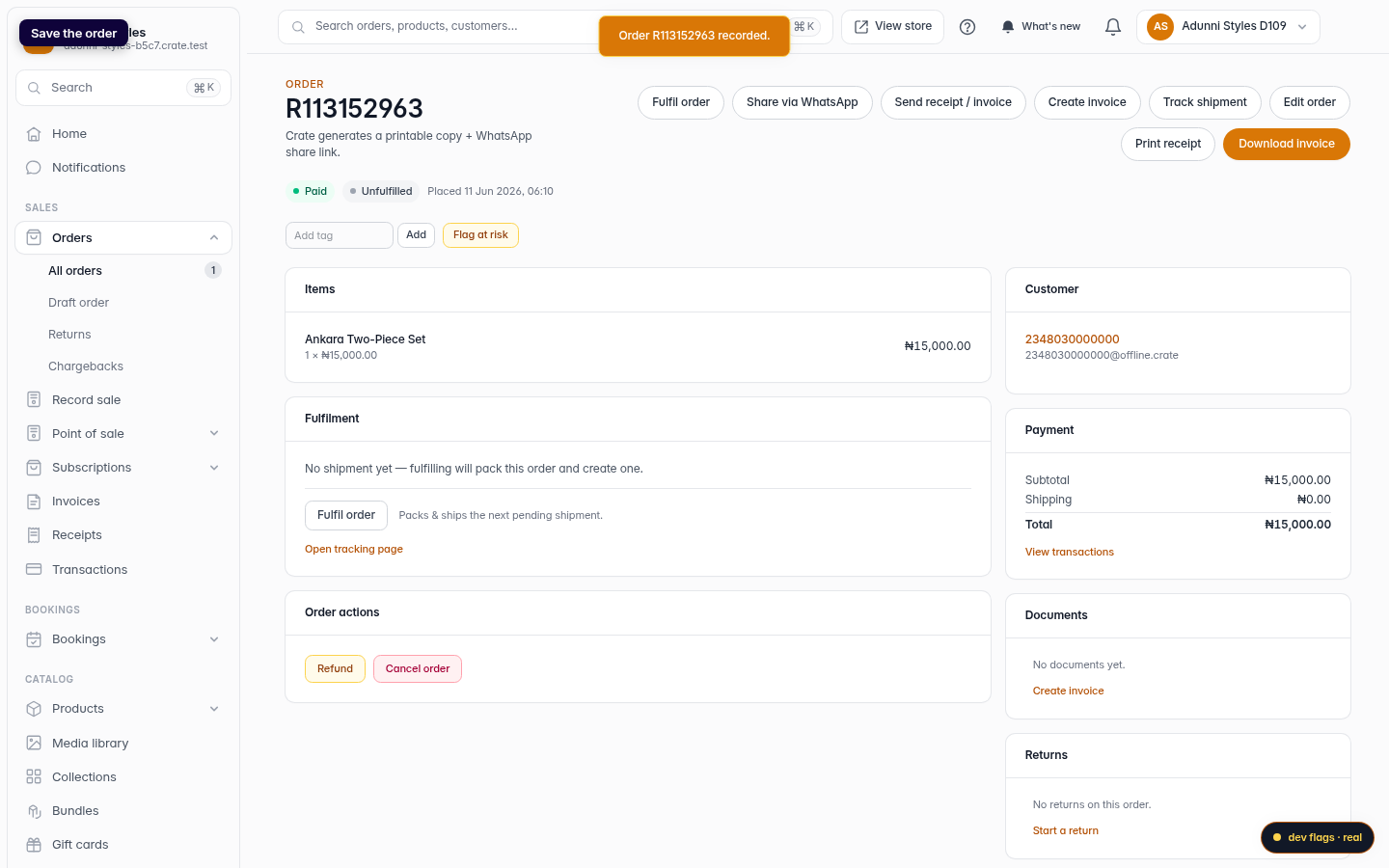
The order opens on its own page with the customer, line items and totals laid out. From here you can send the receipt or invoice over WhatsApp, download a PDF, edit the order while it's still unpaid, or mark a partial payment as fully settled.
-
1
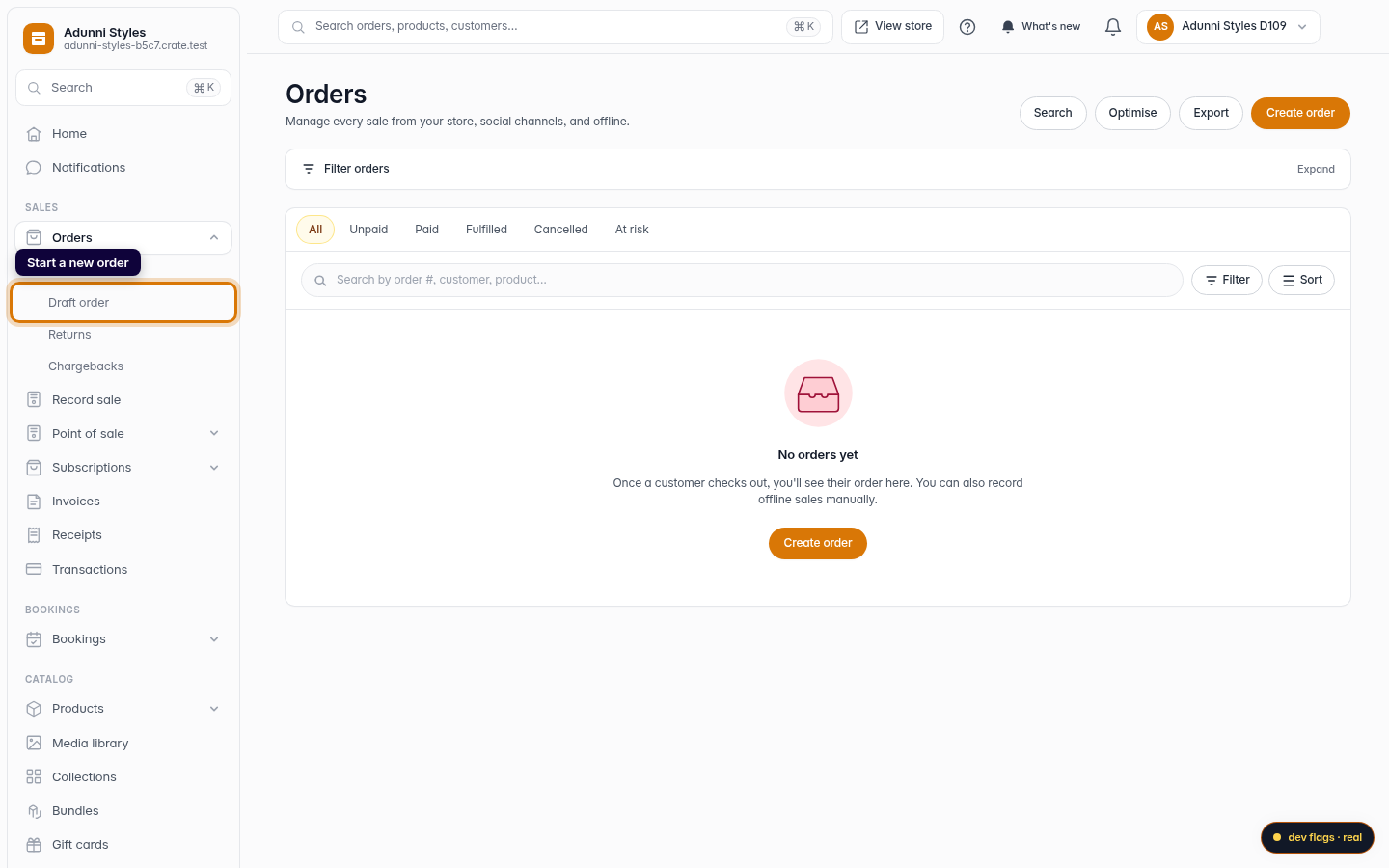
Start a new order
From Orders, click Create order in the top-right. This is for sales you took off-platform — DMs, WhatsApp, walk-ins or phone.
Web -
2
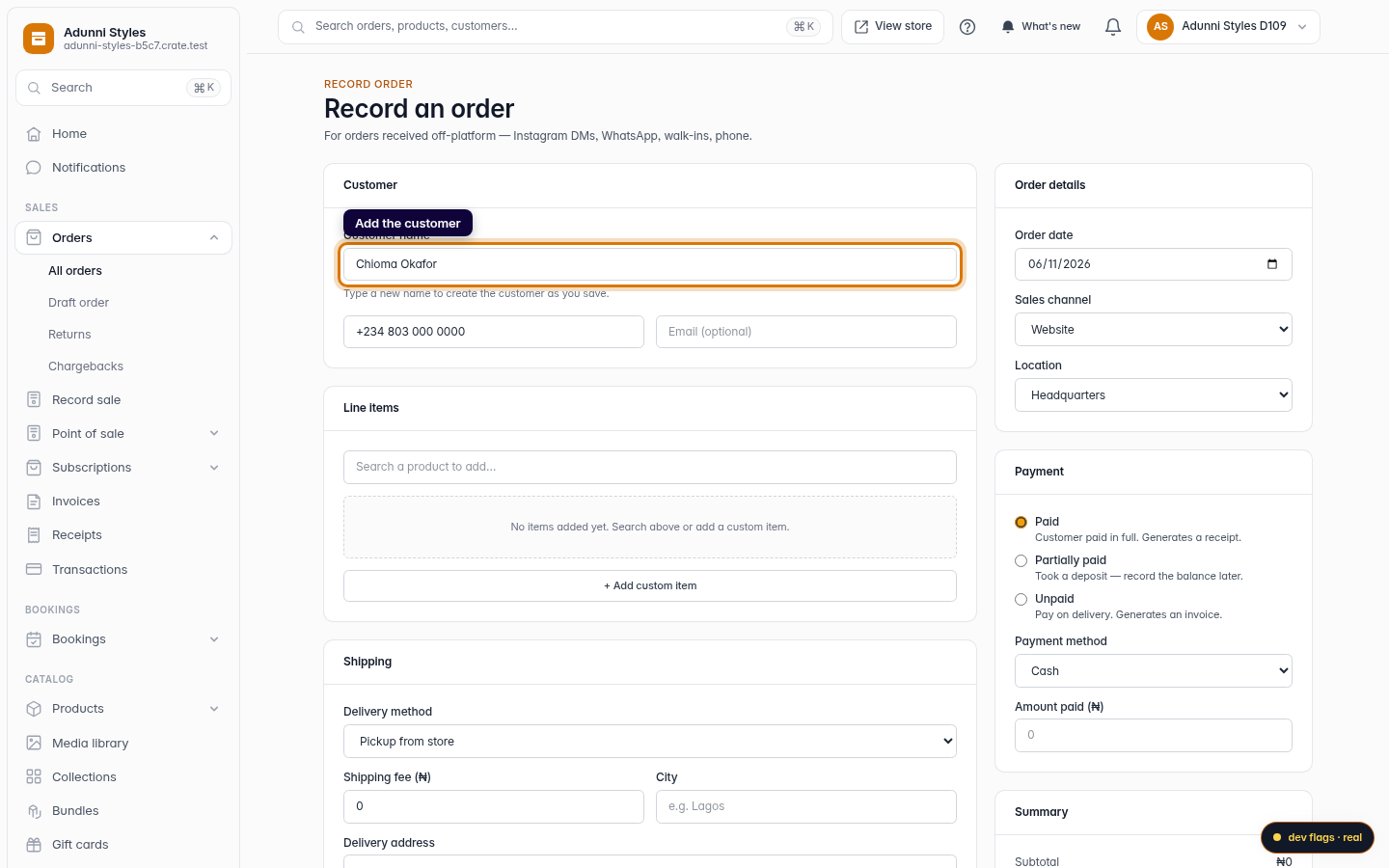
Add the customer
Type the customer's name, and their phone or email if you have it. A brand-new name is saved as a customer when you record the order.
Web -
3
Add what they bought
Search your catalogue to add a product, or use + Add custom item to type a one-off line with its own name and price.
Web -
4
Set the payment status
Mark the order Paid, Partially paid or Unpaid. Paid generates a receipt; unpaid generates an invoice you can send to request payment.
Web -
5
Save the order
Click Save order. Crate records the sale and opens the order, where your receipt or invoice is ready to send.
Web