Edit an order
Change the items, quantities, price, shipping, or delivery address on an order after it's been created — Crate recalculates the total as you go.
Orders change. A customer adds an item, swaps a size, or gives you a corrected address — and Crate lets you reshape the order without deleting it and starting over. Every edit is recorded so you always know what changed and when.
What you can change
The editor is the same one you used to record the order, so everything is editable:
- Items and quantities — add a product, remove one, or bump the count.
- Price and discount — override a line price or apply a discount.
- Shipping — change the shipping method or fee.
- Customer and delivery address — fix a name, phone, or address.
When you save, Crate recalculates the total and writes an Order edited entry to the order's timeline.
Editing a paid order
You can still adjust an order that's already been paid — but be careful when you add items. Because the customer has already settled the original amount, adding to the order leaves a balance owed for the difference. Crate flags this with a banner on the edit page so you know the customer will need to top up. For a clean record on a paid order, it's often better to record the extra as a new order.
-
1
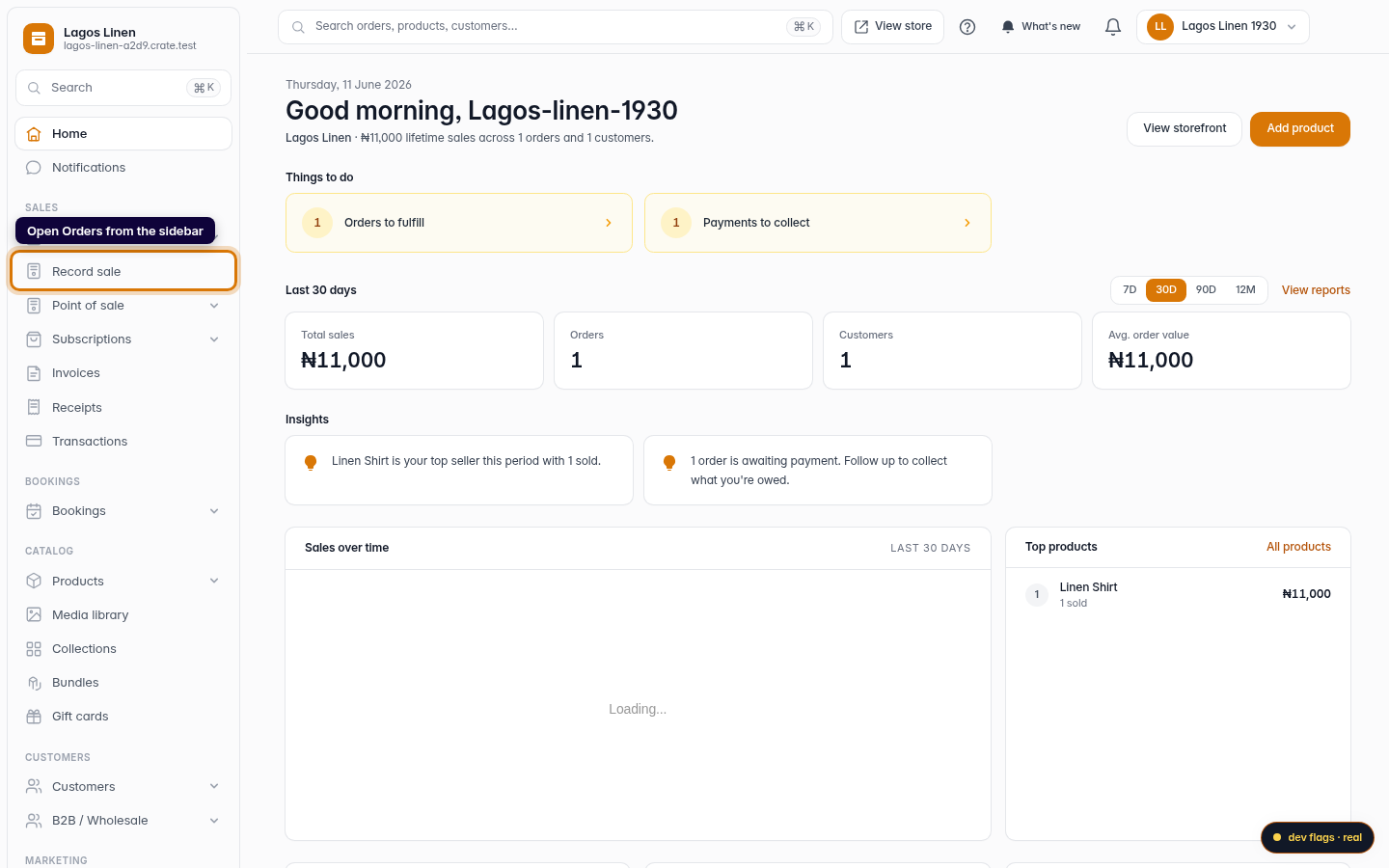
Open Orders
From your dashboard, open Orders in the left sidebar.
Web 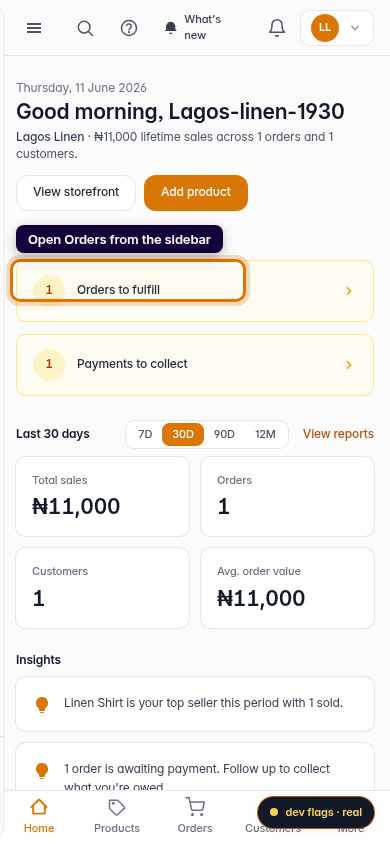
Mobile -
2
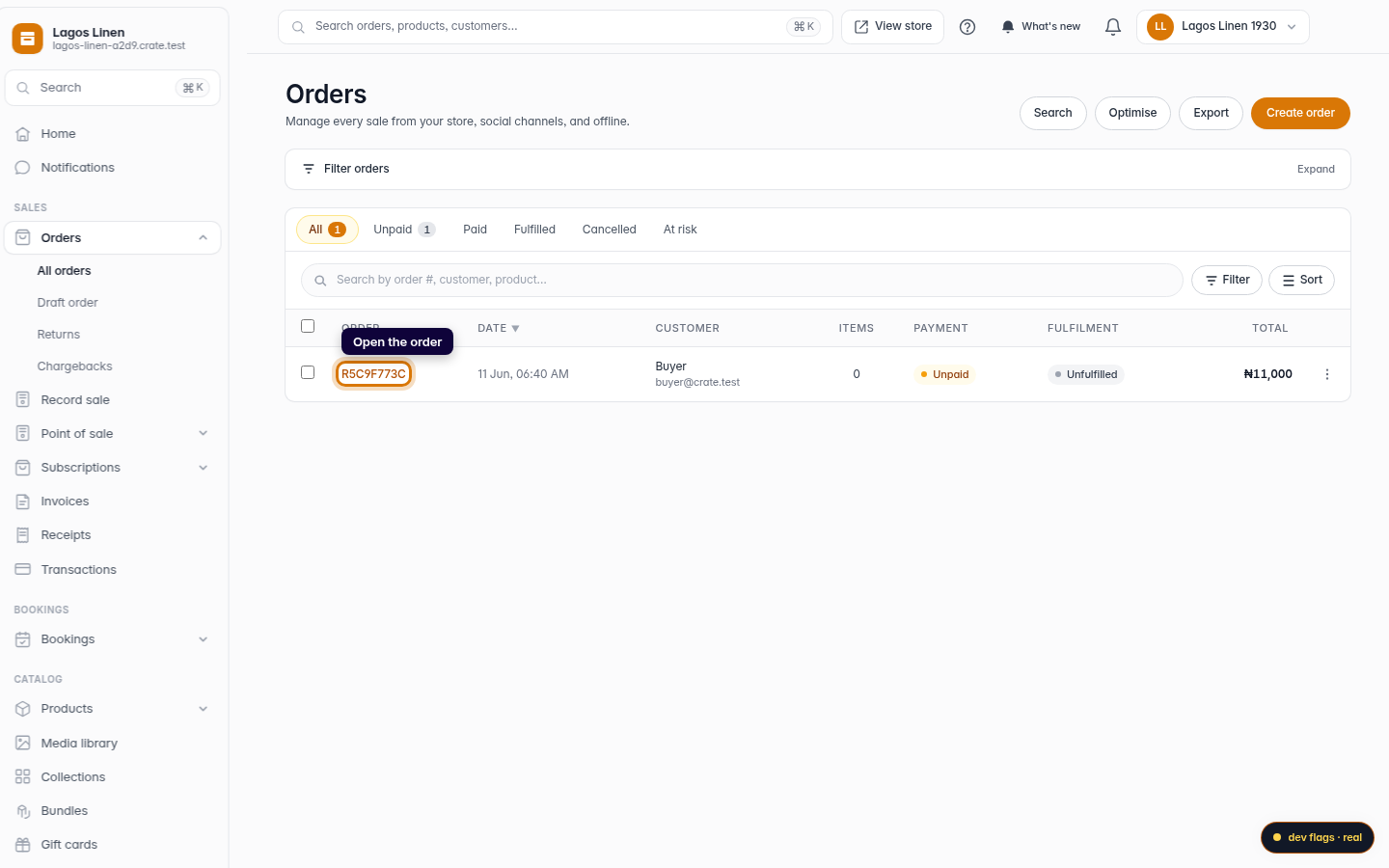
Open the order
Click the order you need to change to open its detail page.
Web -
3
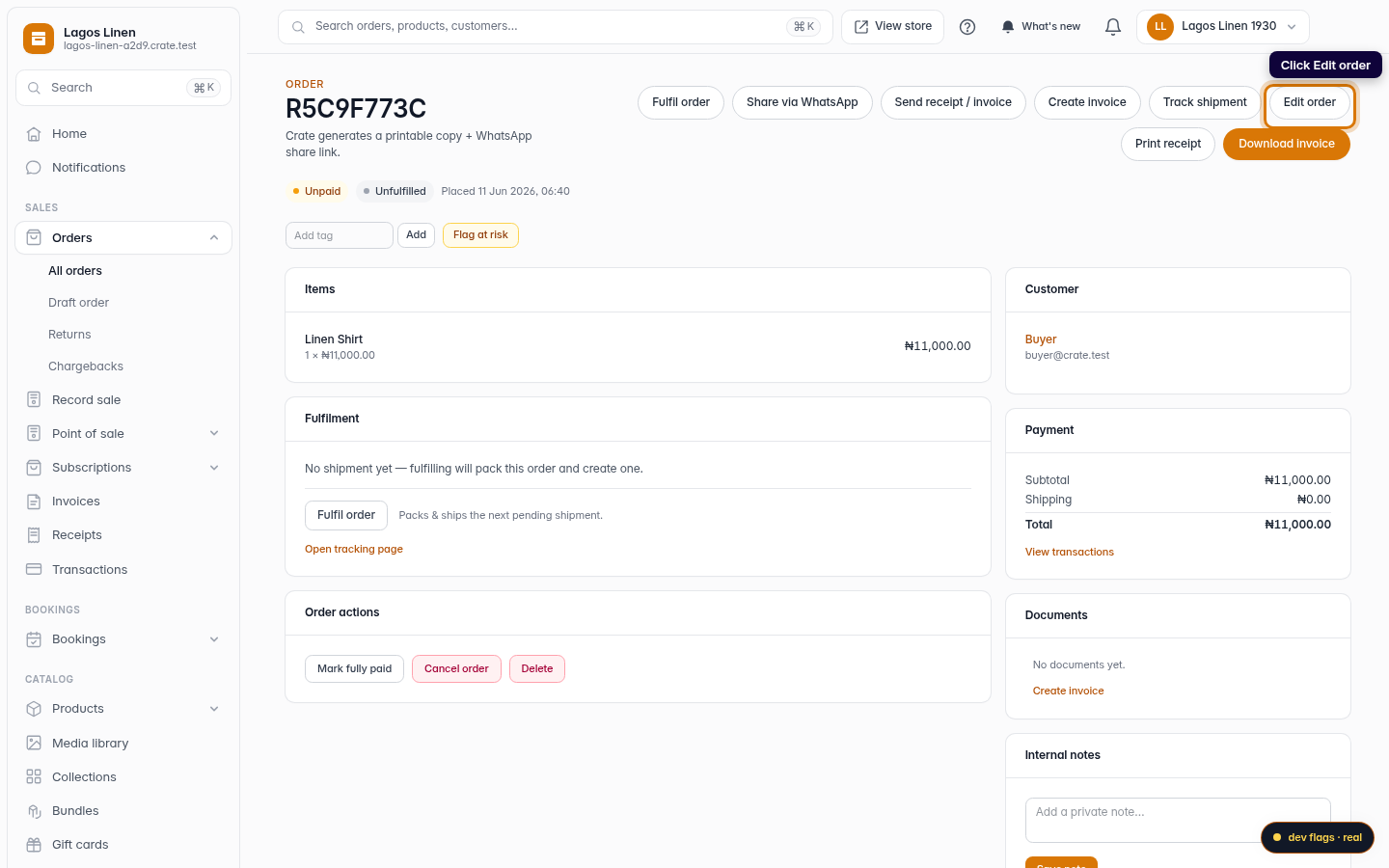
Click Edit order
In the top-right of the order page, click Edit order. This opens the same editor you used to record the order.
Web -
4
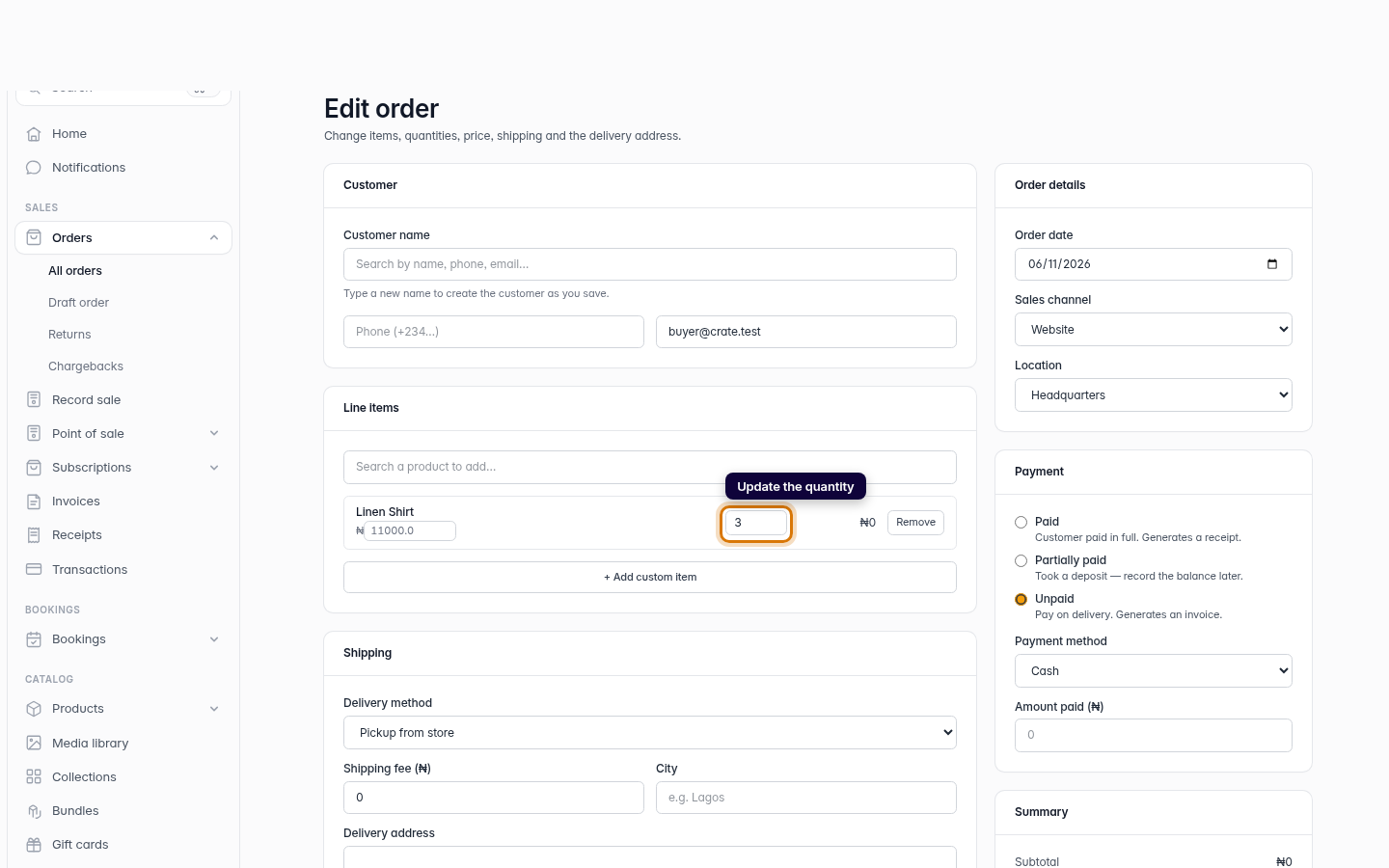
Make your changes
Update the items, quantities, price, shipping fee, discount, or delivery address. Crate keeps the running total in step with your edits.
Web -
5
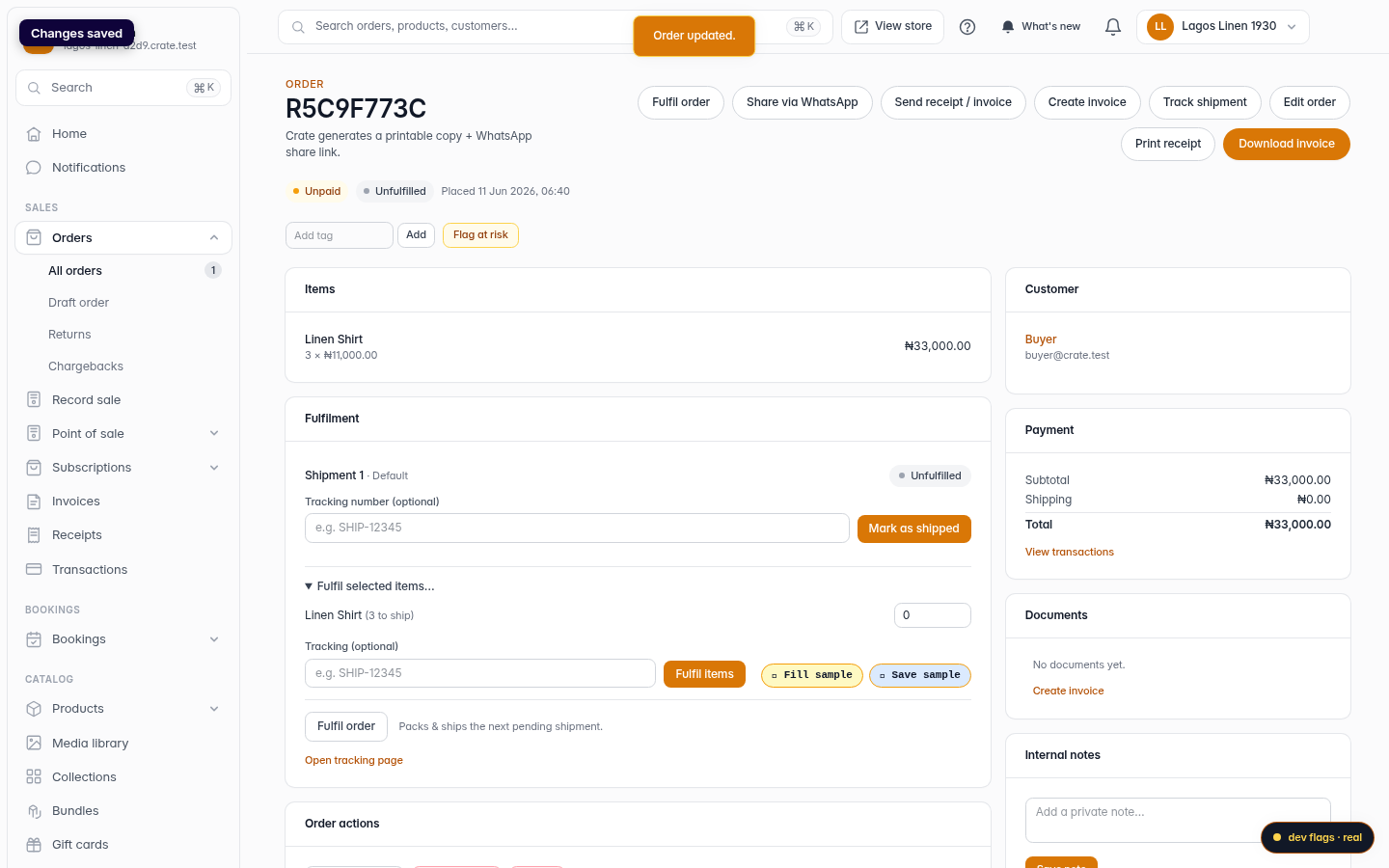
Save changes
Click Save changes. Crate updates the order, logs the edit on its timeline, and returns you to the order page showing the new details.
Web