Edit several orders at once
Update many orders in one move. Tick the orders you want, pick an action, and Crate applies it to every selected order — mark paid, cancel, or export.
When several orders need the same change — a batch of offline sales to mark paid, a run of test orders to cancel, a day's orders to export — handling them one at a time is slow. Crate lets you select as many orders as you like and apply one action to all of them.
Selecting orders
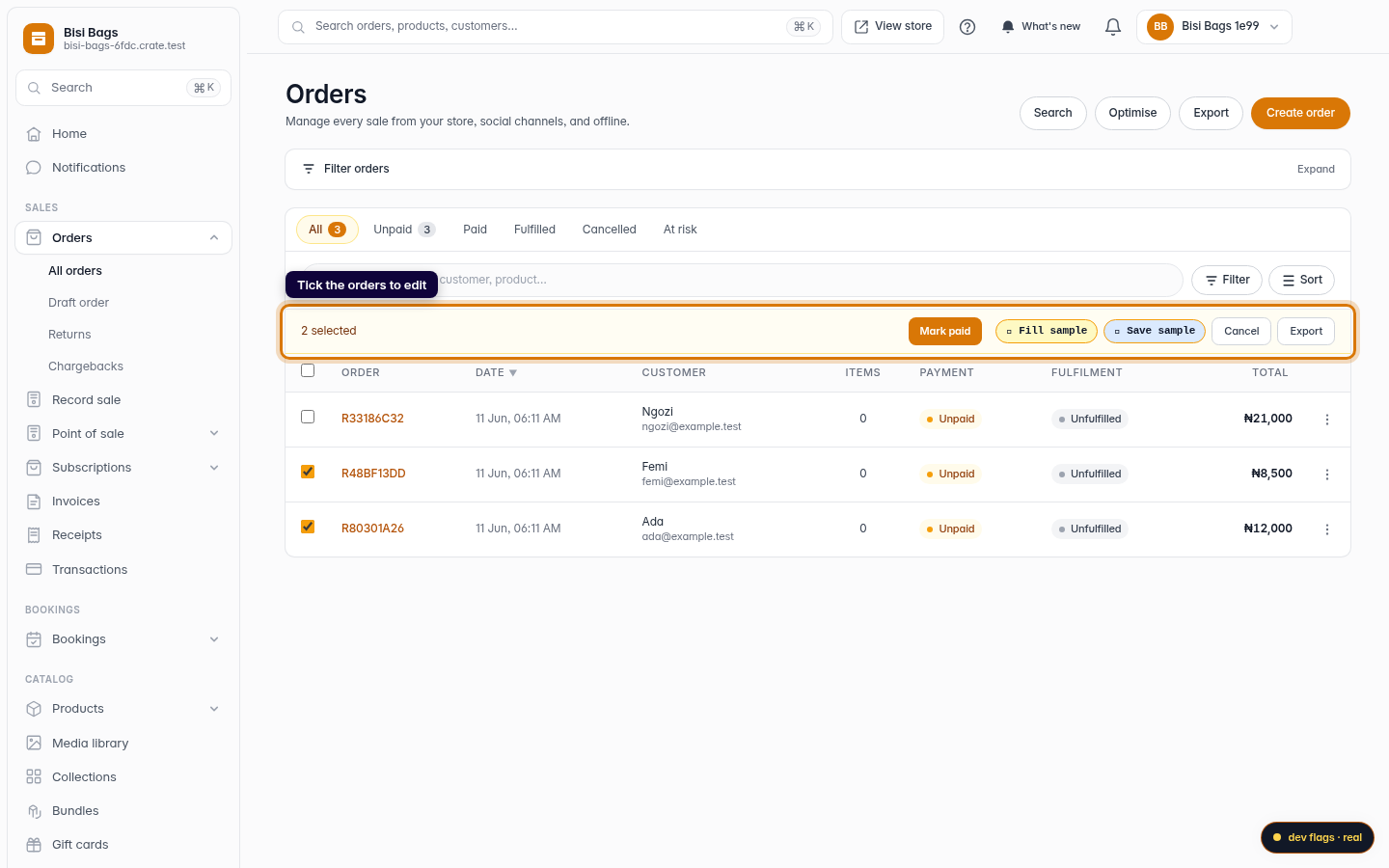
Every order row has a checkbox. Tick the ones you want, or use the checkbox in the table header to select every order on the page. The bulk action bar appears the moment you select your first order and keeps a running count so you always know how many will be affected.
The actions
- Mark paid — settles the selected orders, the same as recording payment on each individually. Crate generates a receipt for each and skips any that were already paid.
- Cancel — cancels the selected orders. Already-cancelled orders are skipped, so re-running is safe.
- Export — hands the selection off to a CSV download instead of changing the orders.
Tip: Use the Filter orders drawer first — say, narrow to Unpaid on the WhatsApp channel — then select-all and bulk Mark paid. Filtering before selecting keeps a bulk action tightly scoped to exactly the orders you mean.
Each action reports back how many orders it applied to, so you can confirm the change landed before moving on.
-
1
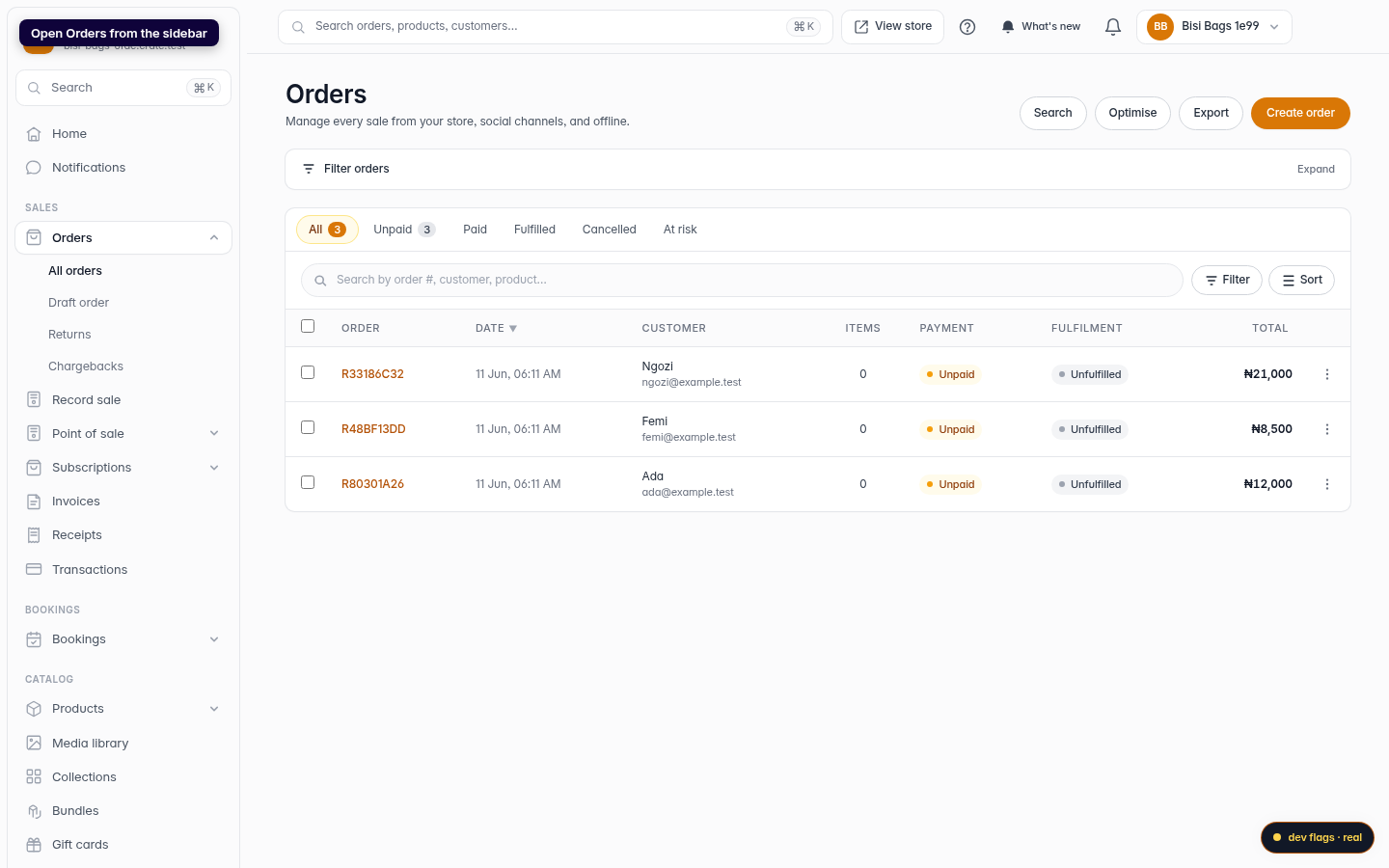
Open Orders
From your dashboard, open Orders. Each row has a checkbox on the left.
Web -
2
Tick the orders to edit
Tick the orders you want to act on. As soon as one is ticked, a bulk action bar appears at the top of the table showing how many you've selected.
Web -
3
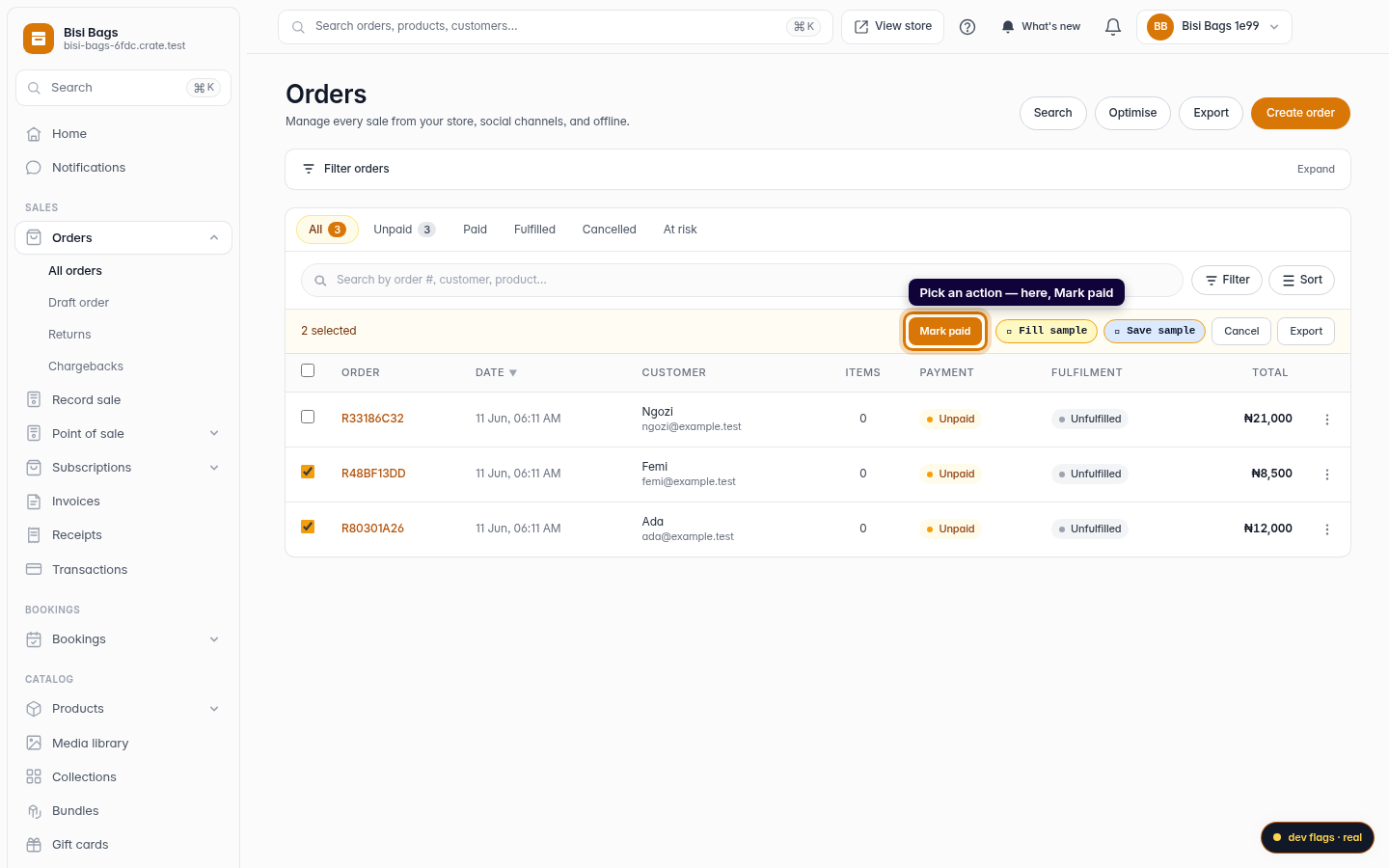
Pick an action
Choose what to do with the selected orders — Mark paid, Cancel, or Export. The action applies to every order you ticked.
Web -
4
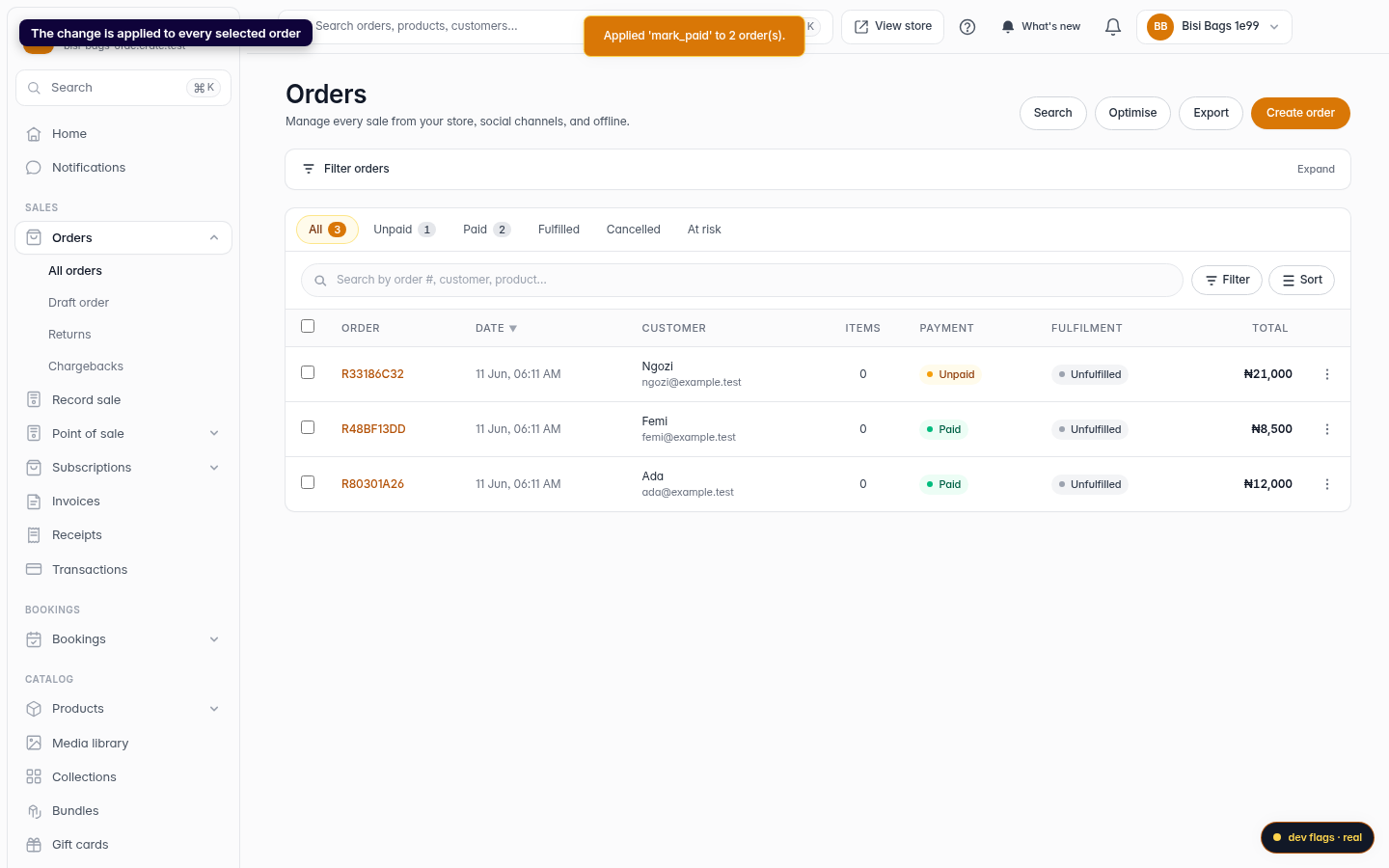
Apply
Crate applies the action and confirms how many orders it touched. The orders update in place — no need to open each one.
Web