Finding existing orders
Track down any order in seconds — search by order number, customer, email or phone right from the Orders page, or use Advanced search to match on a date range, status and sales channel at once.
Every order you take on Crate is saved and searchable forever — there's no archive to dig through and nothing to re-import. Whether a customer is chasing a delivery or you're reconciling last month's sales, you can pull up the exact order in a couple of seconds.
The fastest way: search the Orders page
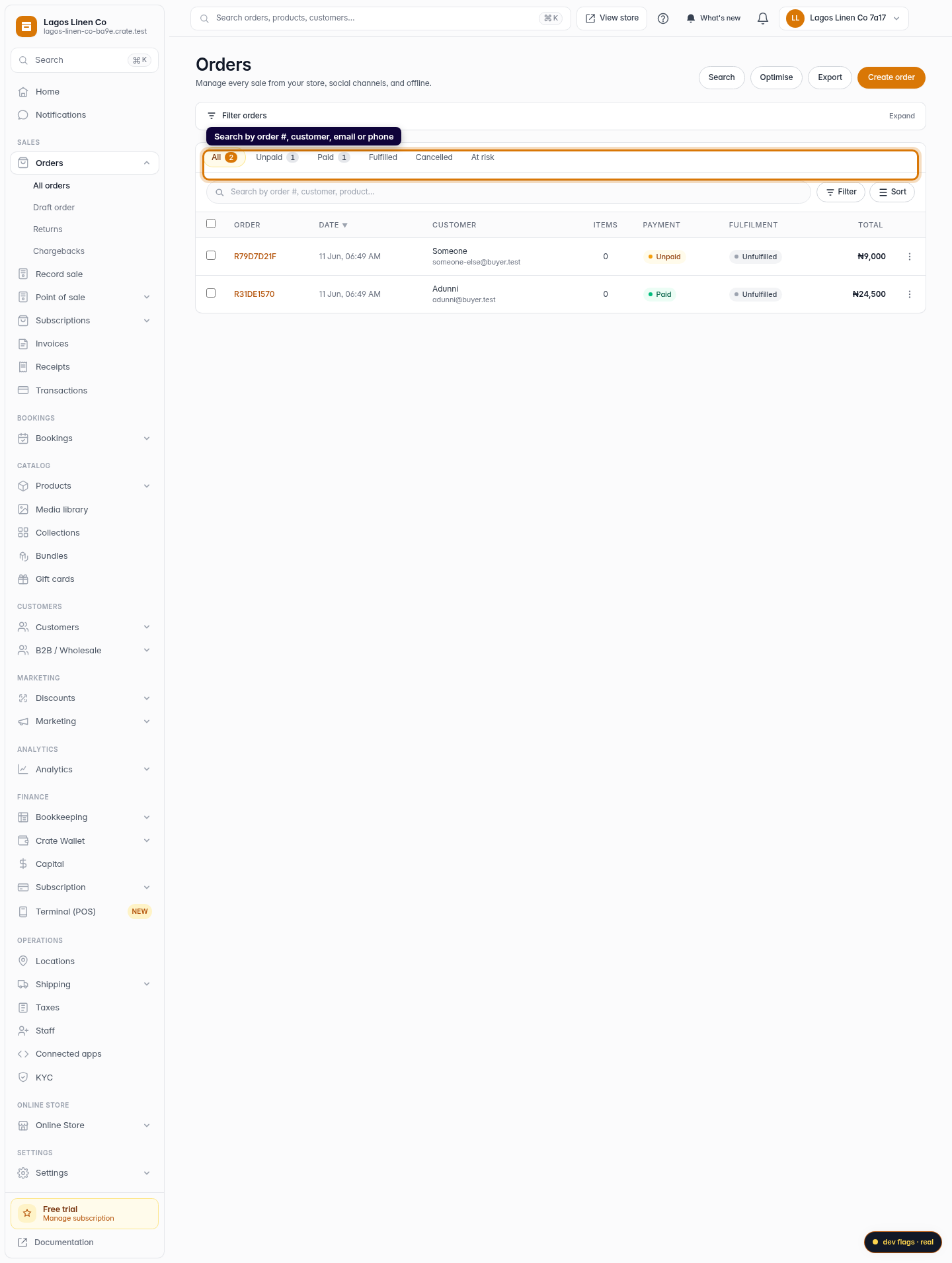
The search box at the top of the Orders table matches on the order number, the customer's name, their email and their phone number. Type any part of what you remember — a name, the tail of an order number — and the table filters down to matching orders.
Tip: Order numbers in Crate look like R3F9A2C1. You only need to type the distinctive part; you don't have to get the whole thing right.Finding a group of orders
When you're not after one specific order but a set of them — say, every unpaid order from last week — reach for the status tabs and the Filters drawer instead:
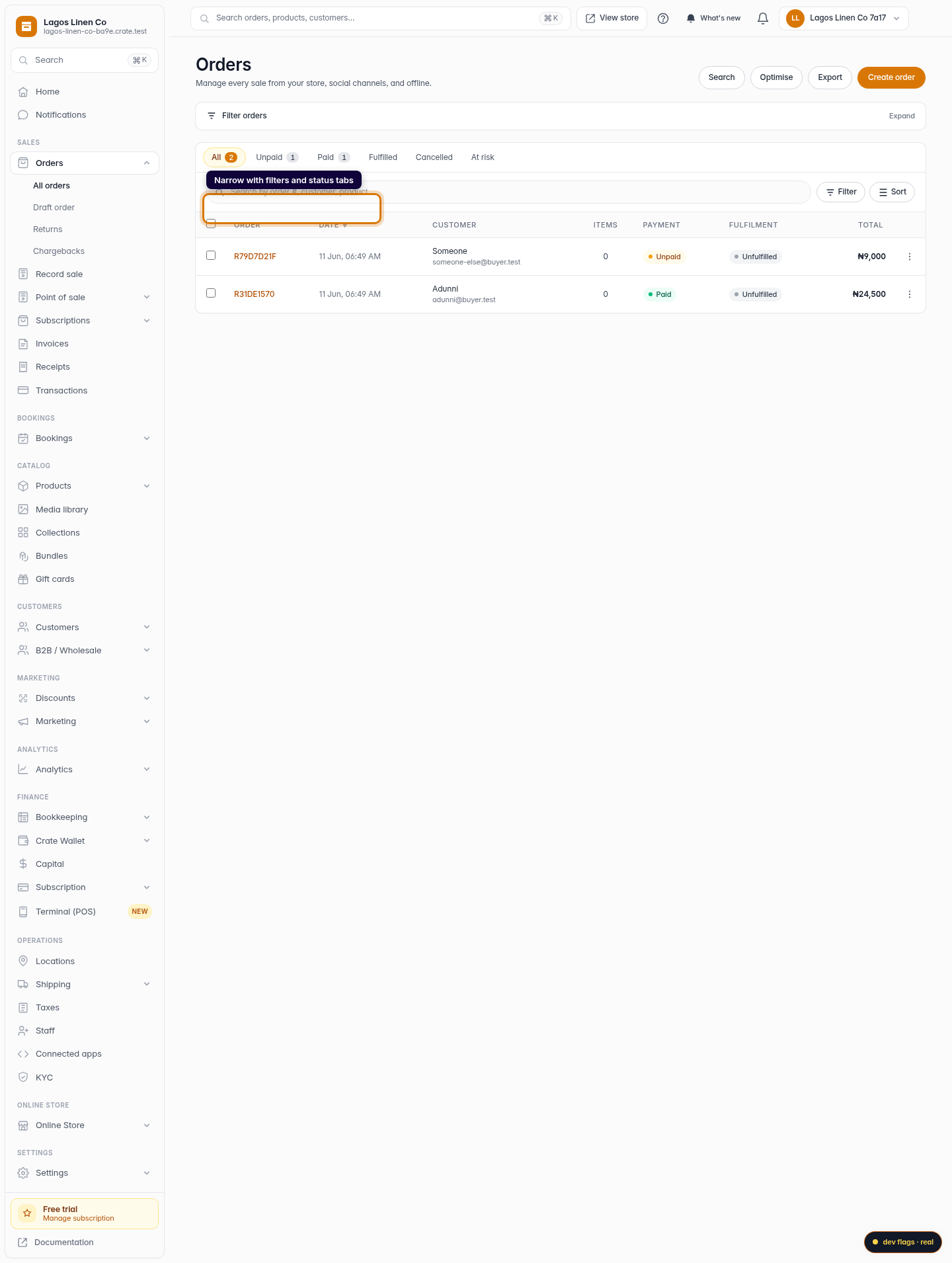
- Status tabs sit just above the table: All, Unpaid, Paid, Fulfilled, Cancelled and At risk. One click swaps the view.
- Filters lets you stack conditions — payment status, fulfilment state, sales channel and a from/to date range — and applies them together. Active filters show as chips you can remove one at a time.
If you find yourself running the same combination often, save it as a view and recall it in one click next time.
Advanced search for a precise match
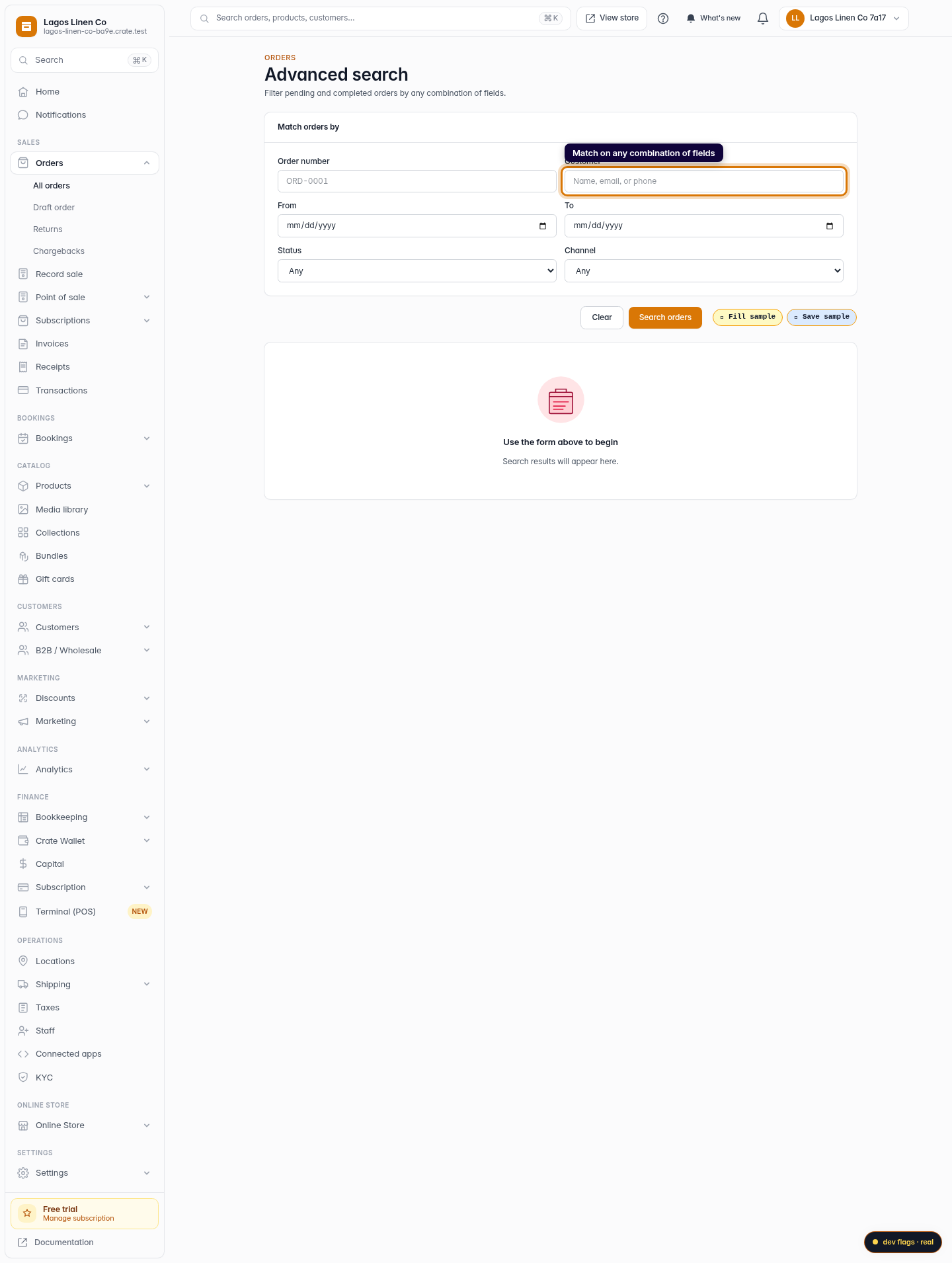
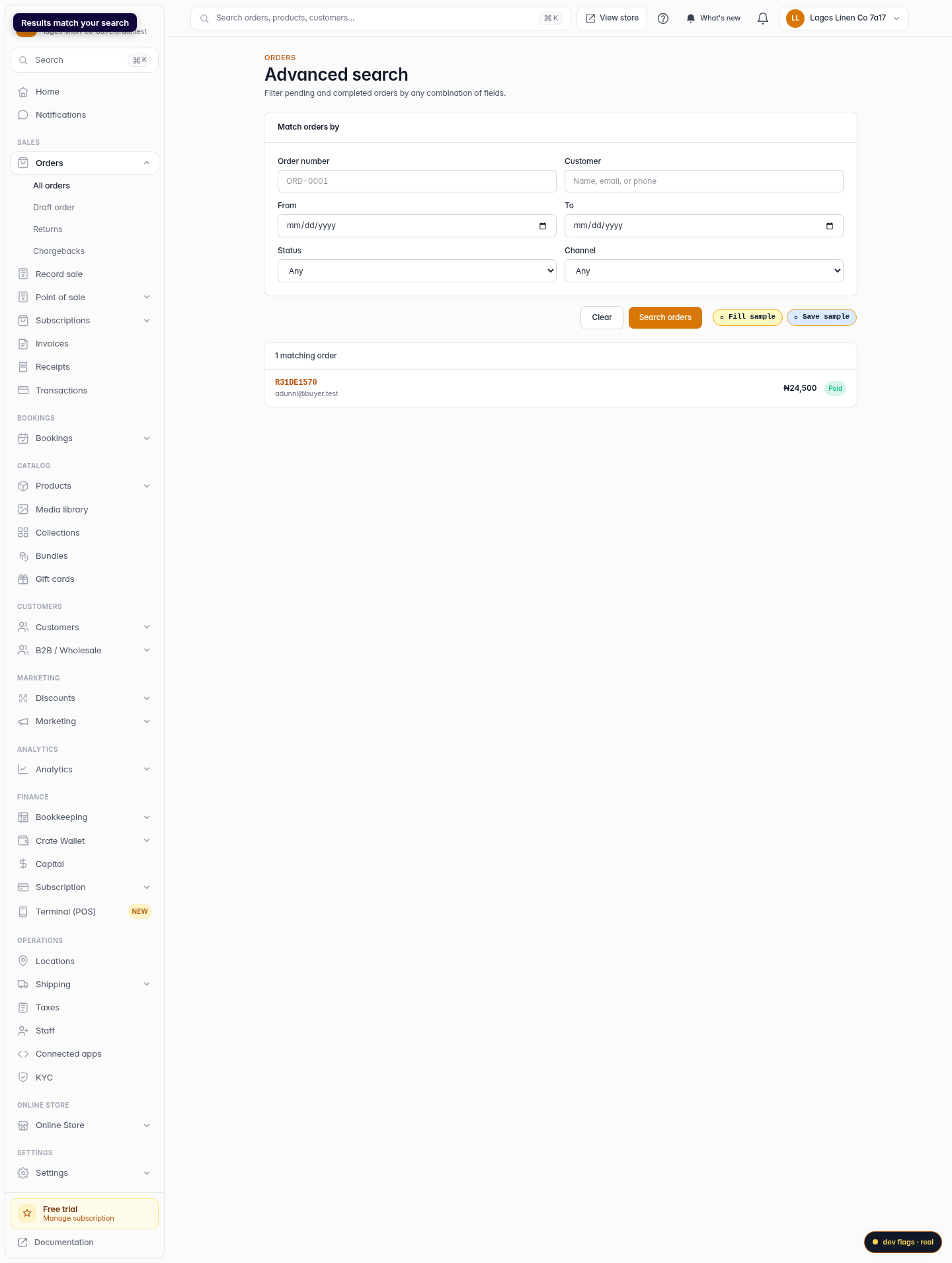
The Search button in the top-right opens a dedicated Advanced search screen. It's built for when you know a few exact details — an order number and a date range, or a customer and a status — and want only the orders that match all of them. Fill in what you know, leave the rest blank, and click Search orders.
-
1
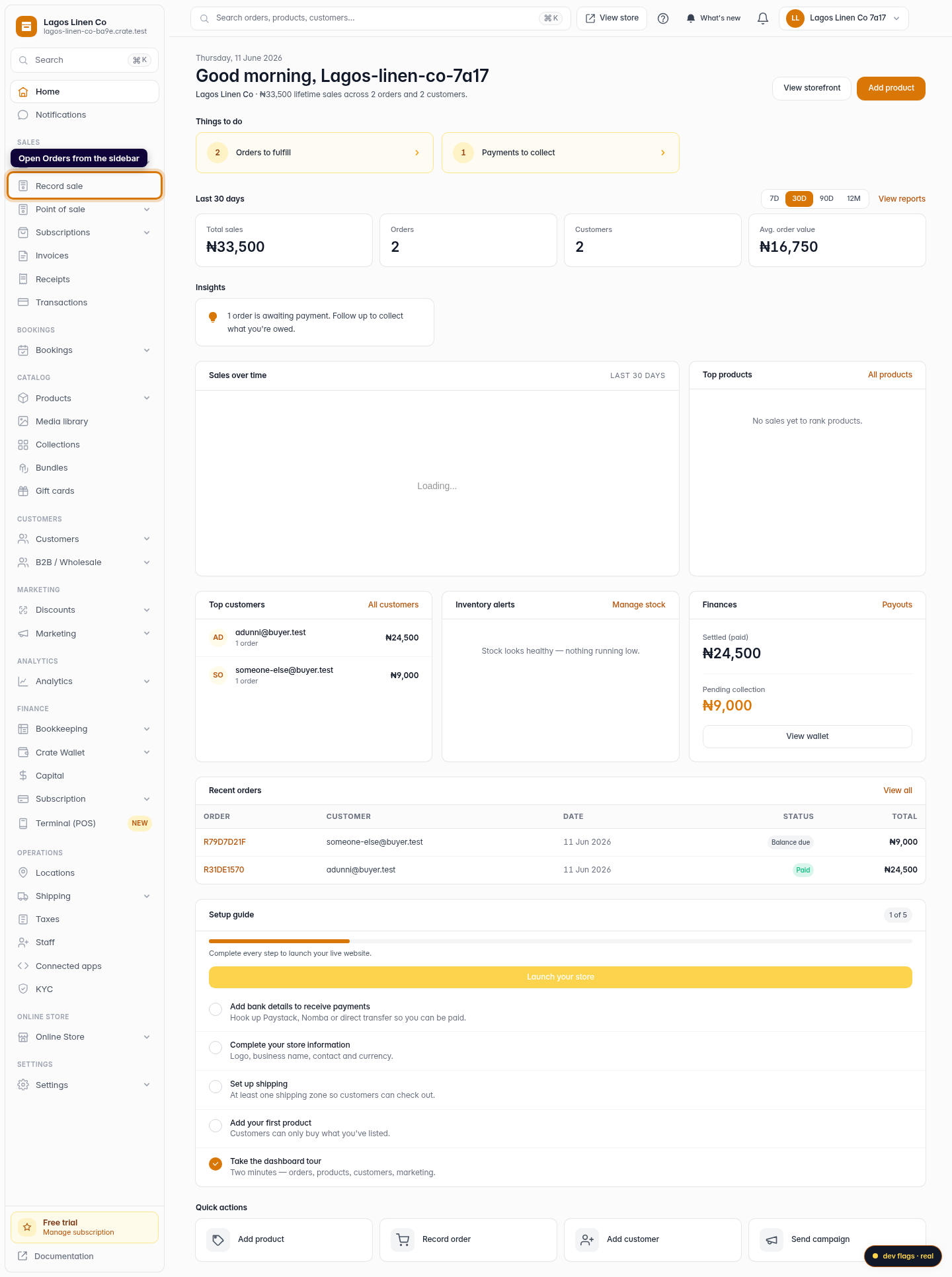
Open Orders
From your Crate dashboard, open Orders in the left sidebar. Every order you've taken — online, on WhatsApp, in-store — lives here.
Web -
2
Search from the Orders page
Use the search box at the top of the table to look up an order by its number, the customer's name, their email or their phone. Results filter as you type, so a partial match is enough.
Web -
3
Narrow the list with filters
Need to find a group of orders? Open the Filters drawer to narrow by payment status, fulfilment, sales channel or a date range. The status tabs above the table — All, Unpaid, Paid, Fulfilled, Cancelled, At risk — are one-click shortcuts for the most common views.
Web -
4
Open Advanced search
For a precise lookup, click Search in the top-right to open Advanced search. Match on any combination of order number, customer, date range, status and channel at once.
Web -
5
Run the search
Fill in the fields you know and click Search orders. Crate returns every order that matches across your whole history — click any row to open the order.
Web