Mark a part-paid order as fully paid
When a customer who paid a deposit settles the rest, record the final payment and move the order to fully paid — Crate updates the balance, generates a receipt, and finalises the order.
Plenty of sales happen in two parts: a customer pays a deposit to lock something in, then settles the balance on pickup or delivery. Crate handles that gracefully — the order sits as part-paid until the rest comes in, and when it does, you record the final payment to close it out.
Marking the order fully paid isn't just flipping a label. Crate finalises the order the same way a successful card charge would: it decrements inventory, generates a receipt, and settles any invoice you'd raised. The customer's record stays accurate and your sales totals stay honest.
What the confirm screen shows
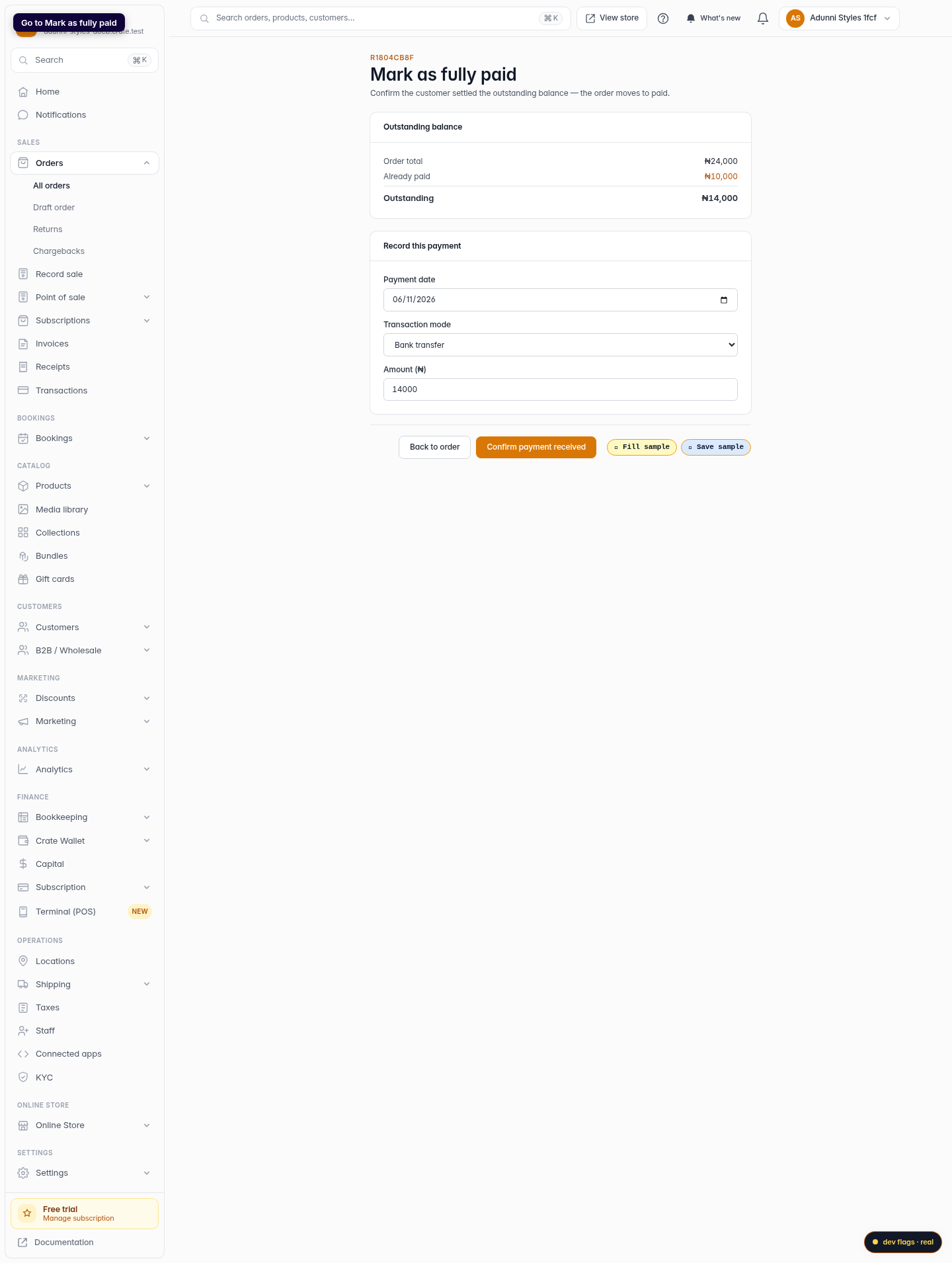
Before you record anything, the Mark as fully paid screen lays out the money clearly:
- Order total — the full amount of the sale.
- Already paid — the deposit or partial payment on record.
- Outstanding — what's still owed, and what Crate pre-fills as the amount to record.
You only confirm the remaining payment — Crate already knows what's been paid.
After you confirm
Once you click Confirm payment received, the order moves to fully paid and complete. A receipt is generated automatically, so you can send the customer proof of payment, and any open invoice for the order is settled. There's nothing else to switch on — the sale is closed.
Tip: Recording a brand-new deposit instead? Use Record sale to log a partial payment at the point of sale; come back here when the customer settles the balance.
-
1
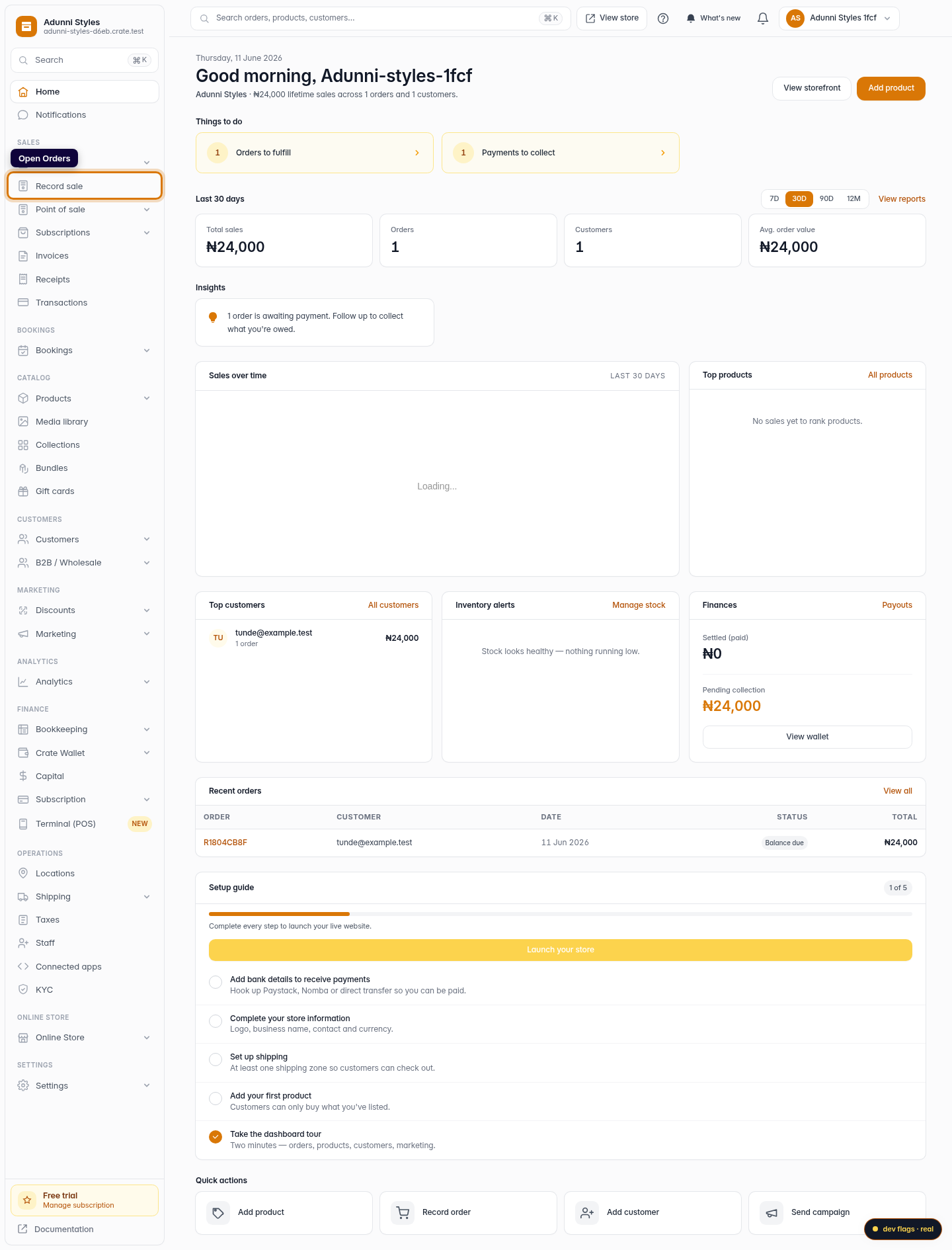
Open Orders
From your Crate dashboard, open Orders under the Sales group in the left sidebar.
Web 
Mobile -
2
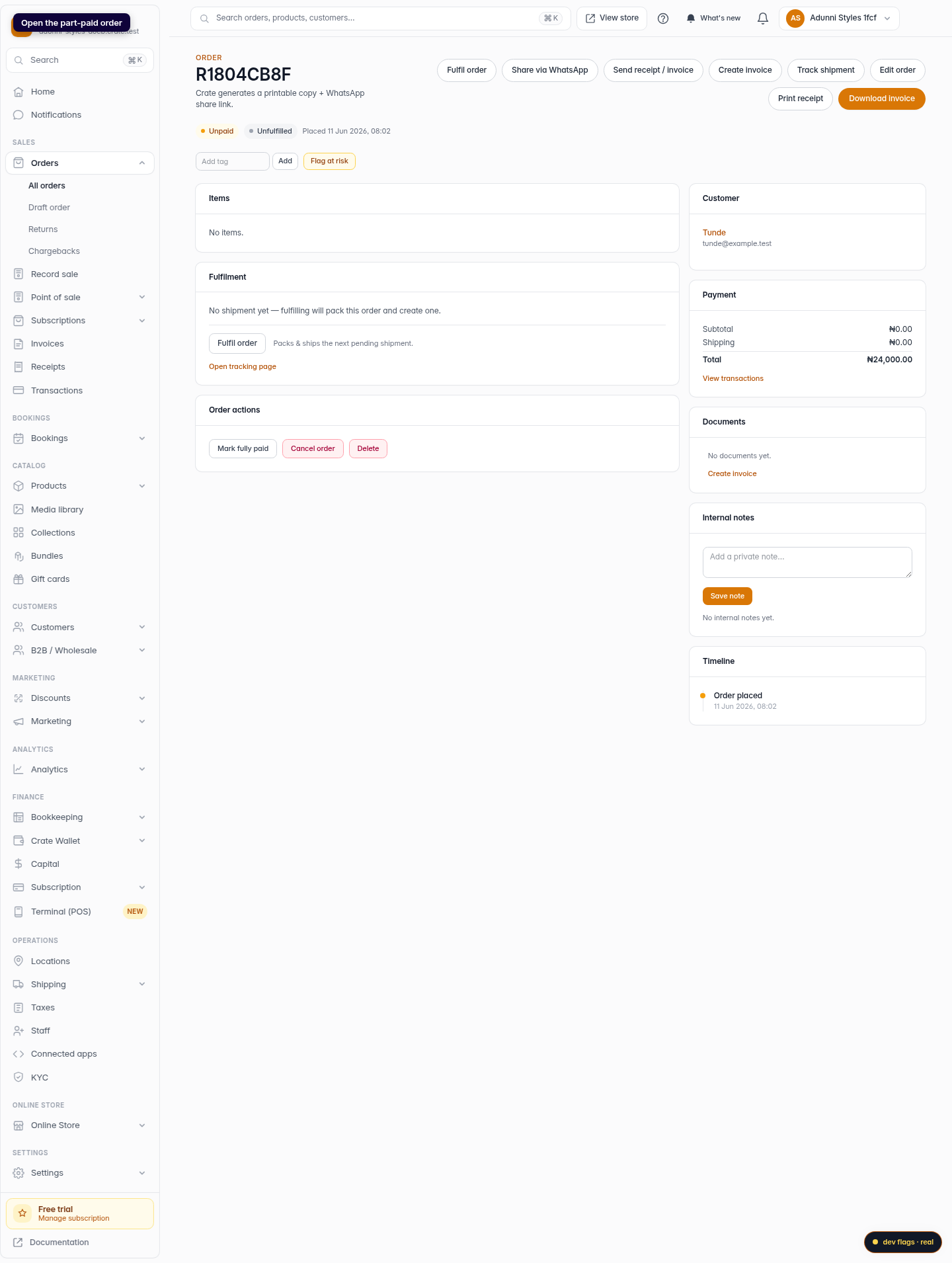
Open the part-paid order
Find the order with an outstanding balance — its payment pill shows it isn't fully settled — and click into it.
Web -
3
Go to Mark as fully paid
Open the Mark as fully paid screen for the order. Crate shows the order total, what's already been paid, and the outstanding balance the customer still owes.
Web 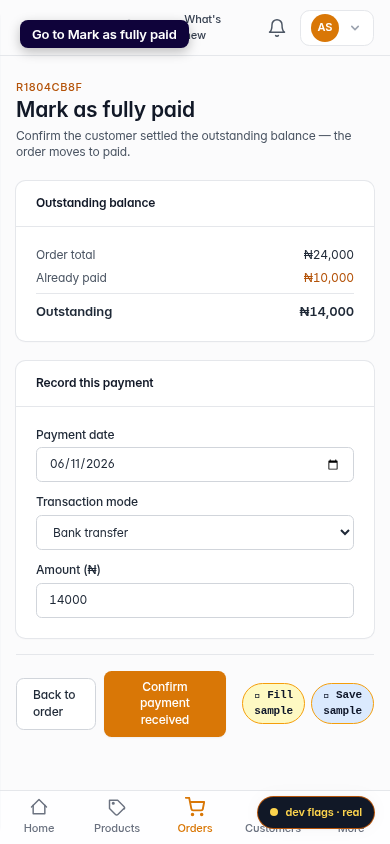
Mobile -
4
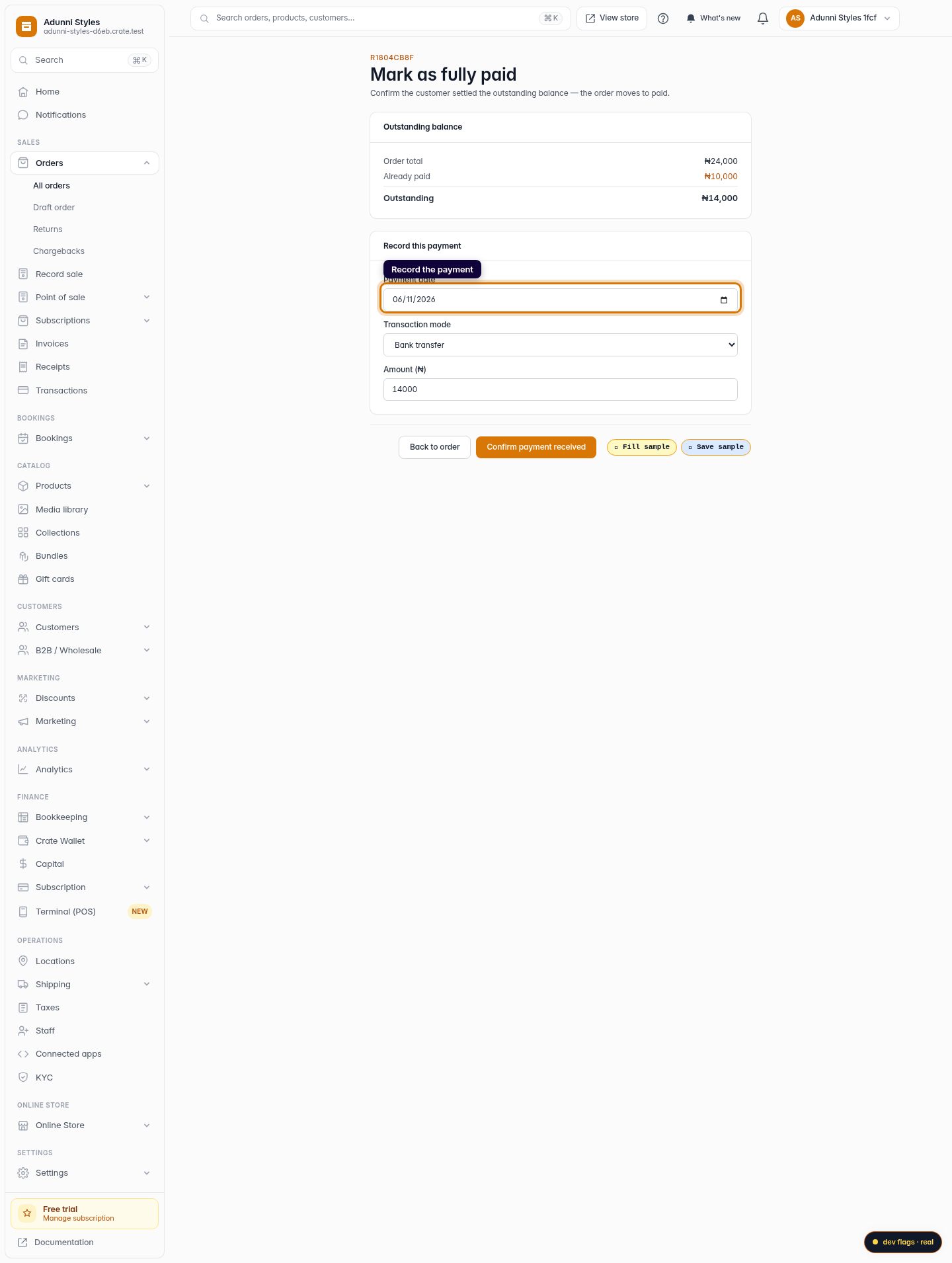
Record the payment
Enter the payment date, the transaction mode (Bank transfer, Cash, POS, Paystack, Nomba or Other) and the amount received. Crate pre-fills the amount with the outstanding balance to save you a step.
Web -
5
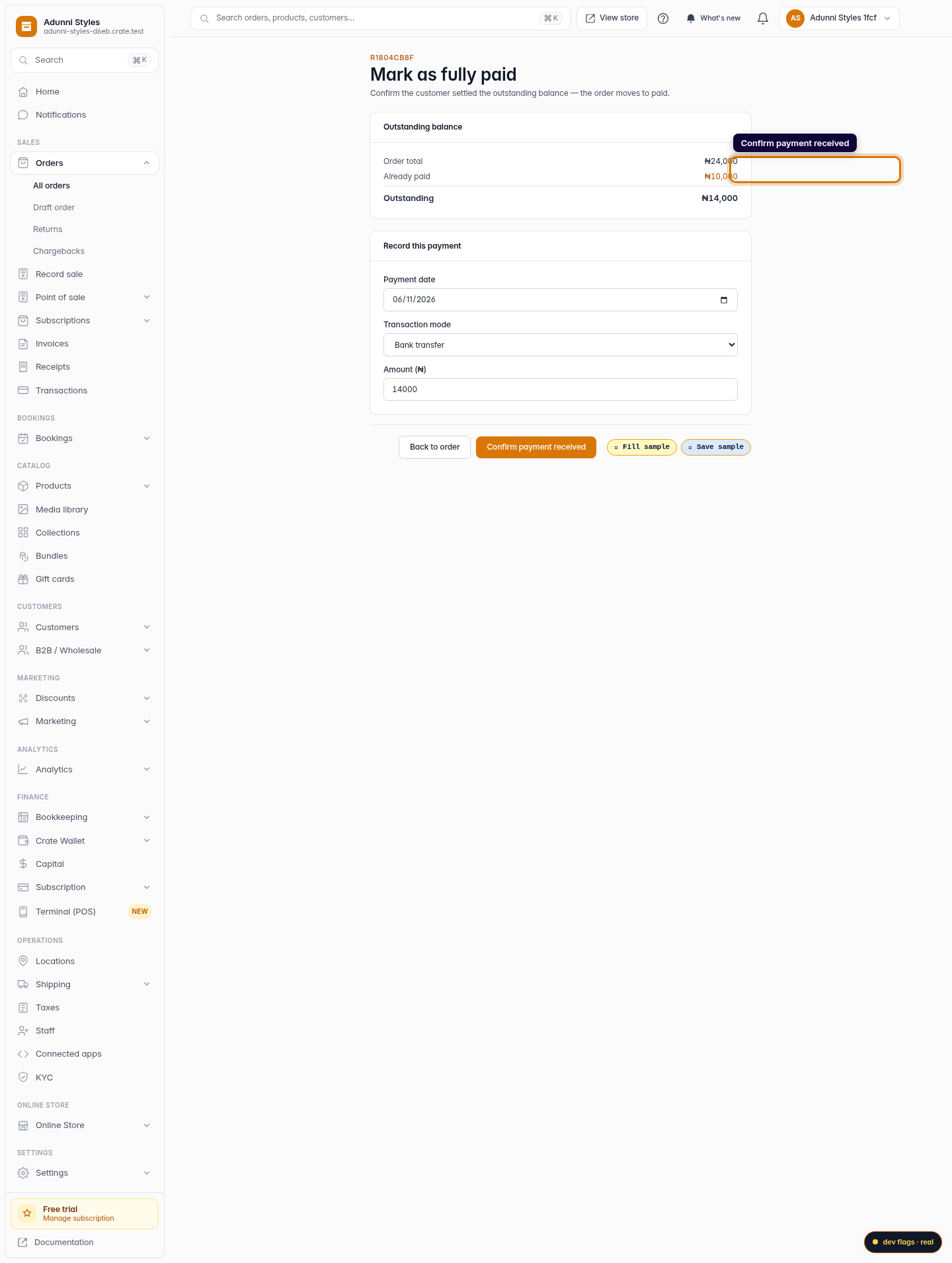
Confirm payment received
Click Confirm payment received. Crate marks the order fully paid, finalises it, generates a receipt, and settles any open invoice — exactly as if a card payment had landed.
Web