Put your storefront in maintenance mode
Maintenance mode takes your storefront offline behind a friendly "we'll be back" page while you make changes — without touching your dashboard. Flip it on, set a message, and toggle it back off when you're ready.
Maintenance mode lets you take your storefront offline temporarily — to swap a theme, re-price your catalogue, or fix something — without anyone landing on a half-finished page. Shoppers see a tidy "we'll be back" message; you keep full access to your dashboard the whole time.
When to use it
- You're making big visual changes and don't want buyers to catch the store mid-edit.
- You're pausing sales briefly (restocking, a short break) and want to set expectations.
- You're preparing a launch and want the storefront hidden until you flip it live.
Already seeing a "Your website is in maintenance mode" notice on your own storefront? That means maintenance is currently on. Follow the steps above and untick the box to turn it off.
Maintenance mode vs. password protection
Maintenance mode shows everyone the same offline message. If instead you want to let a select few preview the live store before launch, use Password protect lower in the same section — it hides the storefront behind a single shared password rather than taking it down entirely.
-
1
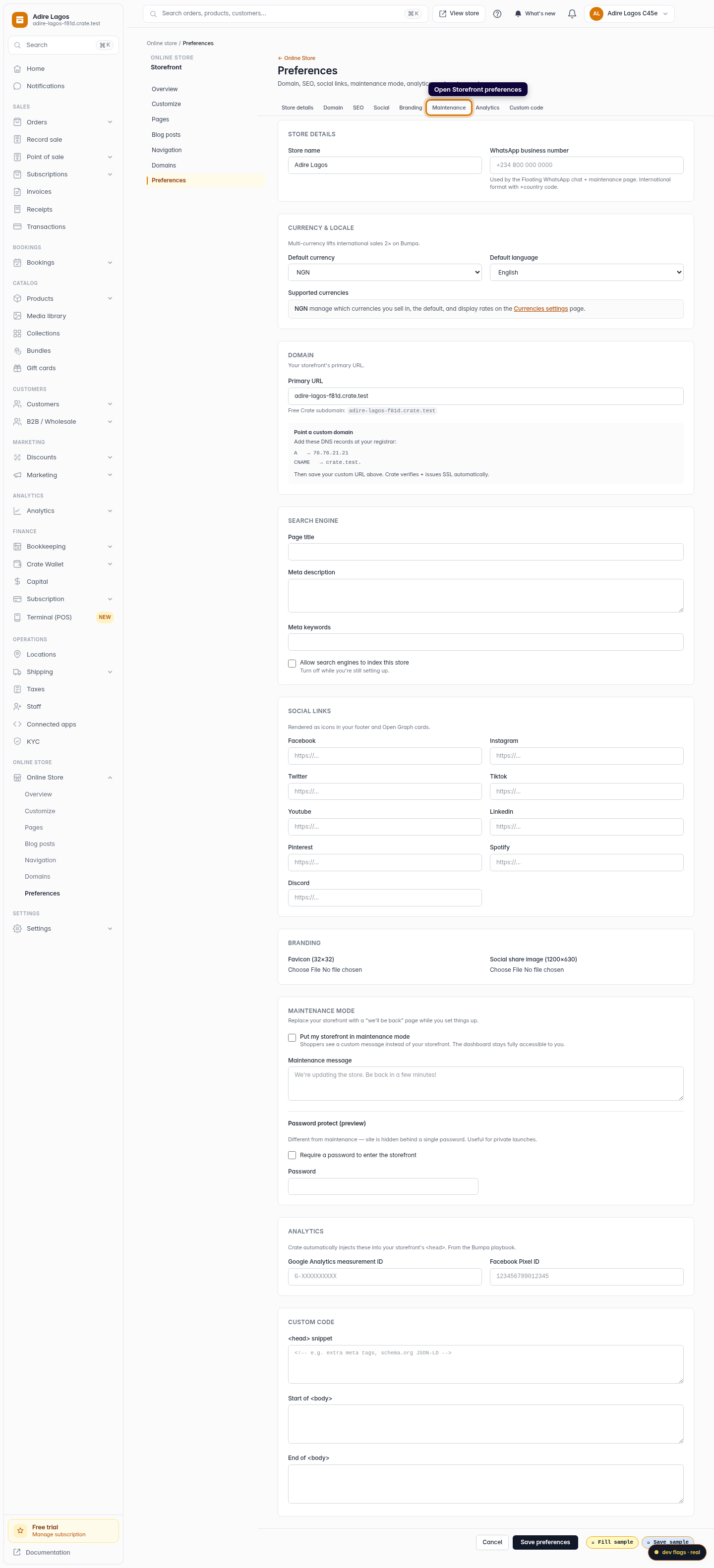
Open Storefront preferences
From your Crate dashboard, go to Online Store → Preferences. This page holds your storefront's domain, SEO, social links and maintenance settings.
Web -
2
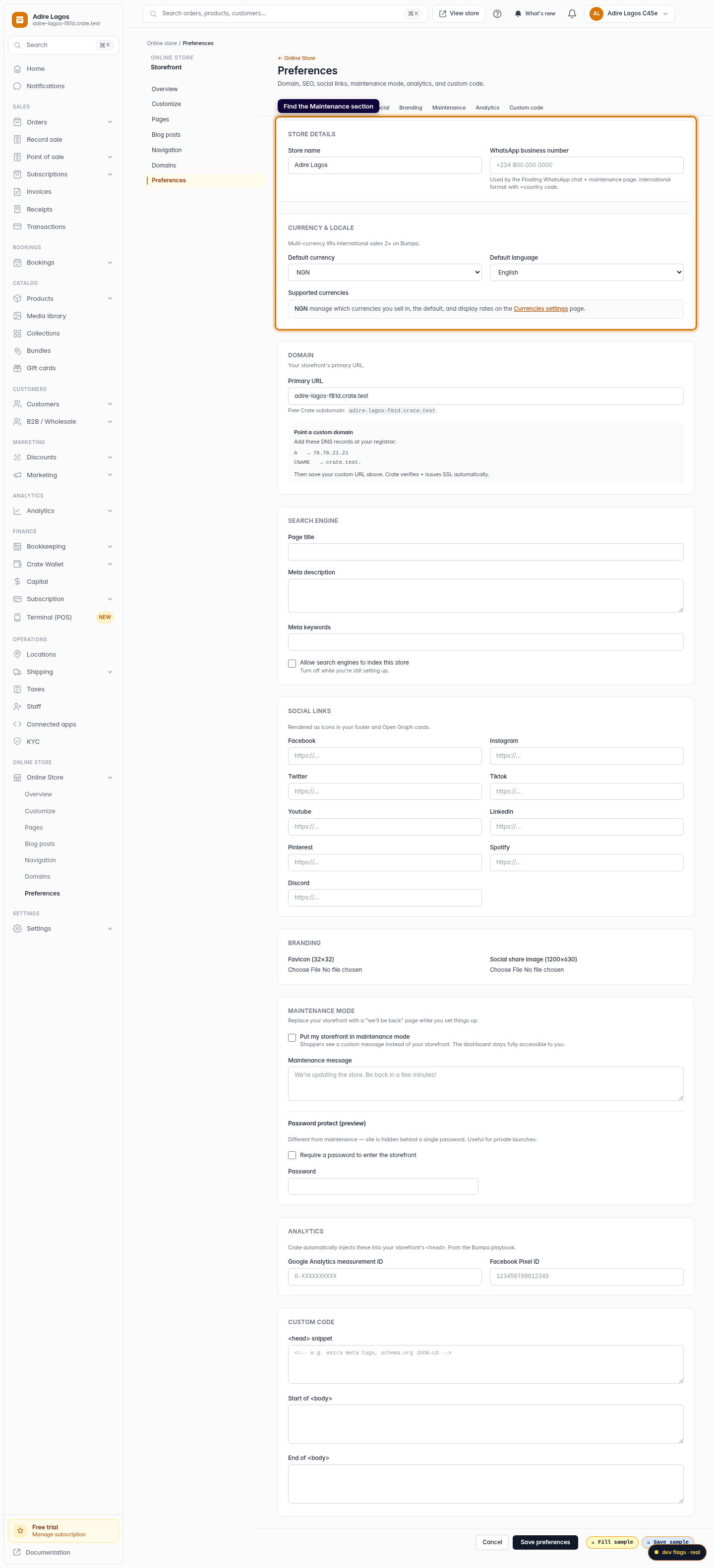
Find the Maintenance section
Scroll to the Maintenance mode section (or click Maintenance in the tab bar at the top of the page).
Web -
3
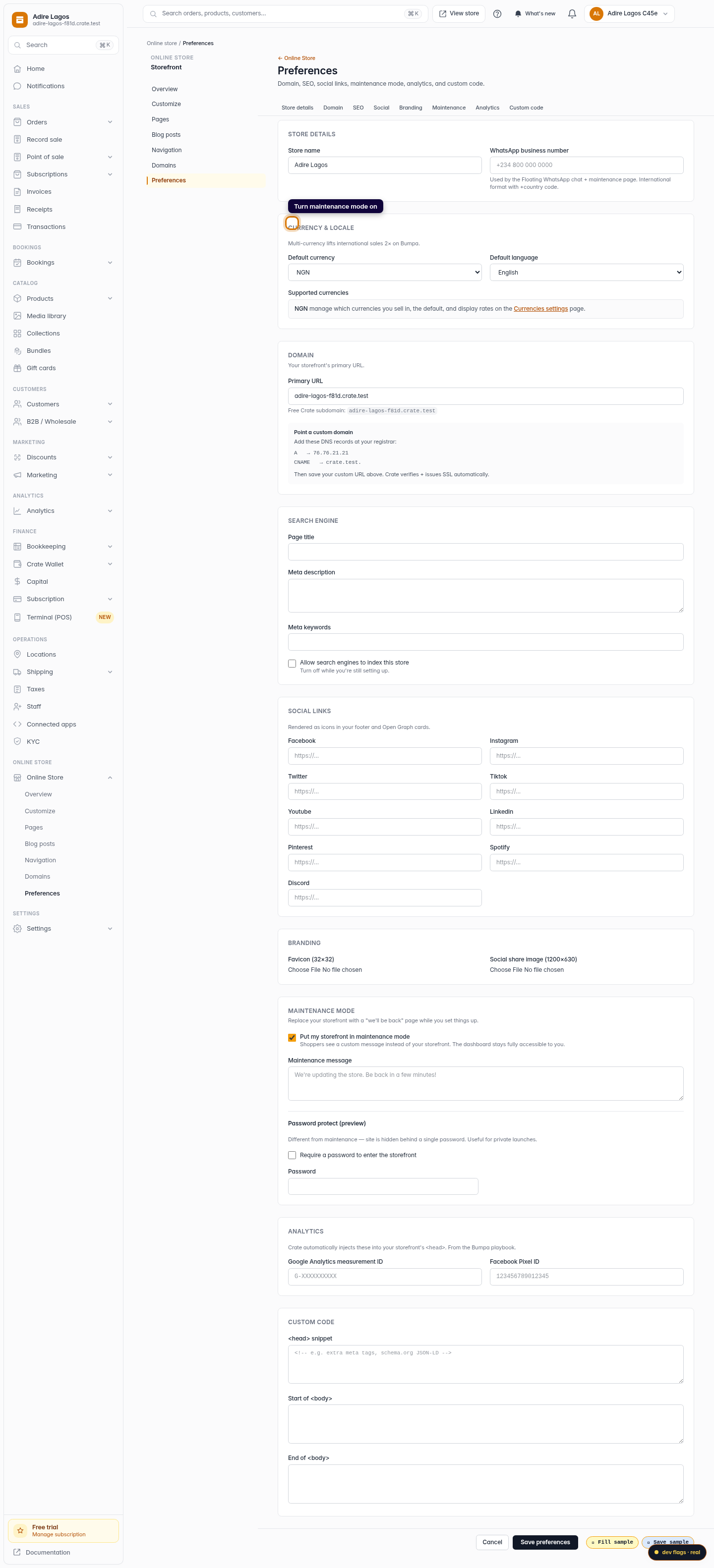
Turn maintenance mode on
Tick Put my storefront in maintenance mode. While it's on, shoppers see your maintenance page instead of your store — but your dashboard stays fully open to you.
Web -
4
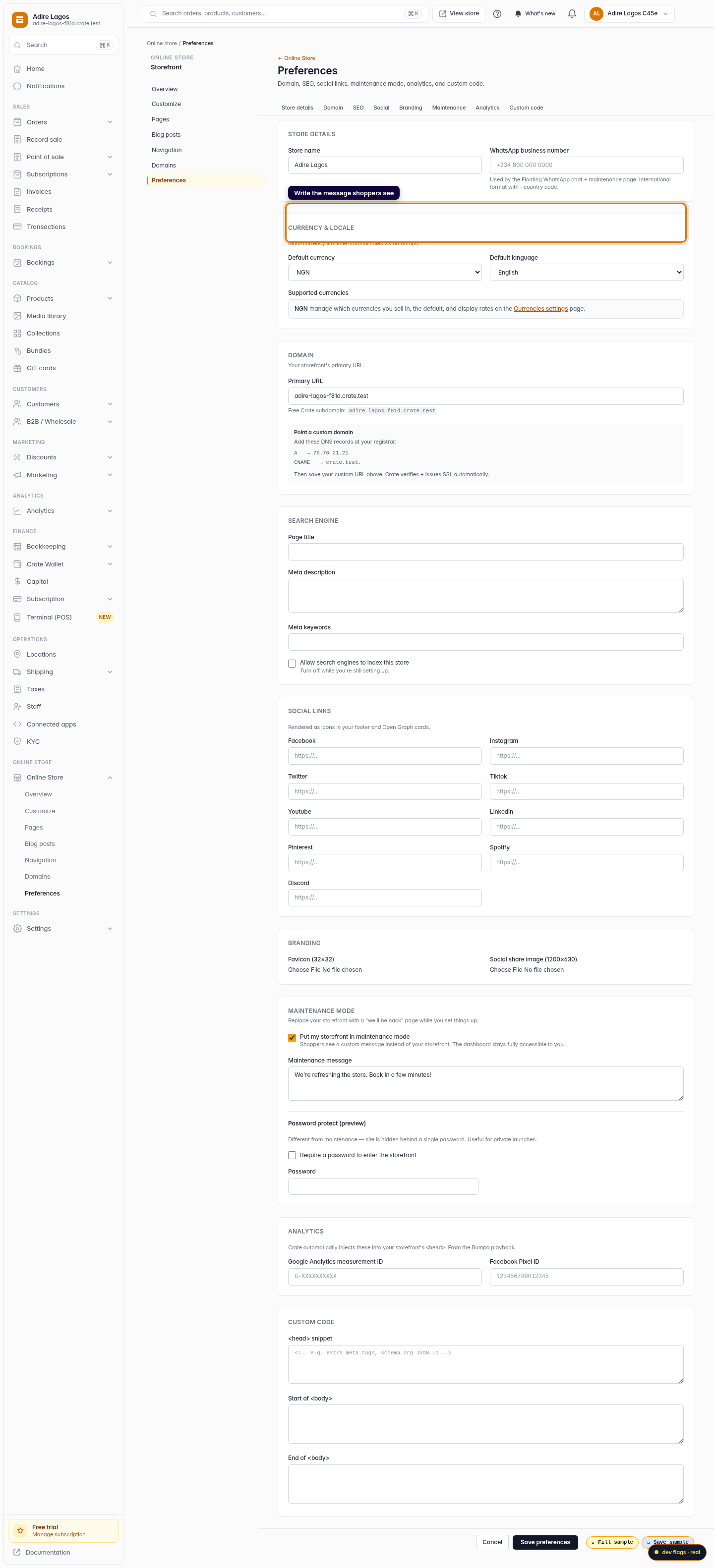
Write the message shoppers see
In Maintenance message, type the note buyers should read while you're working — for example "We're updating the store. Back in a few minutes!"
Web -
5
Save your preferences
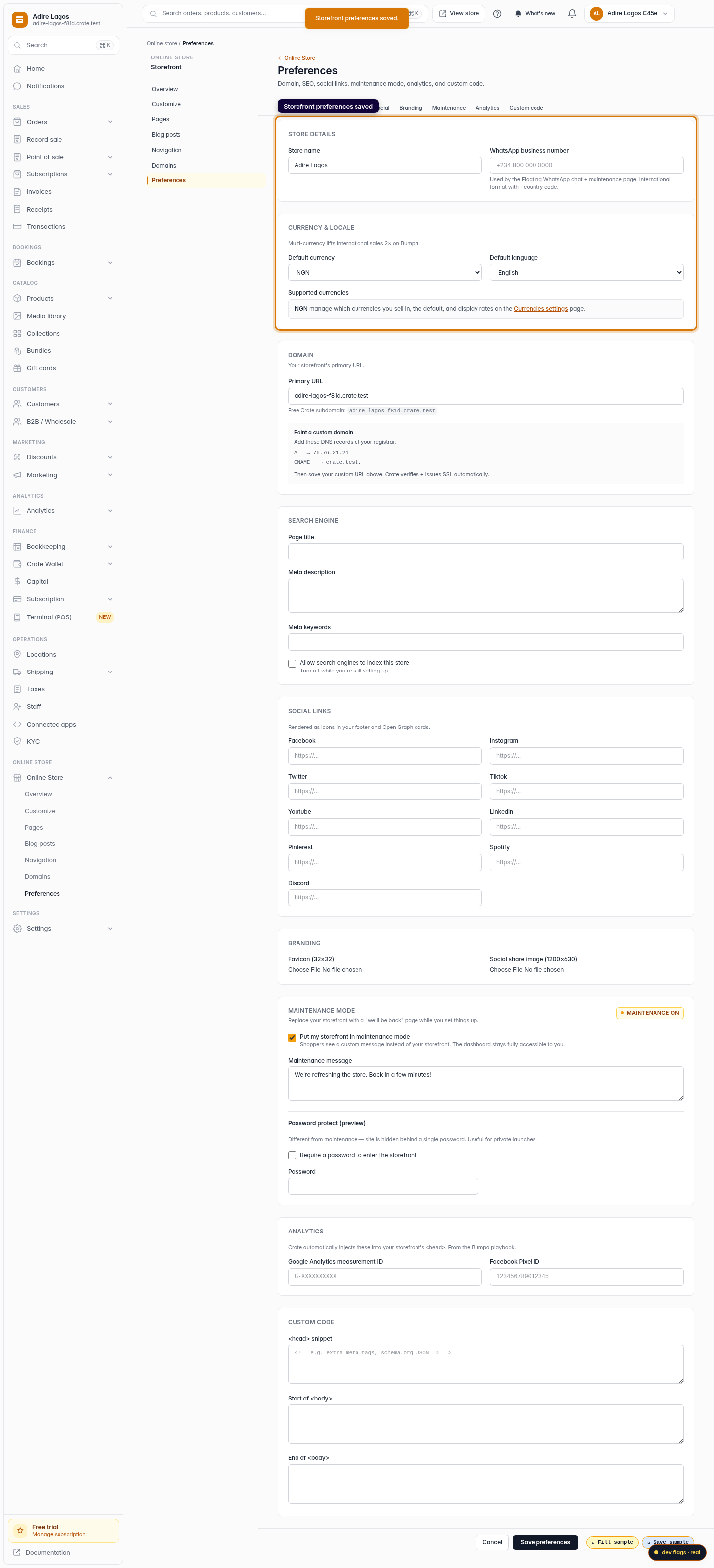
Click Save preferences. Crate confirms with Storefront preferences saved and a Maintenance ON badge appears at the top of the section.
Web -
6
Turn it back off when you're done
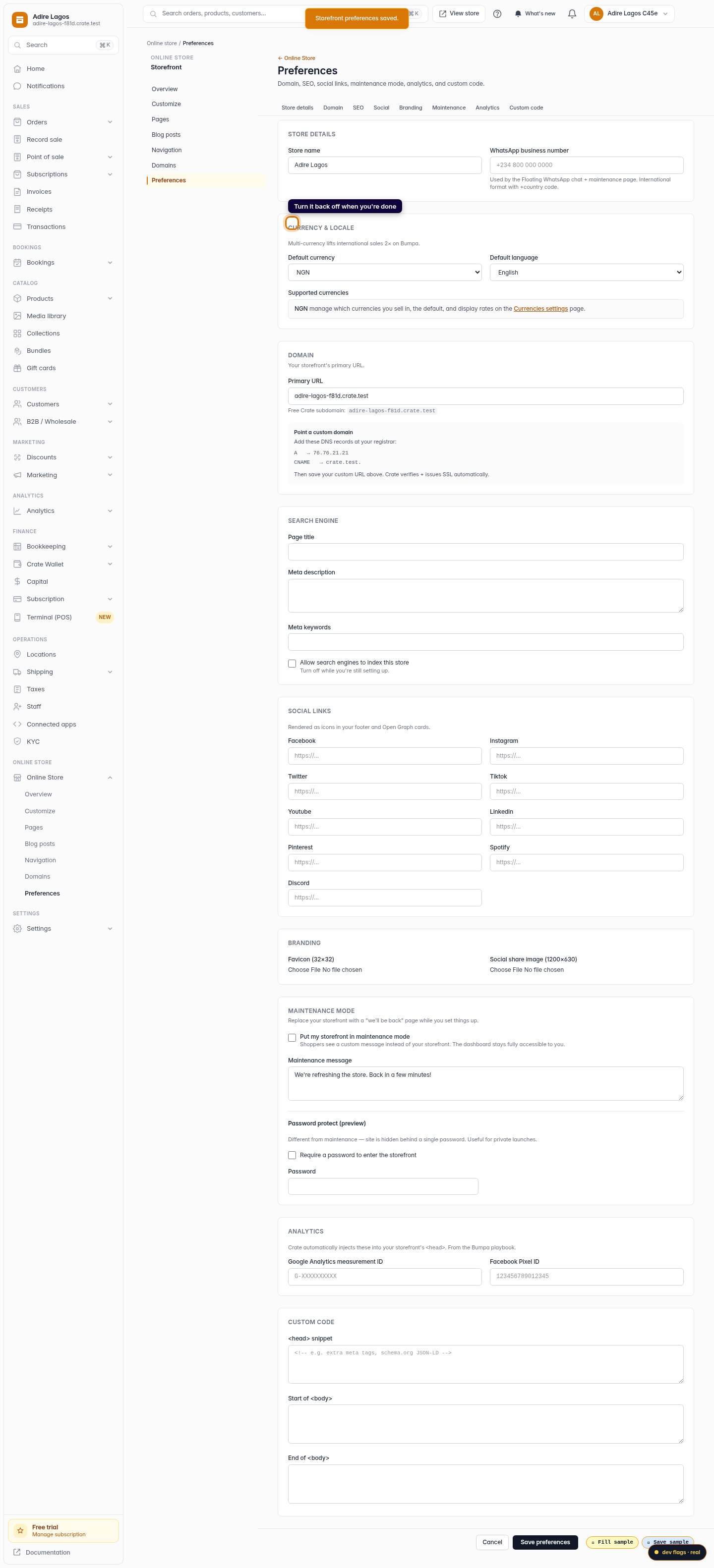
When your store is ready, return to the same section, untick the box, and Save preferences again. Your storefront goes live instantly.
Web