Set up your store information
Your store information is the identity shoppers see across your storefront and every email Crate sends on your behalf — your name, tagline, contact details and currency. Set it once and it flows everywhere.
Your store information is the foundation of your brand on Crate. It's the name, tagline, contact details and currency that show up on your storefront, in every transactional email, and anywhere a buyer needs to know who they're dealing with. Getting it right takes a minute and only has to be done once.
What you'll set
- Store name — what shoppers see first, on your storefront and in their order confirmations.
- Tagline and description — a one-line pitch plus a short blurb that tells buyers (and search engines) what you're about.
- Default currency and language — how prices are displayed and which language your storefront speaks by default.
- Contact details — your customer-facing email, WhatsApp Business number and business address.
Tip: Use a WhatsApp Business number for your contact phone. Crate uses it for the floating WhatsApp chat on your storefront, so buyers can message you mid-shop.
What happens after you save
Everything updates instantly — there's no separate publish step. Your storefront header, footer and emails all read from these fields, so the moment you save, buyers see the new details. To change which currencies you actually sell in (beyond the default), head to Settings → Currencies.
-
1
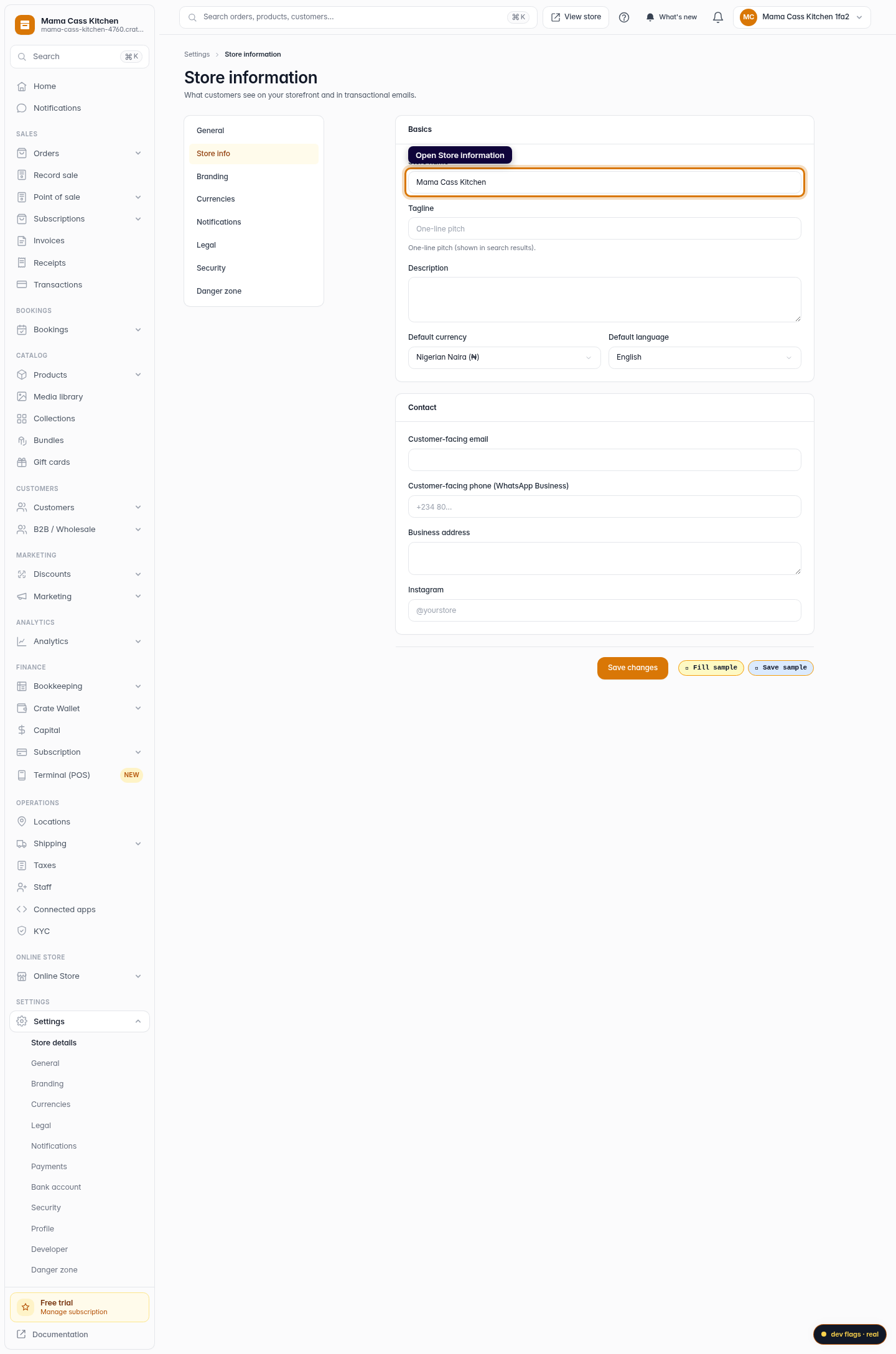
Open Store settings
From your Crate dashboard, go to Settings → Store information. This is the single place that controls how your business appears to buyers.
Web -
2
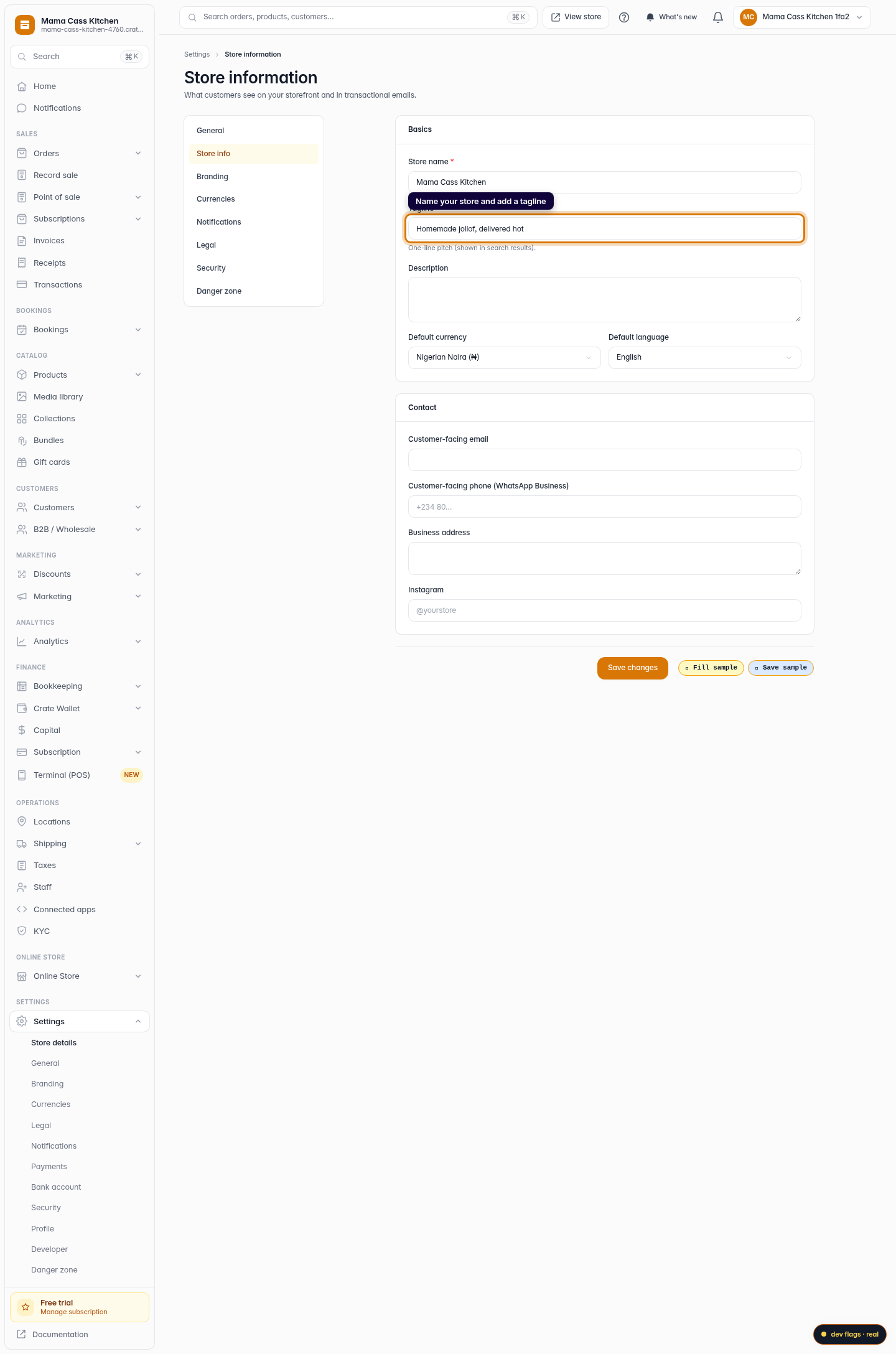
Name your store and add a tagline
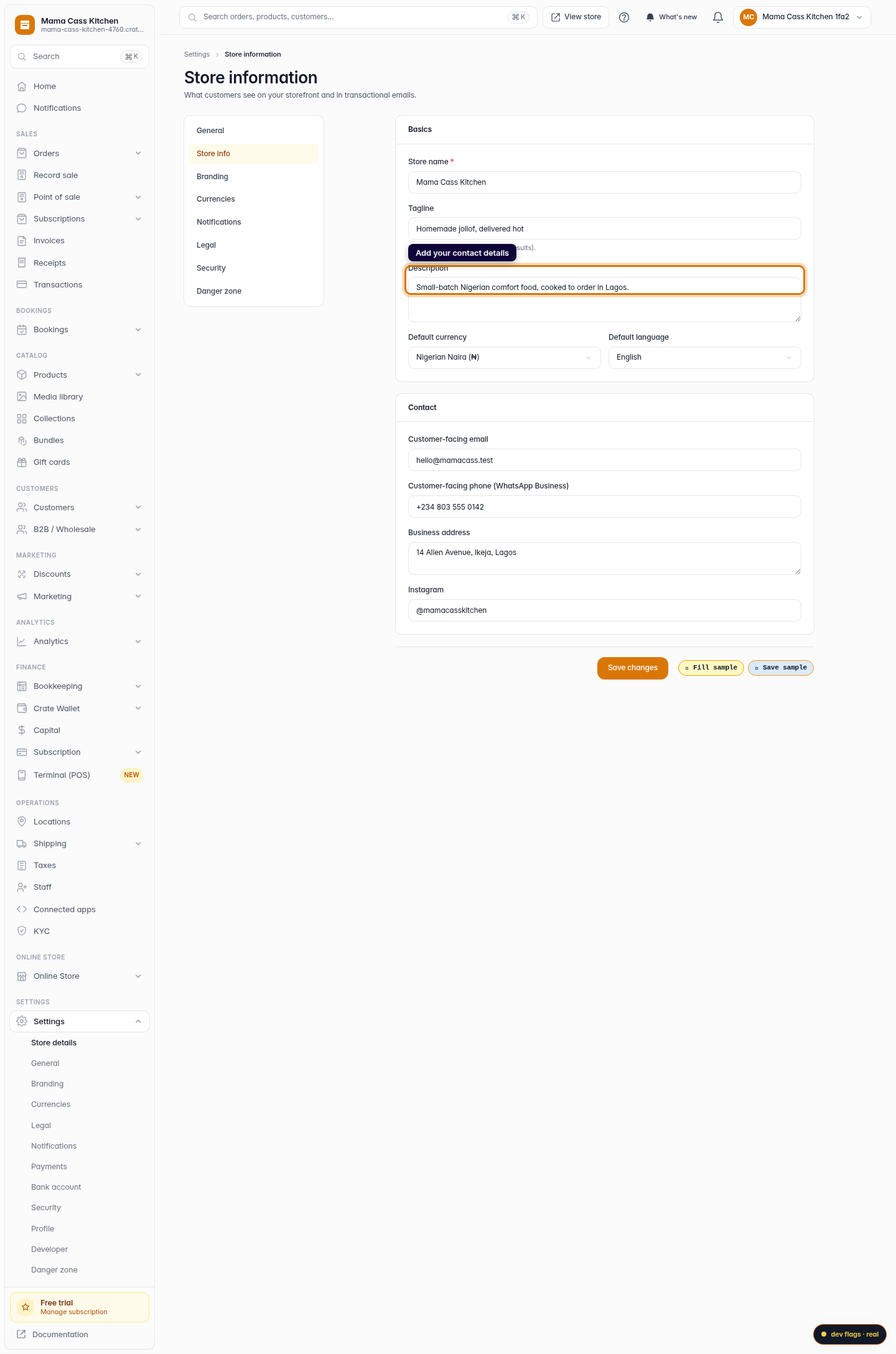
Enter your store name — the name buyers see at the top of your storefront and in their order emails — and a one-line tagline that sums up what you sell. The tagline also shows in search-engine results.
Web -
3
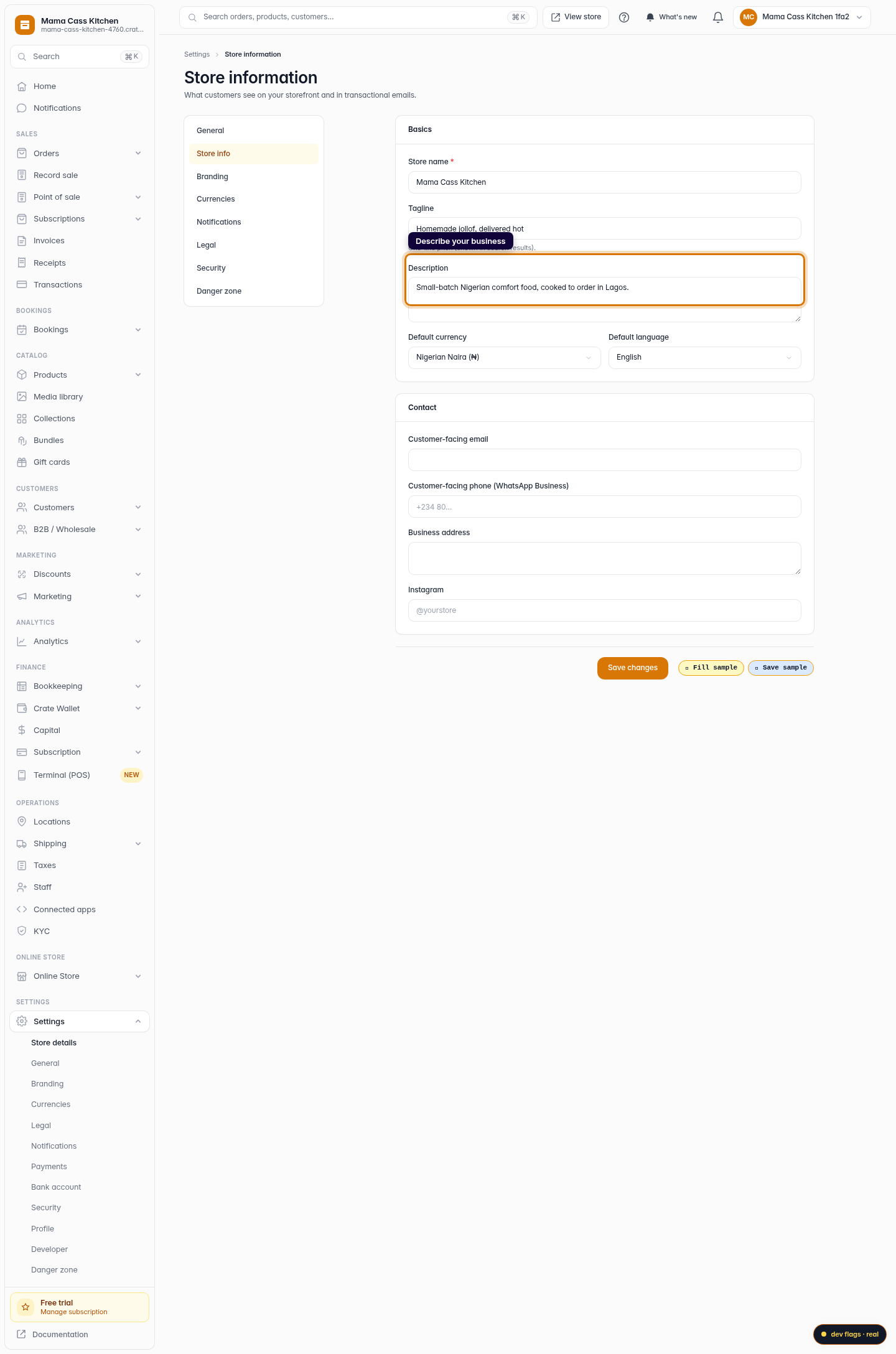
Describe your business
Add a short description. A sentence or two about what makes your store worth buying from is enough — you can always expand it later.
Web -
4
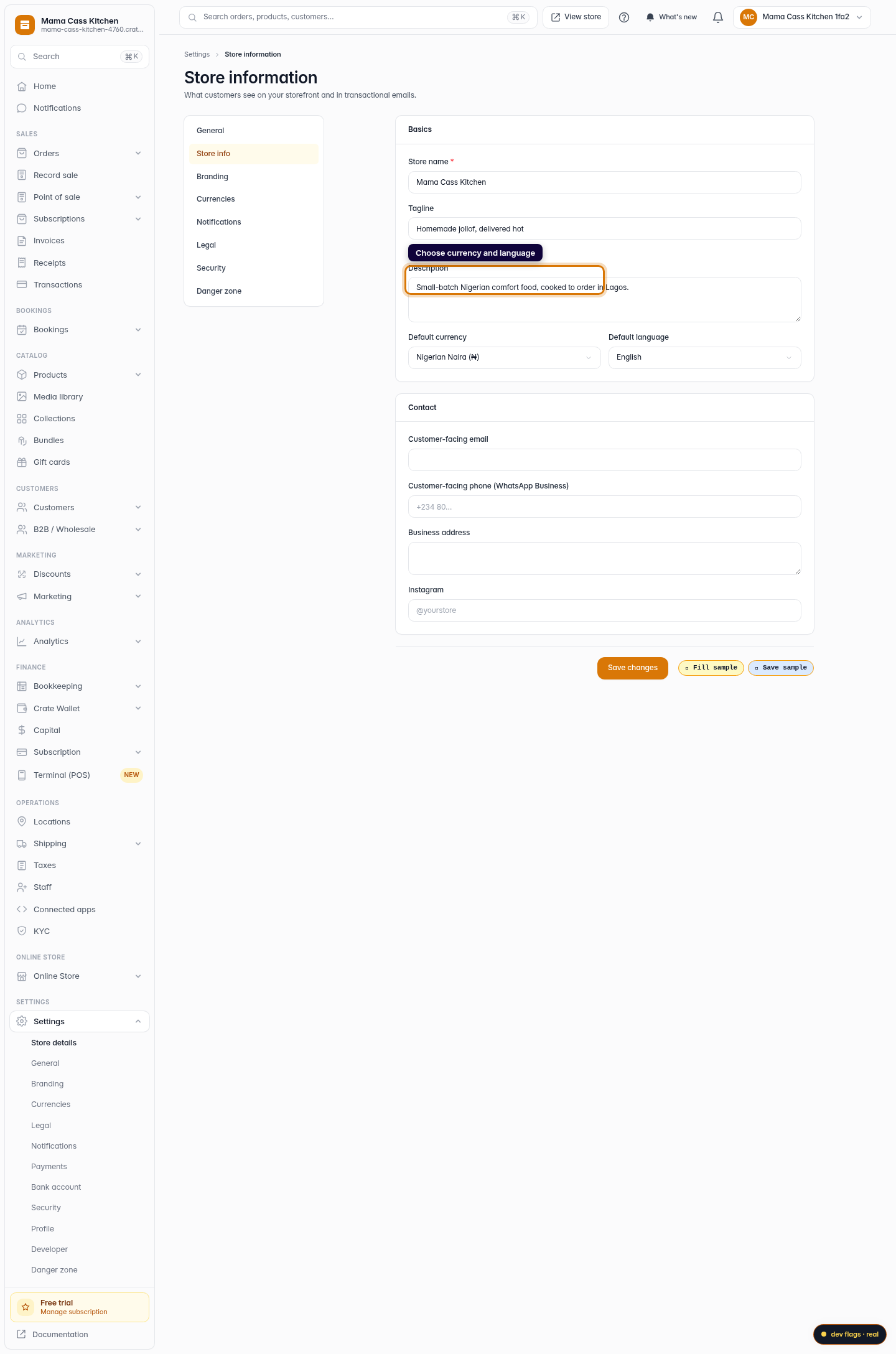
Choose your currency and language
Pick the default currency you price products in and the default language for your storefront. Crate supports Naira, Cedi, Shilling, Rand and US Dollar out of the box, with English and French.
Web -
5
Add your contact details
Fill in your customer-facing email, WhatsApp Business phone and business address. These appear in your storefront footer and give buyers a direct line to you when they have a question.
Web -
6
Save your changes
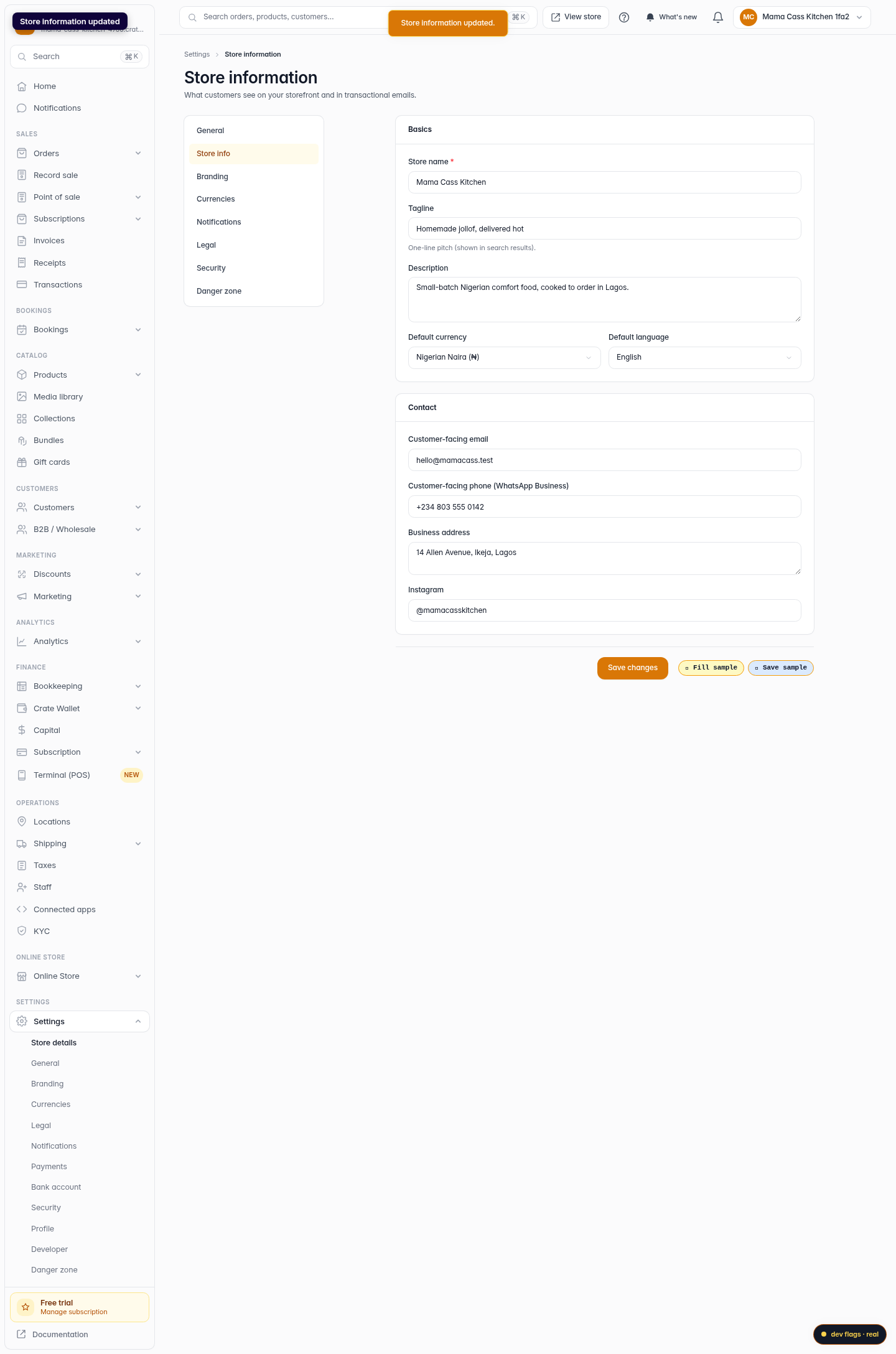
Click Save changes. Crate confirms with Store information updated and your details are live across your storefront and emails immediately.
Web