Add a custom message to your store
Run a store-wide announcement — a sale, a shipping cut-off, a holiday note — across the top of every page using the Announcement bar in Crate's storefront builder.
A custom message is the fastest way to tell every visitor something important the moment they land on your store — a flash sale, a delivery cut-off, a public-holiday notice, or a discount code. In Crate it lives in the Announcement bar, the slim strip that sits above your store header on every page.
Because the announcement bar is a builder section, you edit it in the same place you edit the rest of your store — the storefront builder — and you see your change in the live preview as you type. There's no separate settings screen to hunt for.
What you can put in it
Keep it short and specific — the bar is one line. A few that work well:
- A promotion: 20% off everything with code WELCOME20
- A delivery promise: Same-day delivery in Lagos & Abuja
- A deadline: Order by Friday for delivery before Sallah
You can attach a button with a link (for example to a collection) if you want the message to be clickable.
Tip: Want the bar gone for a while? Use the section's visibility toggle to hide it without deleting your message — then switch it back on for your next promo.
When it goes live
Edits to the announcement bar are saved to a draft of your theme as you work. Click Publish in the builder when you're ready for shoppers to see the change on your live store.
-
1
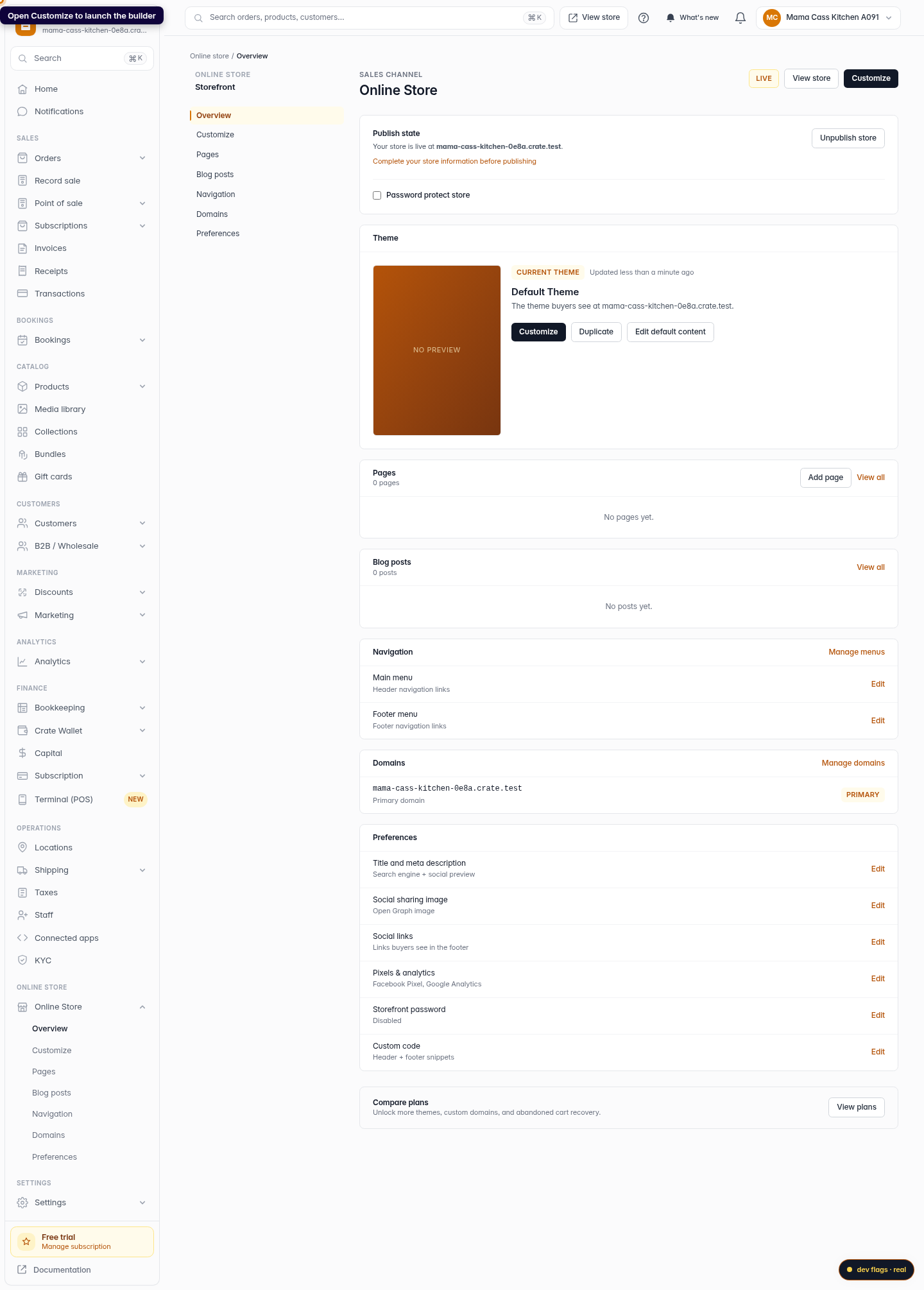
Open Customize
From your dashboard, open Online Store and click Customize to launch the storefront builder. This is where every part of your store's look is edited.
Web 
Mobile -
2
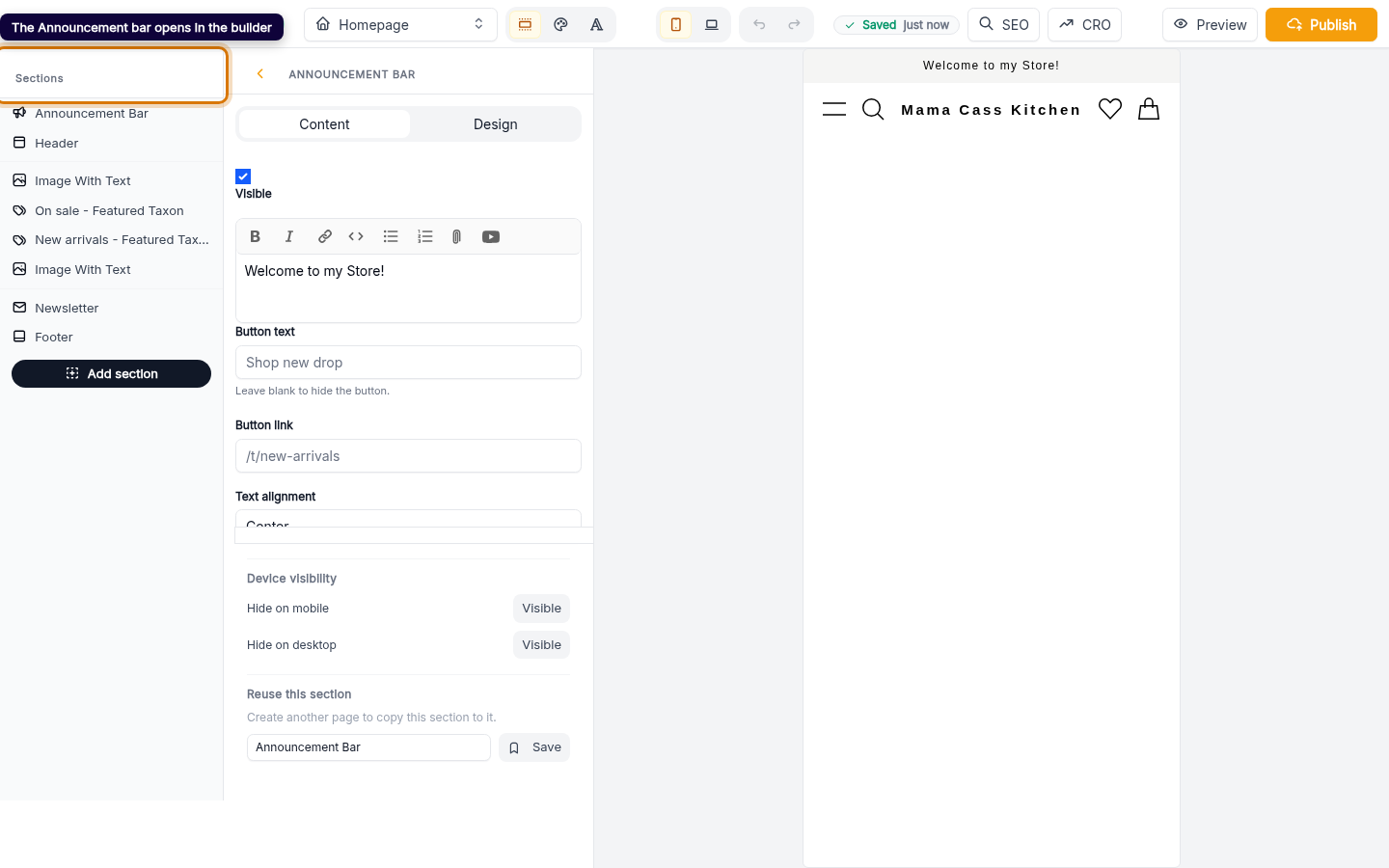
The Announcement bar opens in the builder
Crate takes you straight to the Announcement bar — the thin strip that sits above your header on every page. It's already added to your store; you're just editing it.
Web -
3
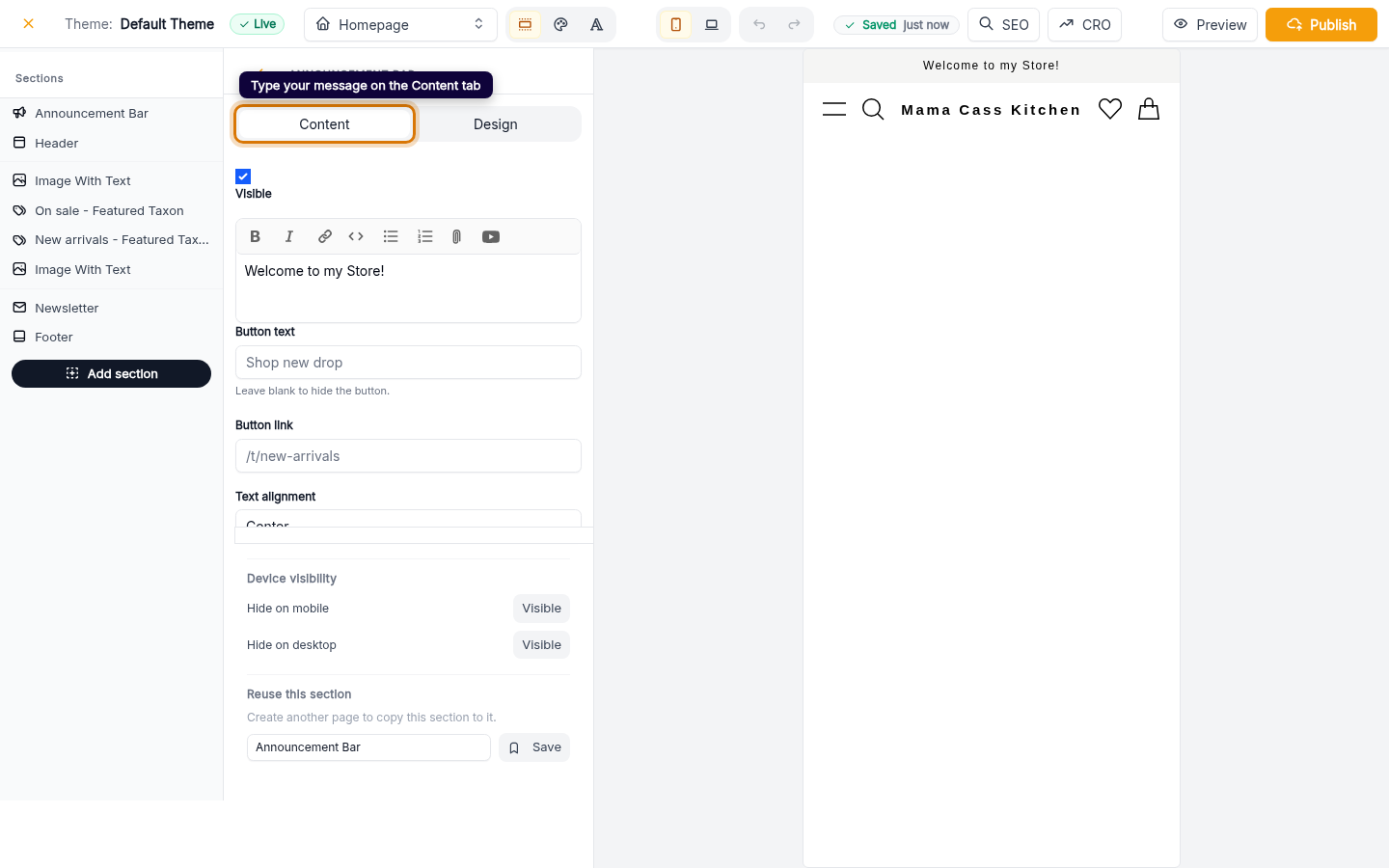
Write your message
On the Content tab, type the message you want shoppers to see — for example Free delivery in Lagos this weekend or Order by 2pm for same-day dispatch. You can add a button and link too.
Web -
4
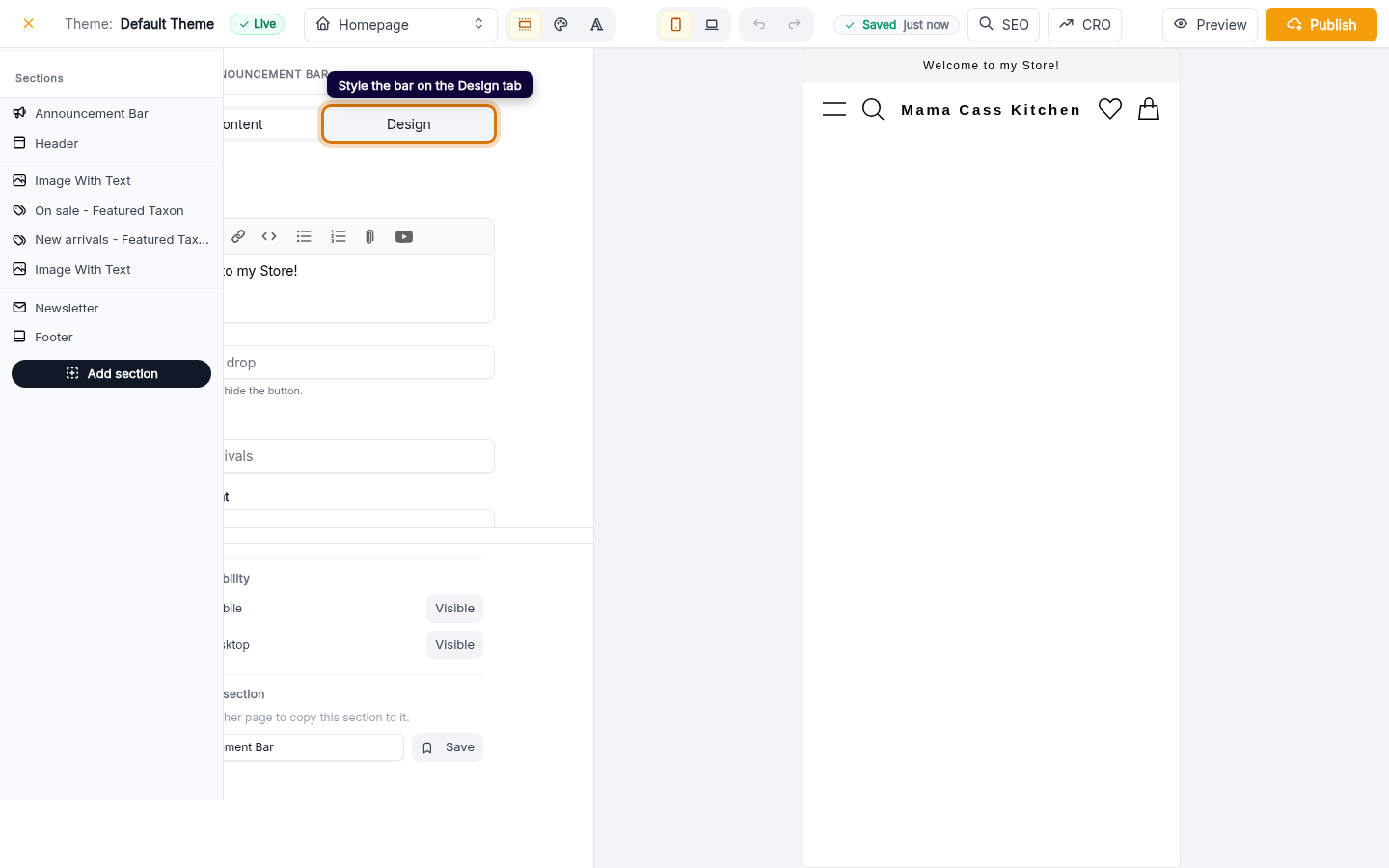
Style it on the Design tab
Switch to the Design tab to set the bar's background and text colour so it matches your brand. Changes save automatically and show live in the preview on the right.
Web