Edit your announcement bar text
The slim bar across the top of your store is the first thing shoppers read. Edit its welcome message — and add a call-to-action — right in the page builder.
The announcement bar is the thin strip across the very top of your store. It's prime real estate — shoppers read it before anything else — so it's the perfect place for a welcome line, a delivery promise (Free delivery in Lagos over ₦50,000), or a sale shout.
In Crate, the banner is a section of your theme, edited in the page builder alongside everything else. There's no separate banner editor to hunt for — open Customize, pick the Announcement bar, and edit it in place.
What you can change
- Message text — the headline shoppers read. Keep it to one short line.
- Call-to-action — an optional button with its own label and link, so the bar can drive shoppers to a collection or offer.
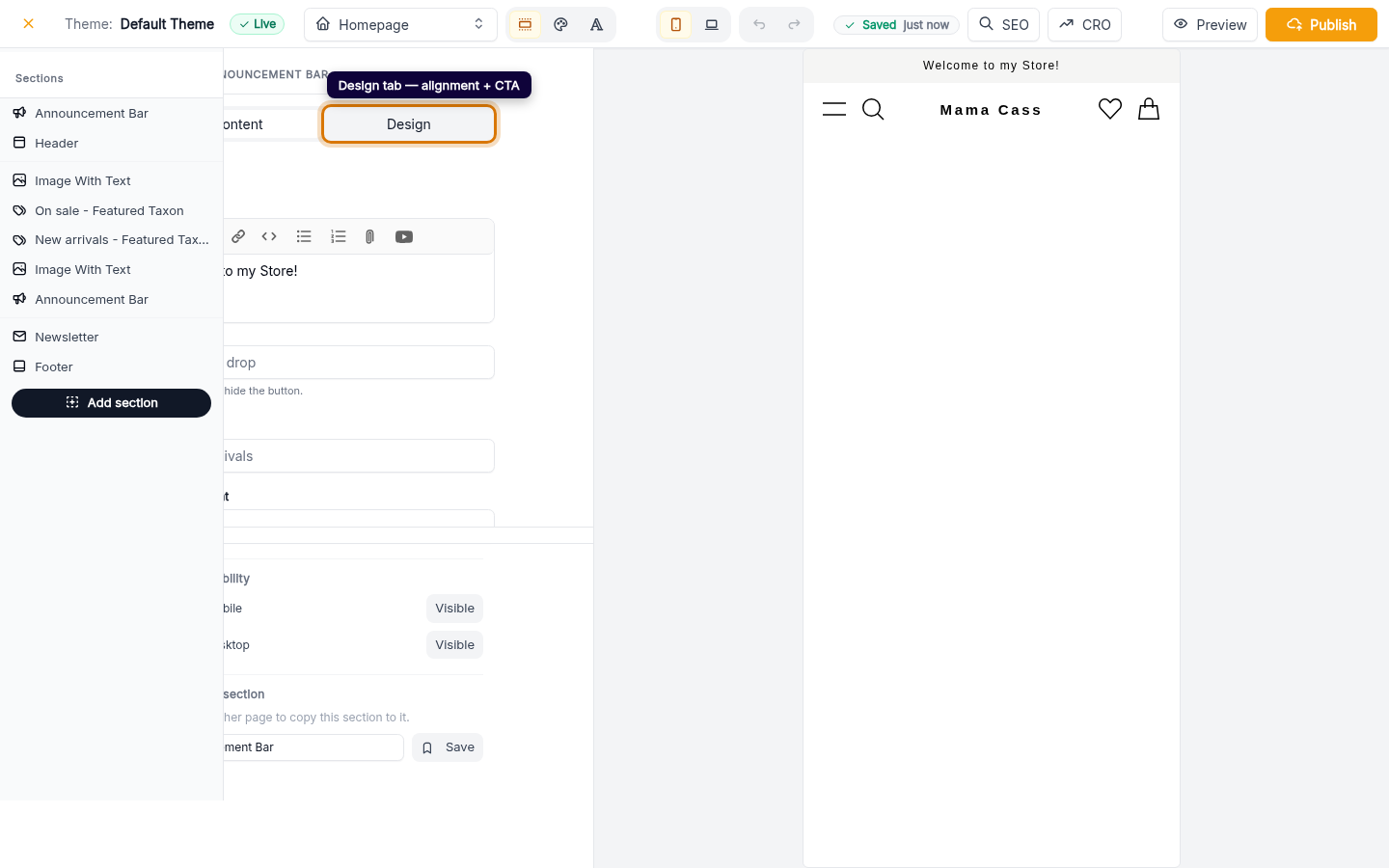
- Alignment — left, centre or right, on the Design tab.
- Visibility — hide the bar entirely from the same panel when you don't have anything to announce.
Less is more here. A single, specific message — a real offer or a clear promise — outperforms a long sentence nobody finishes reading.
Saving and going live
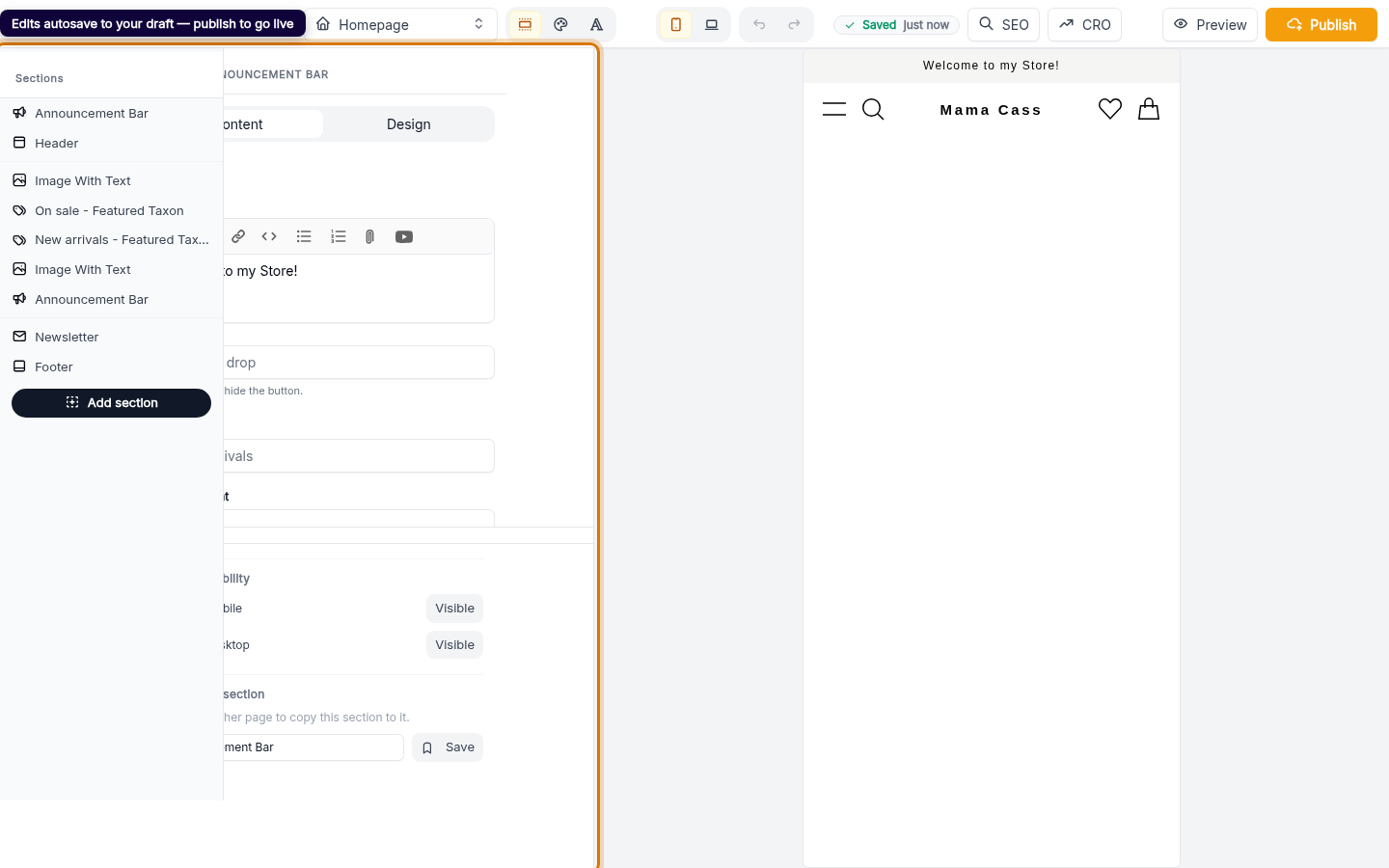
The builder autosaves as you type, into a working draft, and the live preview updates so you can see the bar exactly as shoppers will. The changes reach your real storefront when you publish the theme — until then they're safely staged in your draft.
-
1
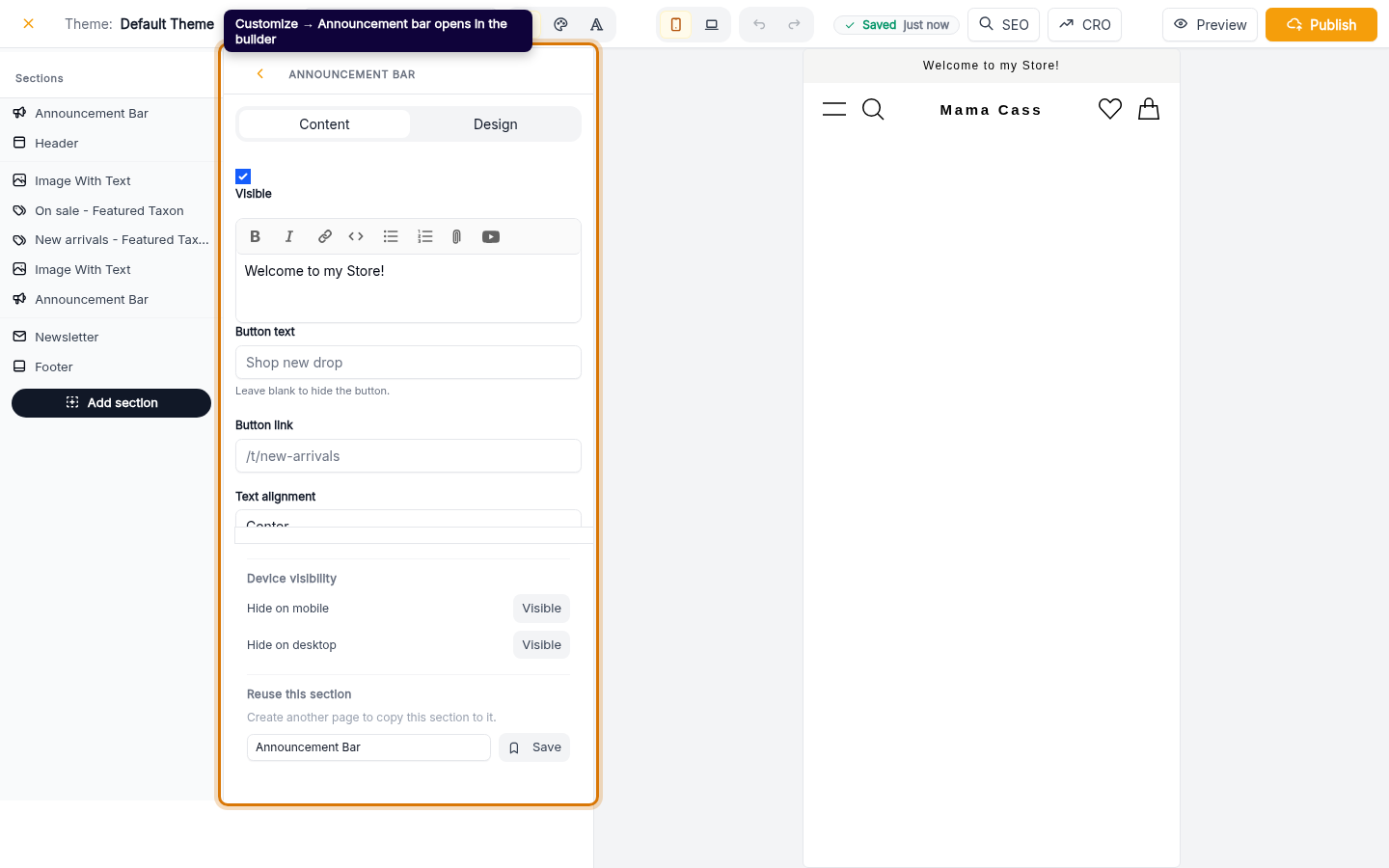
Open the announcement bar
From your Crate dashboard, open Storefront → Customize and select the Announcement bar section. Crate takes you straight into the page builder with that section's settings open.
Web 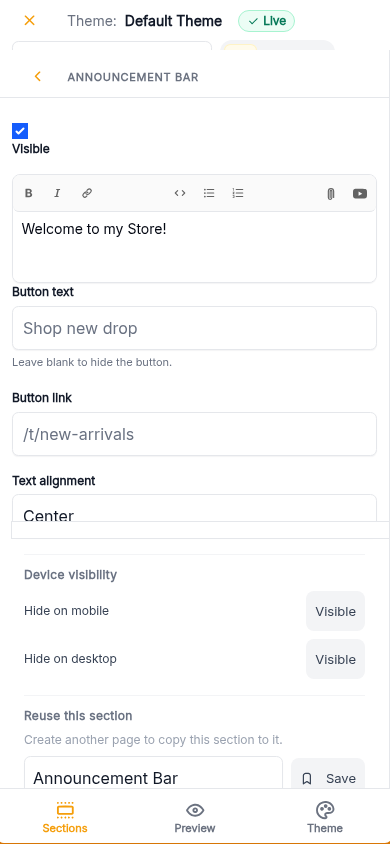
Mobile -
2
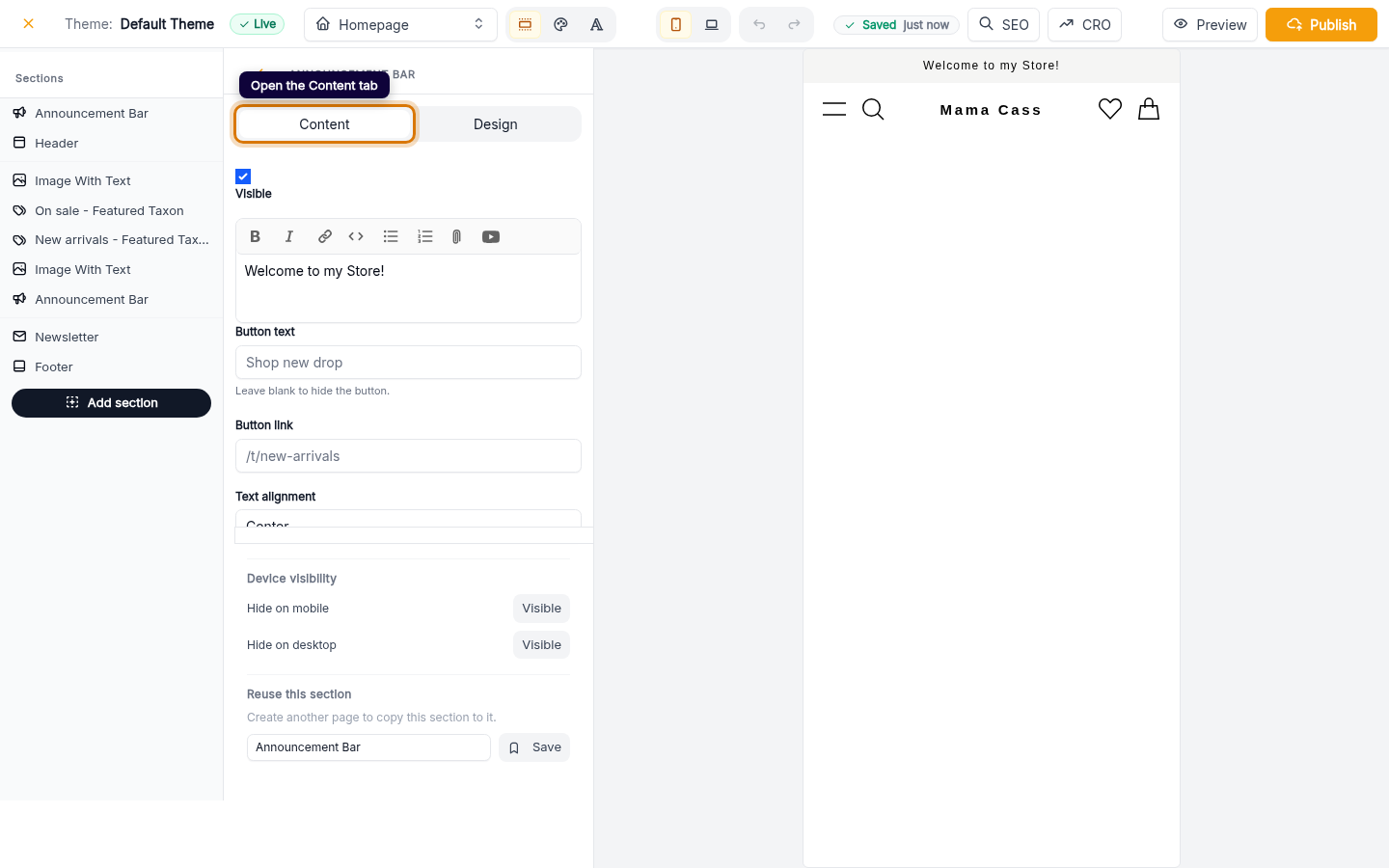
Open the Content tab
The section panel has Content and Design tabs. On Content you'll find the bar's message text and its call-to-action fields.
Web -
3
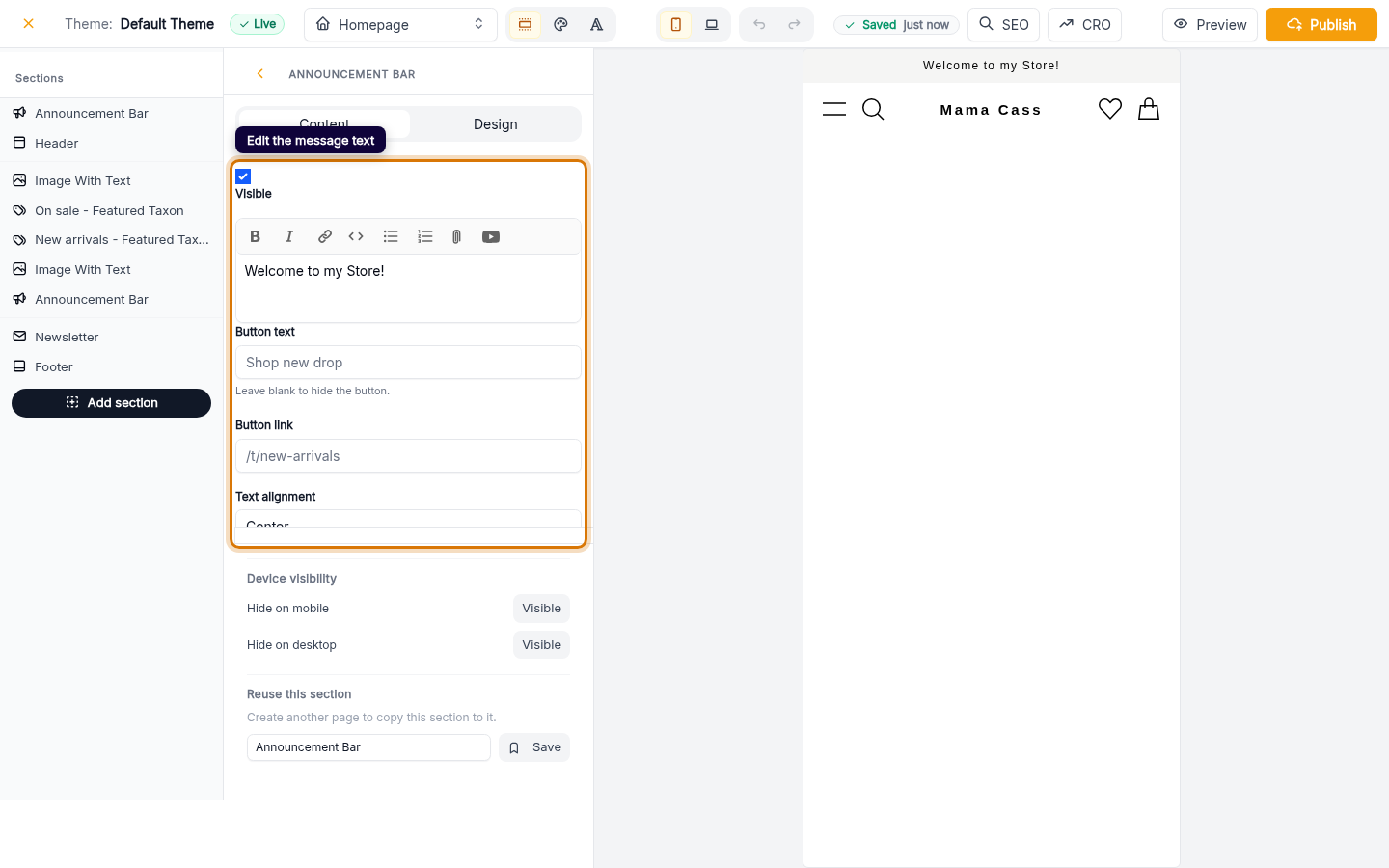
Edit the message
Rewrite the message to your welcome line — a delivery promise, a sale, or a greeting. Keep it short; the bar is one line on mobile.
Web 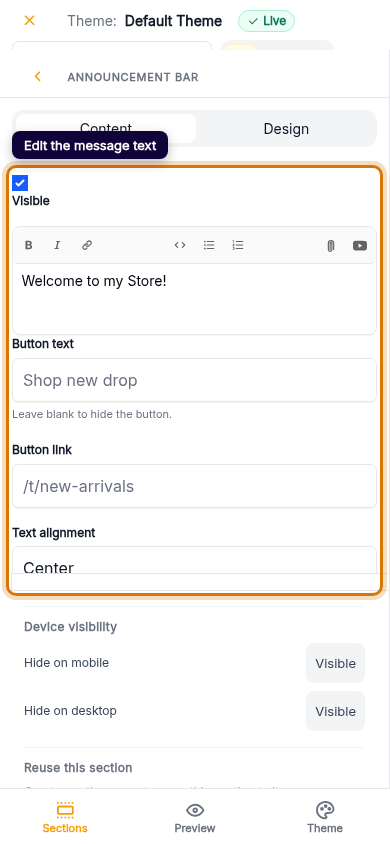
Mobile -
4
Add a call-to-action (optional)
Give the bar a button with its own text and link — for example Shop the sale pointing at a collection. Set the alignment under Design if you want it left, centre or right.
Web -
5
Changes save as you edit
The builder autosaves each change to your working draft and updates the live preview. When you're happy, publish the theme to push the new bar to your storefront.
Web 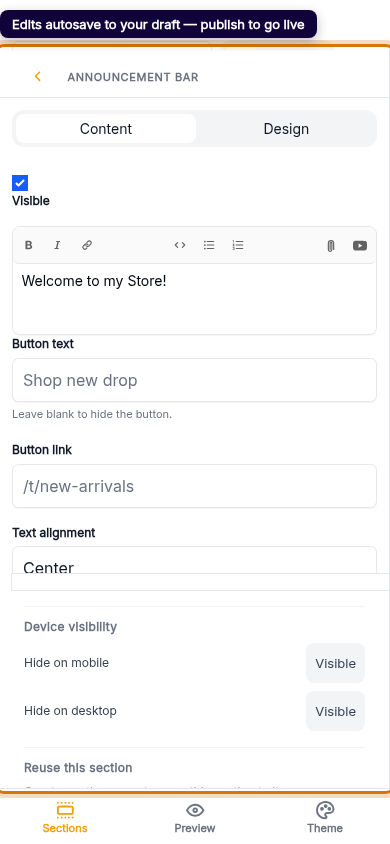
Mobile