Add social media links to your store
Connect your Instagram, Facebook, TikTok and more to your storefront. Crate renders them as icons in your footer and on social share cards — free on every plan.
Your social profiles are where shoppers get to know your brand between purchases. Linking them from your store turns one-time buyers into followers — and followers into repeat customers. On Crate this is free on every plan: add your handles once and they appear as tidy icons in your footer and on the social share cards people see when they share your store.
Use the full URL
Paste the complete link to each profile, not just your handle — Crate links straight to whatever you enter. A few examples:
- Instagram —
https://instagram.com/yourbrand - Facebook —
https://facebook.com/yourbrand - TikTok —
https://tiktok.com/@yourbrand
You can add as many or as few as you like. Crate only renders an icon for the platforms you've filled in, so empty fields never produce a broken link.
If a link doesn't work
A social icon that leads to a 404 almost always means the URL was mistyped or only the handle was pasted. Open the profile in your browser, copy the address straight from the address bar, and paste the whole thing back into the field.
Tip: The same Preferences page holds your pixels & analytics and SEO settings — it's the one place to tune how your store looks to search engines and social platforms alike.
-
1
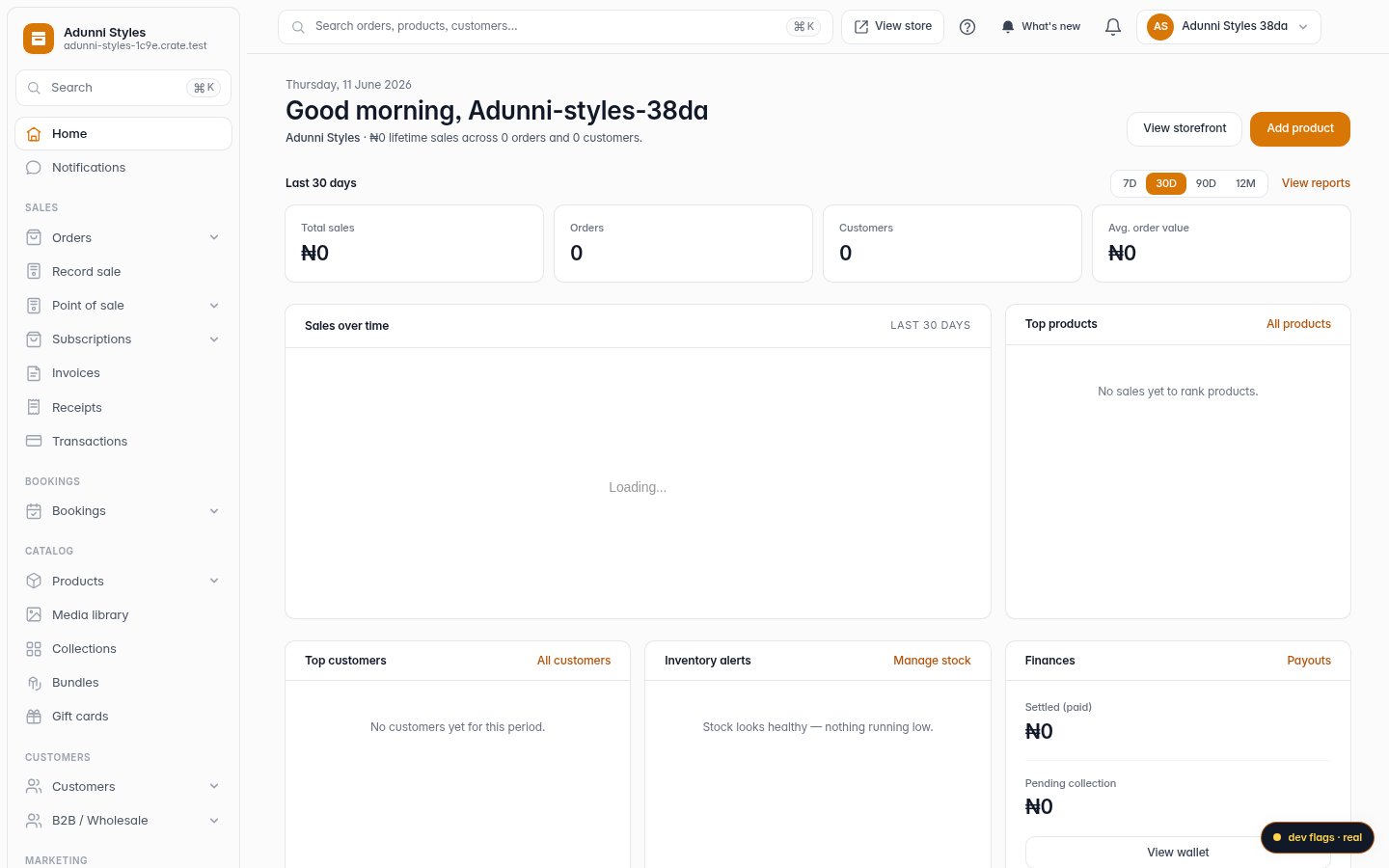
Open Online Store
From your Crate dashboard, open Online Store in the sidebar.
Web -
2
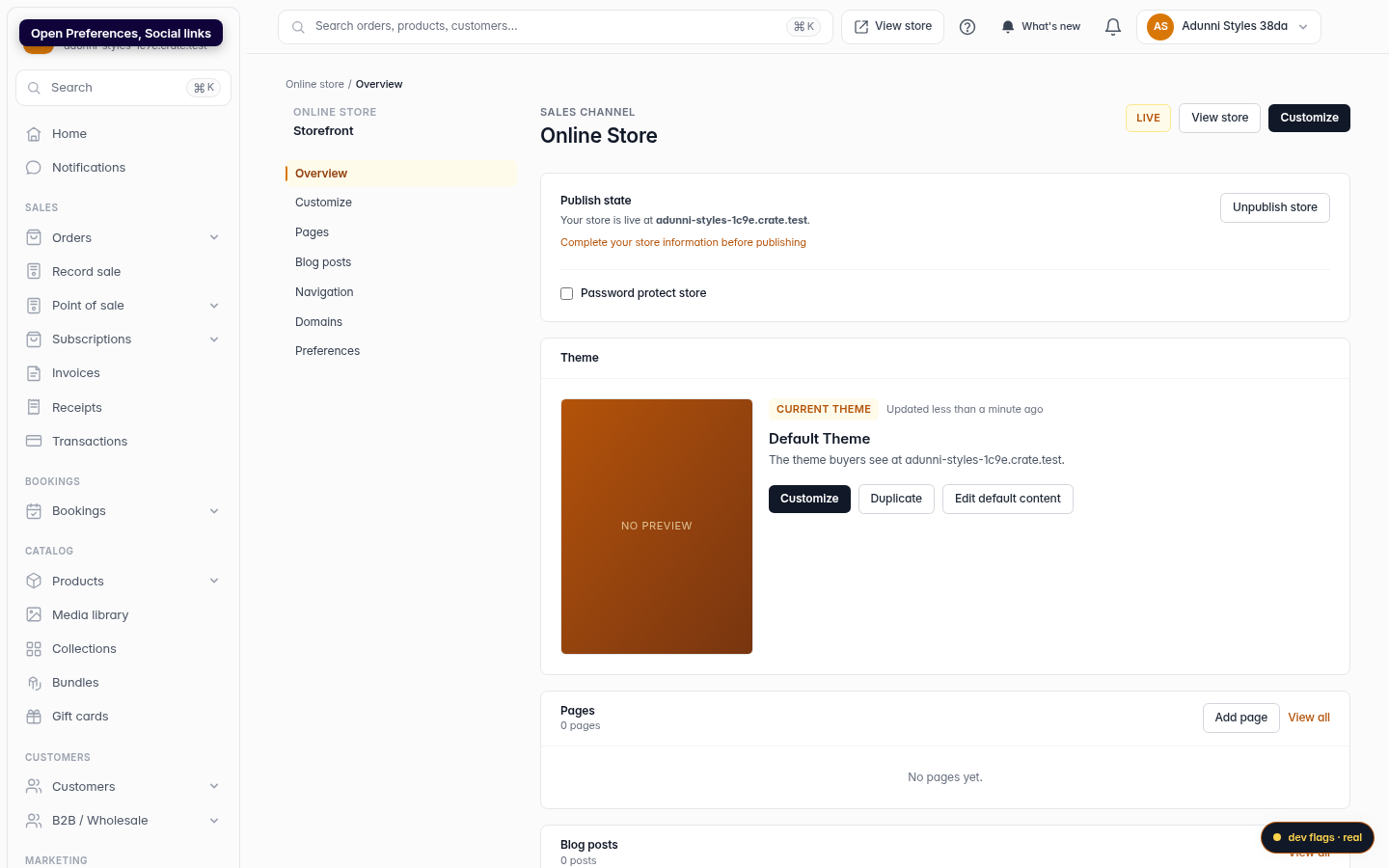
Open Preferences → Social links
In the Preferences card, click Edit next to Social links to open the storefront Preferences page on the Social section.
Web -
3
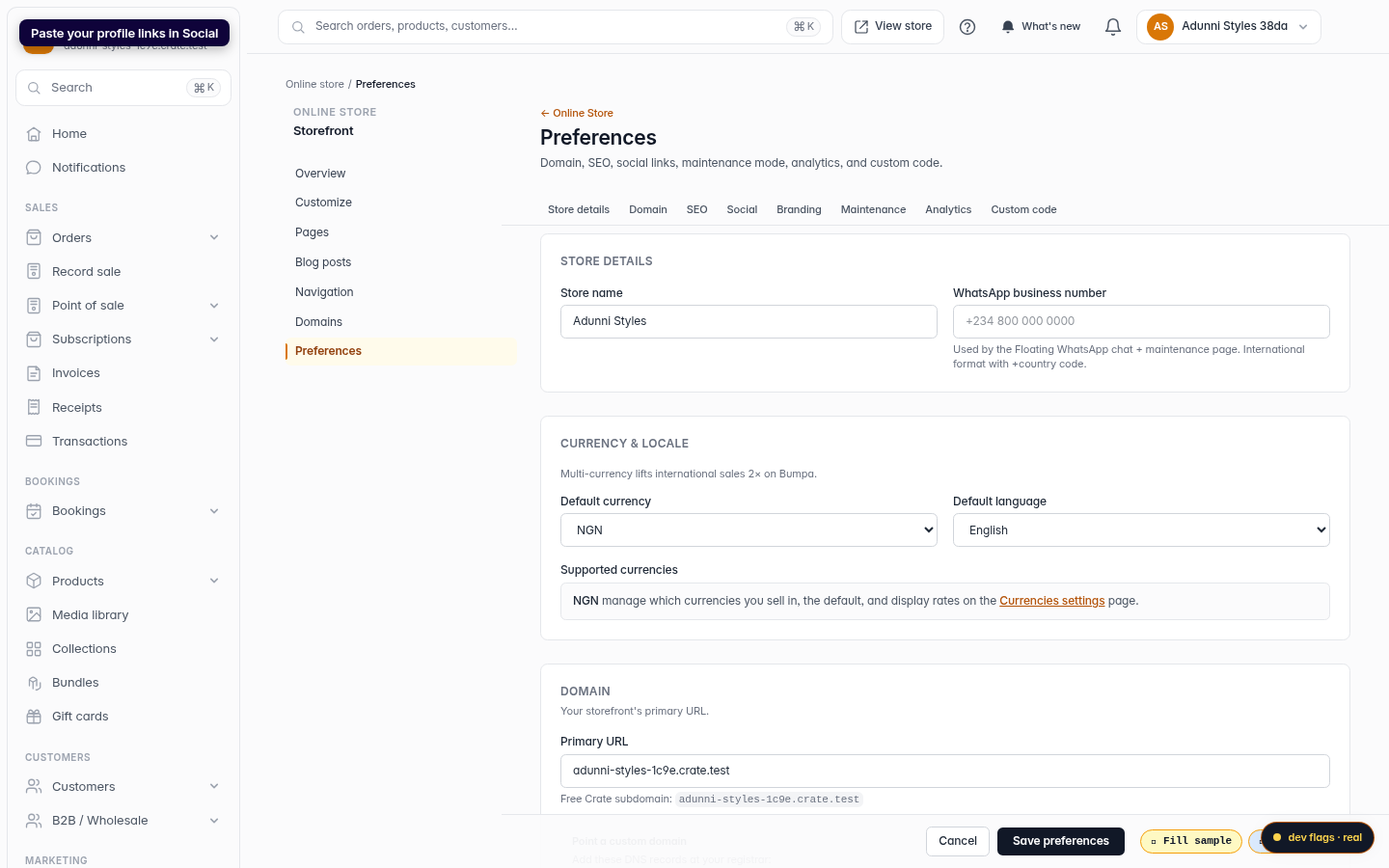
Paste your profile links
In the Social links section, paste the full URL of each profile — Instagram, Facebook, TikTok, and any others you use. Leave blank any platform you're not on.
Web -
4
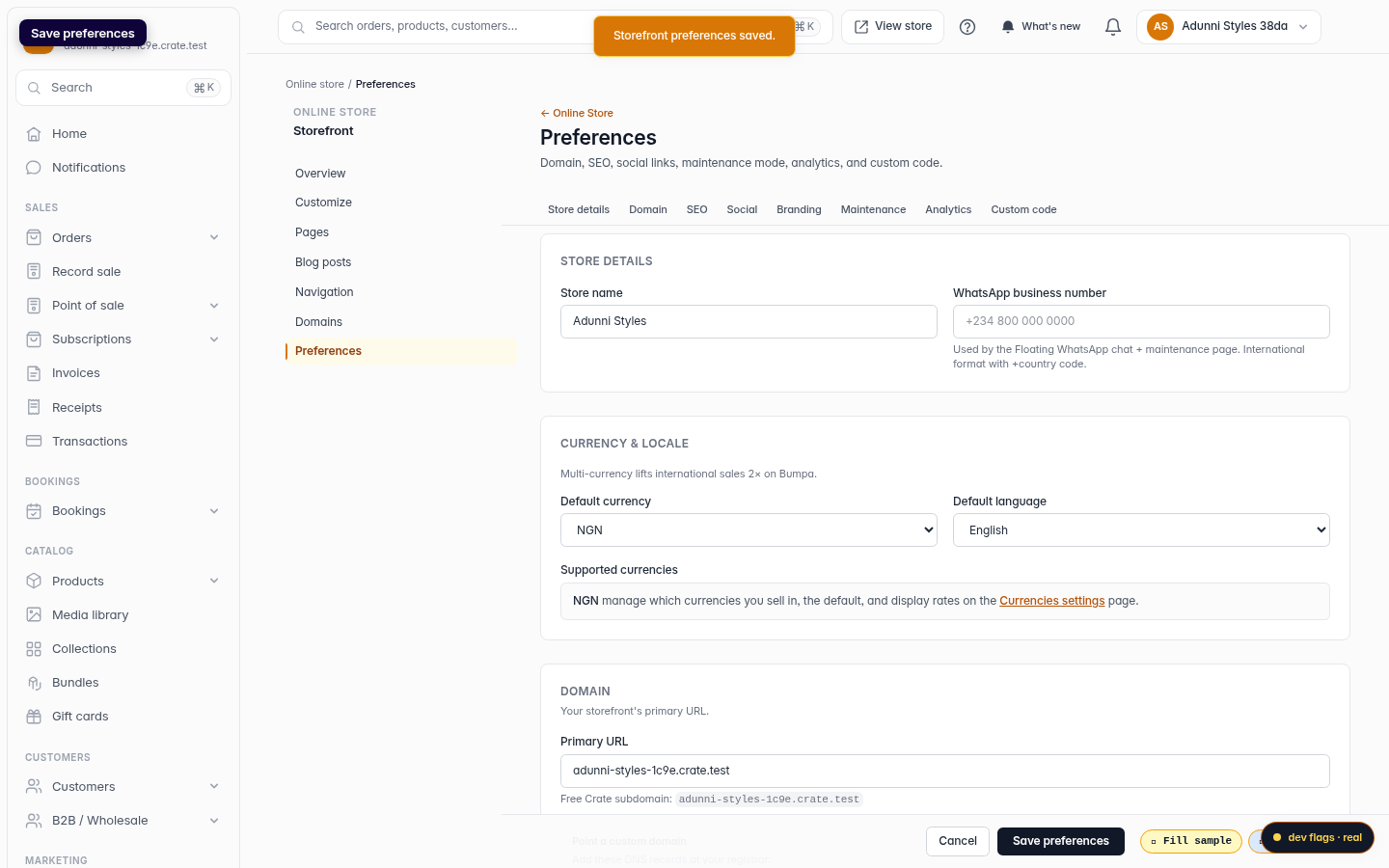
Save preferences
Click Save preferences. Crate renders each link you filled in as an icon in your storefront footer, so shoppers can follow you in one tap.
Web