Add Google Analytics to your store
Paste your Google Analytics measurement ID into Crate and we wire GA4 into your storefront automatically — so you can see where visitors come from, what they view, and how they convert.
Google Analytics tells you how shoppers find and move through your store — which channels send the most visitors, which products draw attention, and where people drop off before buying. It's the foundation for deciding what to promote and what to fix.
Crate connects to GA4 with a single value: your measurement ID. Paste it in and Crate adds the Google tag to every storefront page for you — no template edits, no developer.
Where to find your measurement ID
In Google Analytics, open Admin → Data Streams, choose your web stream, and copy the Measurement ID at the top right. It always starts with G- followed by ten characters (for example G-ABCDE12345). Crate needs that ID, not the full gtag snippet.
If you haven't created a GA4 property yet, do that first in Google Analytics — create a property, add a web data stream for your store's URL, and the measurement ID appears immediately.
Verifying it works
After you save, open your live storefront and check Realtime in Google Analytics — your own visit should show up within a minute. If it doesn't, double-check that the ID starts with G- and that your store is published.
Tip: Add your Facebook Pixel in the same Analytics section while you're here — the two work together to show both where buyers come from and how your ads perform.
-
1
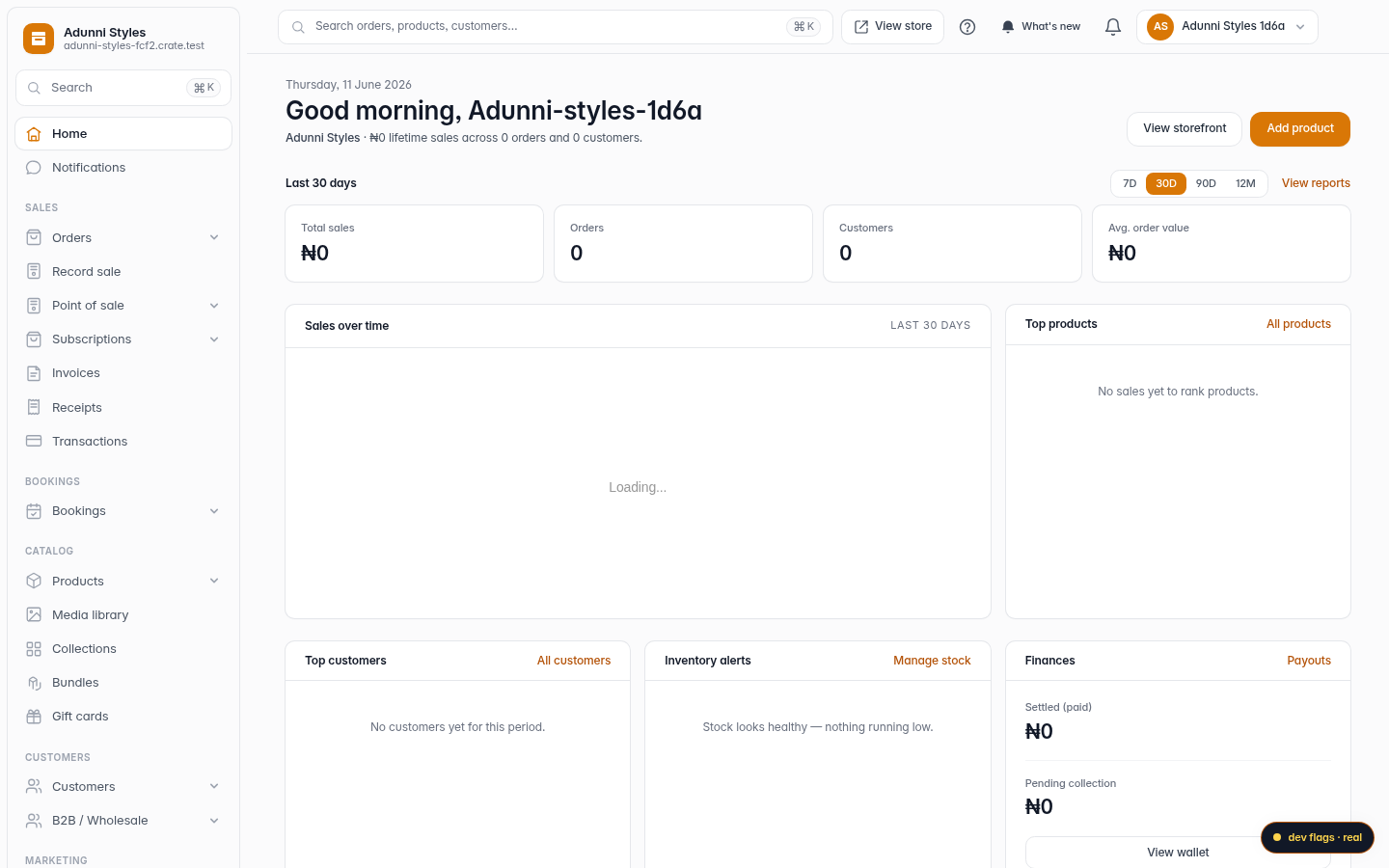
Open Online Store
From your Crate dashboard, open Online Store in the sidebar.
Web -
2
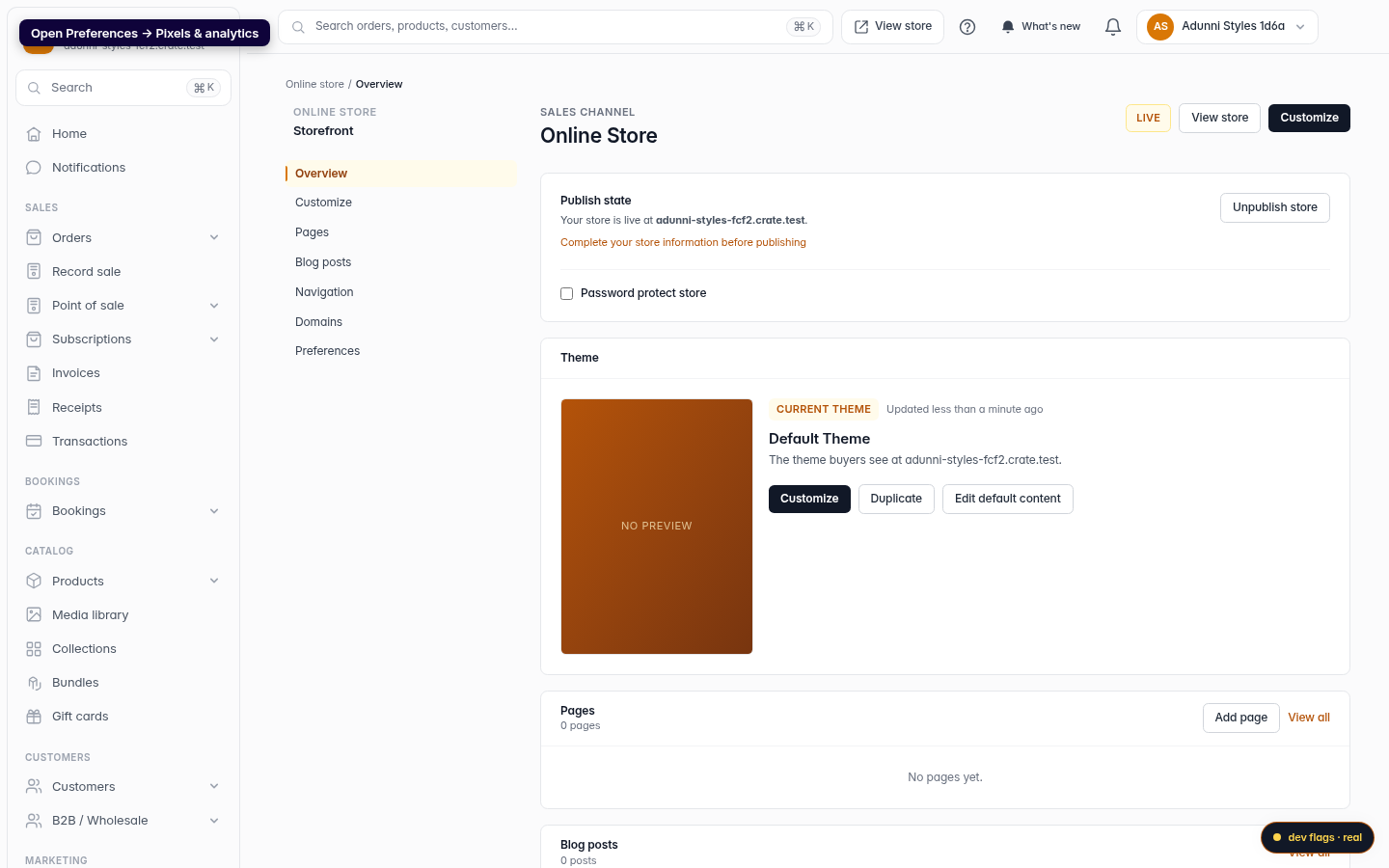
Open Preferences → Pixels & analytics
In the Preferences card, click Edit next to Pixels & analytics to open the storefront Preferences page on the Analytics section.
Web -
3
Paste your measurement ID
In the Analytics section, paste your Google Analytics measurement ID — the
G-XXXXXXXXXXvalue from your GA4 data stream.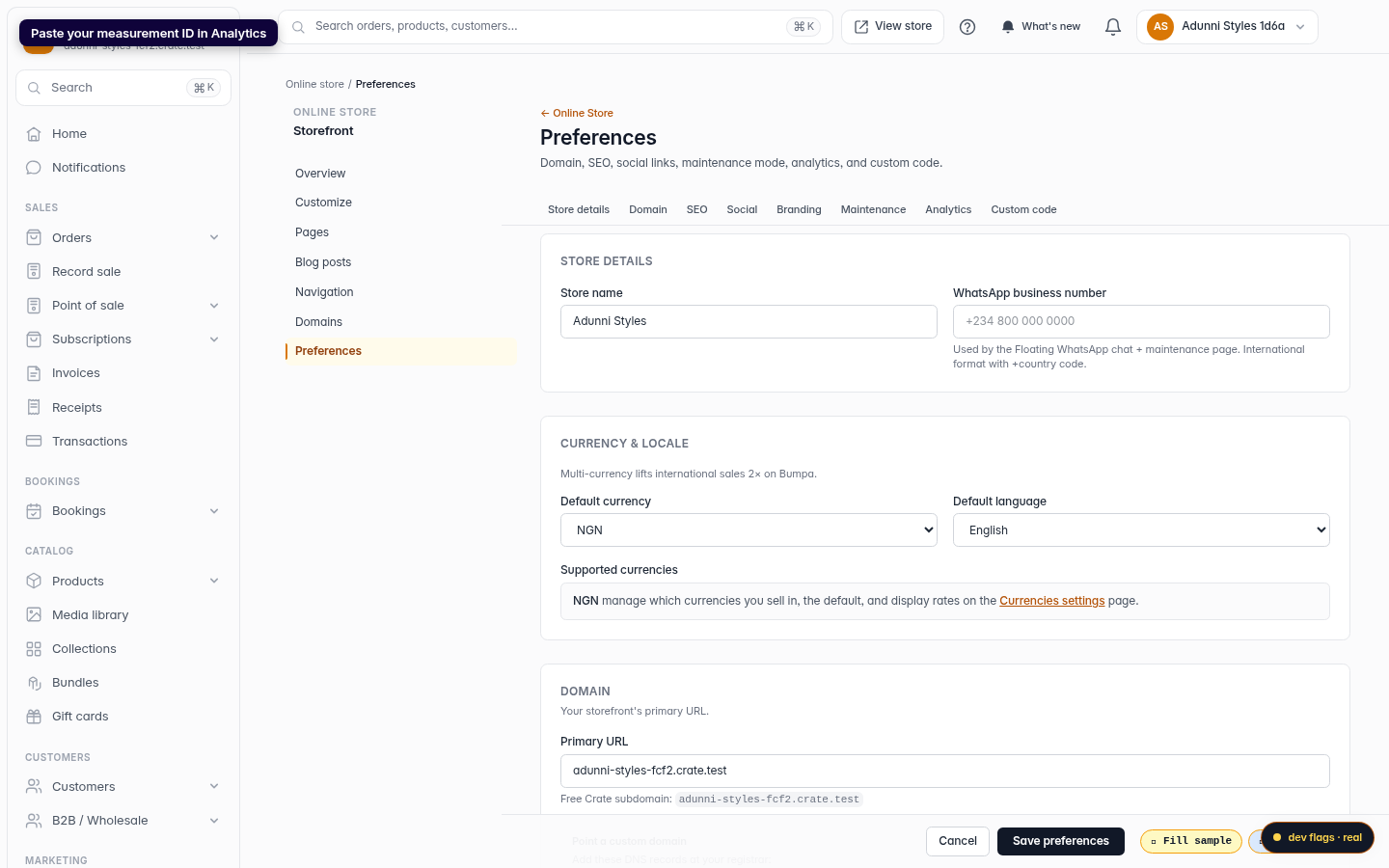
Web -
4
Save preferences
Click Save preferences. Crate injects the GA4 tag into your storefront's
<head>, and traffic starts appearing in your Google Analytics reports.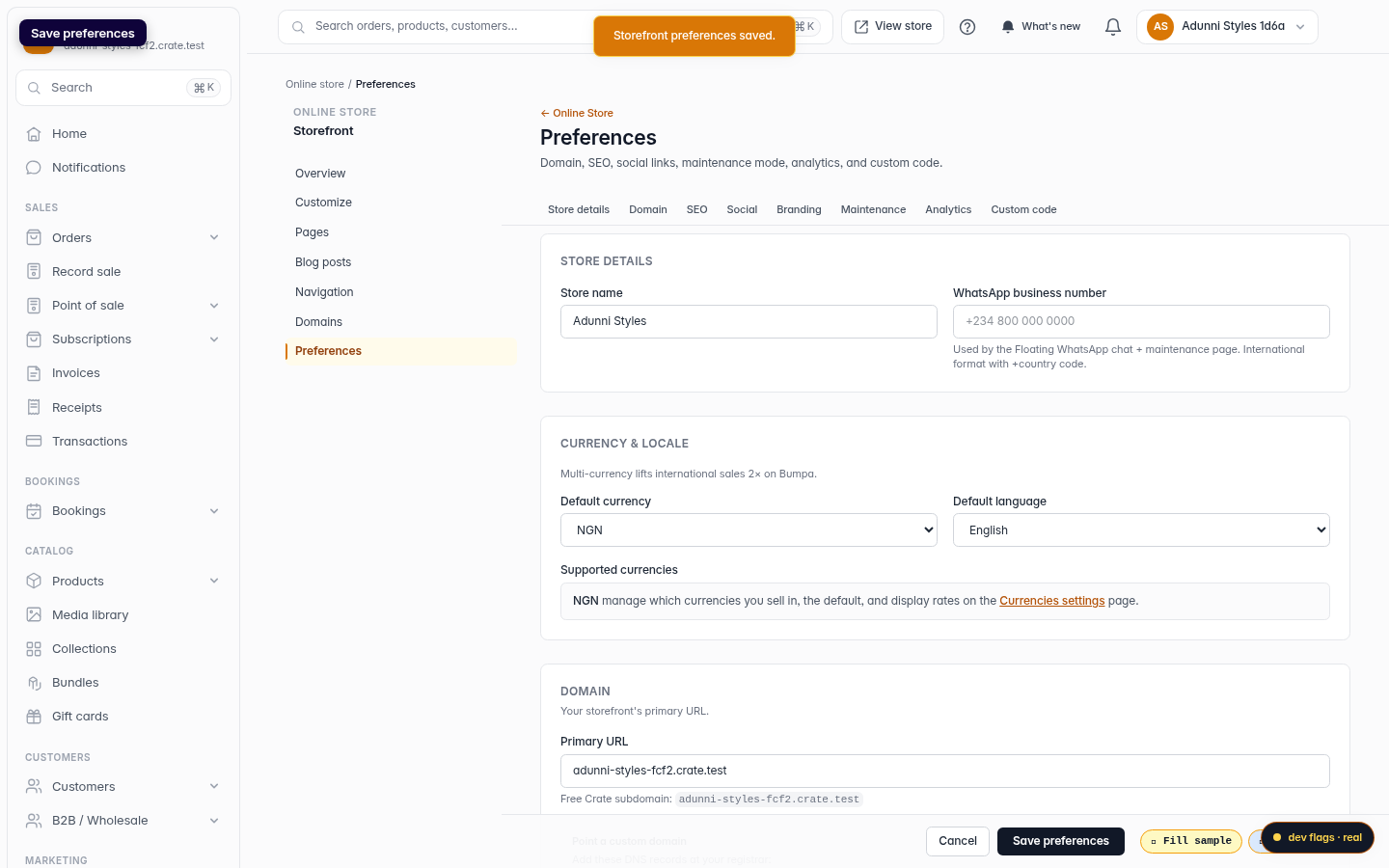
Web