Add or edit your newsletter pop-up
Capture shopper emails with a pop-up that offers a discount on first orders — set the headline, the coupon, and exactly when it appears, all in the storefront builder.
A newsletter pop-up turns first-time visitors into subscribers you can market to later — and the highest-converting ones offer something in return, like a discount on the first order. In Crate, the pop-up is a builder section, so you set it up in the storefront builder alongside the rest of your store and watch it update live.
On many platforms a capture pop-up is a paid add-on. On Crate it's built in and free — set the offer, choose when it shows, and you're done.
Make the offer worth an email
Shoppers hand over an email when there's a clear reason. Your pop-up gives you the levers:
- Headline — the hook. Get 10% off your first order beats Join our newsletter.
- Coupon to issue — the code subscribers receive (for example
WELCOME10). Pair it with a discount you've created so it's ready to redeem. - Button label — keep it active: Claim my discount.
Choose when it appears
Timing matters as much as the offer. Crate lets you trigger the pop-up:
- After a delay — give the visitor a few seconds to look around first.
- On exit intent — show it as they're about to leave.
- On scroll — wait until they've shown interest by scrolling down.
Set a frequency cap (once per visitor, weekly, or per session) so regulars aren't nagged.
Tip: Edits save to a draft as you work. Hit Publish in the builder when you want the pop-up live for shoppers.
-
1
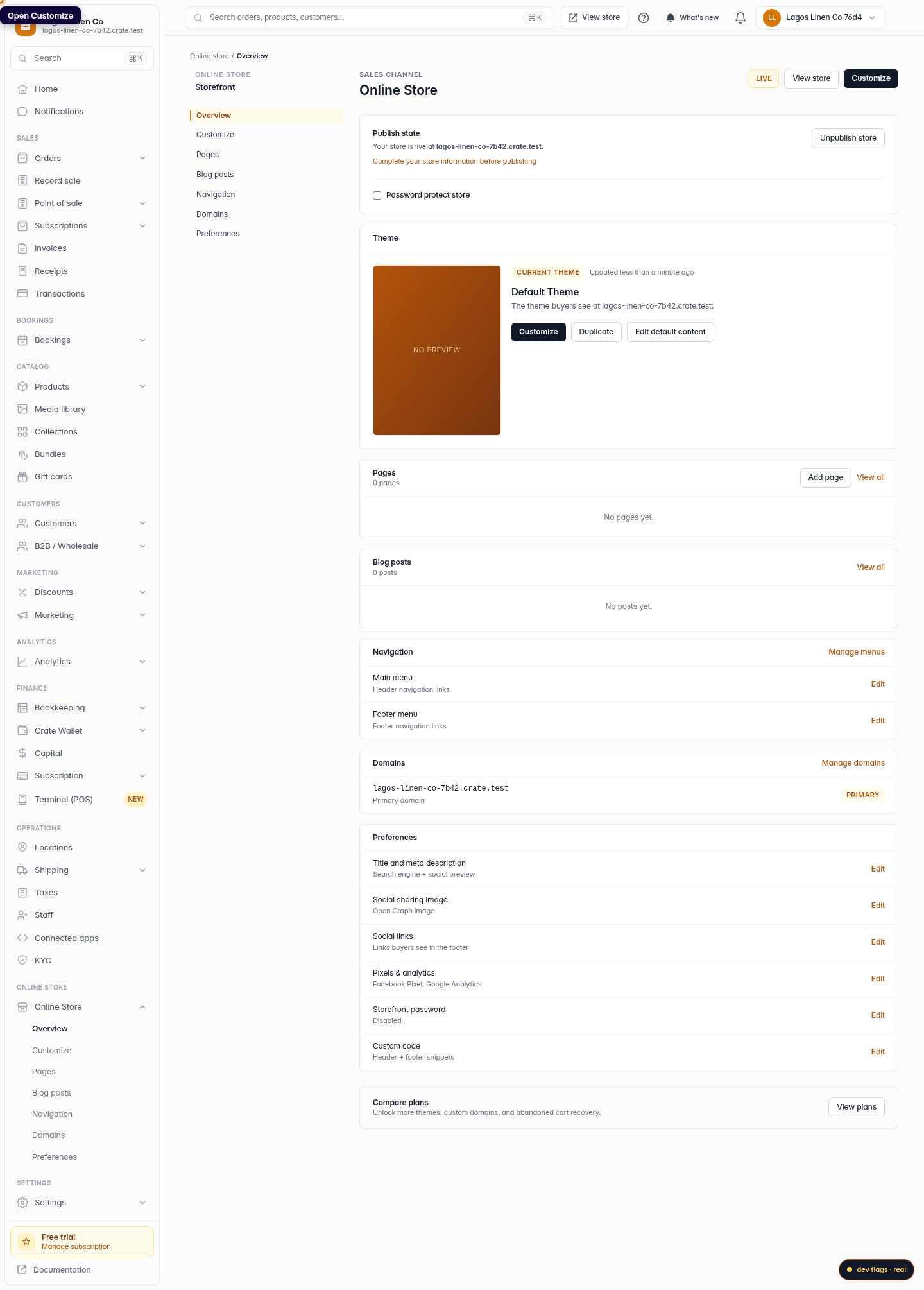
Open Customize
From your dashboard, open Online Store and click Customize to launch the storefront builder.
Web 
Mobile -
2
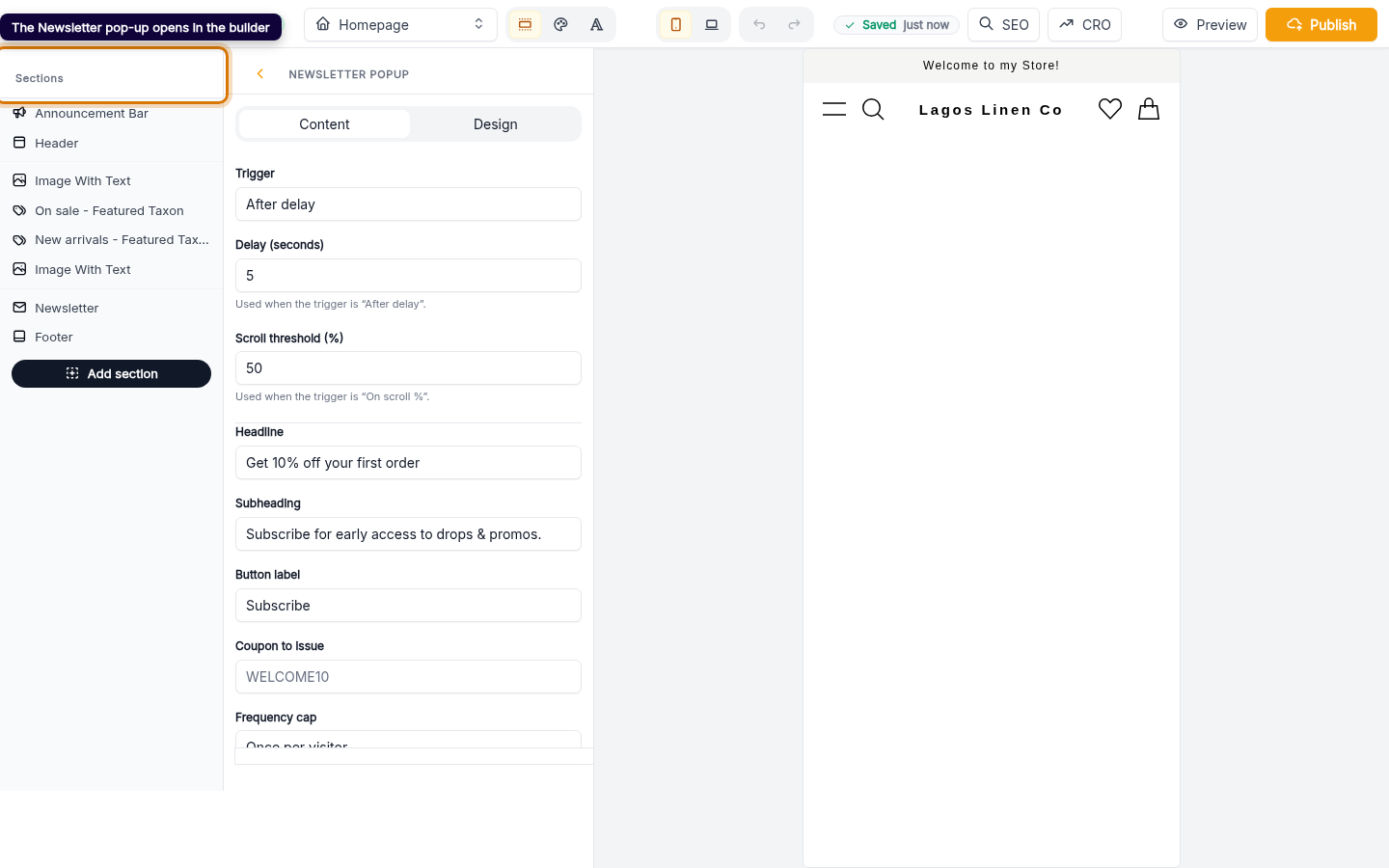
The Newsletter pop-up opens in the builder
Crate opens the Newsletter pop-up section directly. This is the modal that invites visitors to subscribe — usually in exchange for a discount.
Web -
3
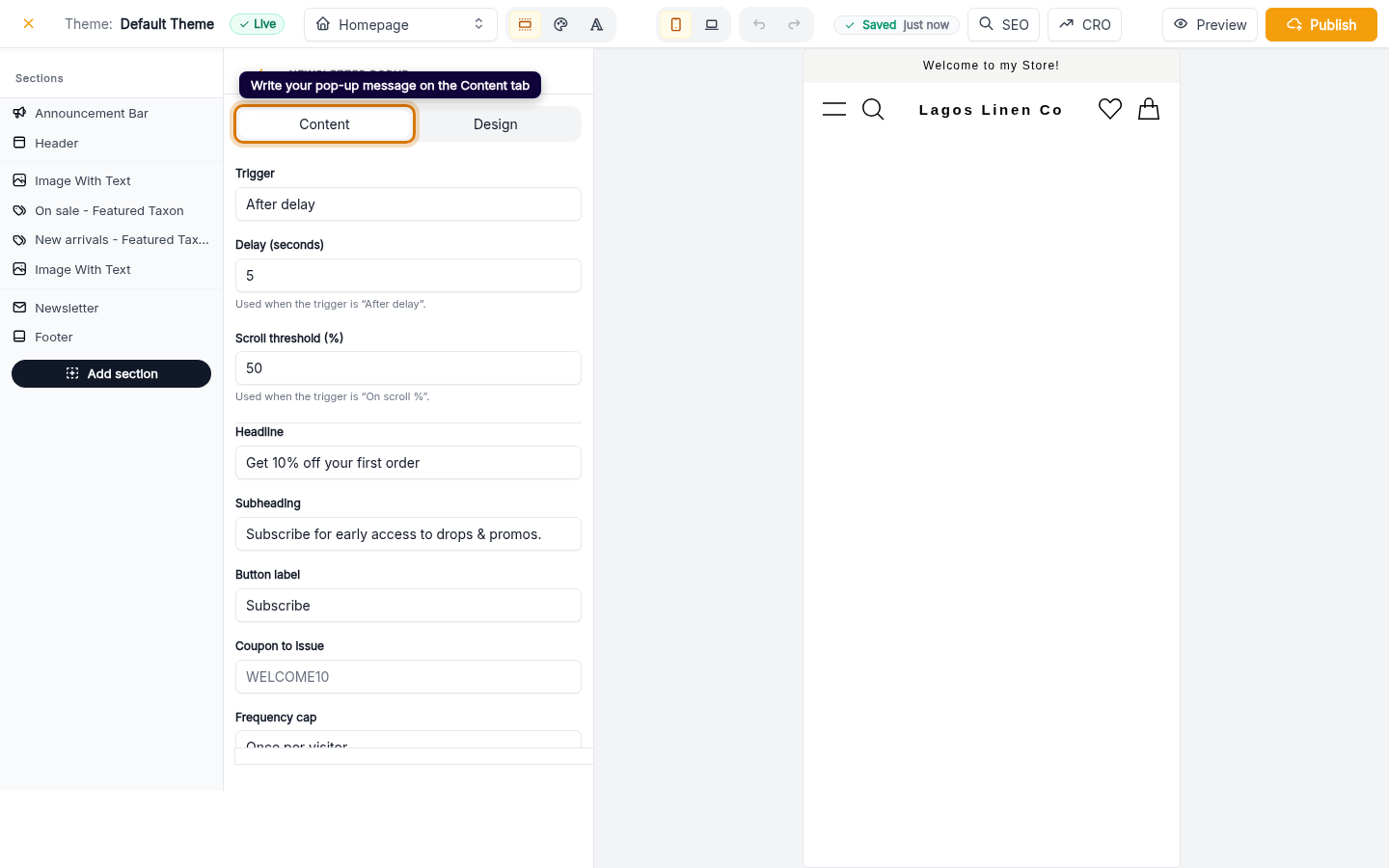
Write your offer
On the Content tab, set the headline (e.g. Get 10% off your first order), the supporting line, the button label, and the coupon to issue when someone subscribes.
Web -
4
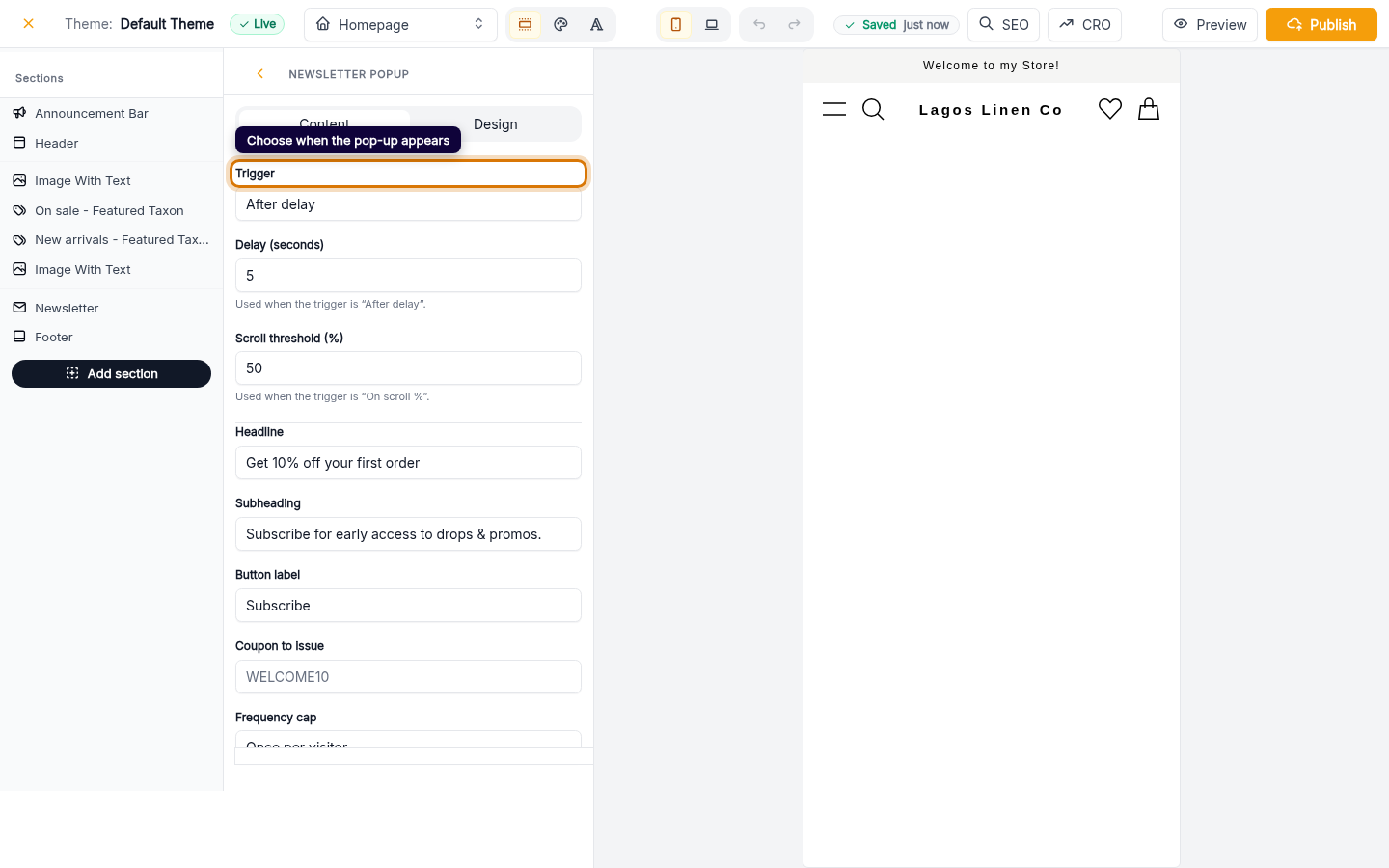
Choose when it appears
Pick a trigger — after a short delay, on exit intent, or once the visitor scrolls down the page — and a frequency cap so the same shopper isn't shown it over and over.
Web