Invite a teammate
Add staff to your store and control exactly what each person can see and do. Pick a ready-made role or build a custom permission set, and Crate emails them a link to join.
As your store grows, you'll want help running it. Crate lets you add teammates — a manager, cashier, fulfilment lead or marketer — each with their own login and exactly the access they need. You stay in control: roles decide what every teammate can see and do.
Roles do the heavy lifting
You don't have to hand-pick permissions for every person. Crate ships ready-made roles that map to how real teams work:
- Manager — everything except billing, payouts and managing staff.
- Staff — day-to-day selling: orders, products and customers.
- Cashier — record sales and look up customers, with no access to payouts.
- Fulfilment — work the orders queue and mark shipments.
- Marketing — campaigns, discounts and analytics, read-only on orders.
- Custom — tick exactly which areas and actions this teammate can access.
Tip: Start with the closest ready-made role. If it's almost right but not quite, switch to Custom and adjust the specific areas — there's no need to grant more than someone needs.
What happens after you invite
Crate emails the teammate a link to join your store. They click it, set a password, and they're in — with precisely the access you chose. Until they accept, the invitation shows as pending on your Staff page, and you can revoke it at any time. Invitations expire after 7 days, so if one lapses just send a fresh one.
Your plan sets how many seats you have. If you've used them all, Crate will prompt you to upgrade before sending another invite.
-
1
Open Staff & permissions
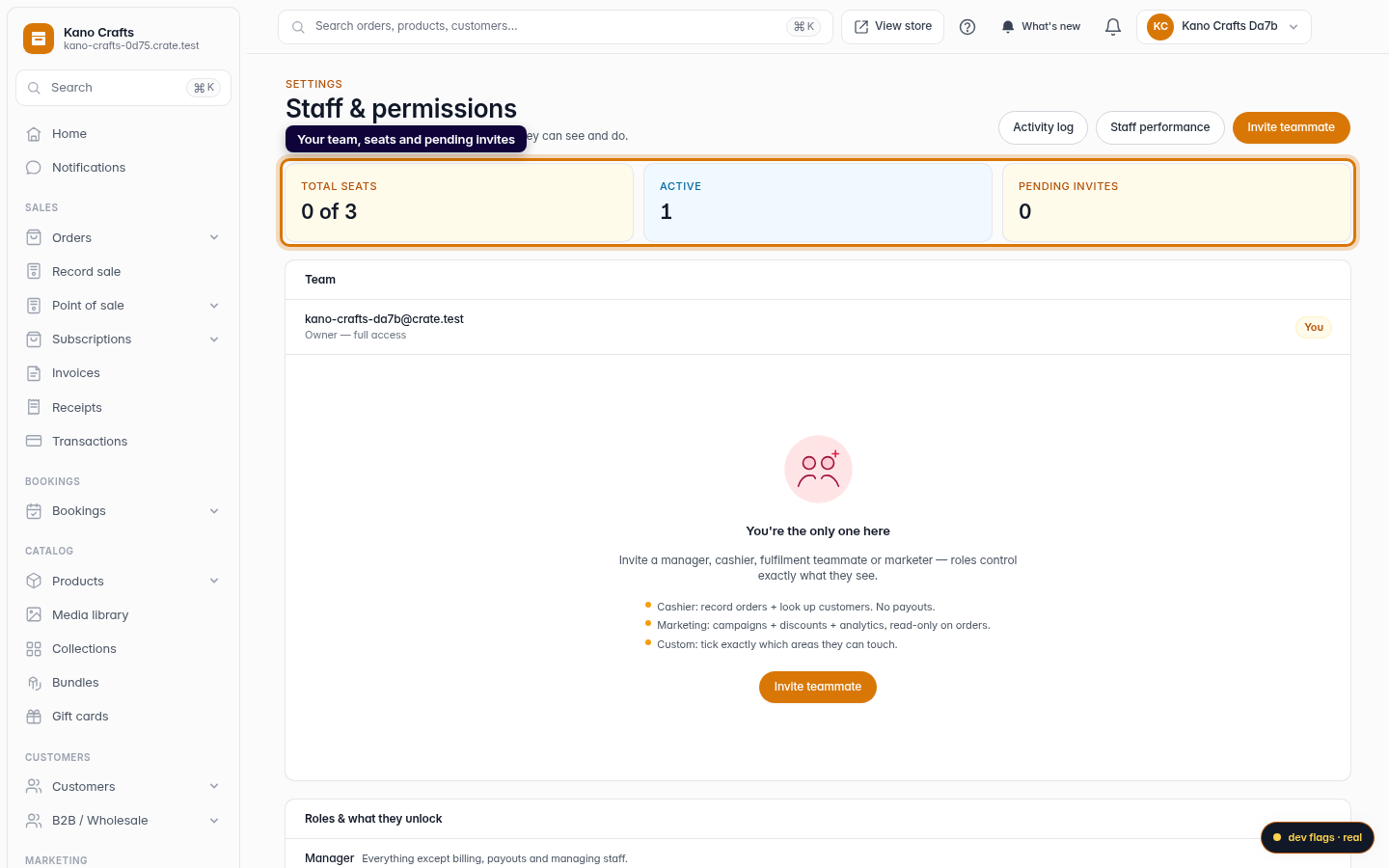
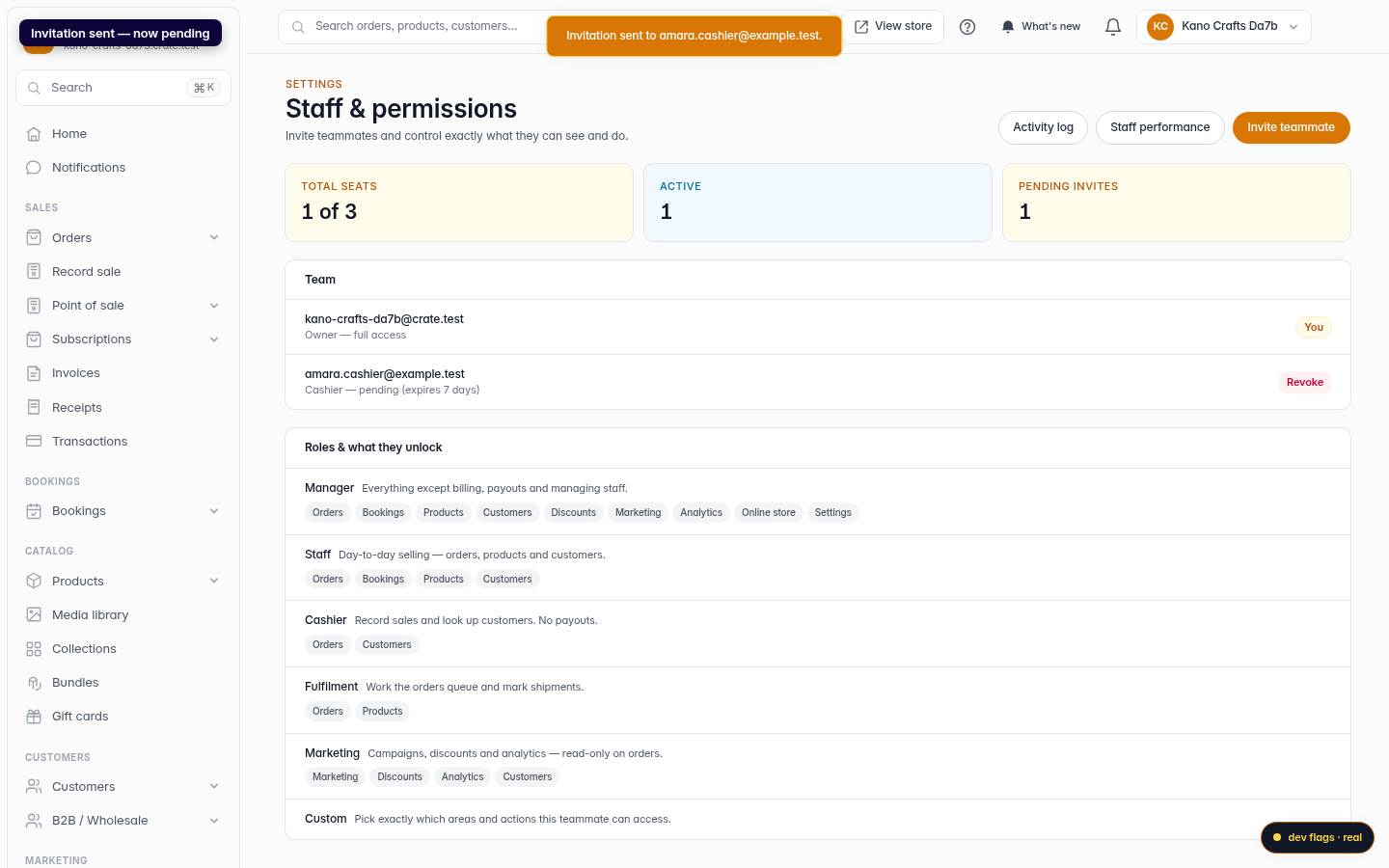
From the dashboard, go to Settings → Staff. This page shows your team, your seats, and any invitations still pending.
Web 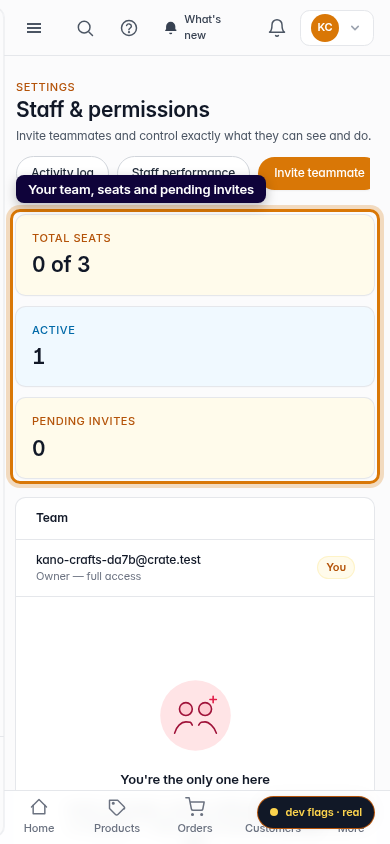
Mobile -
2
Start an invitation
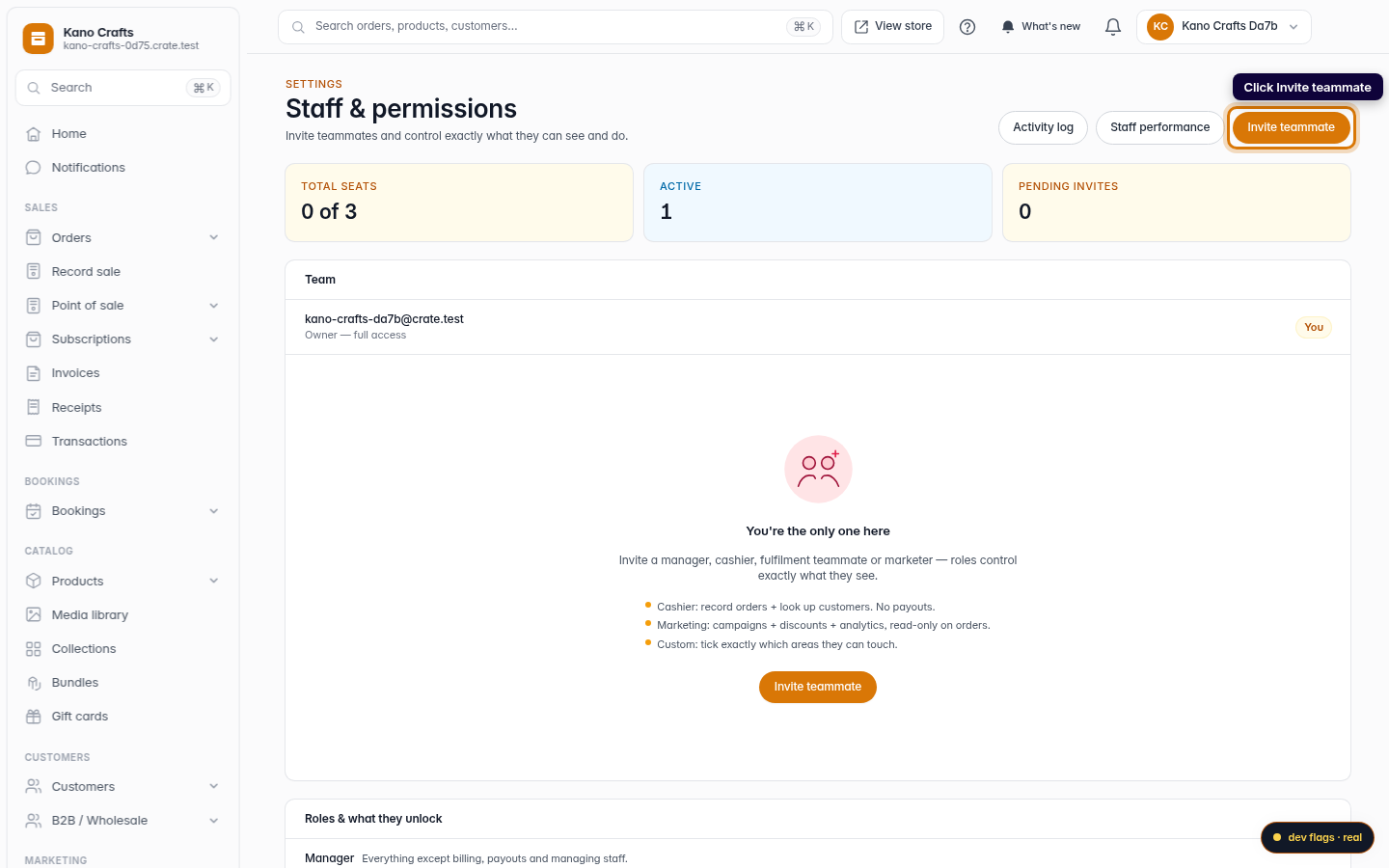
Click Invite teammate in the top-right corner to open the invitation form.
Web -
3
Enter their details
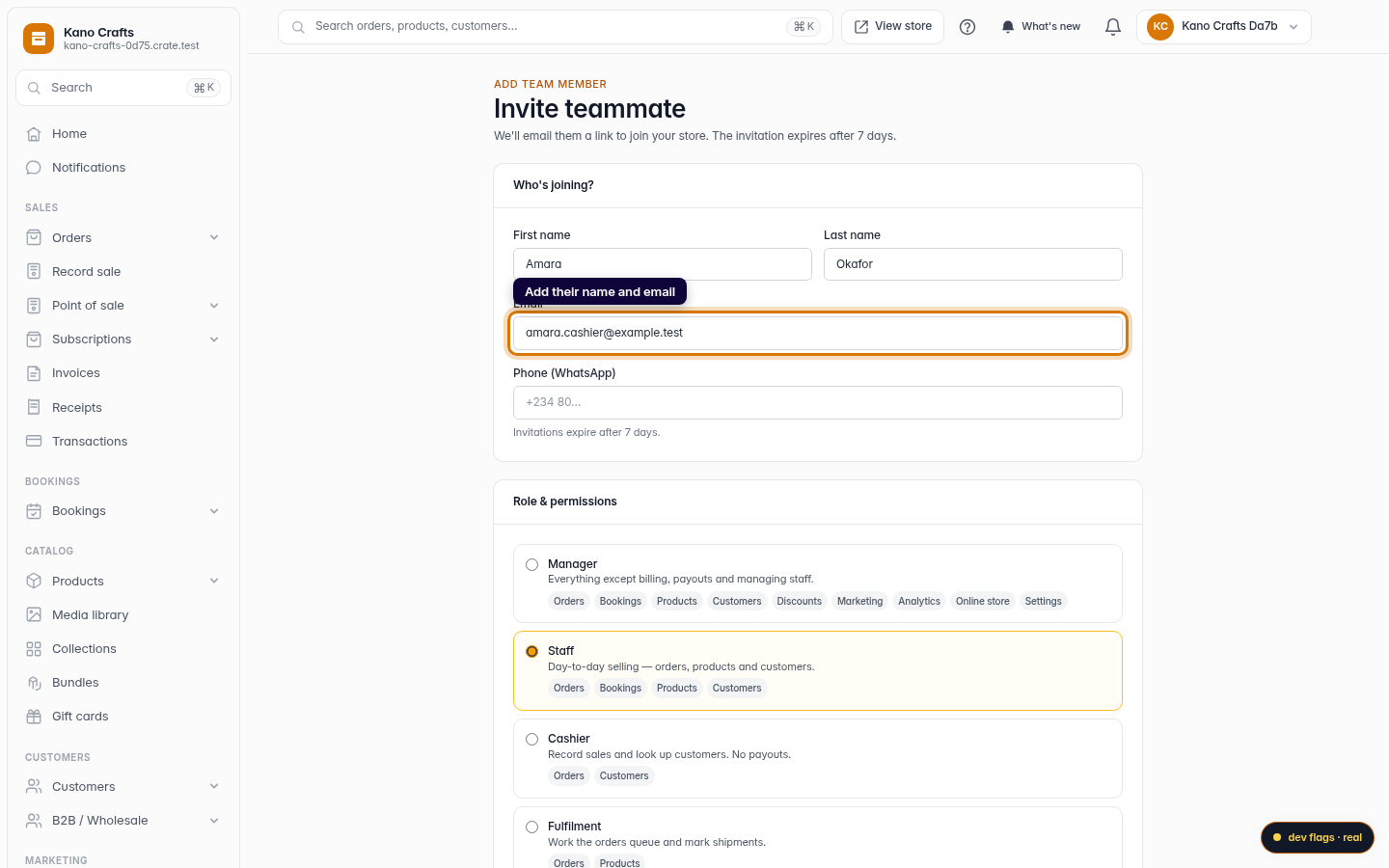
Add the teammate's name and the email they'll use to join. The email matters most — the invitation is sent there, so make sure it's correct. You can add a WhatsApp number too.
Web -
4
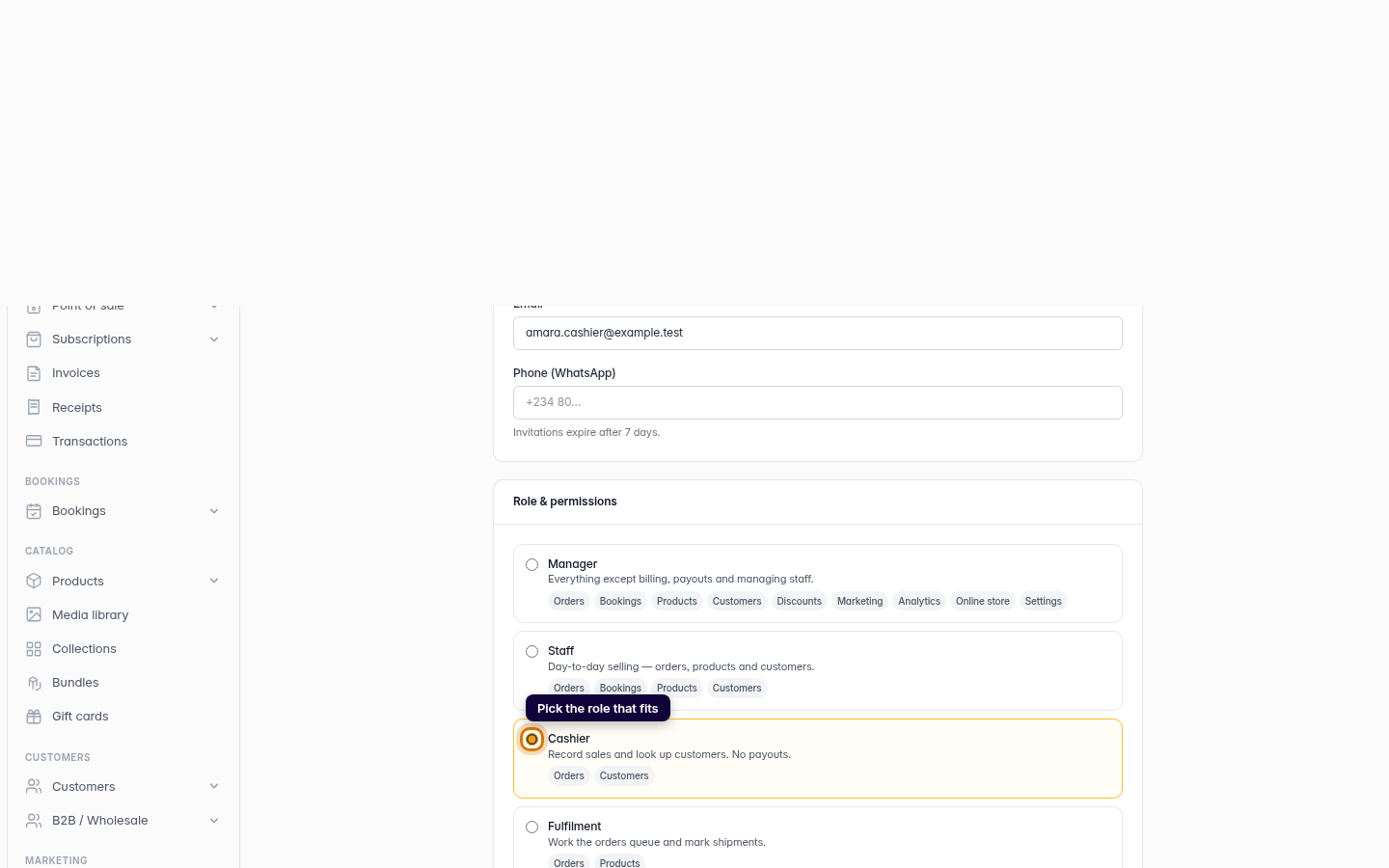
Choose a role
Pick the role that fits what they'll do. Each role grants a sensible set of permissions — a Cashier records sales, a Fulfilment teammate works the orders queue, a Manager runs almost everything except billing. Choose Custom to tick exactly which areas they can touch.
Web -
5
Send the invite
Click Send invite. Crate emails the teammate a link to join your store and lists them as a pending invitation — the link expires after 7 days.
Web 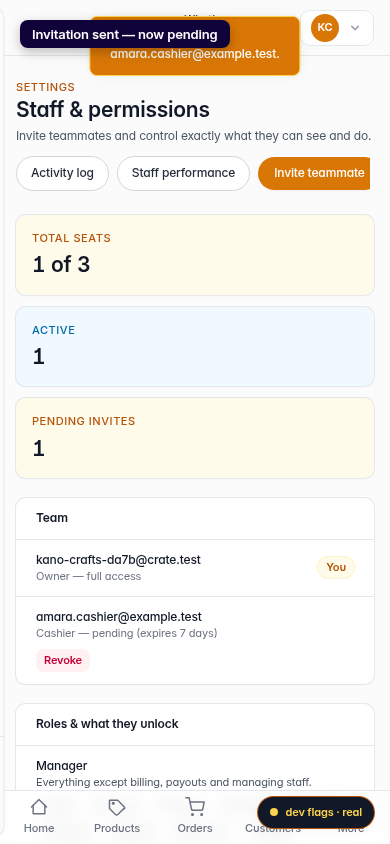
Mobile