Cancel your subscription (web)
A quick, step-by-step walkthrough for turning off your Crate subscription from the billing page on the web dashboard.
This is the short version for the web dashboard: how to cancel your Crate subscription in four clicks. Cancelling turns off auto-renewal only — your storefront and all your data stay live until your current billing period ends.
Cancel from the web
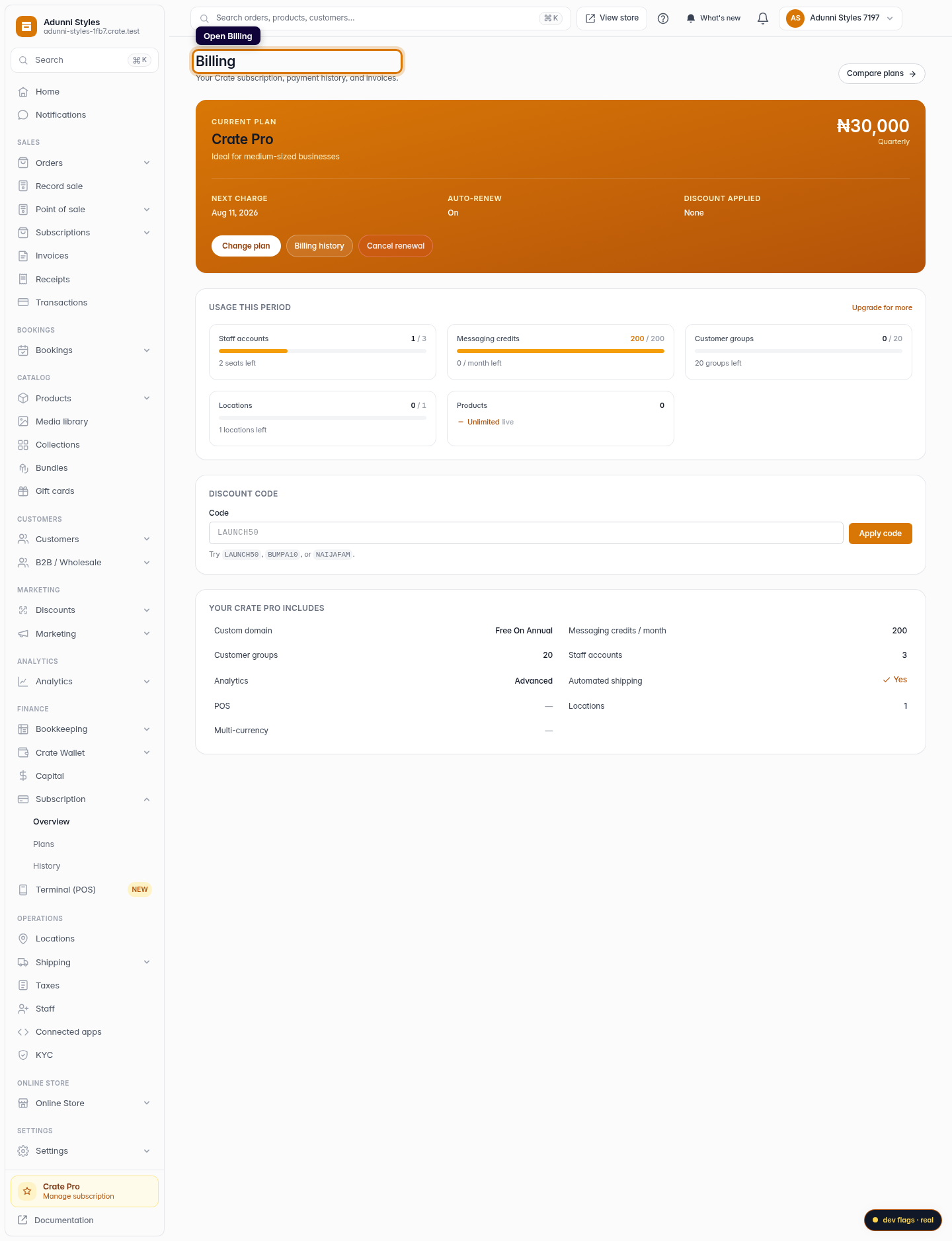
- Open Billing from your dashboard sidebar.
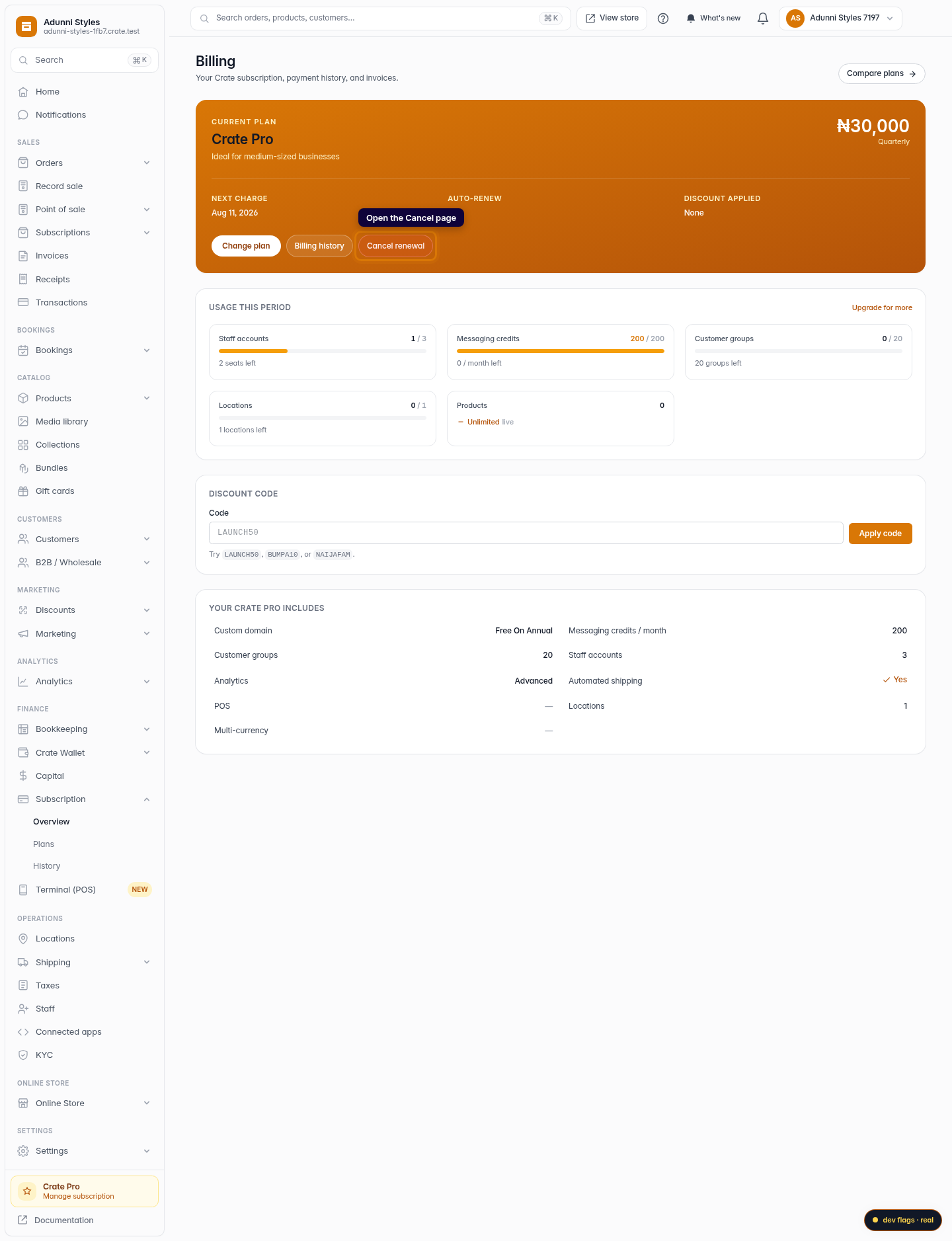
- Open the Cancel subscription page.
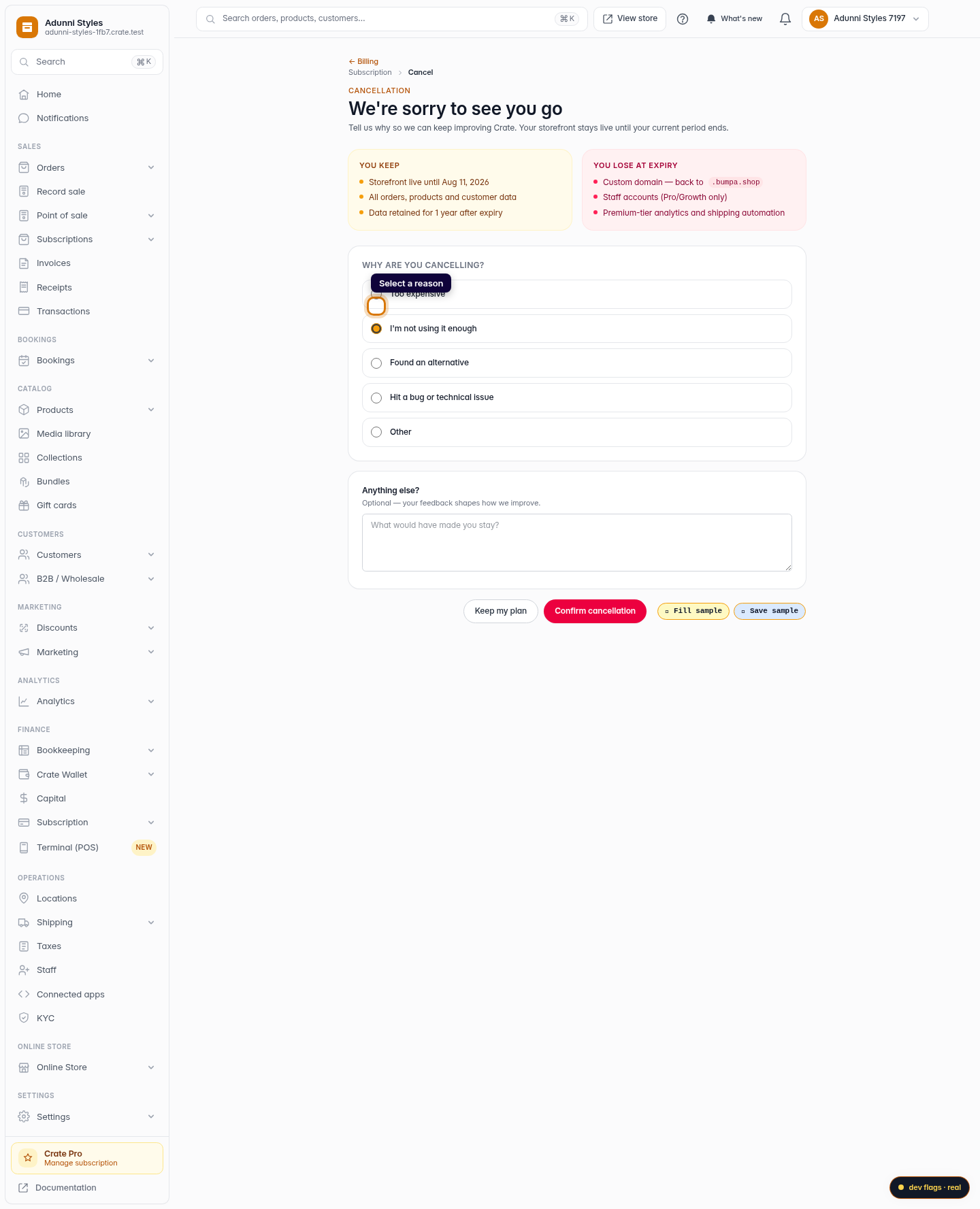
- Pick a reason for cancelling (and add optional feedback).
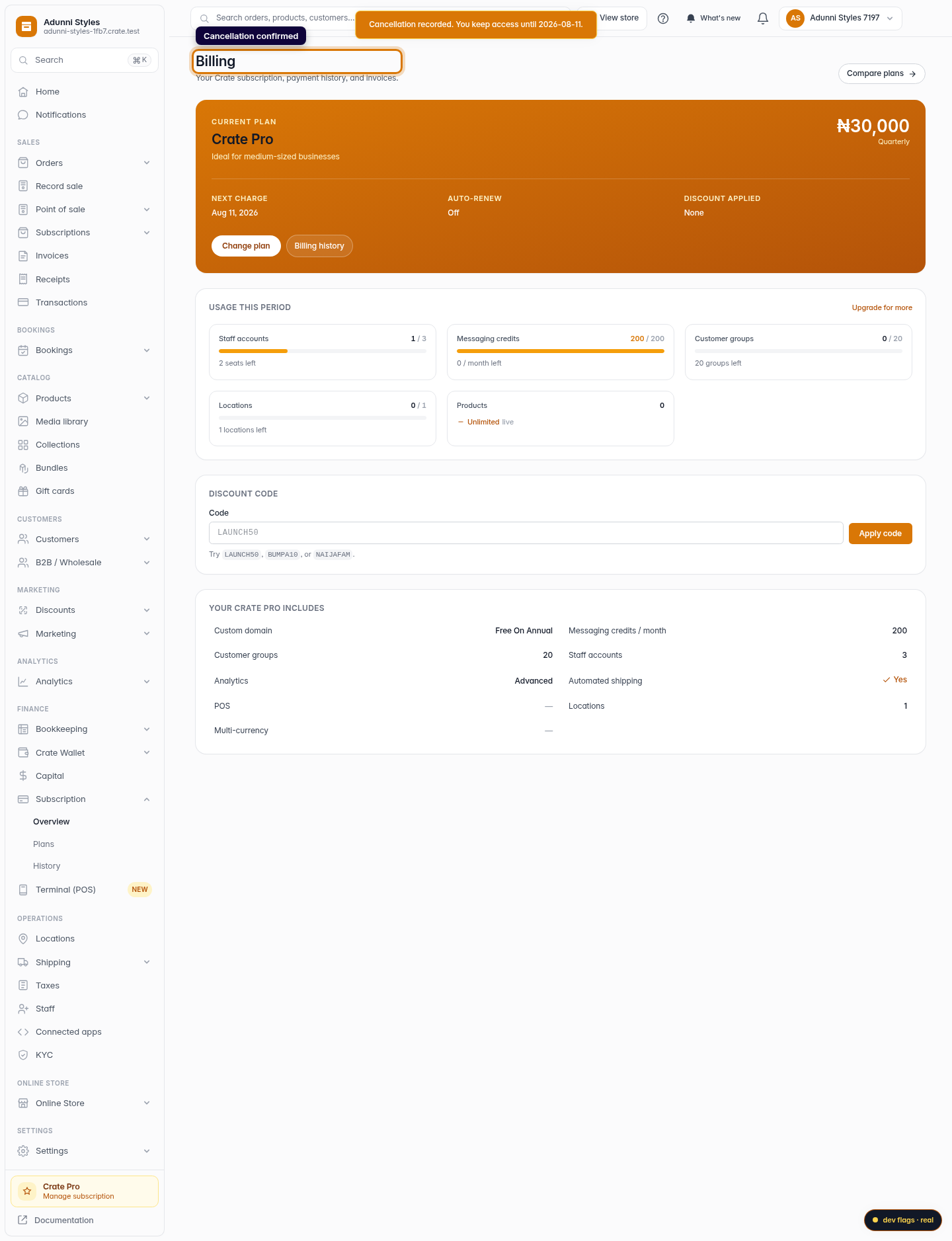
- Click Confirm cancellation.
That's it. Auto-renewal is off, and you'll see exactly which date your access runs until.
Tip: Prefer the full picture — what you keep, what you lose, and how to come back? See Cancel your subscription.
After you cancel
Your store keeps selling until the period ends. Want to stay? Renew from the billing page any time before expiry and your subscription continues without a gap.
-
1
Open Billing from the dashboard
Sign in to your Crate dashboard on the web and open Billing from the sidebar.
Web -
2
Go to the cancellation page
From your billing overview, open the Cancel subscription page. You'll see a clear summary of what stays active and what changes at expiry.
Web -
3
Select a reason for cancelling
Choose the reason that best fits why you're leaving, and add a note if you'd like — it's optional but it helps us improve.
Web -
4
Confirm
Click Confirm cancellation. Crate turns off auto-renewal and shows the date your access runs until.
Web