Add a staff member
Invite a teammate to help run your store — give them their own login, pick a role, and control exactly which areas they can touch.
Running a busy store is easier with help. Crate lets you add teammates — a manager, cashier, fulfilment hand or marketer — each with their own login and a role that decides exactly what they can see and do. You stay the owner with full access; everyone else gets only what you grant.
Before you start
You only need a teammate's email address to invite them — that's where their join link goes, so make sure it's correct. Everything else (name, phone, fine-grained permissions) you can set now or change later from their profile.
Your plan sets how many seats you have. If you've used them all, Crate will tell you when you try to invite — upgrade for more seats and the invite goes straight through.
Tip: Not sure which role to pick? Start with one of the ready-made roles. You can always switch a teammate to Custom later and tick individual areas if their job changes.
What happens after you send
The teammate gets an email with a link to join your store. Until they accept, they show as pending on your staff list, and you can revoke the invite at any time. Once they accept, they sign in with their own details and land in a dashboard limited to the areas their role unlocks — they can never see your analytics or invite other staff unless you grant it.
-
1
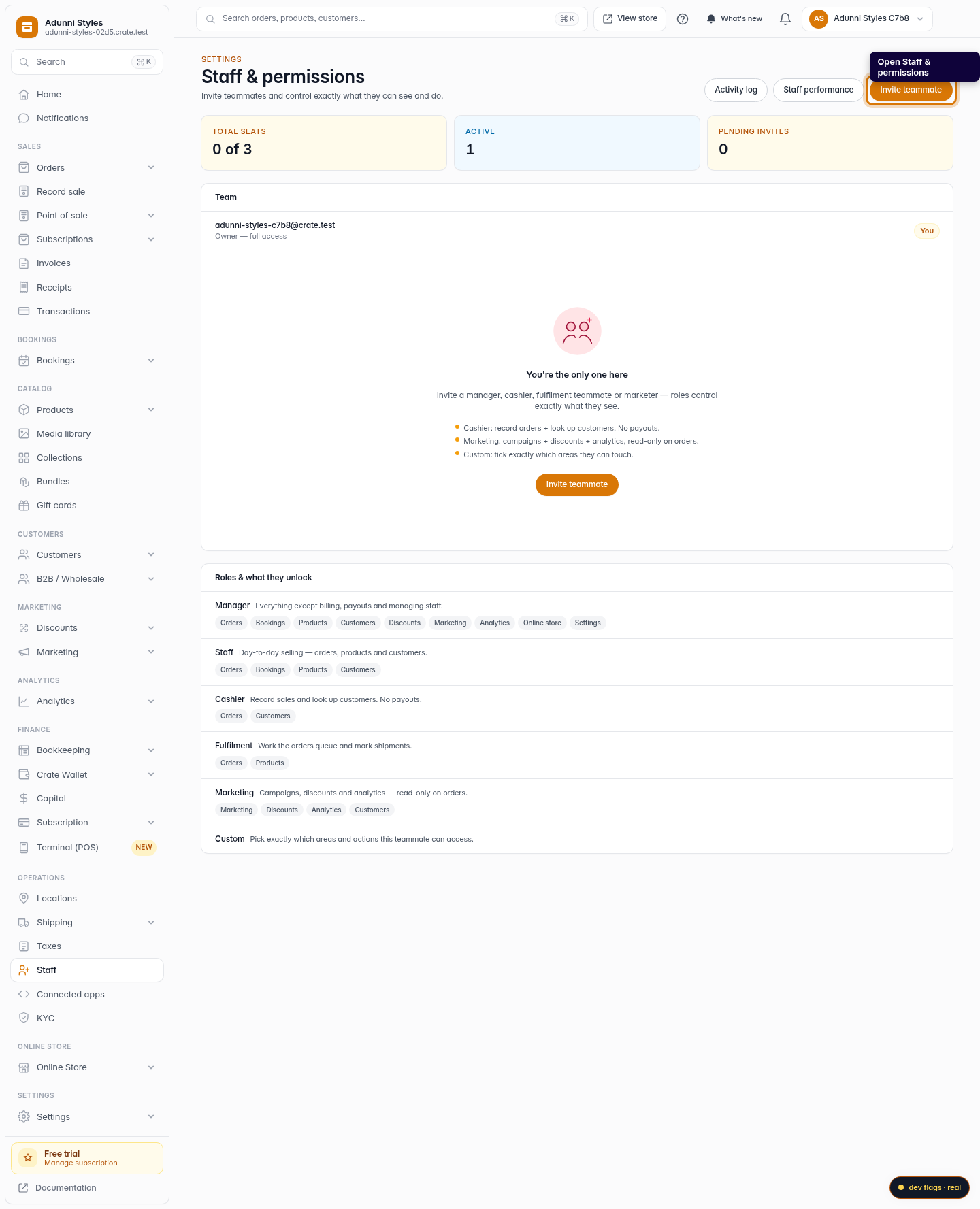
Open Staff & permissions
From your dashboard, go to Settings → Staff. This is where every teammate, their role and their pending invites live.
Web 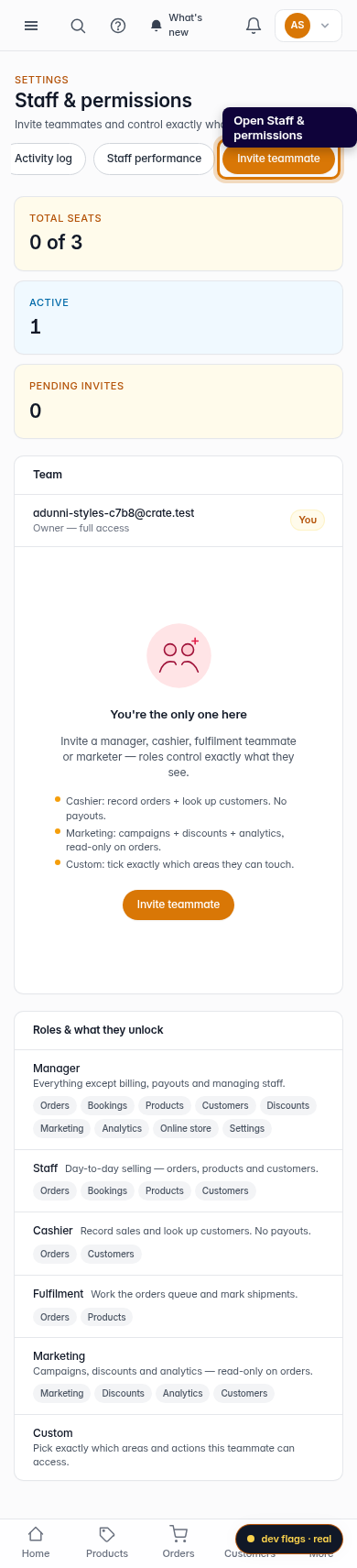
Mobile -
2
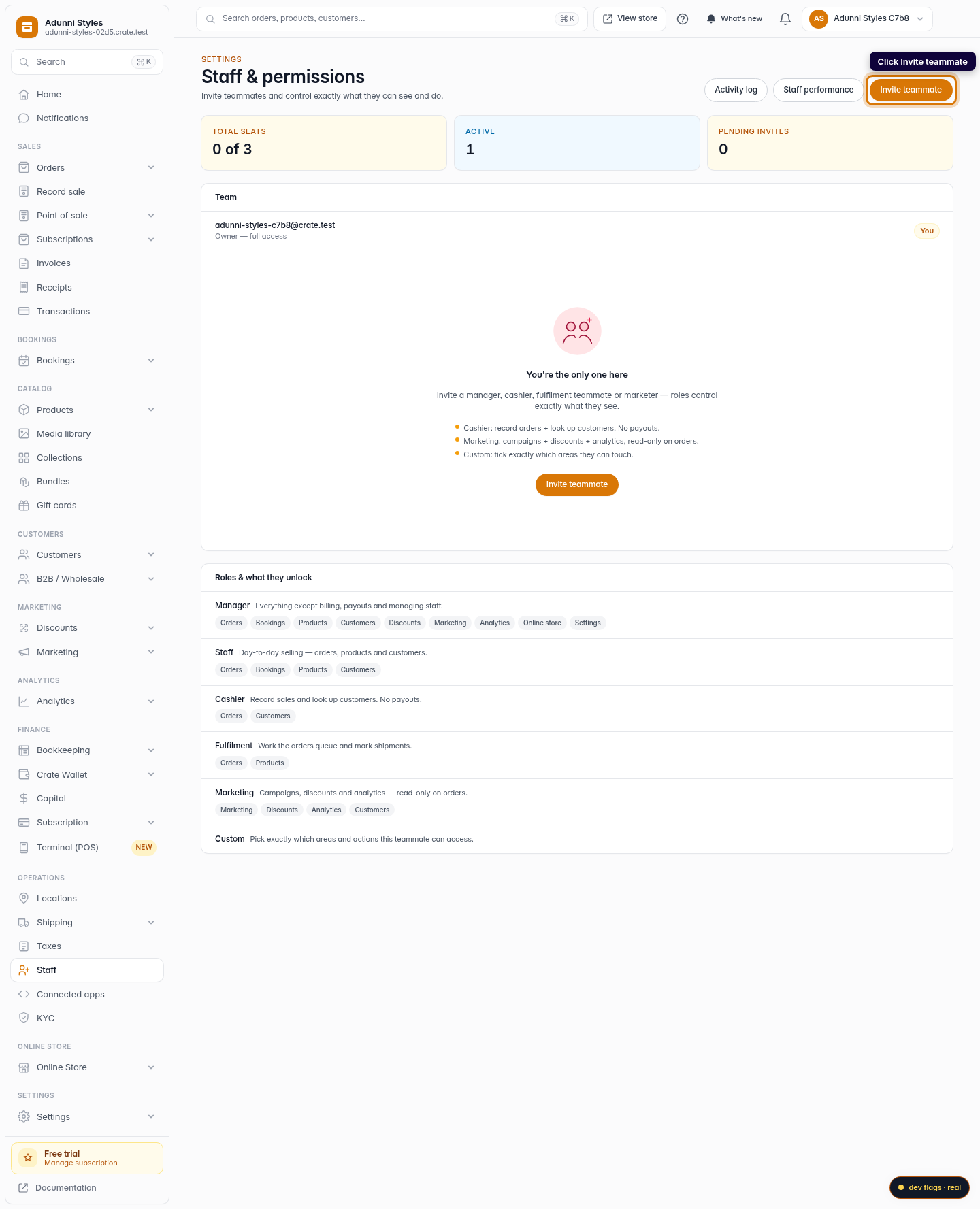
Start an invite
Click Invite teammate in the top-right corner. The owner row is always you — teammates you add appear beneath it.
Web -
3
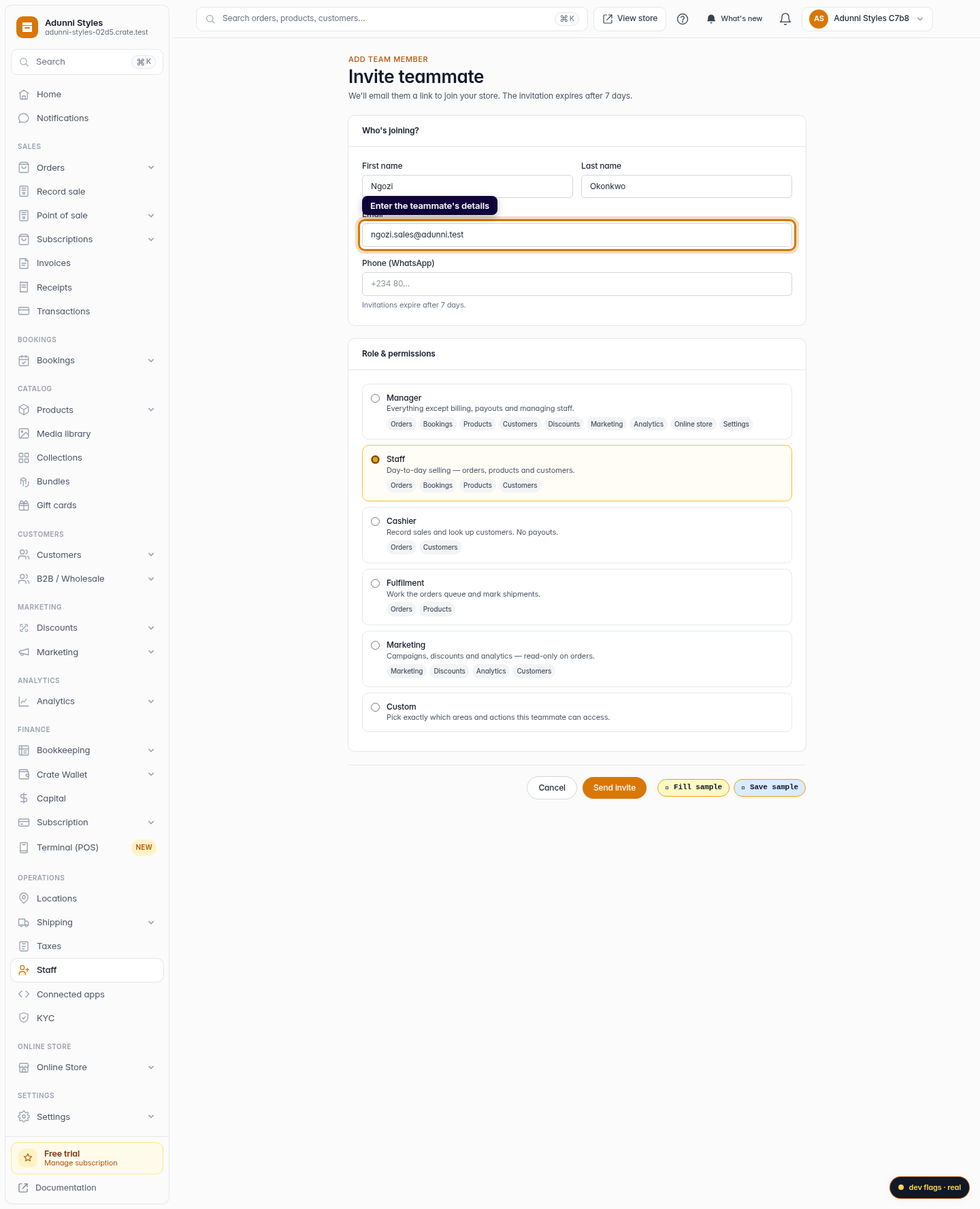
Enter their details
Add the teammate's name and, most importantly, the email address they'll use to accept the invite — double-check it, that's where the link is sent. A WhatsApp number is optional.
Web 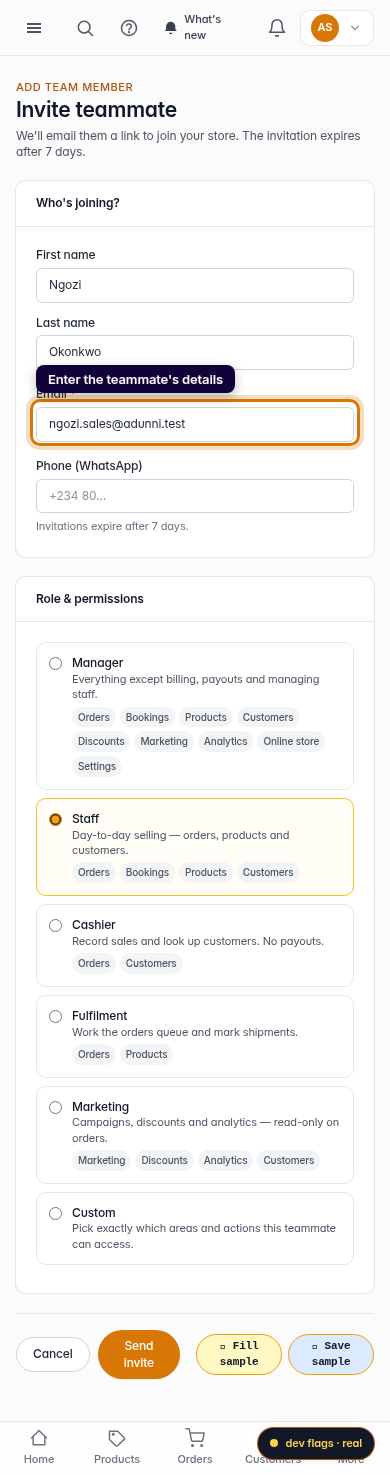
Mobile -
4
Pick a role
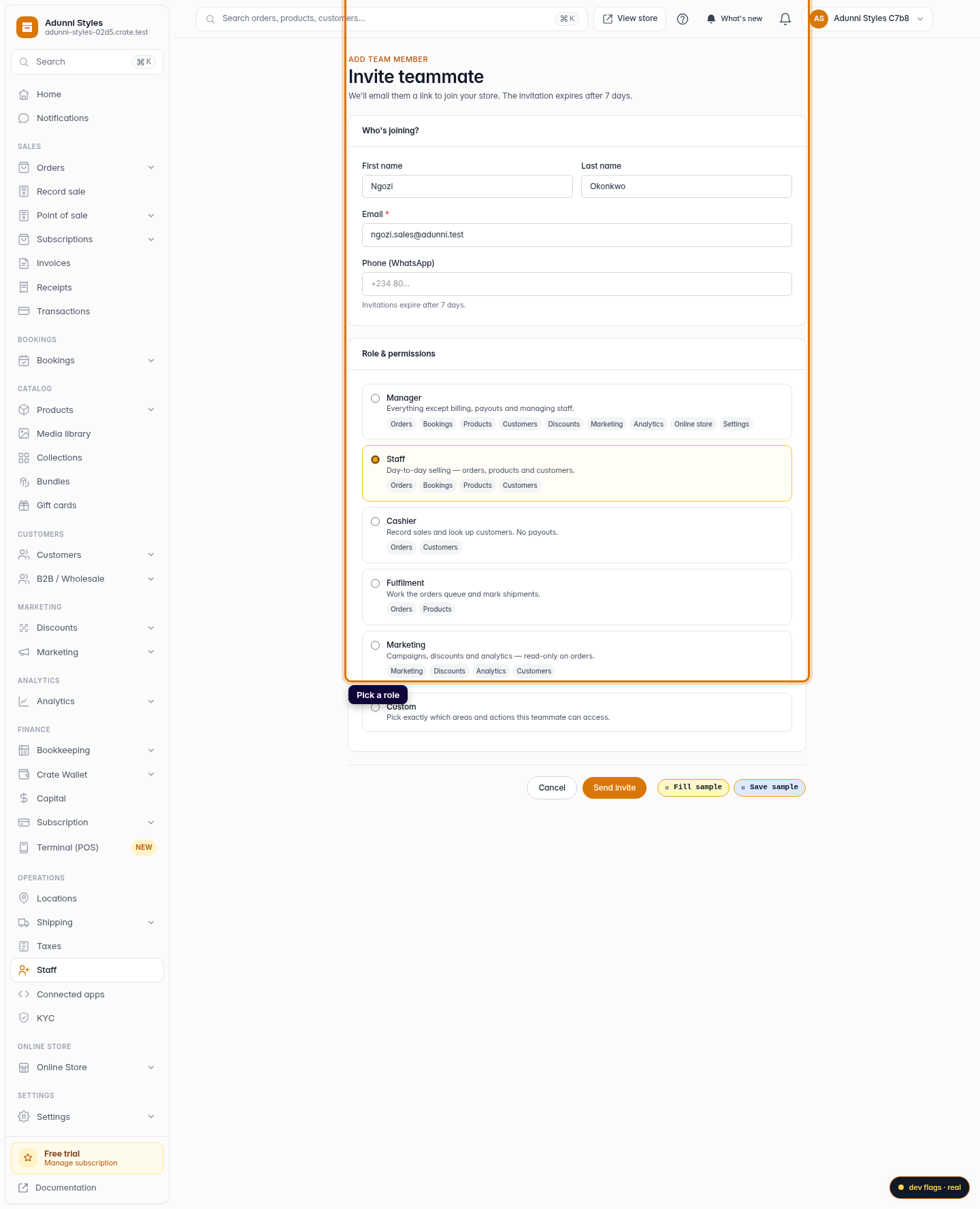
Choose the role that fits them. Each role unlocks a fixed set of areas — a cashier records orders, a marketer runs campaigns. Pick Custom to tick exactly which areas (and actions like refund or export) they can reach.
Web -
5
Send the invite
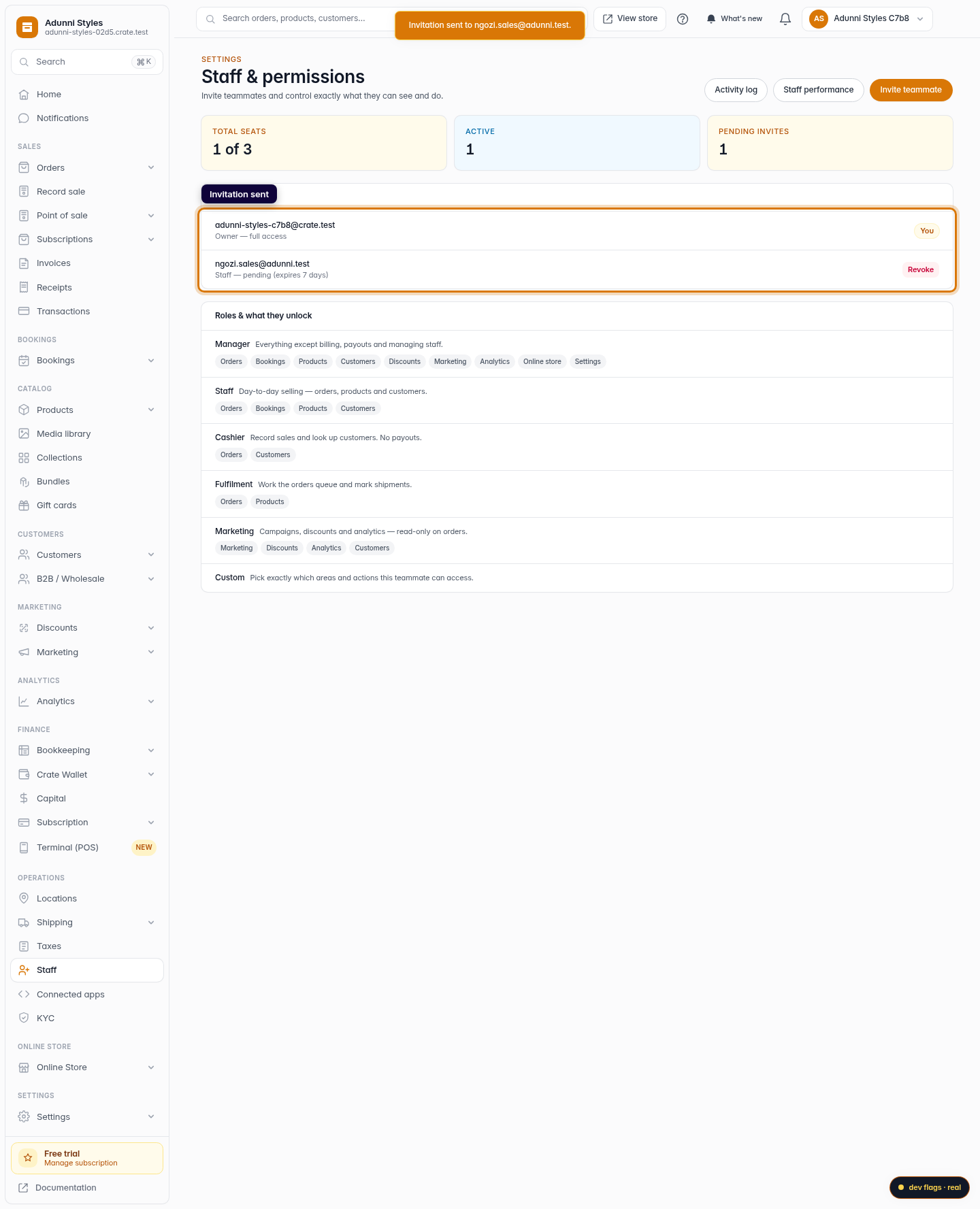
Click Send invite. Crate emails them a join link and the invite shows as pending on your staff list until they accept. Invites expire after 7 days.
Web 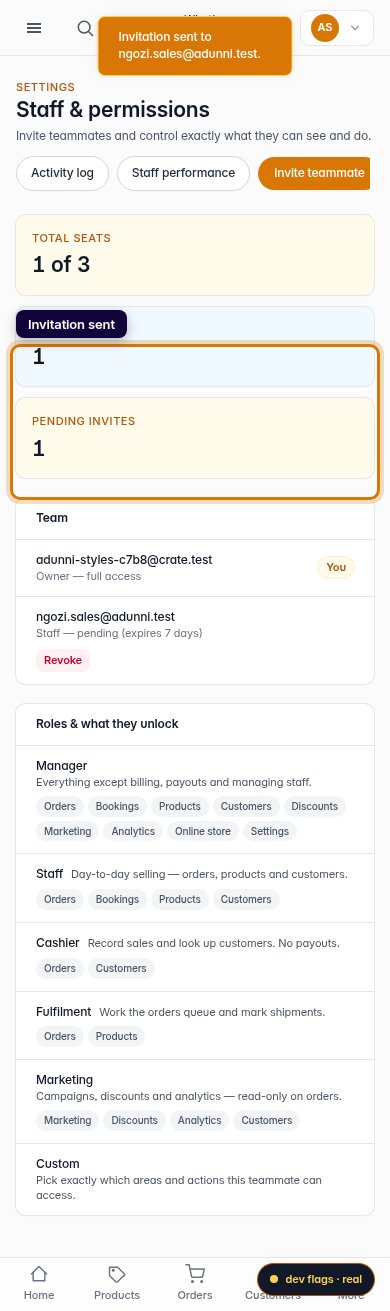
Mobile