Check your subscription status and history
See your current plan, renewal date and every past charge in one place — so you always know where your Crate subscription stands.
It pays to know exactly where your subscription stands — which plan you're on, when you'll next be charged, and what you've paid so far. Crate keeps all of that on your billing page, with a dedicated history view for the full record.
Your status at a glance
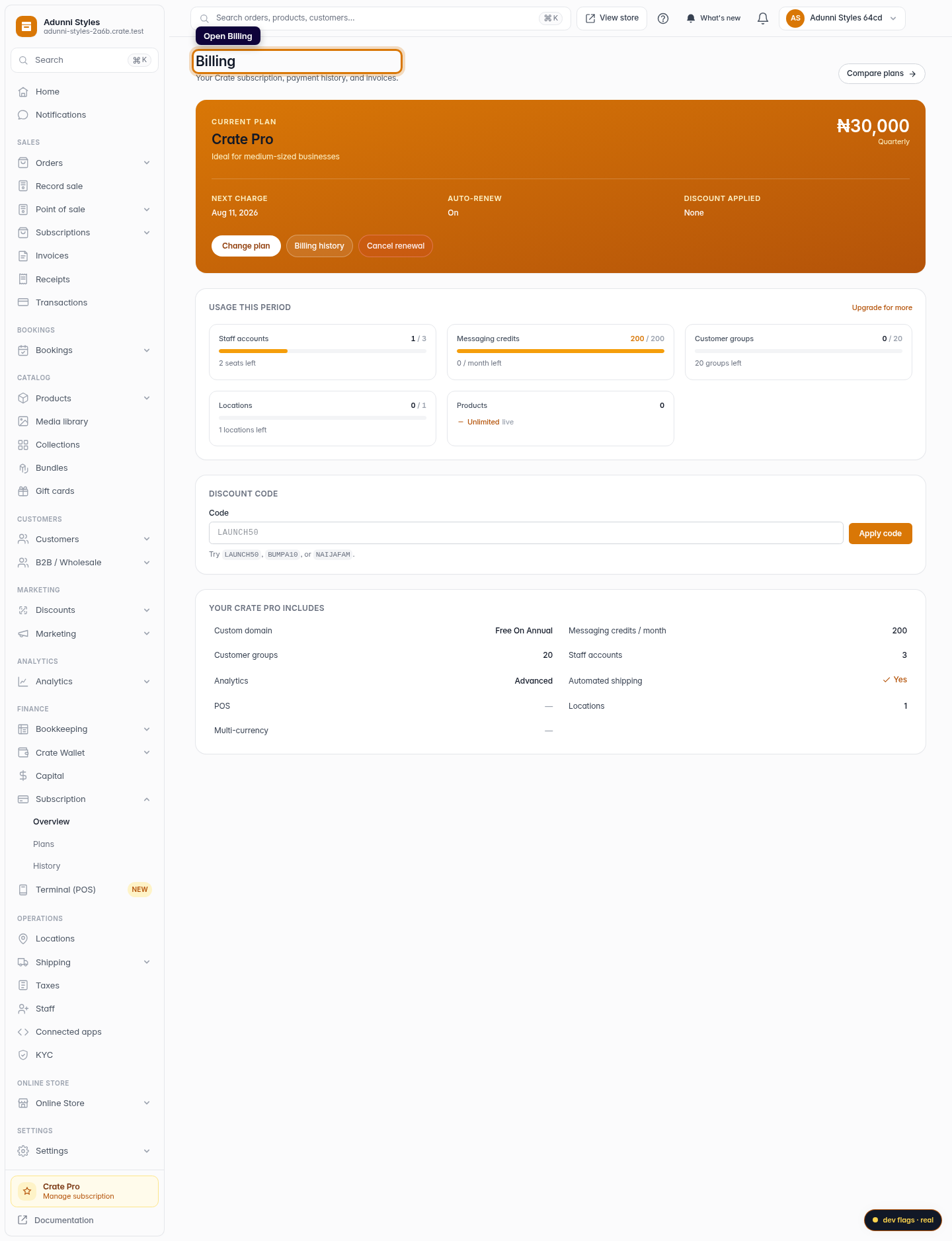
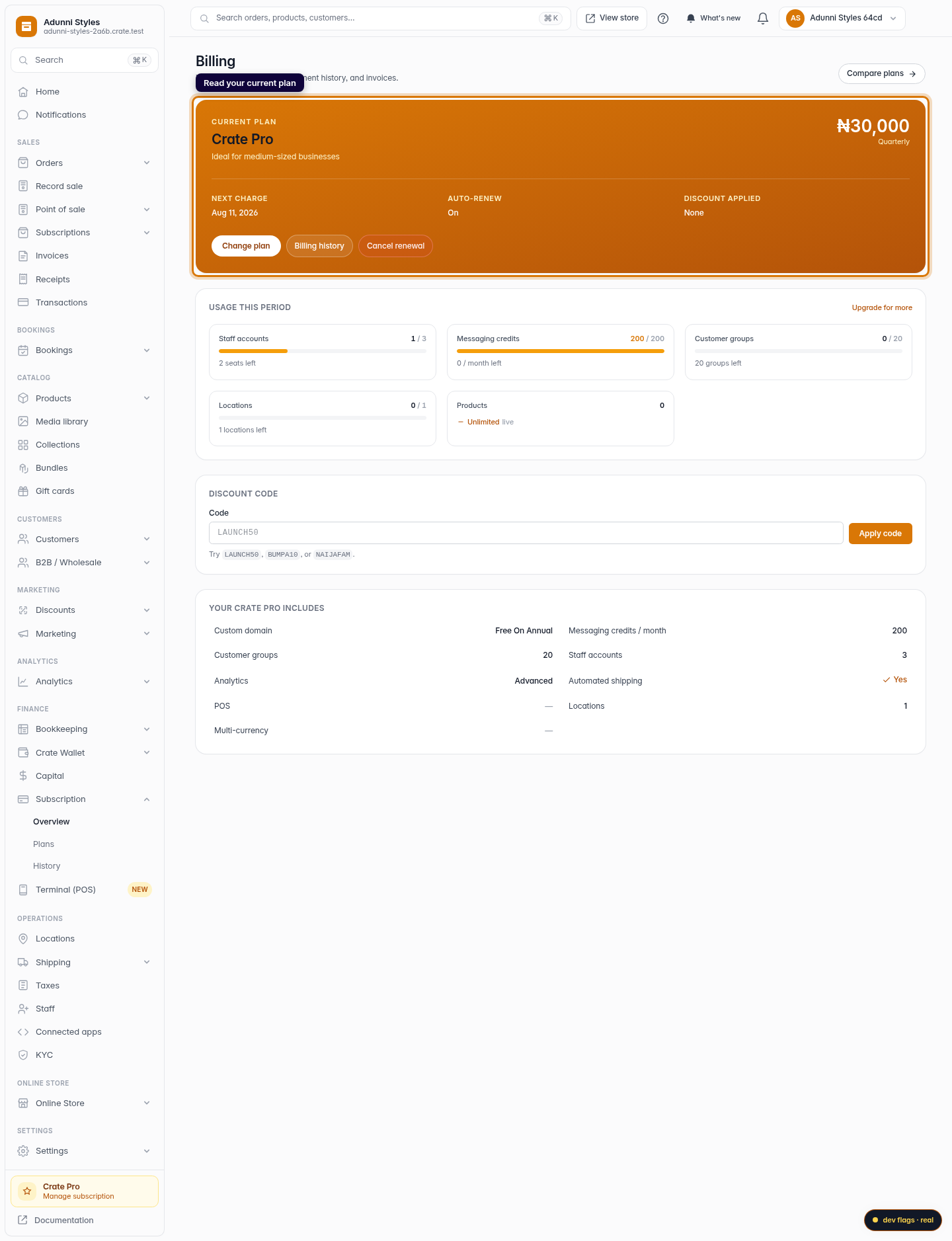
The Billing page opens with your current plan: its name, the price for your billing period, your next charge date, and whether auto-renew is on or off. That's the quick answer to "what am I paying and when" without digging.
The full history
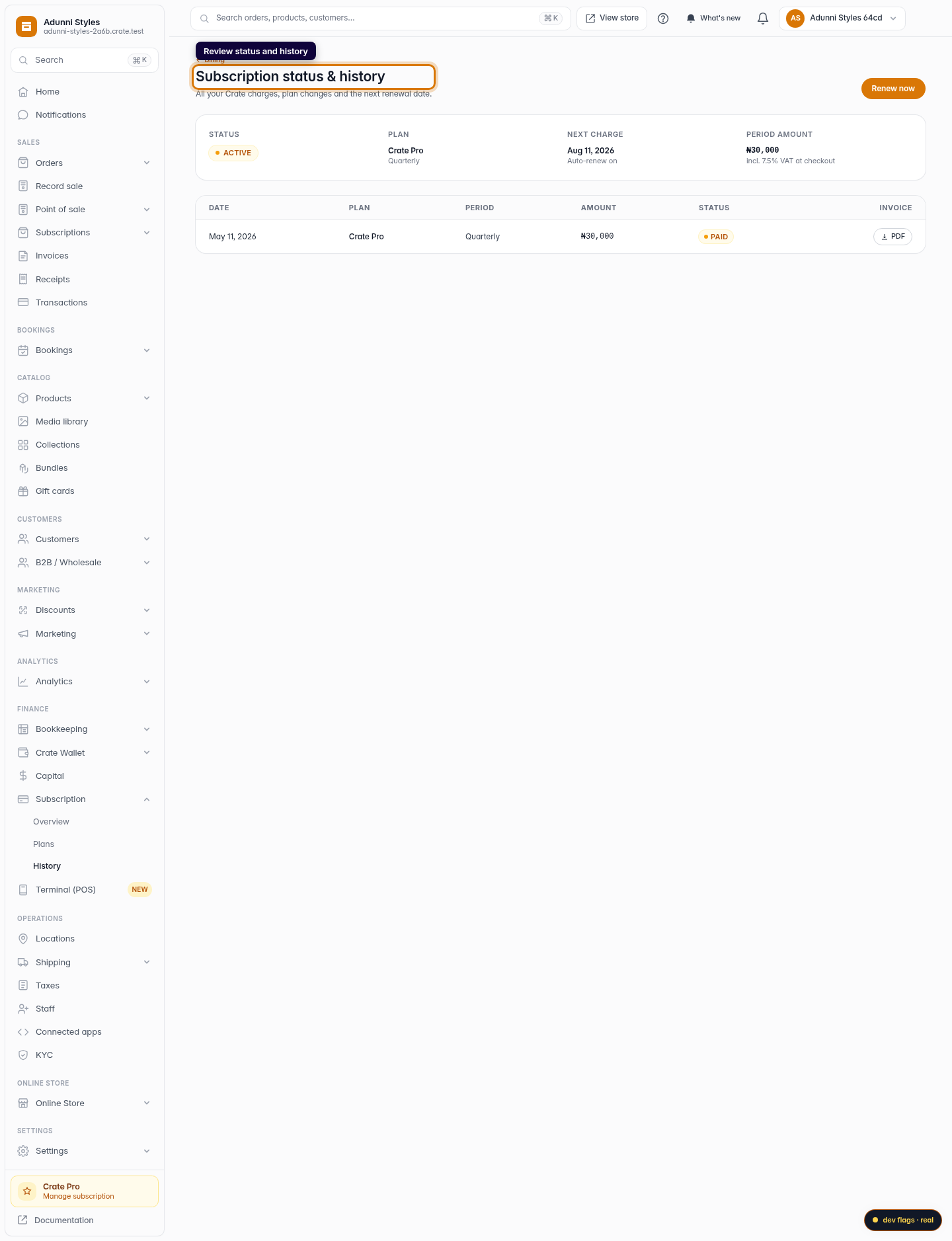
Open Billing history for the complete picture. A status banner tells you whether your subscription is active, cancelled, expired or on trial, alongside your plan, next charge date and the period amount (VAT is added at checkout). Below that, every past charge is listed with its date, plan, period, amount and status — so you can reconcile your payments any time.
Tip: On a free trial you'll see a Trial status and an empty history — charges only start appearing once you subscribe to a paid plan.
Keeping it current
Your status updates automatically as things change: subscribe and the status flips to active; cancel and it shows cancelled with your access-until date; let a period lapse without renewing and it reads expired. There's nothing to refresh — the billing page always reflects your latest state.
-
1
Open Billing
From your dashboard, go to Billing. The top of the page shows your current plan, price and next charge at a glance.
Web 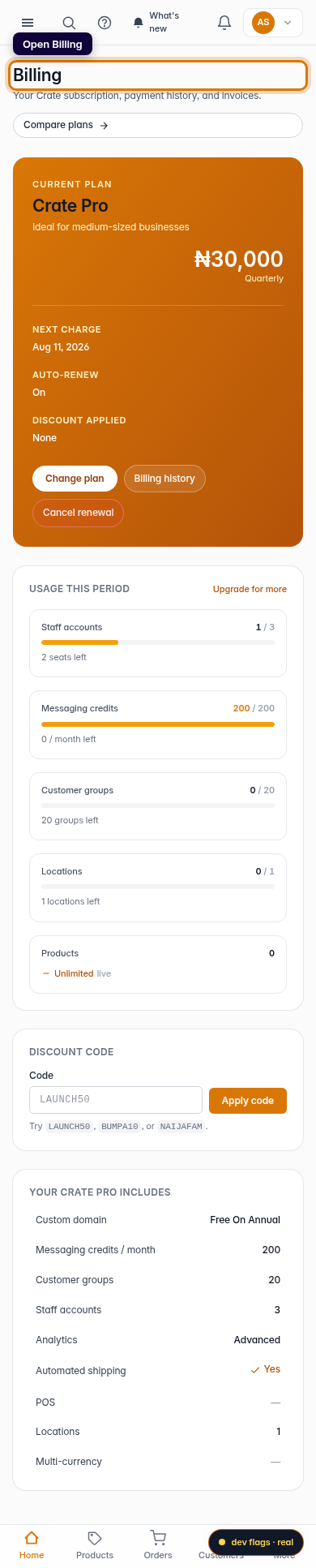
Mobile -
2
Read your current plan
The plan card shows your plan name, billing period, next charge date and whether auto-renew is on — your subscription status in one panel.
Web -
3
Open billing history
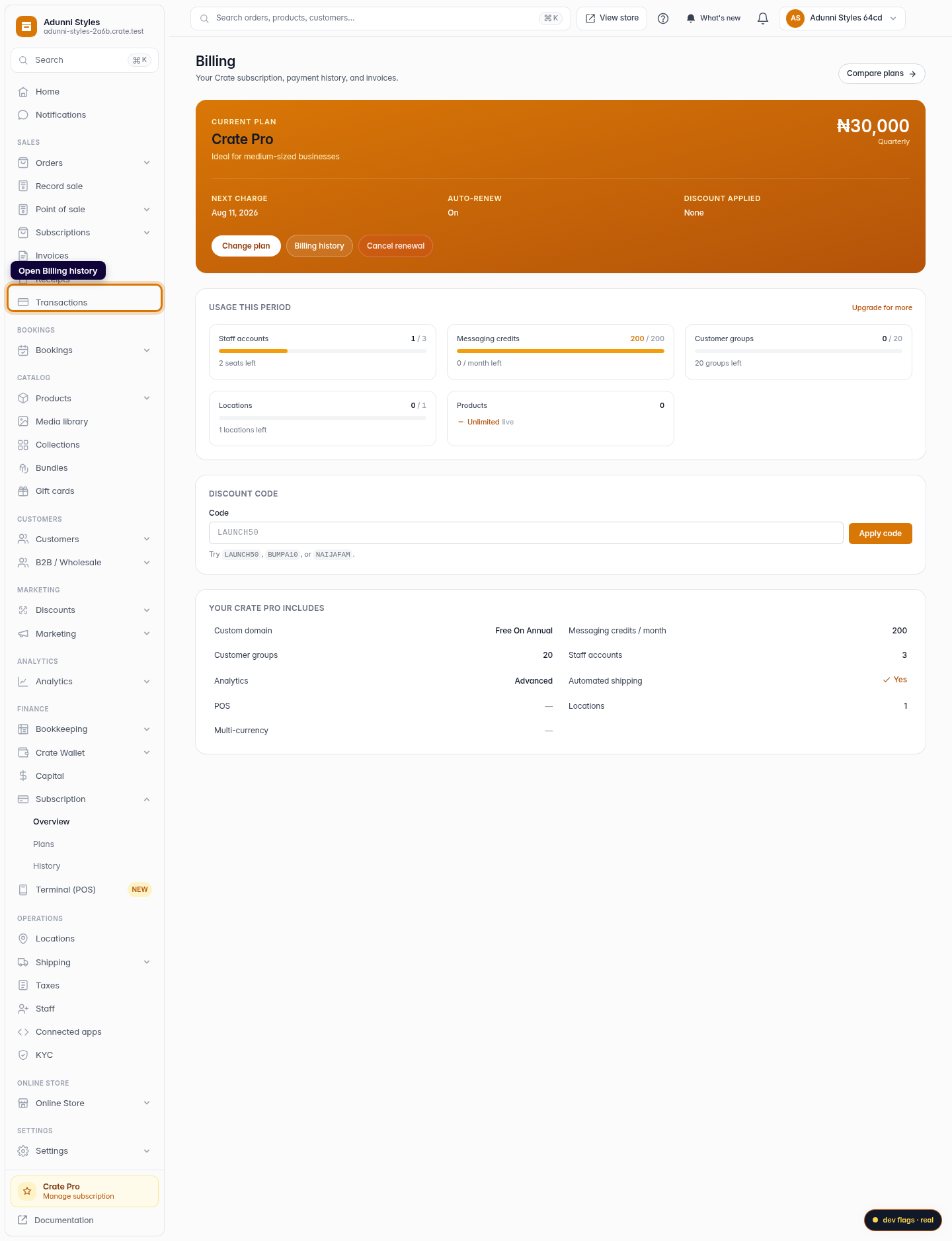
Click Billing history to open the full status-and-history page.
Web -
4
Review status and past charges
The history page summarises your status (active, cancelled, expired or trial), plan, next charge and period amount, then lists every past charge with its date, amount and status.
Web 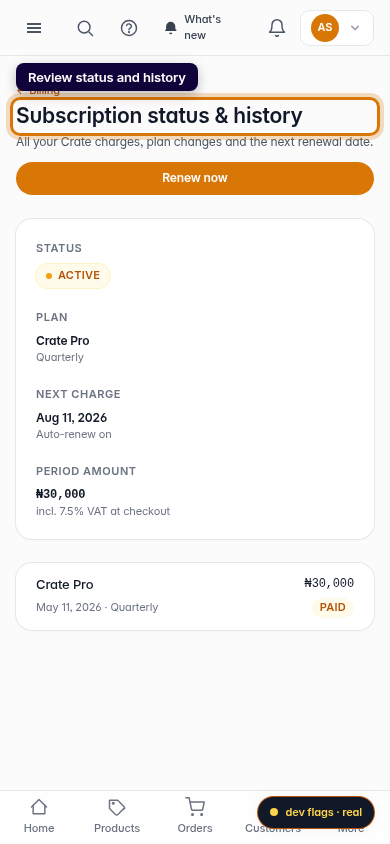
Mobile