Edit a staff member
Update a teammate's profile, change their role, or fine-tune exactly which areas of your store they can reach.
People's roles change as your store grows — a cashier takes on fulfilment, a marketer needs access to discounts. Editing a teammate lets you update their details and reshape exactly what they can touch, without removing and re-inviting them.
What you can change
From a teammate's edit page you can update their profile (name and WhatsApp number) and their role. Switching role instantly swaps the set of areas they can reach. For precise control, pick Custom and tick individual areas plus the sensitive actions within them — refunding an order or exporting customers are separate toggles, so you can grant the area without the action.
Tip: Editing never changes a teammate's login email. If someone needs to sign in with a different address, remove them and send a fresh invite to the new email.
What happens after you save
Changes apply right away. The next time the teammate loads their dashboard, they'll see exactly the areas their new role and permissions allow — nothing more. Their past activity stays attributed to them in your activity log and staff performance report.
-
1
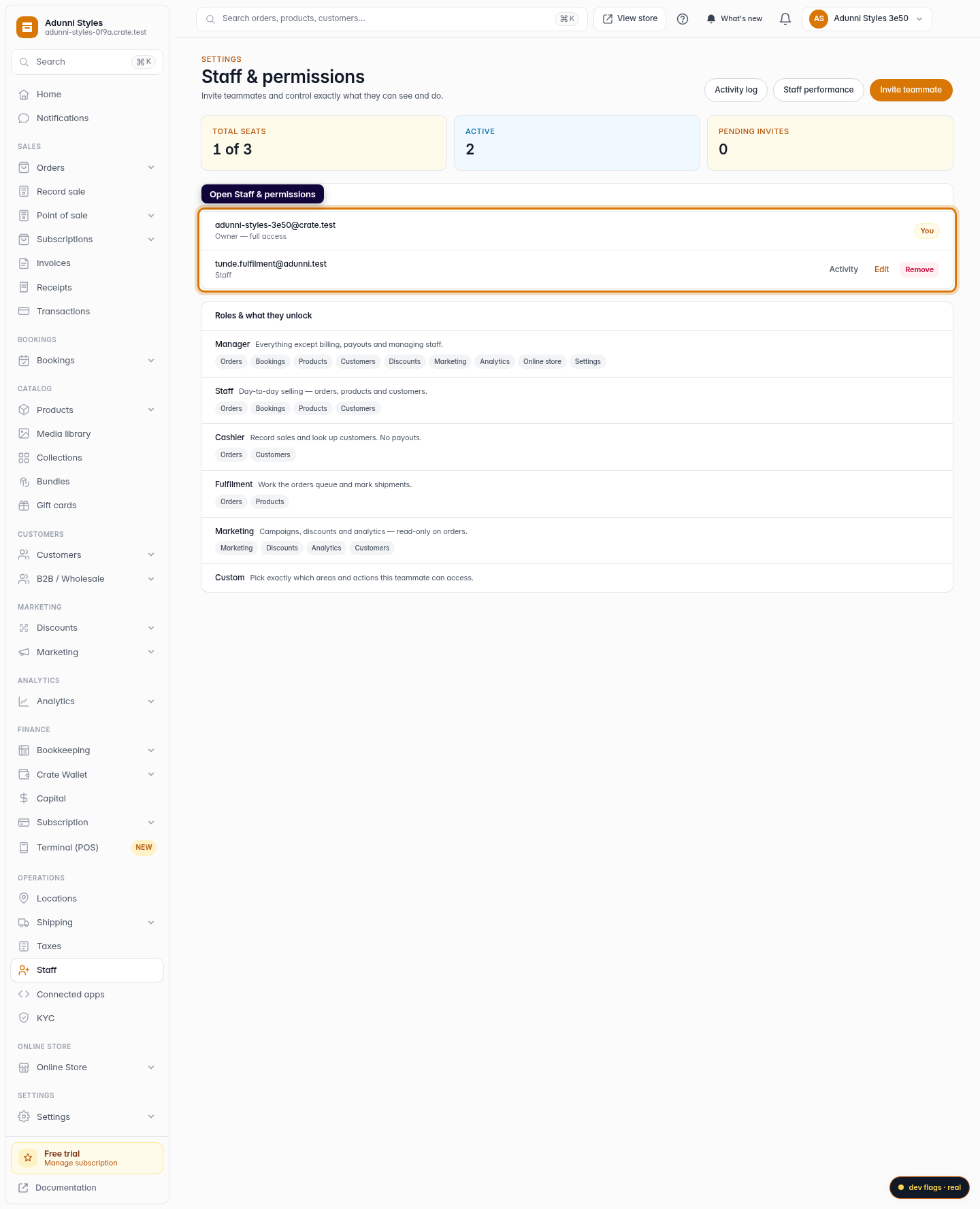
Open Staff & permissions
From your dashboard, go to Settings → Staff. Your team is listed under the owner row, each with their current role.
Web 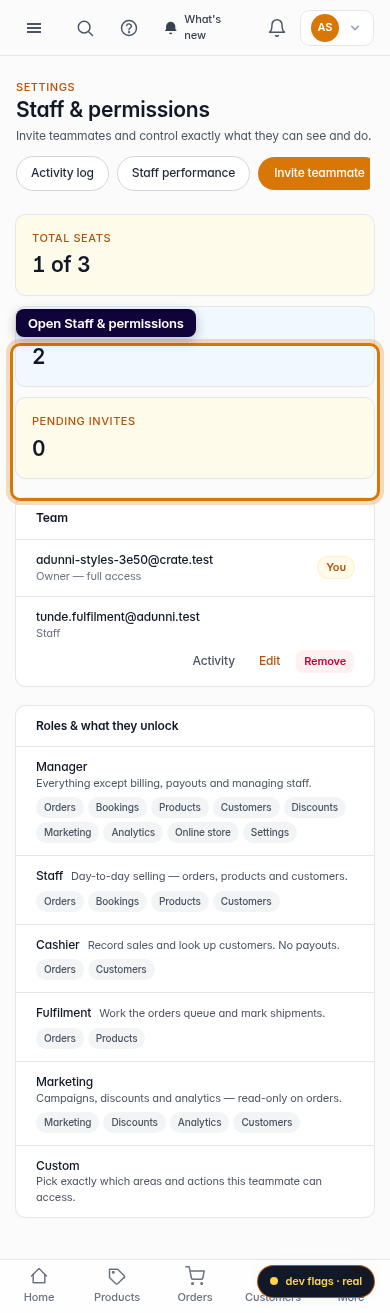
Mobile -
2
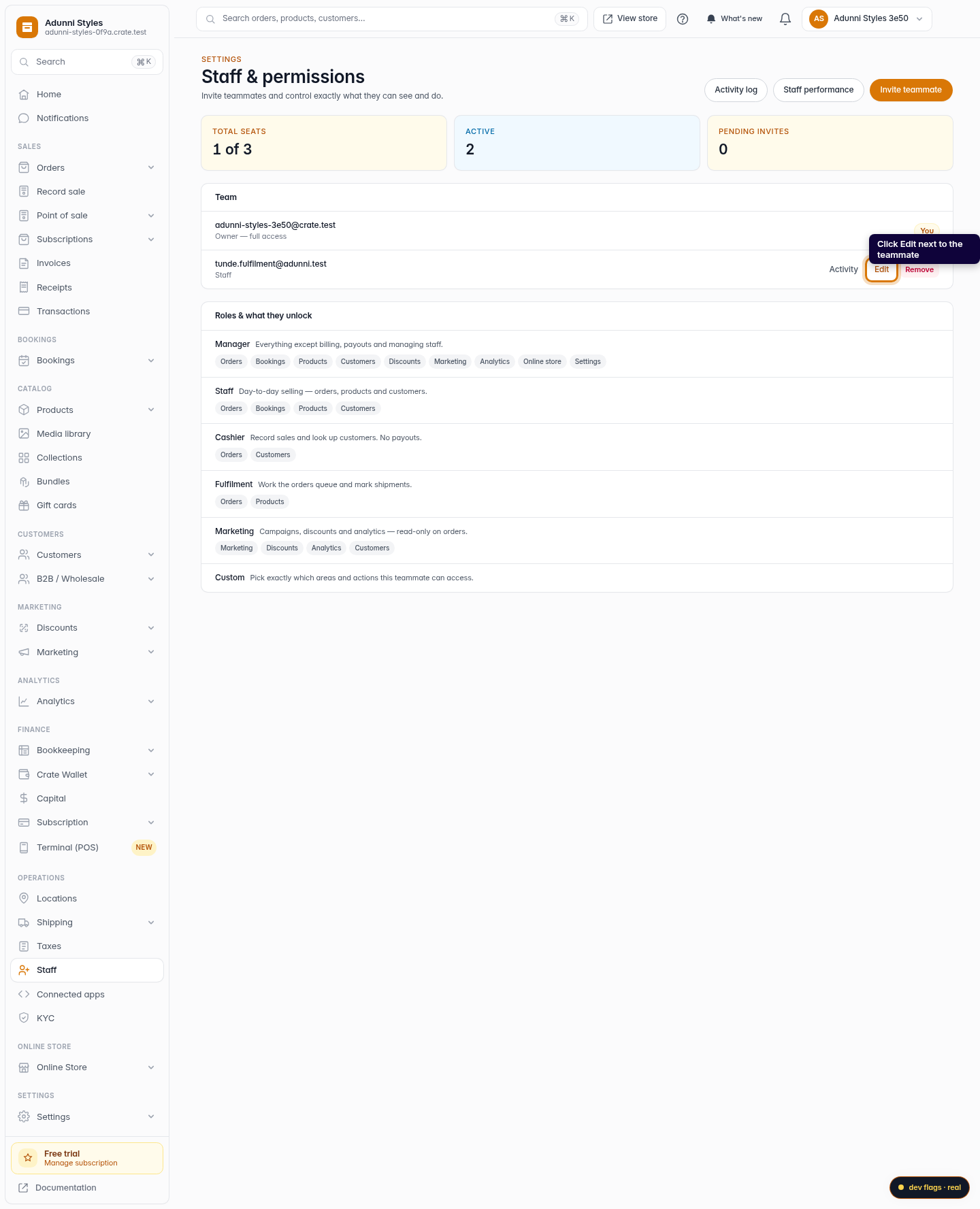
Open the teammate
Find the teammate you want to change and click Edit next to their name.
Web -
3
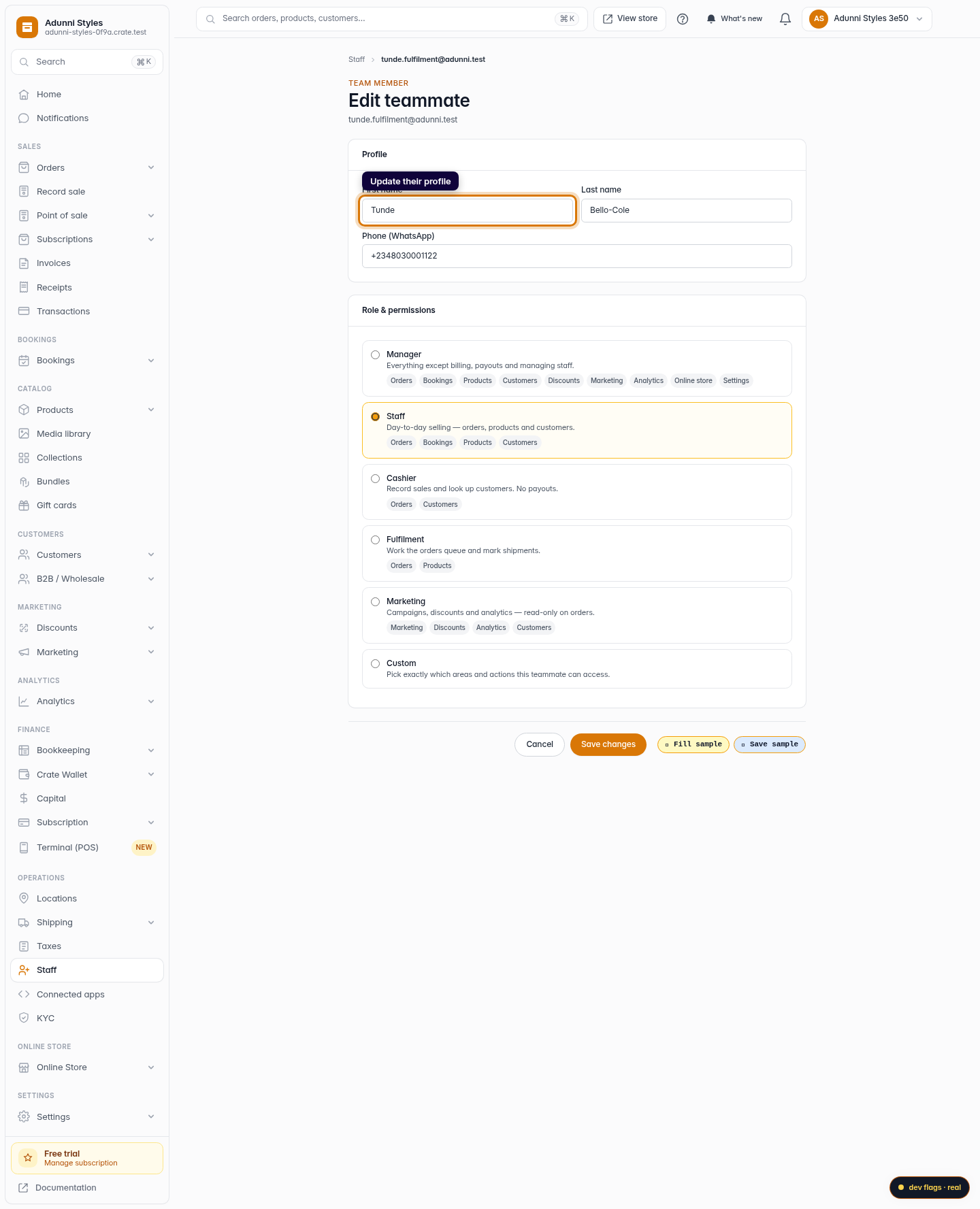
Update their profile
Adjust their first name, last name or WhatsApp number. These are the details that appear next to their activity across your store.
Web 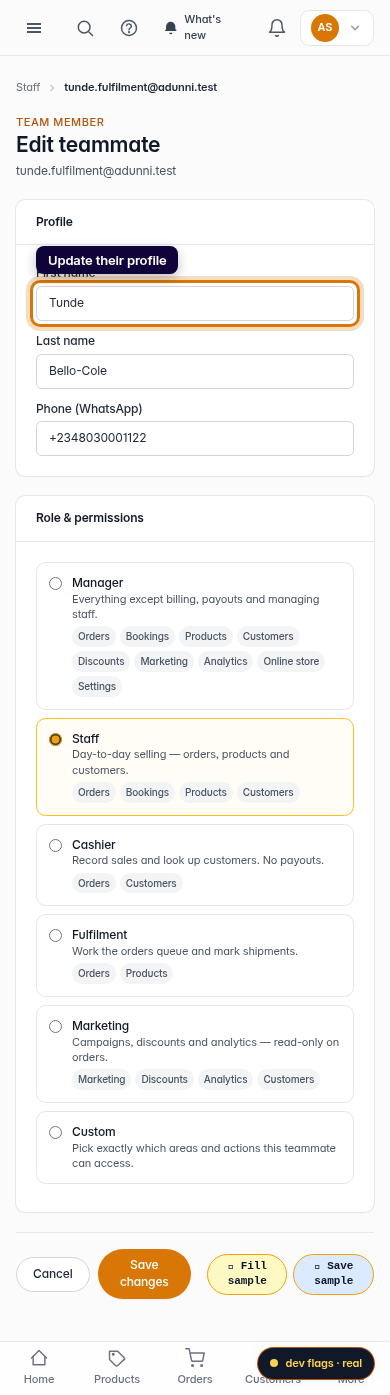
Mobile -
4
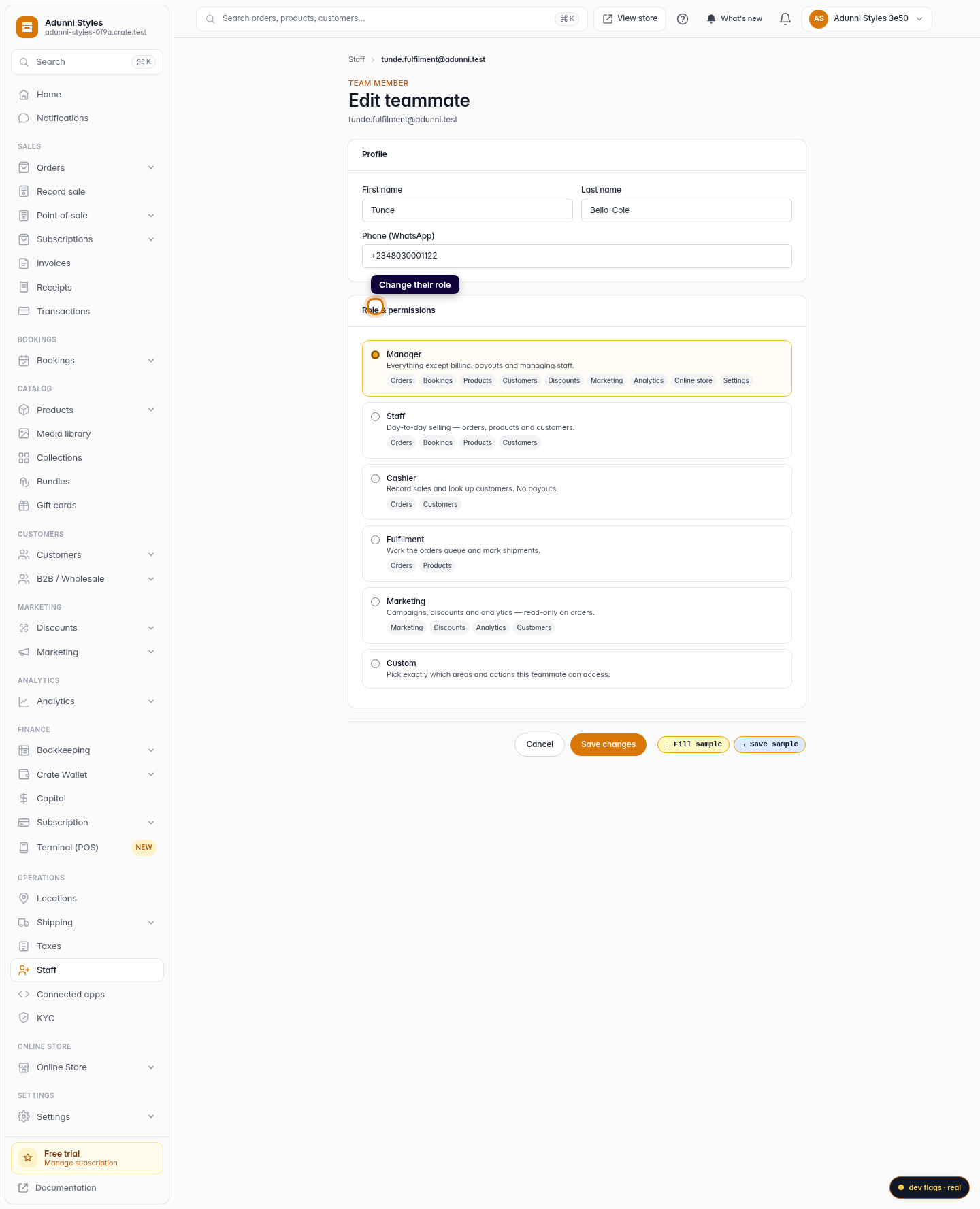
Change their role or permissions
Switch their role to grant or restrict access. Choose Custom to tick exactly which areas — and which actions like refund, export or delete — they're allowed to use.
Web -
5
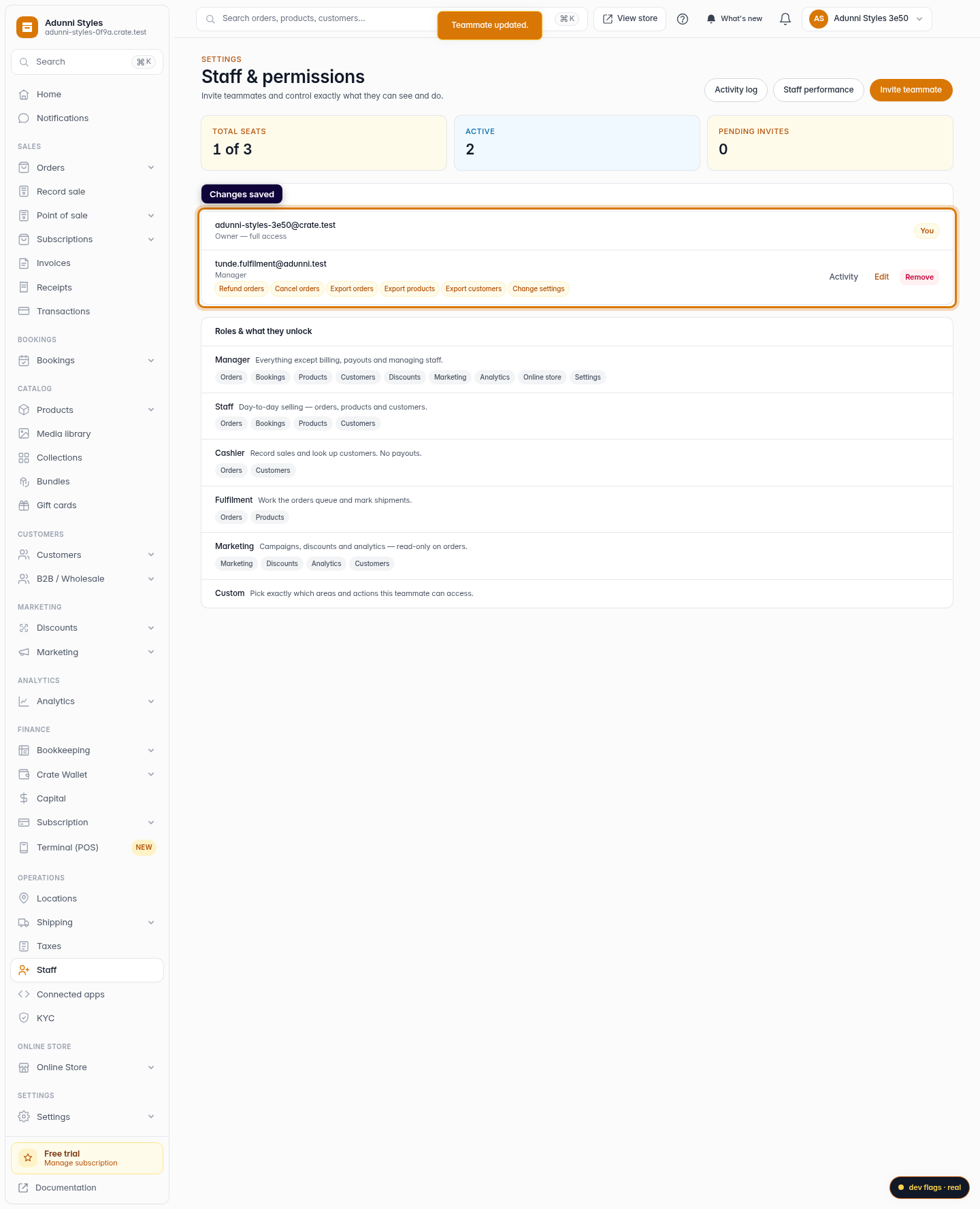
Save your changes
Click Save changes. The teammate's new role and permissions take effect immediately, the next time they load their dashboard.
Web 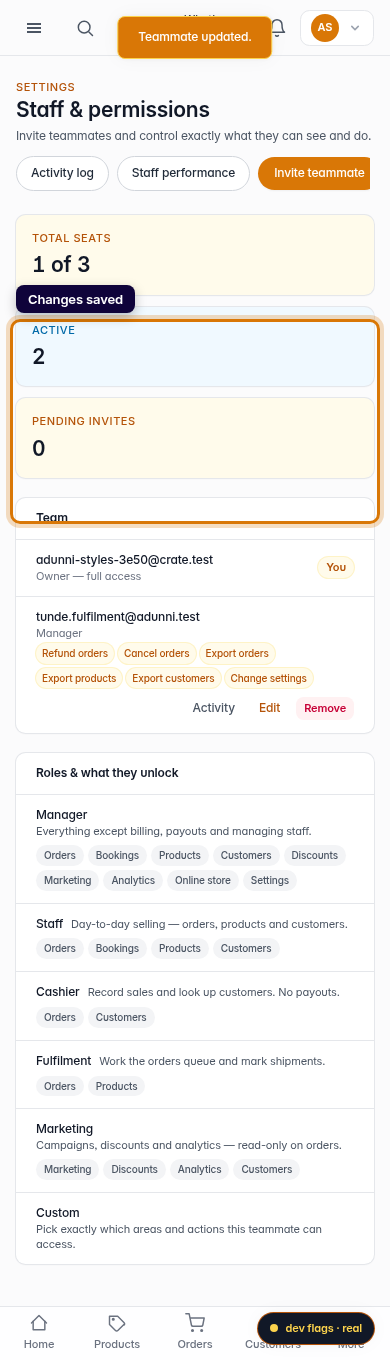
Mobile