Add notes to a product
Keep private reminders on any product — restock dates, supplier details, photo to-dos. Product notes are for you and your staff only, never shown to customers.
Some details about a product belong to your team, not your shoppers — a reminder to re-shoot photos, a supplier's restock date, a quirk in how an item is packed. Product notes give every product a private notepad for exactly that.
Private by design
Product notes are never shown to customers. They live on the product's own Notes page inside your dashboard, visible only to you and the staff you've invited. Use them freely for anything that helps you and your team run the product well.
Tip: Notes are timestamped and attributed, so when a teammate adds a restock date or a packing instruction, everyone can see who wrote it and when. It turns a product into a shared, living record.
Where notes show up
Each note you save joins the product's Recent notes list, newest context at your fingertips whenever you open the product. There's no limit on how many you keep — add a new one whenever something's worth remembering.
-
1
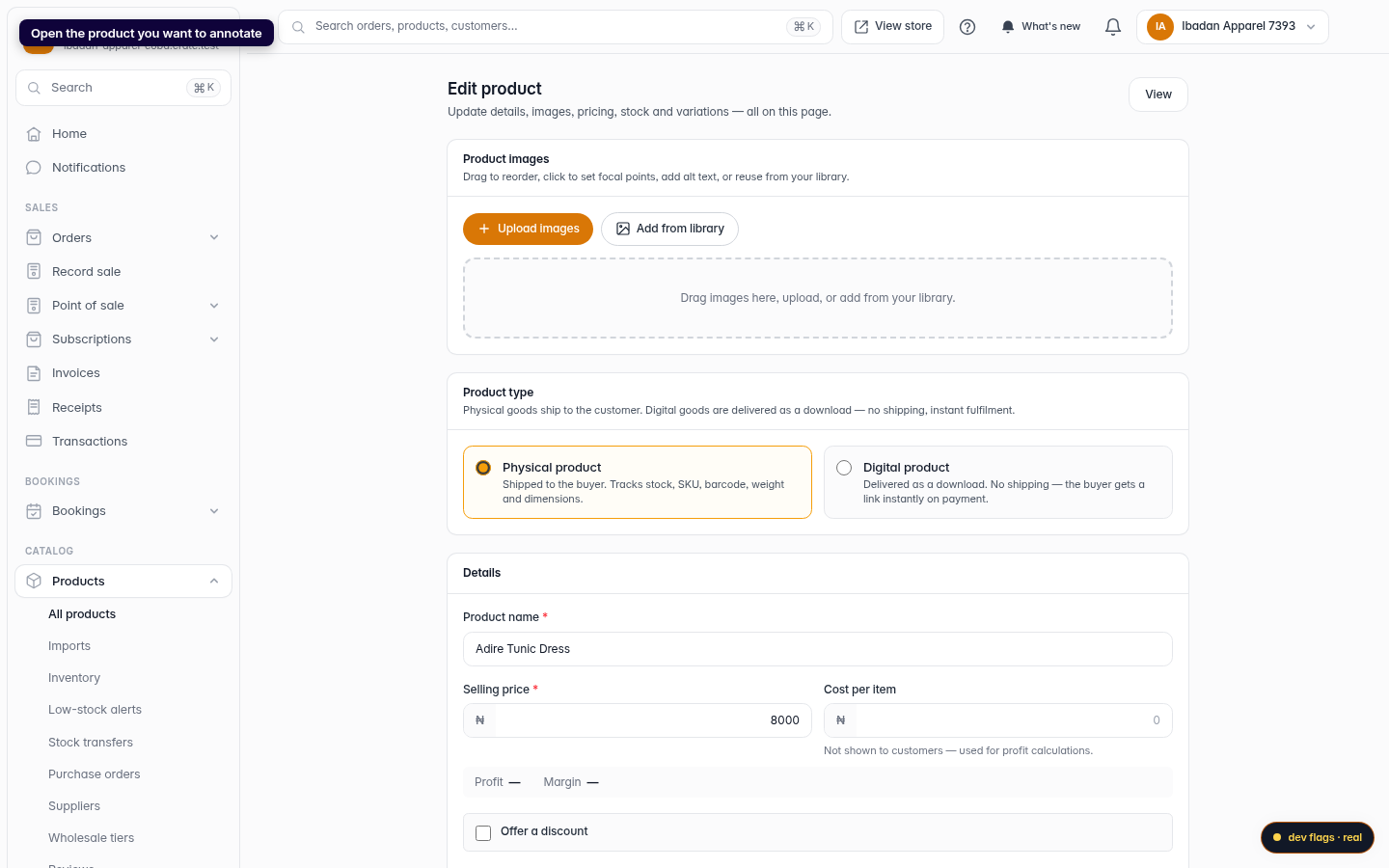
Open the product
From your dashboard, go to Products and open the product you want to annotate.
Web 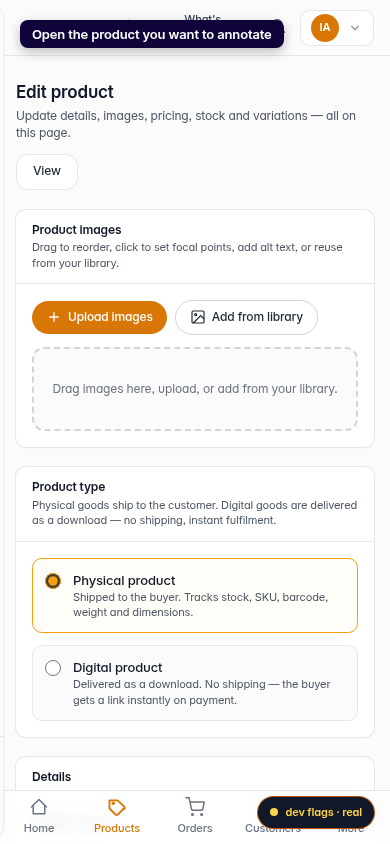
Mobile -
2
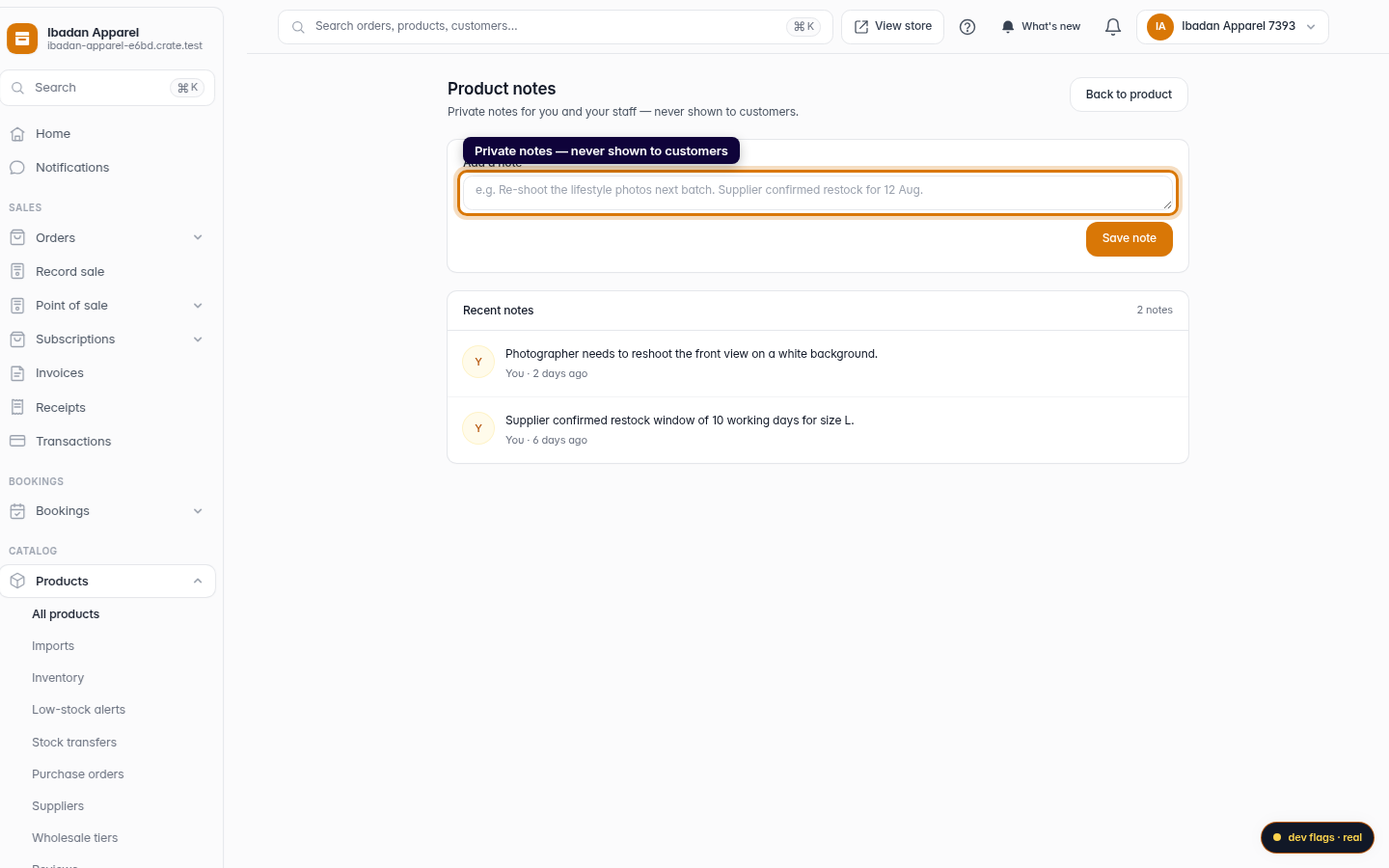
Open its notes
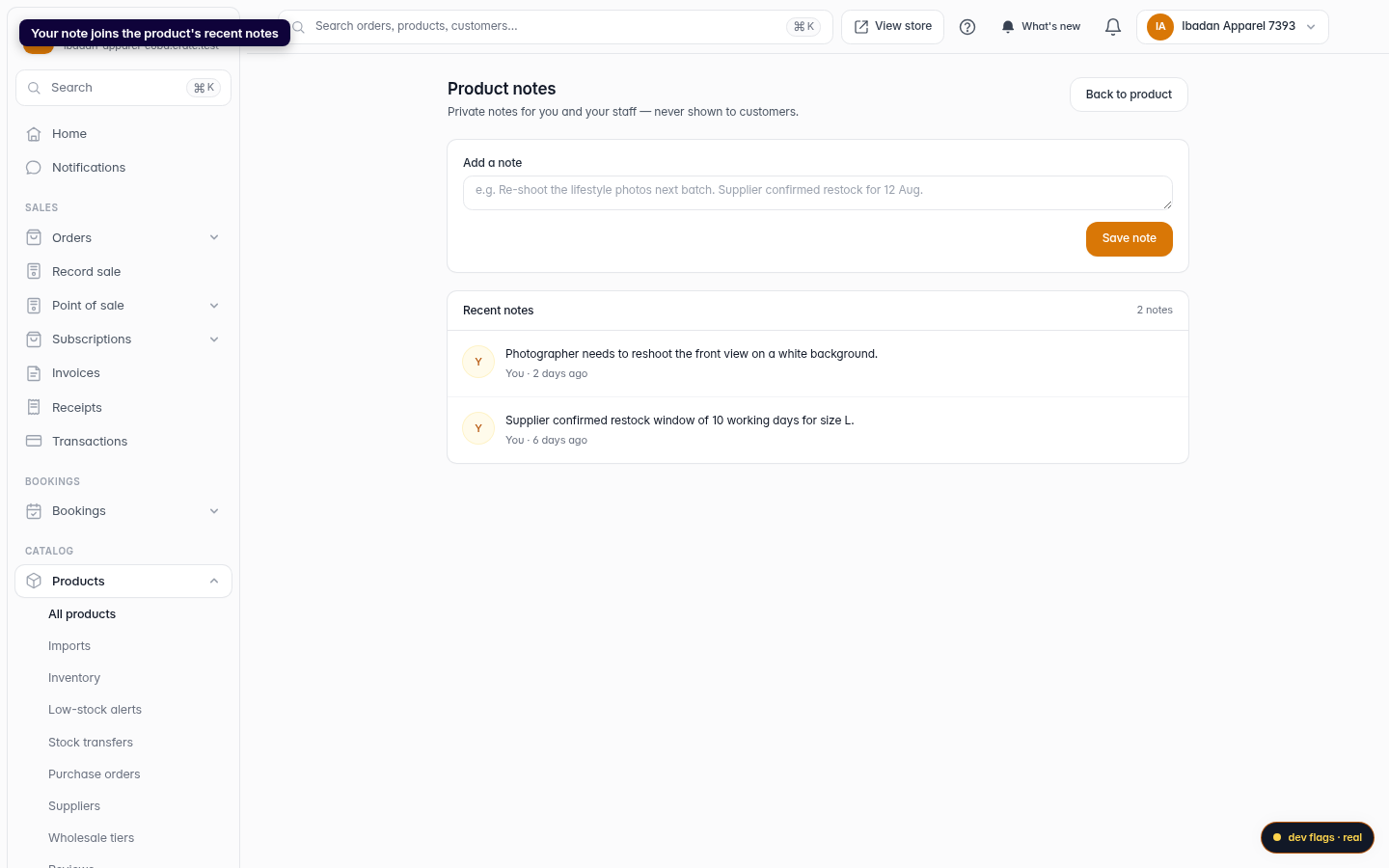
Open the product's Notes page. This is a private workspace tied to that product — only you and your staff ever see it.
Web -
3
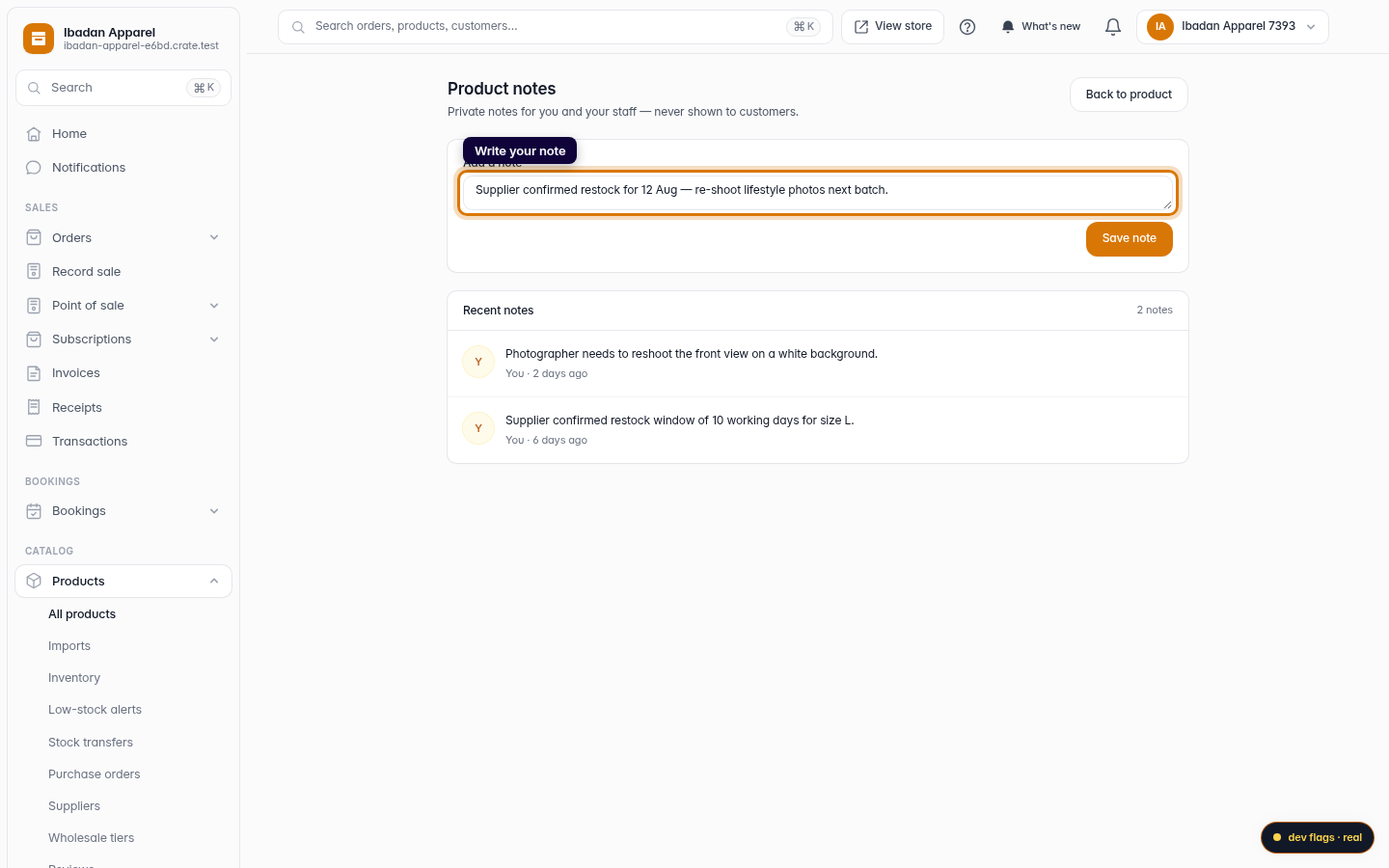
Write your note
Type your note in the box — anything you want to remember about this product, like Re-shoot the lifestyle photos next batch or Supplier confirmed restock for 12 Aug.
Web -
4
Save the note
Click Save note. Your note is added to the product's running list of recent notes, stamped with who wrote it and when.
Web 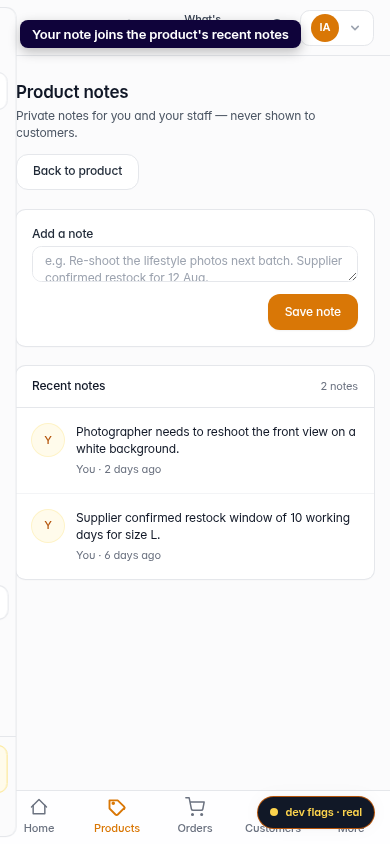
Mobile