Configure notification settings
Decide exactly which events reach you and on which channels — email, SMS, WhatsApp or push. It's a single grid in Settings, one tick per event and channel.
Crate can tell you the moment anything important happens in your store — a sale lands, stock runs low, a payout arrives. The Notifications settings page lets you decide, event by event, exactly which alerts reach you and on which channel.
One grid, total control
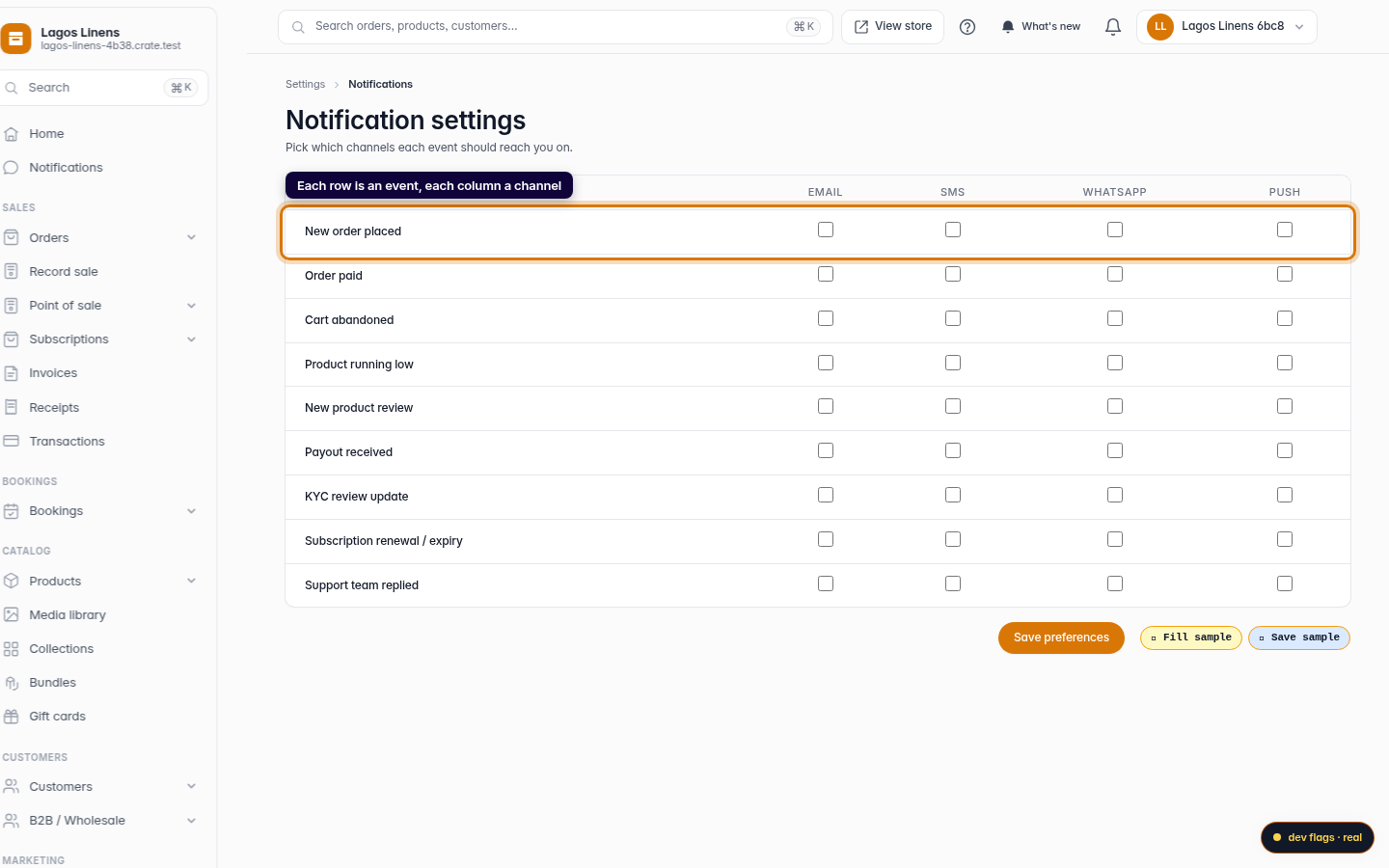
The page is a simple grid. Down the side are the events Crate can notify you about:
- New order placed and Order paid
- Cart abandoned
- Product running low
- New product review
- Payout received
- KYC review update
- Subscription renewal or expiry
- Support team replied
Across the top are the channels — Email, SMS, WhatsApp and Push. Tick the intersection of an event and a channel to receive that alert there. Every box is independent, so you might want order payments by push and email, but low-stock warnings by email only.
Tip: Be deliberate about what you switch on. A handful of well-chosen alerts you actually read beats a flood you learn to ignore.
What happens after you save
Your preferences take effect immediately — there's nothing else to enable. Come back any time to add a channel or mute an event; Crate always honours your most recent saved grid.
-
1
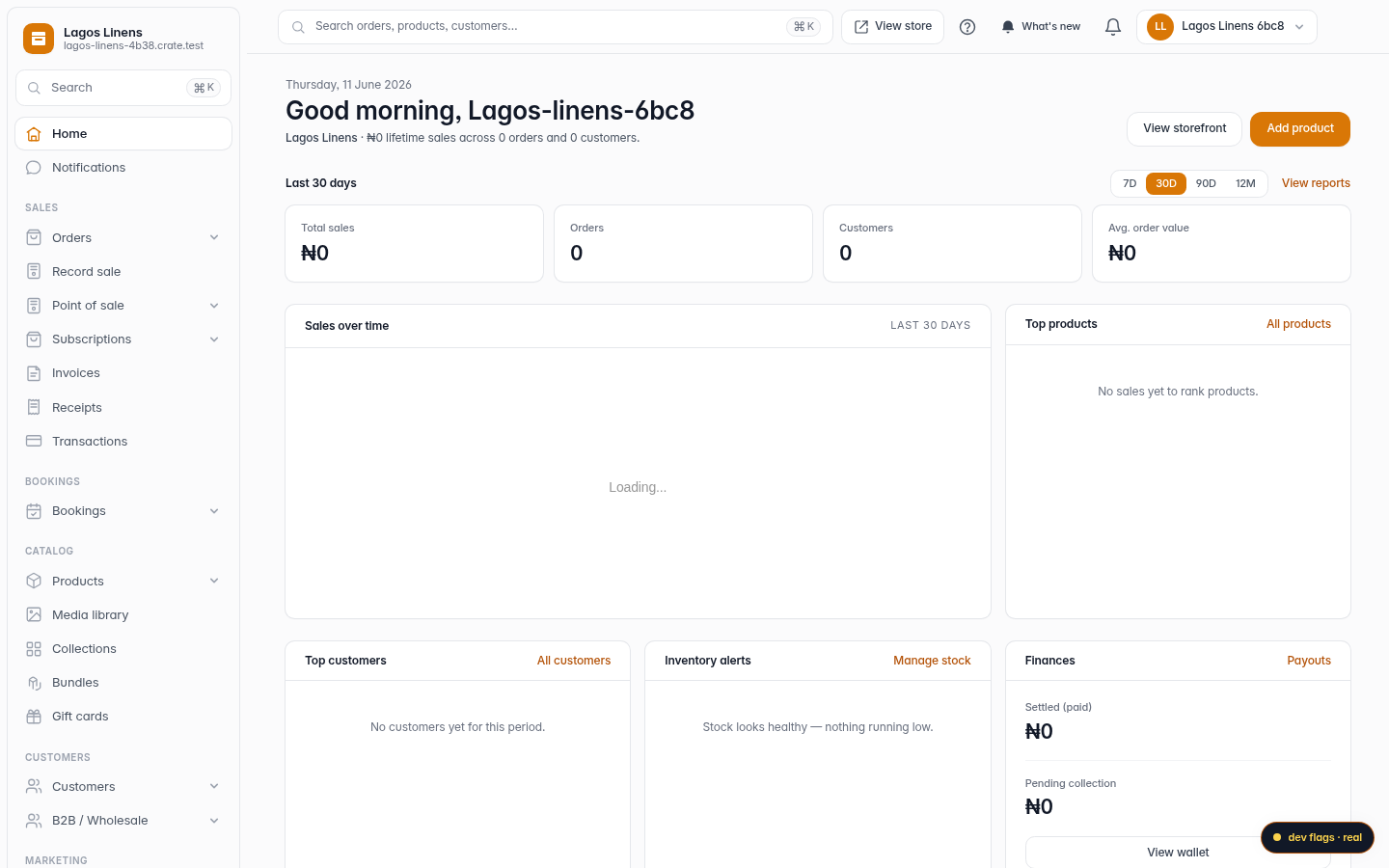
Open Settings → Notifications
From your Crate dashboard, open Settings in the left sidebar, then choose Notifications. This is where you control every alert Crate sends you.
Web 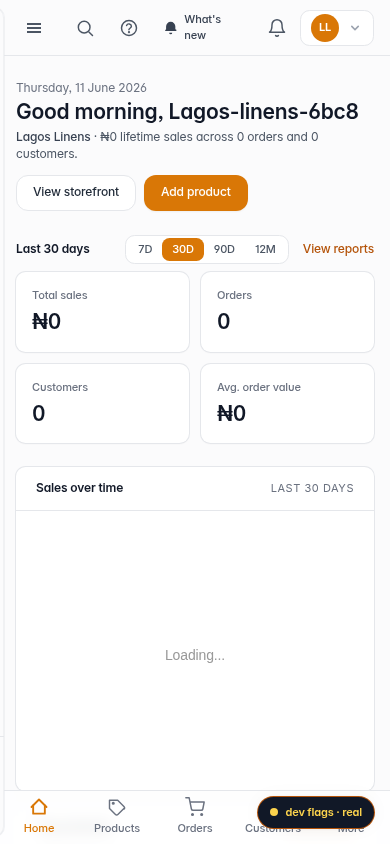
Mobile -
2
Read the grid
Each row is an event — a new order, an order paid, a cart abandoned, low stock, a new review, a payout, and more. Each column is a channel: Email, SMS, WhatsApp and Push. A ticked box means "send me this event on this channel."
Web -
3
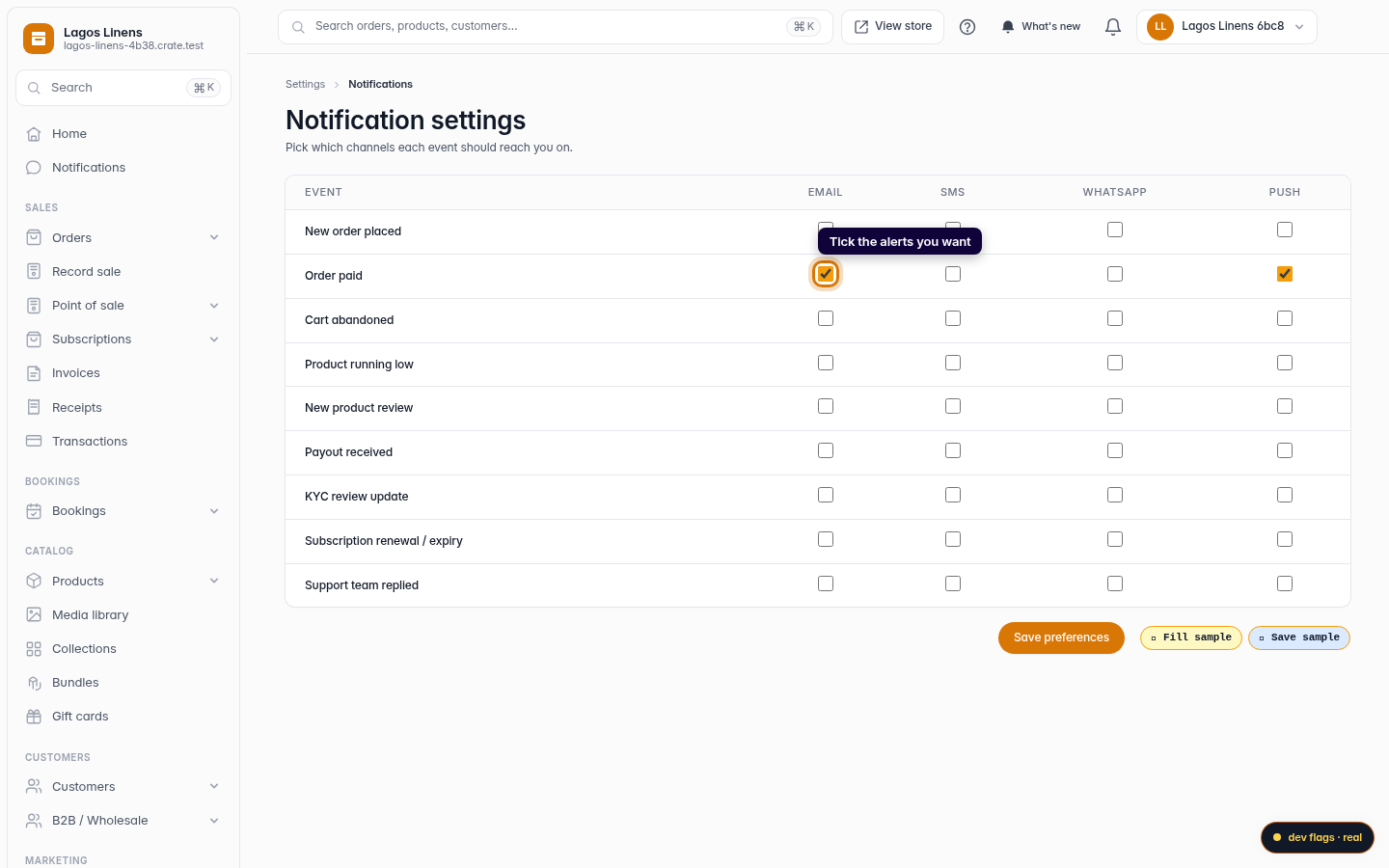
Turn channels on for the events that matter
Tick the boxes for the alerts you want. For example, switch on Email and Push for Order paid so you hear about every sale the moment it happens.
Web -
4
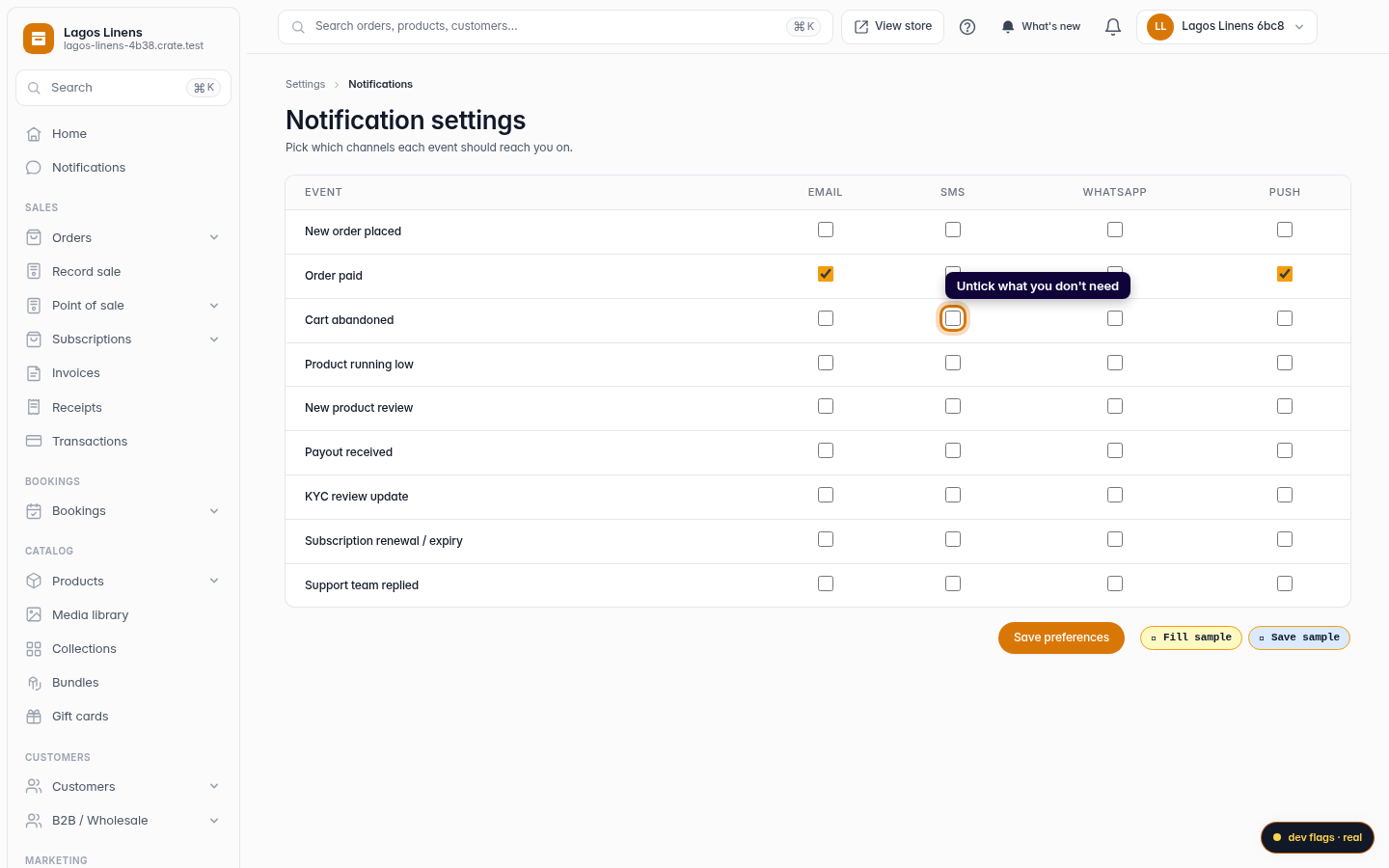
Mute the noise
Untick any event or channel you don't need. Crate only sends what you've ticked, so the quieter you keep the grid, the more signal every alert carries.
Web -
5
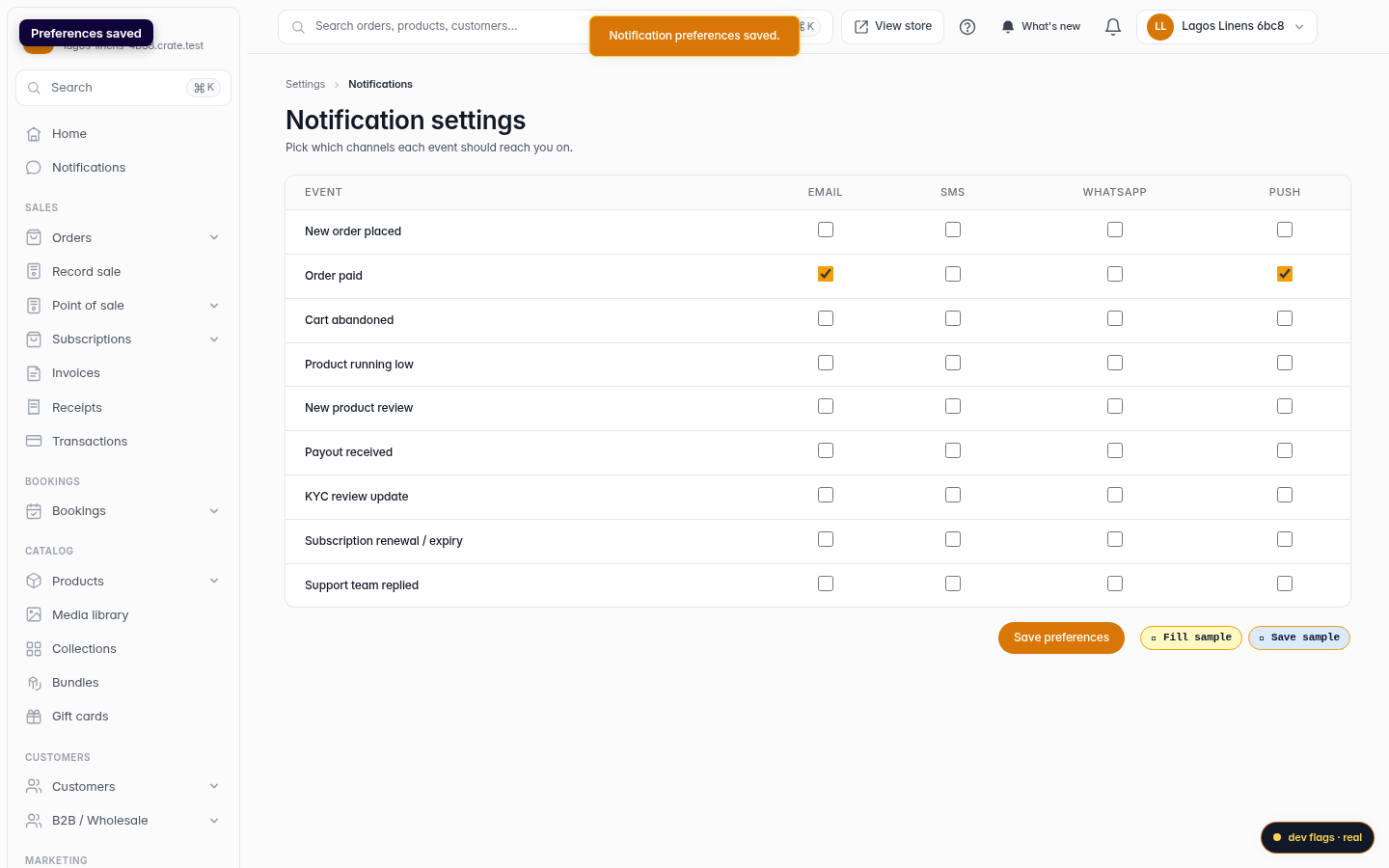
Save your preferences
Click Save preferences. Crate confirms with Notification preferences saved and starts using your choices right away.
Web 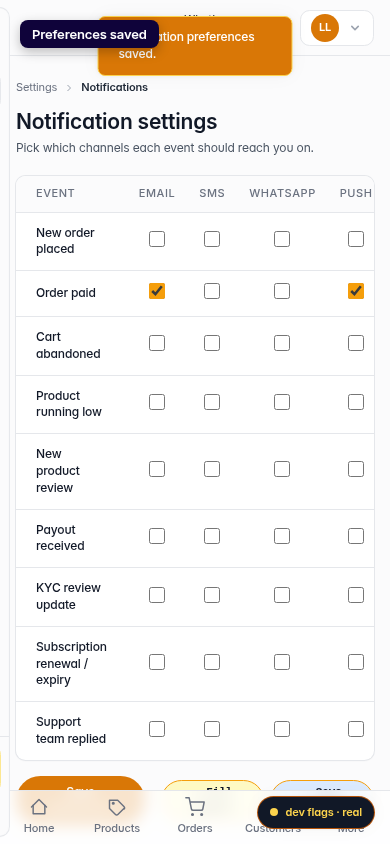
Mobile