Remove a staff account
Take a teammate off your store in two clicks. Removing a staff account instantly revokes their access to your dashboard, orders and customers — keep the list tidy so only people you work with can get in.
When someone stops working with you, take them off your store straight away. Removing a staff account revokes every kind of access at once — the dashboard, the storefront admin, the point of sale — so there's no loose end to chase later.
Before you remove someone
Removing a teammate is about access, not their work. Orders they processed, customers they added and any activity they logged all stay on your store — you're only closing the door, not erasing history. If you ever want them back, just invite them again from the same page.
Tip: Make it a habit to review your Team list every few weeks. The fewer active accounts you keep, the smaller your store's exposure if a teammate's email or phone is ever compromised.
Removing vs. revoking an invite
There are two states on the Staff page:
- Active teammates have already accepted an invitation and can sign in. Use Remove to end their access.
- Pending invites are people you've invited who haven't joined yet. Those show a Revoke button instead — revoking cancels the invitation link before it's used.
Either way, the seat is freed up again the moment you remove or revoke, so you can re-assign it to someone else on your plan.
-
1
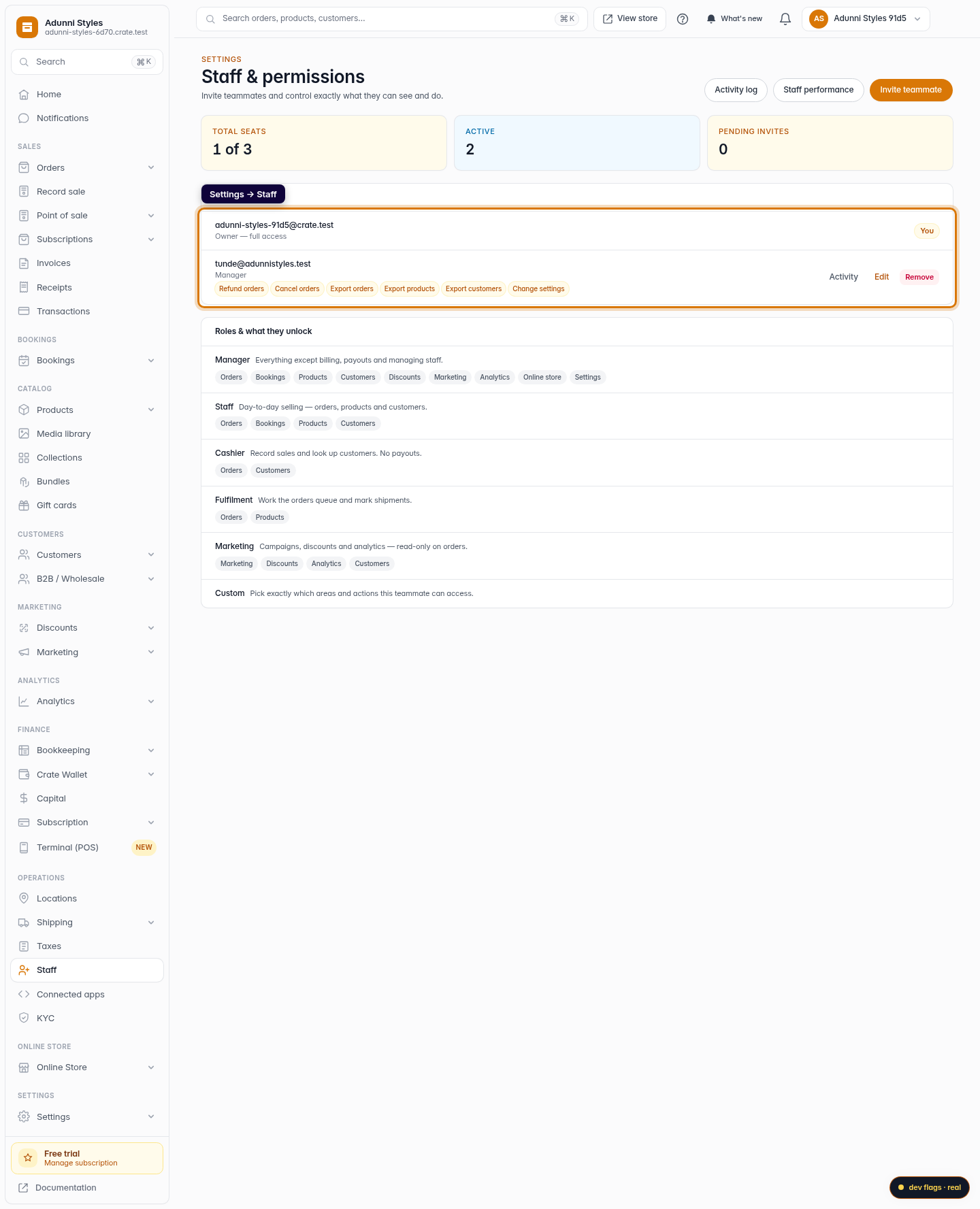
Open Staff & permissions
From your dashboard, go to Settings → Staff. The Staff & permissions page lists everyone who can sign in to your store, alongside their role.
Web 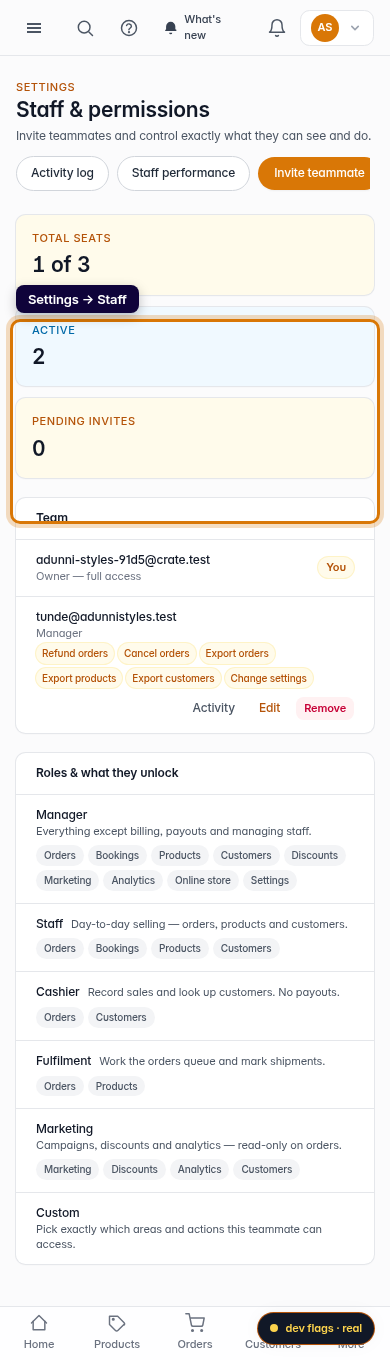
Mobile -
2
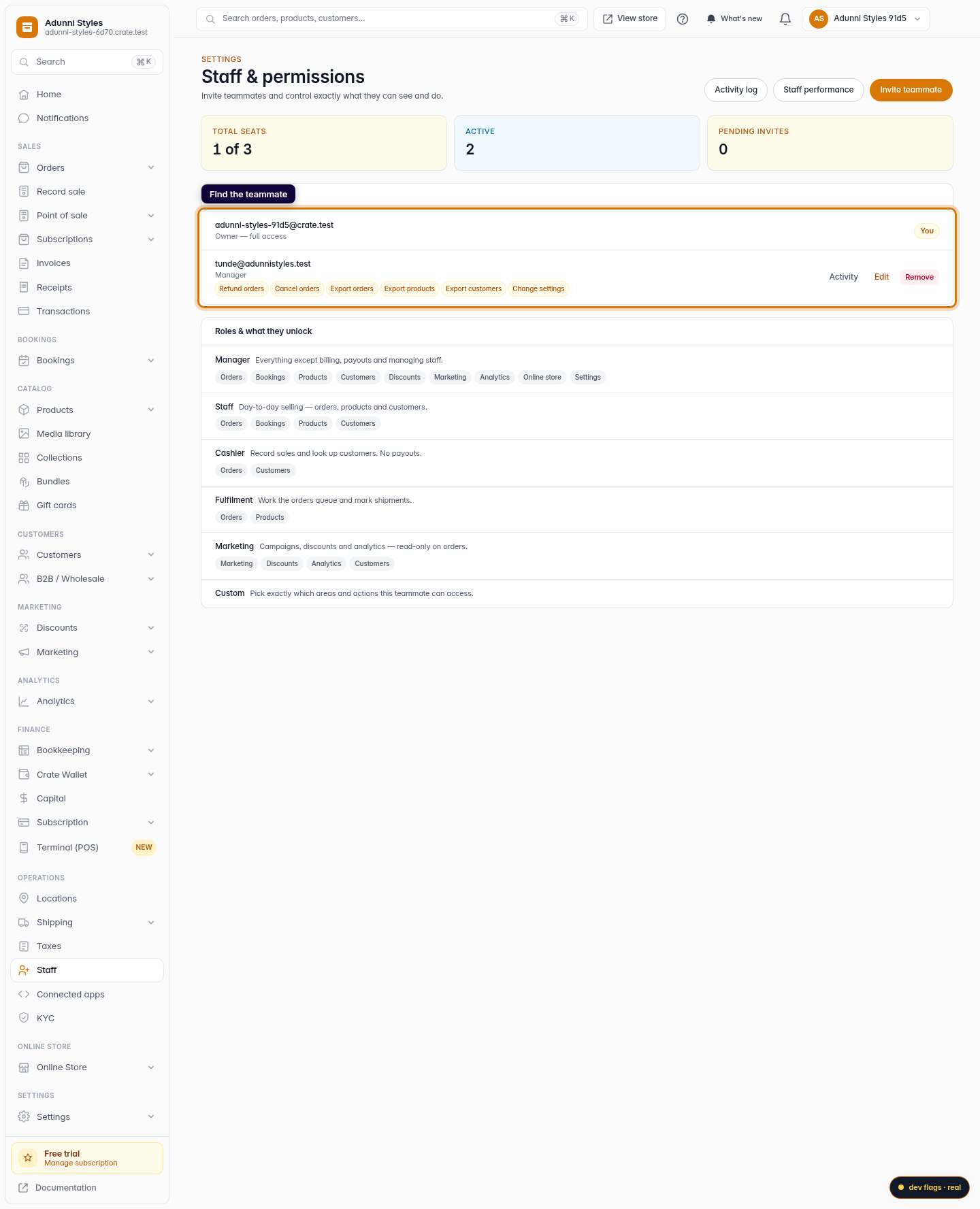
Find the teammate
In the Team list, locate the person you want to remove. Each row shows their email and role so you can be sure you're removing the right account.
Web -
3
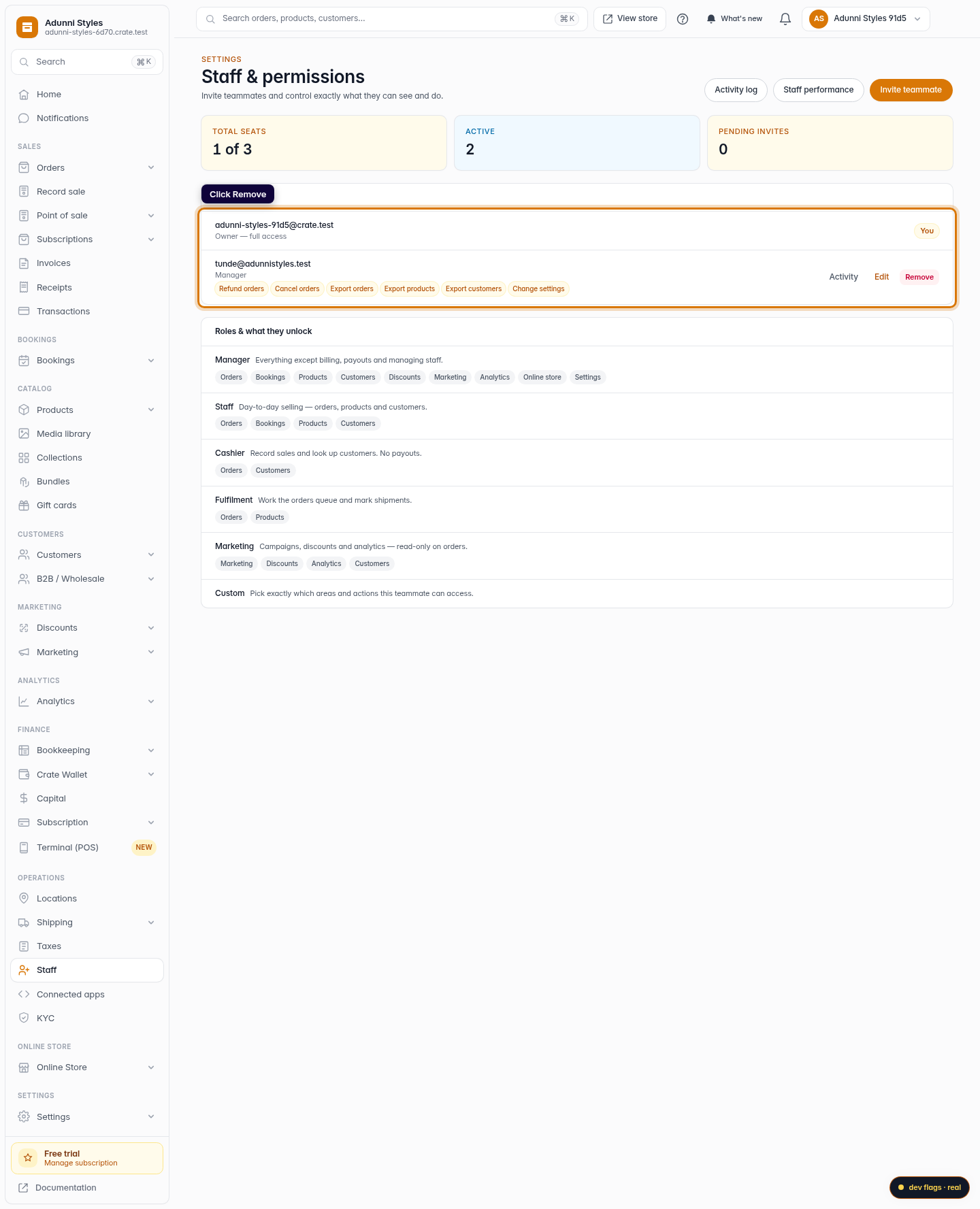
Remove them
Click Remove on that teammate's row and confirm. Their access ends immediately — they can no longer sign in, view orders, or touch your customers.
Web 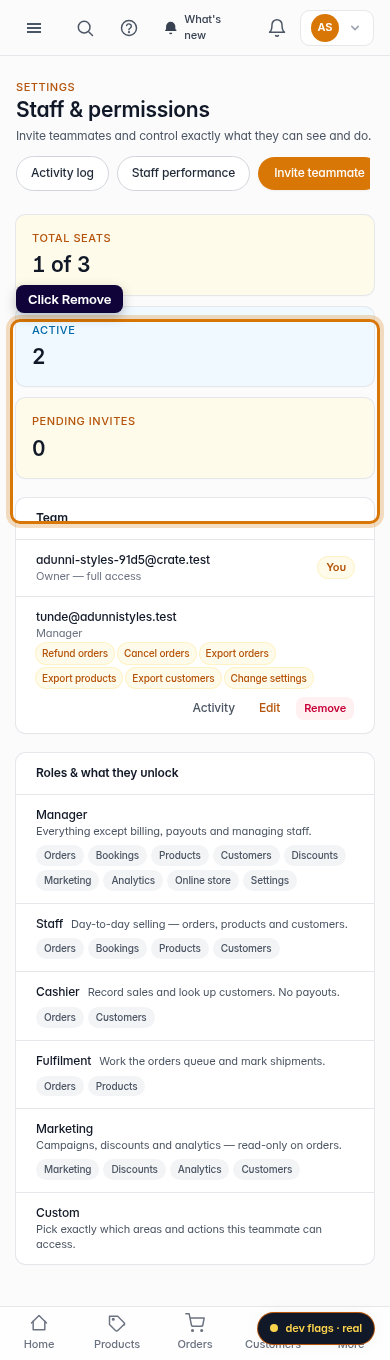
Mobile