Print bulk barcodes
Print scannable labels for many products in one go — set copies per product, choose a label size, and send the whole sheet to your printer.
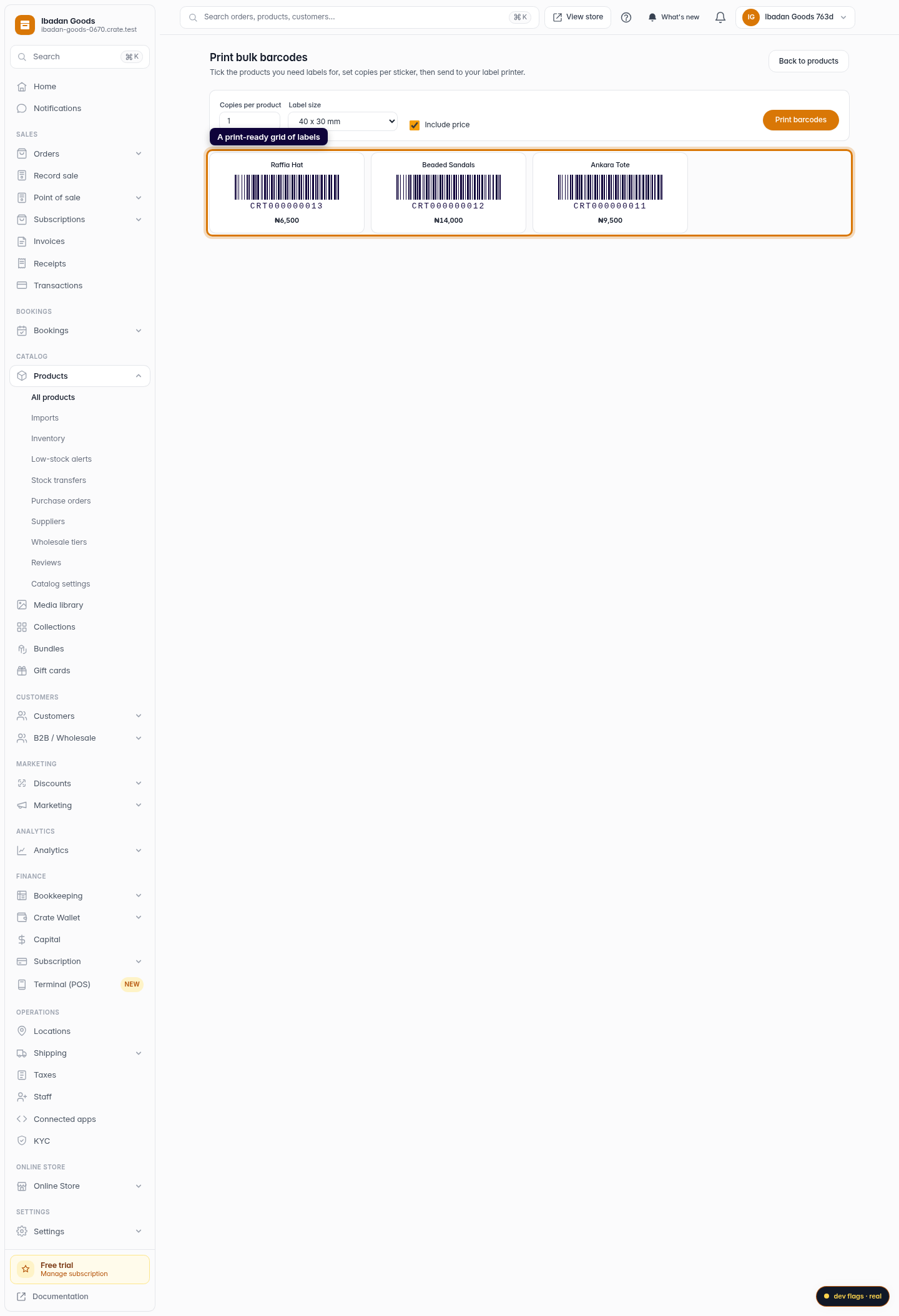
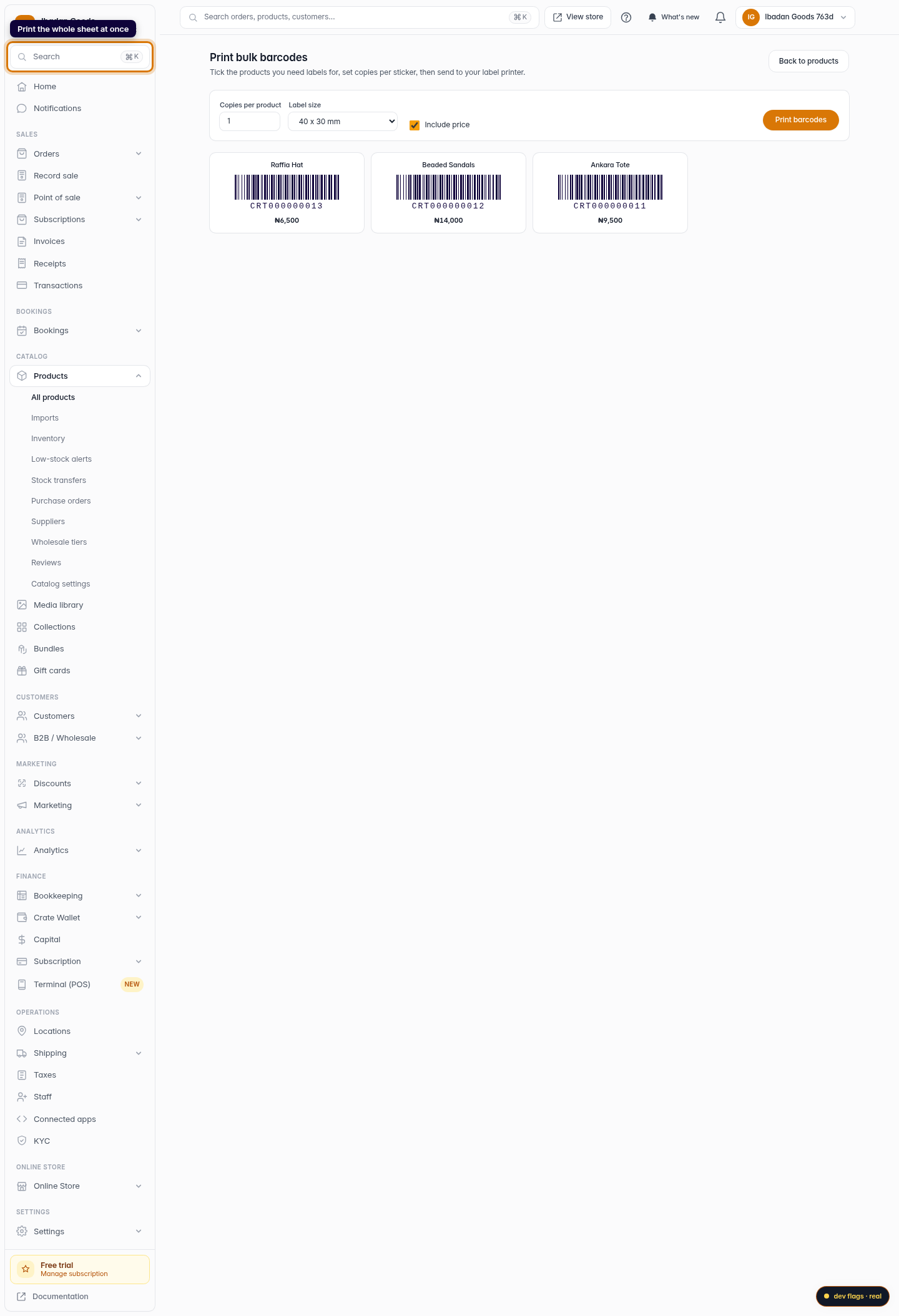
When you are labelling a whole shelf — or a fresh delivery — printing barcodes one product at a time is slow. The Print bulk barcodes page lays out a grid of every product's label so you can print a full sheet in one pass.
Set it up before you print
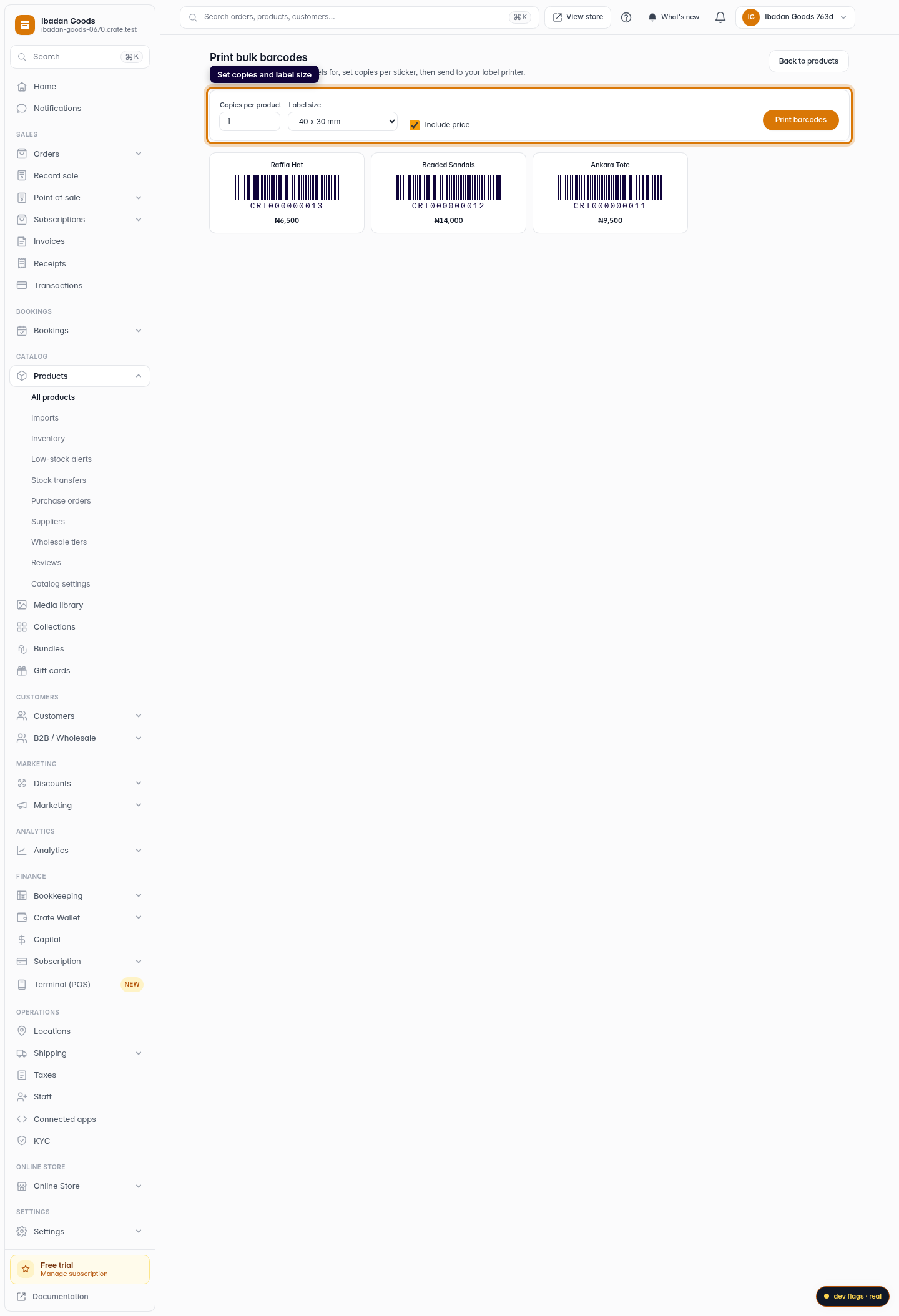
- Copies per product — print one sticker each, or several for a multi-pack.
- Label size — match your stationery: a small thermal label, a mid-size sticker, or a full A4 sheet of 24 labels.
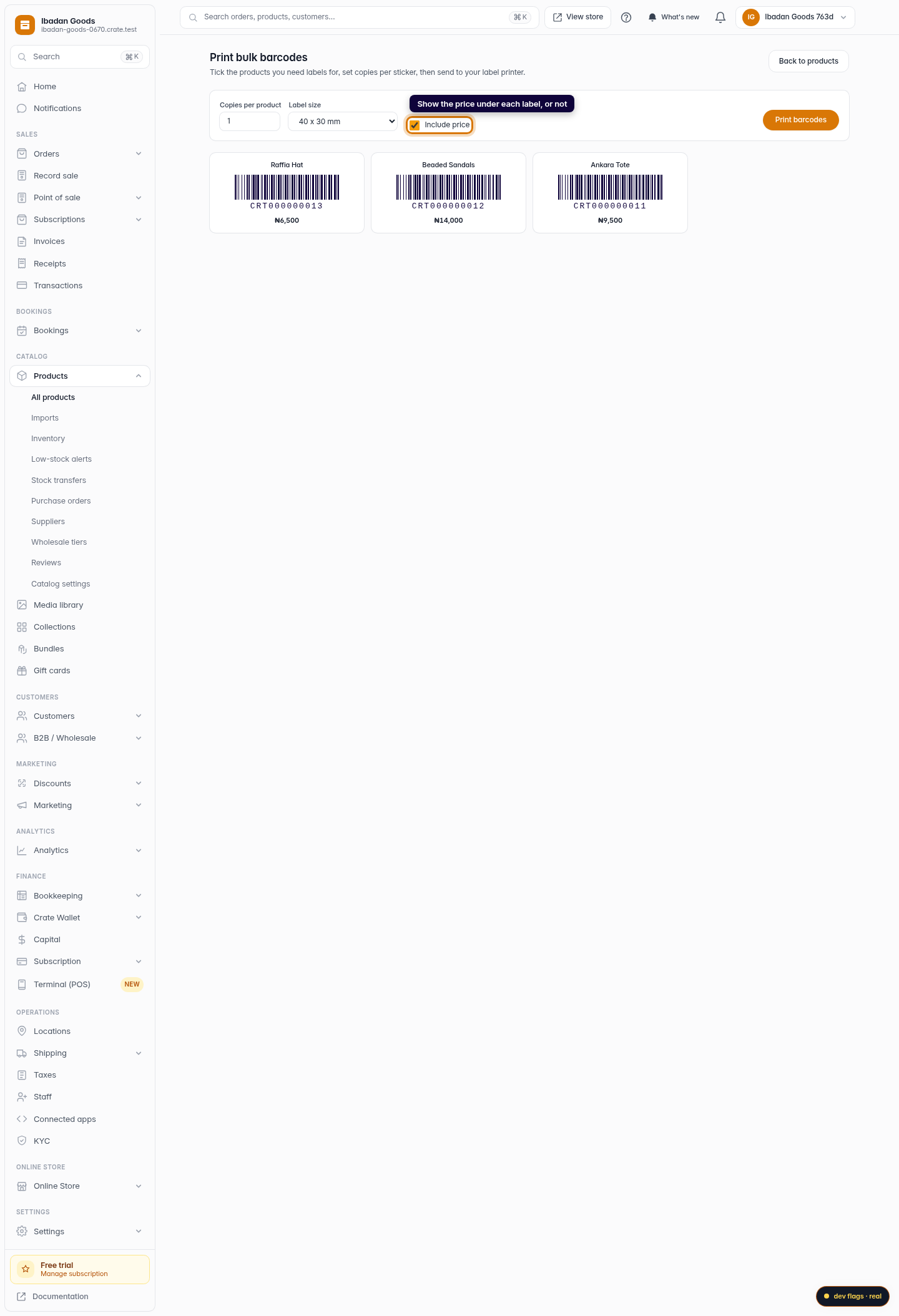
- Include price — show the price under each code, or print a clean code-only label.
Each label carries a real, scannable Code-128 barcode, identical to the one on a product's own barcode page — so every sticker scans the same at your register.
Tip: Print onto adhesive label stock so you can peel and stick straight onto packaging or shelf edges.
-
1
Open bulk barcodes
From Products, open the Print bulk barcodes page. Crate lays out a print-ready grid of labels for your products.
Web 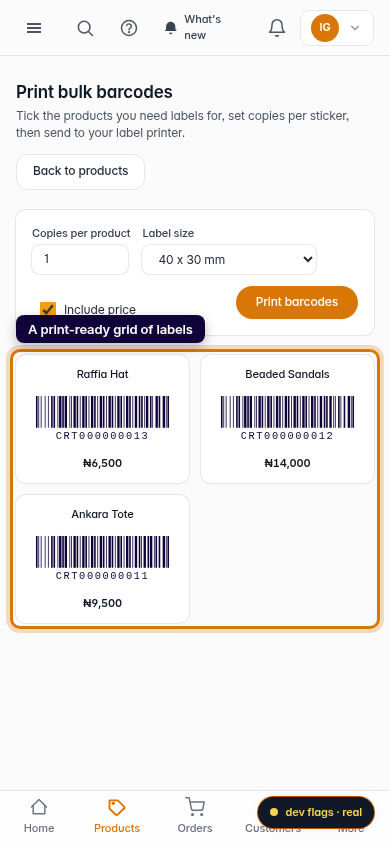
Mobile -
2
Set copies and label size
Choose how many copies per product to print and the label size that matches your sticker sheet — from a single small label to an A4 sheet of 24.
Web -
3
Choose whether to show the price
Keep Include price ticked to print the price under each barcode, or untick it for a code-only label.
Web -
4
Print the sheet
Click Print barcodes to open the print dialog and send the whole grid to your label or sheet printer at once.
Web 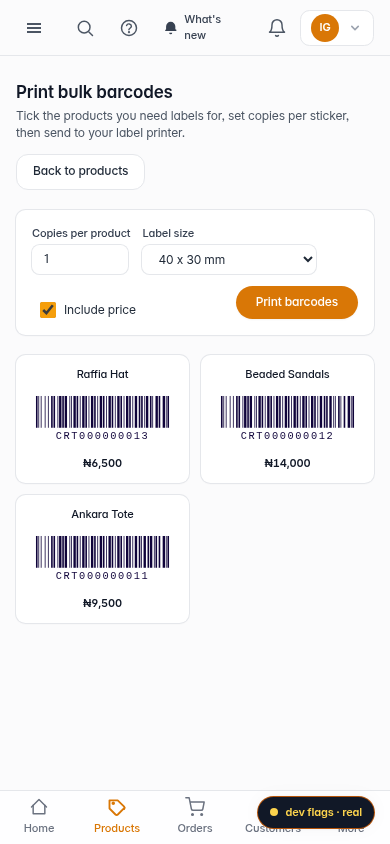
Mobile