Get your Terminal on the web
Request Terminal access right from your Crate dashboard — fill in your business details, choose whether you have a physical store, and we'll set up your account and email you a sign-in link.
You don't need the mobile app to use Crate Terminal — you can request and run it straight from your dashboard. That's handy if you take most payments at a counter with a laptop, or you just prefer the bigger screen.
This request gets your Terminal account created and a sign-in link sent to your inbox, so you can manage your virtual account alongside the rest of your store.
Before you start
Have your WhatsApp number ready — it's where Terminal sends a notification for every successful transfer. Crate fills in your business name and email from your store account, so you only need to confirm they're correct.
Tip: Choosing Yes for a physical store isn't binding — it just helps us set Terminal up the way that fits your business. You can always reach support to adjust your setup later.
What happens after you request
We provision a virtual account number in your store's name and email you a unique sign-in link. From the web you get the same Terminal you'd use on mobile: a number to share with customers, real-time WhatsApp alerts, the ability to match transfers to pending orders, and settlements to your account within 24 hours.
-
1
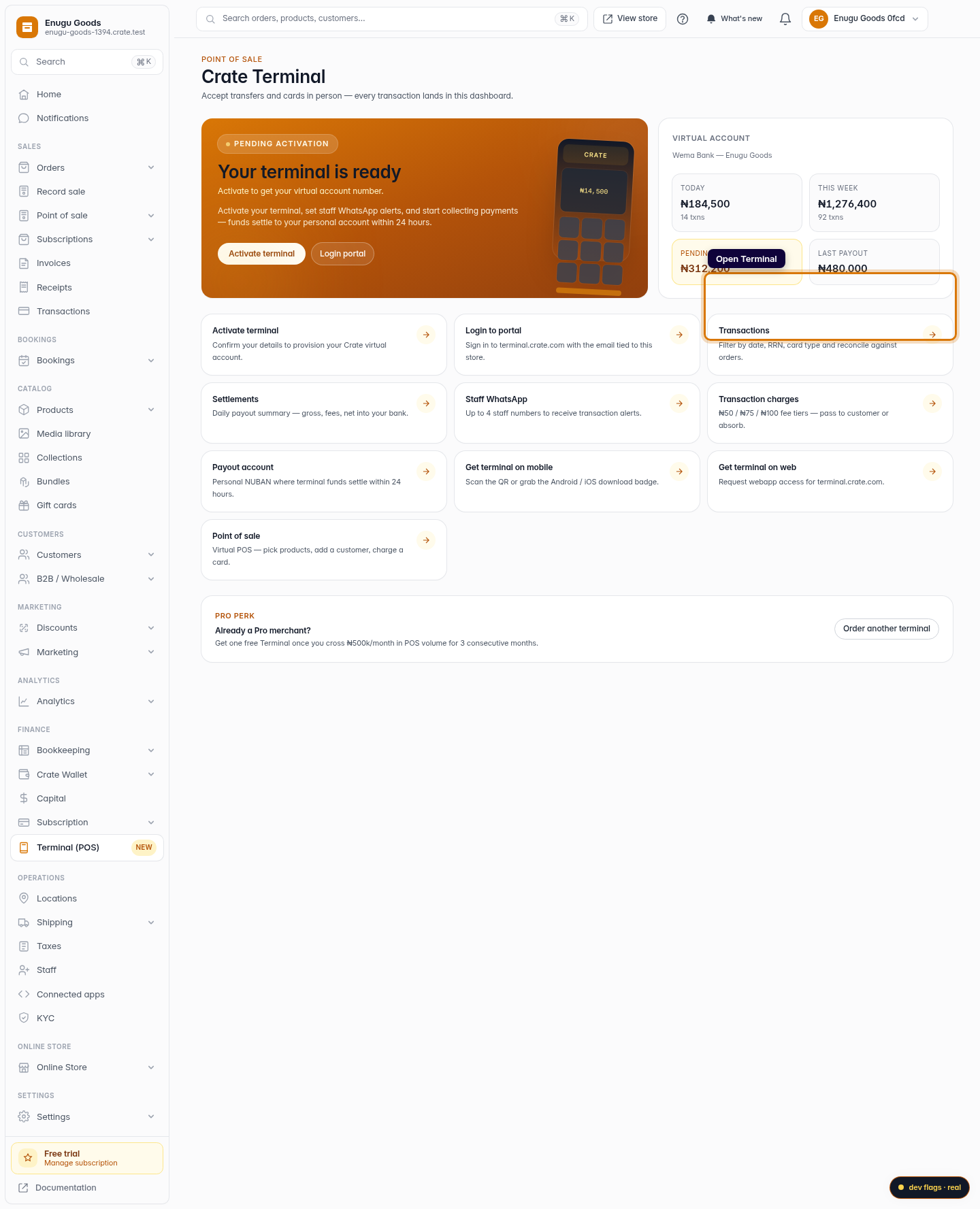
Open Terminal
From the dashboard sidebar, open Terminal to reach your Terminal hub.
Web -
2
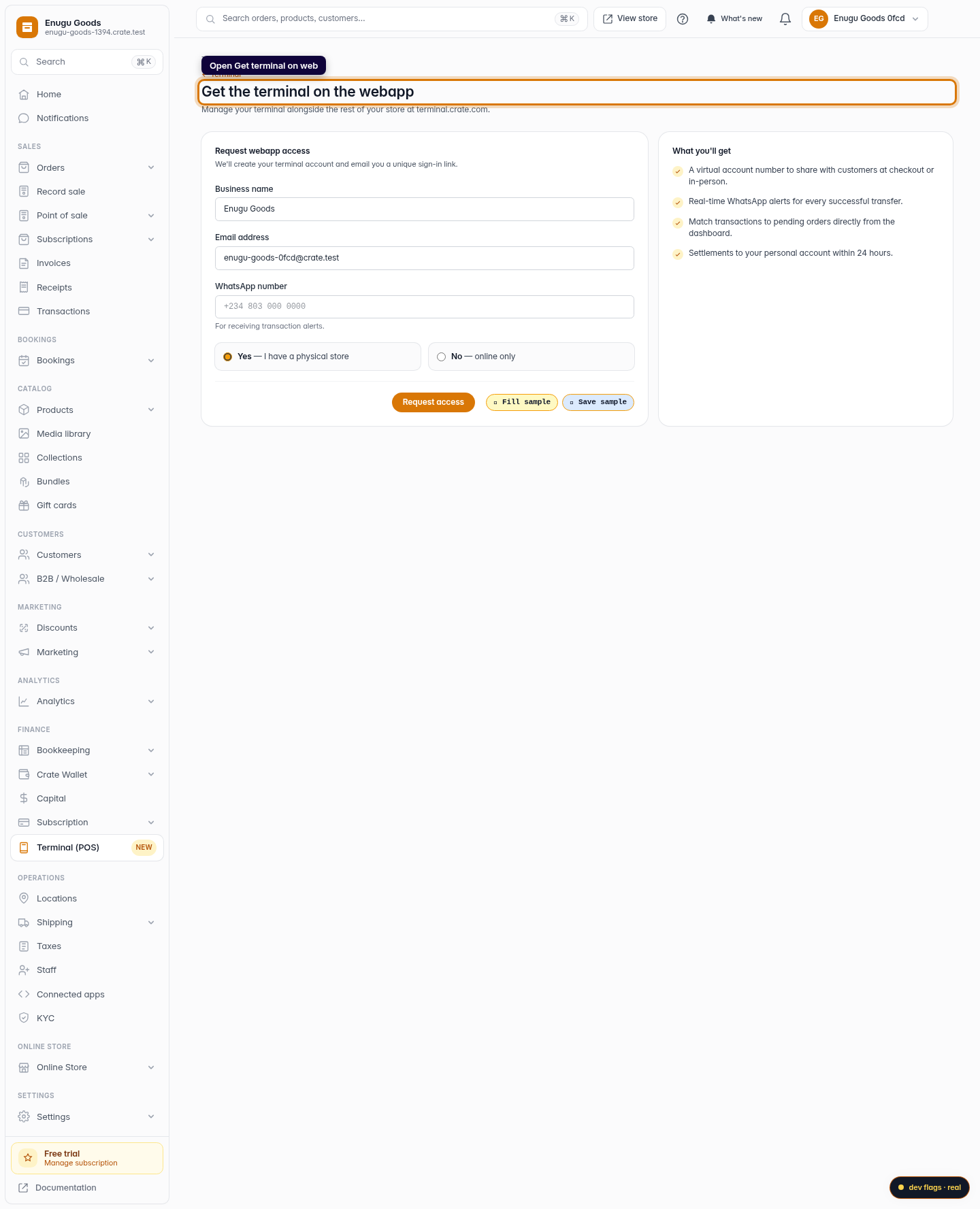
Open "Get terminal on web"
On the Terminal hub, click Get terminal on web. Crate explains what you'll get and shows the access request form.
Web 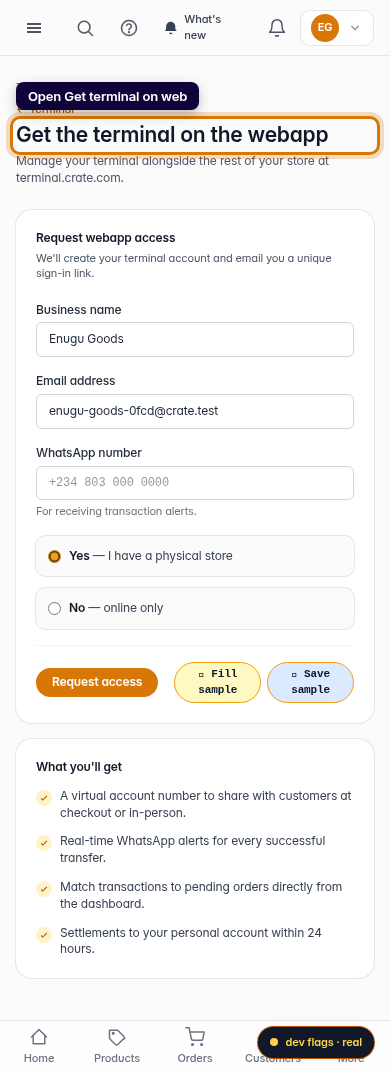
Mobile -
3
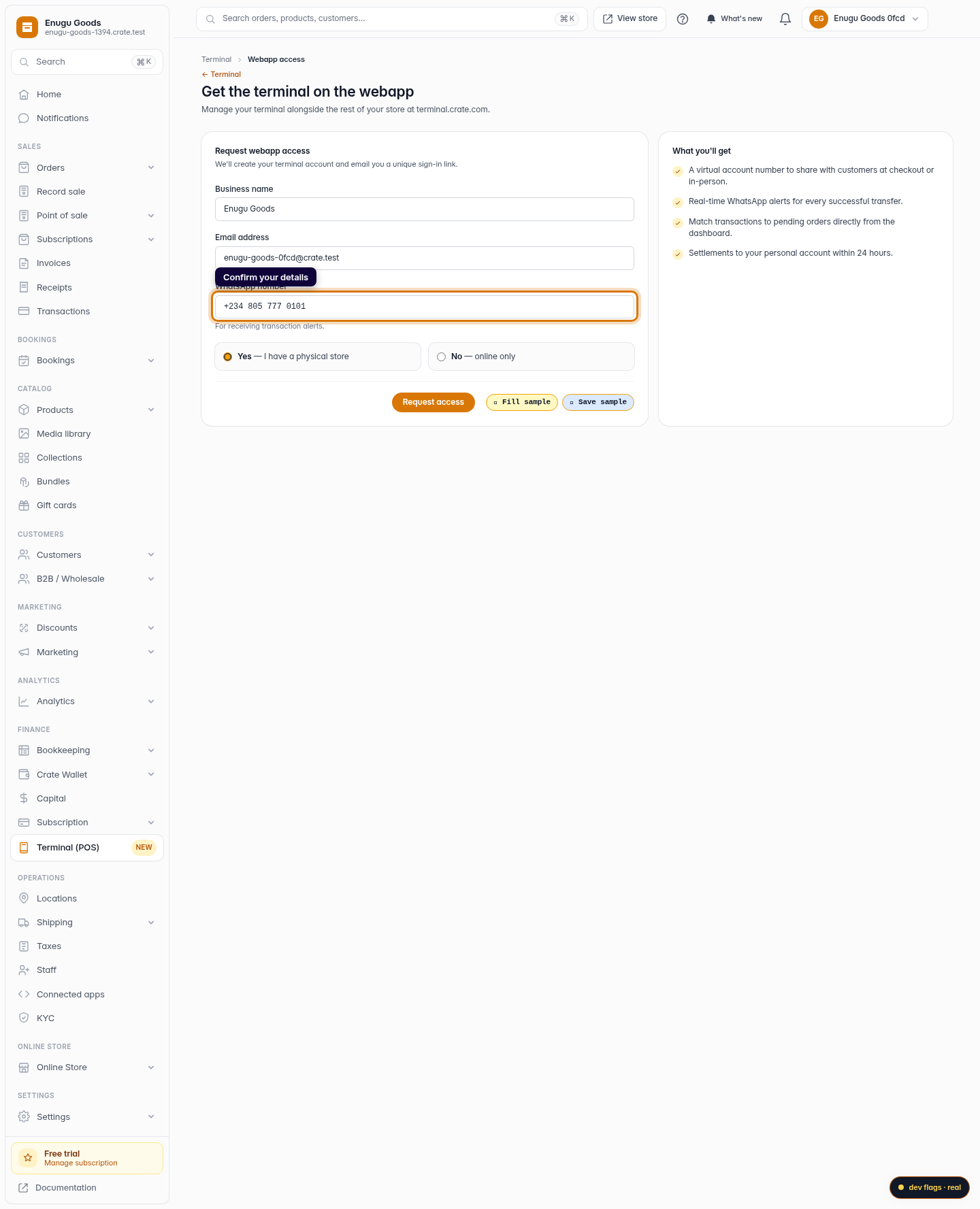
Confirm your business details
Check the business name and email — Crate pre-fills them from your store. Add the WhatsApp number where you want to receive transaction alerts.
Web -
4
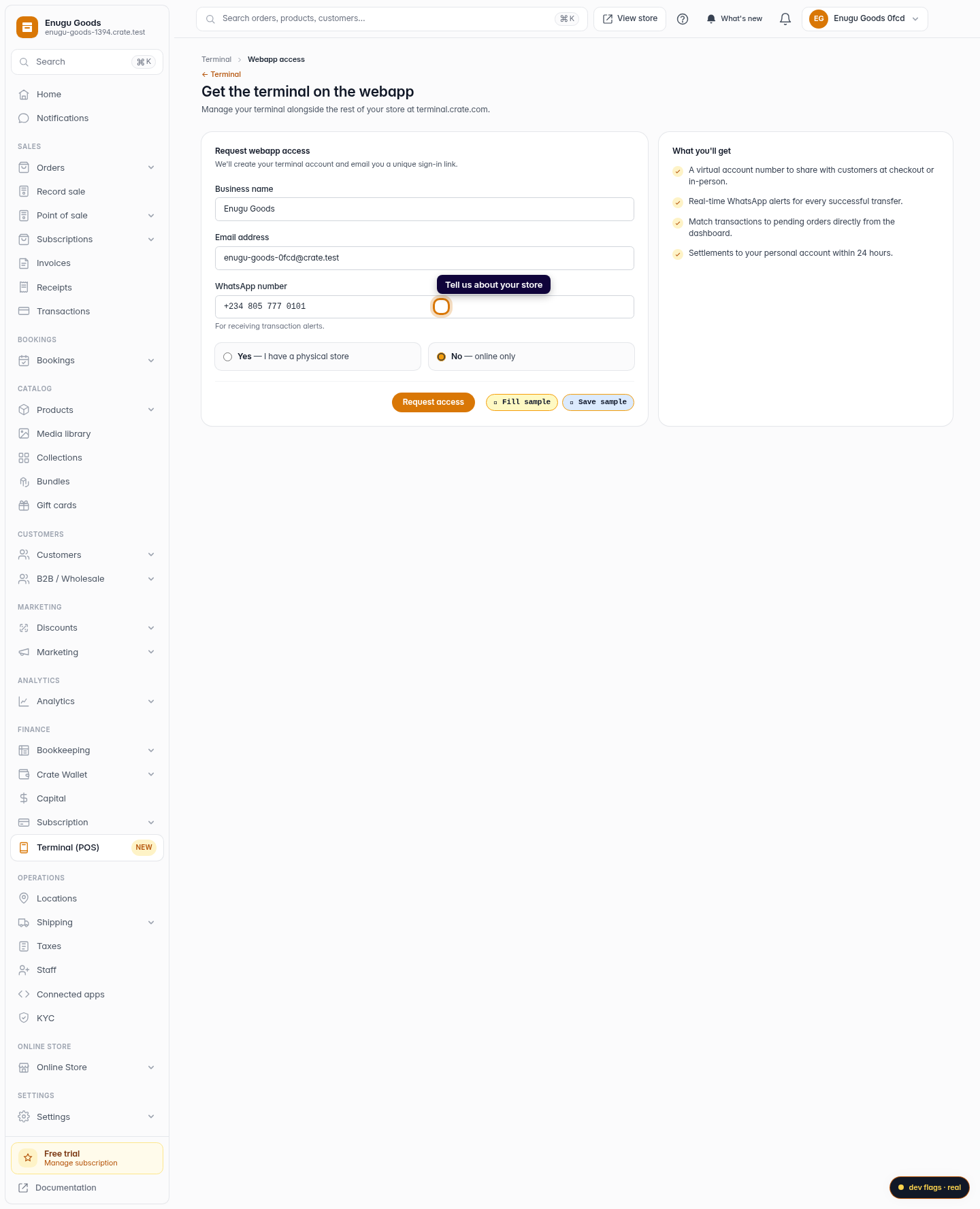
Tell us about your store
Choose Yes if you have a physical store or No if you sell online only. This helps us tailor your Terminal setup.
Web -
5
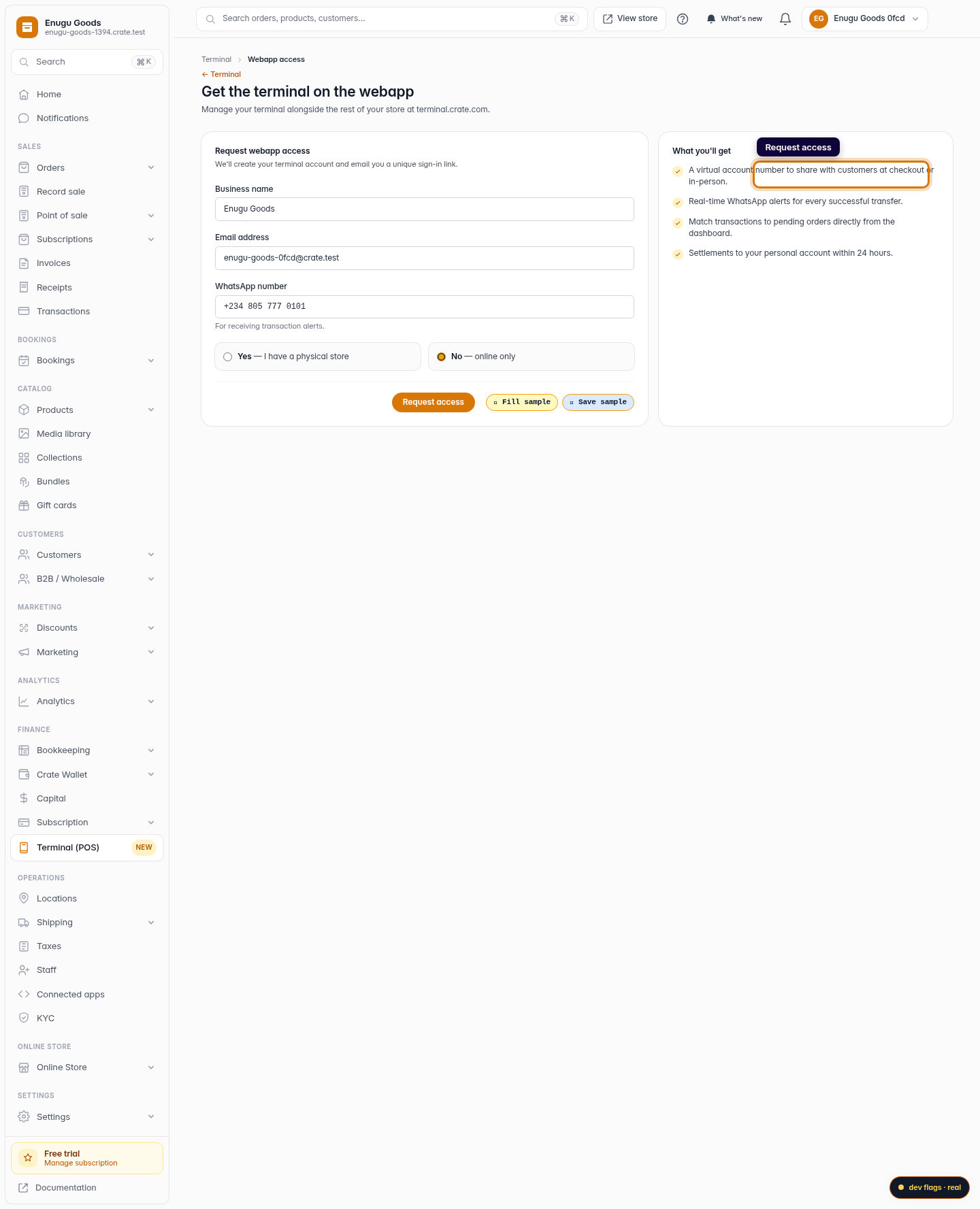
Request access
Click Request access. We create your Terminal account and email you a unique sign-in link — open it to start taking payments on the web.
Web 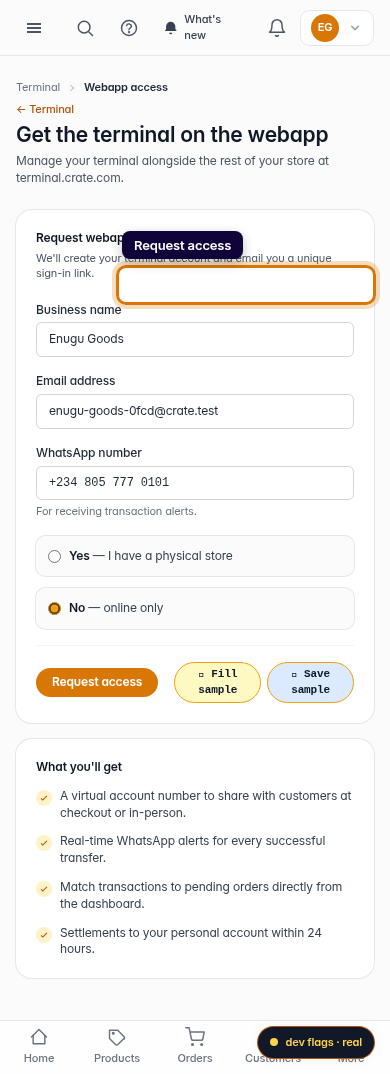
Mobile