Get your Terminal on mobile
Run your Crate Terminal from your phone — scan the QR code or grab the app, then follow the in-app path to set up your virtual account and WhatsApp alerts.
Crate Terminal goes wherever you do. Install it on your phone and you can take transfer payments from a market stall, a delivery drop-off, or a pop-up — anywhere you'd otherwise miss a sale waiting to get back to a laptop.
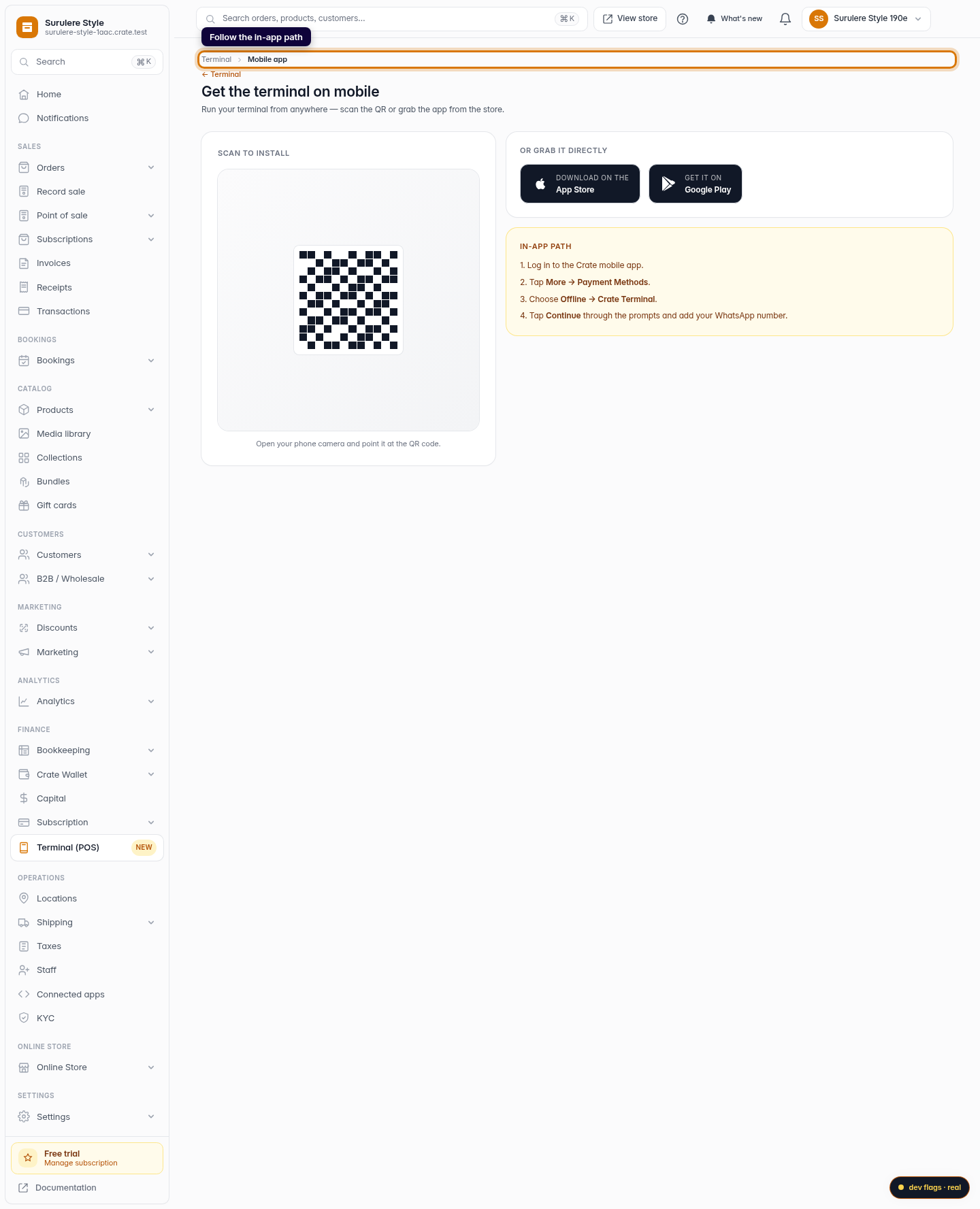
This screen gets the app onto your phone two ways — a QR code to scan, or direct App Store and Google Play links — and lays out the short in-app path to finish setup.
Before you start
Make sure you're signed in to Crate on the device you're reading this on, so the QR code and download links are the right ones for your account. You'll set up your virtual account number inside the app itself, so have the phone you want to use handy.
Tip: Add a WhatsApp number during setup so every successful transfer pings your phone instantly — it's the fastest way to confirm a customer's payment landed before you hand over the goods.
What you get on mobile
Once you're in, the app gives you the same virtual account number you'd use on the web, plus real-time WhatsApp alerts for every transfer. Match payments to pending orders, and watch settlements reach your account — all from your pocket.
-
1
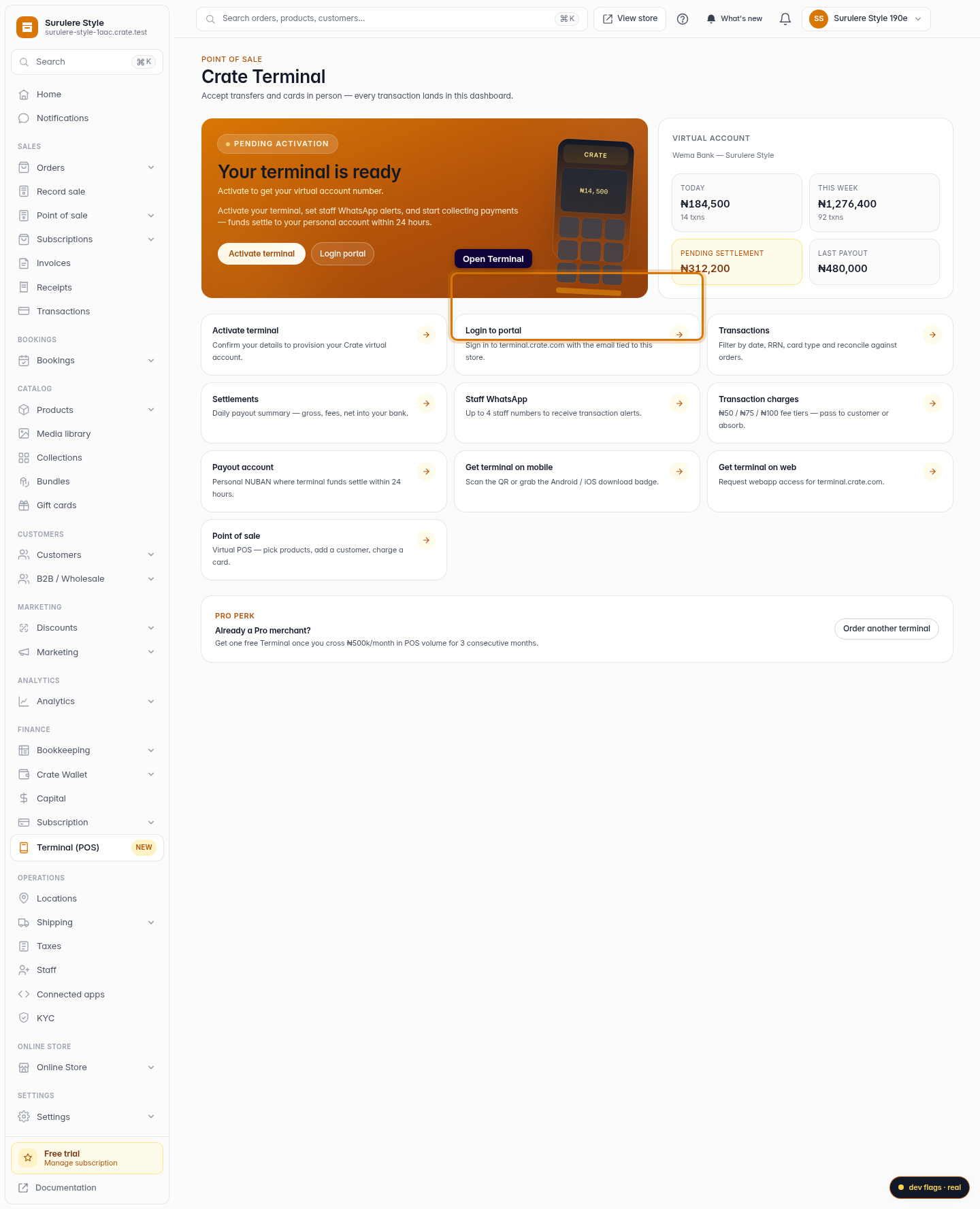
Open Terminal
From the dashboard sidebar, open Terminal to reach your Terminal hub.
Web -
2
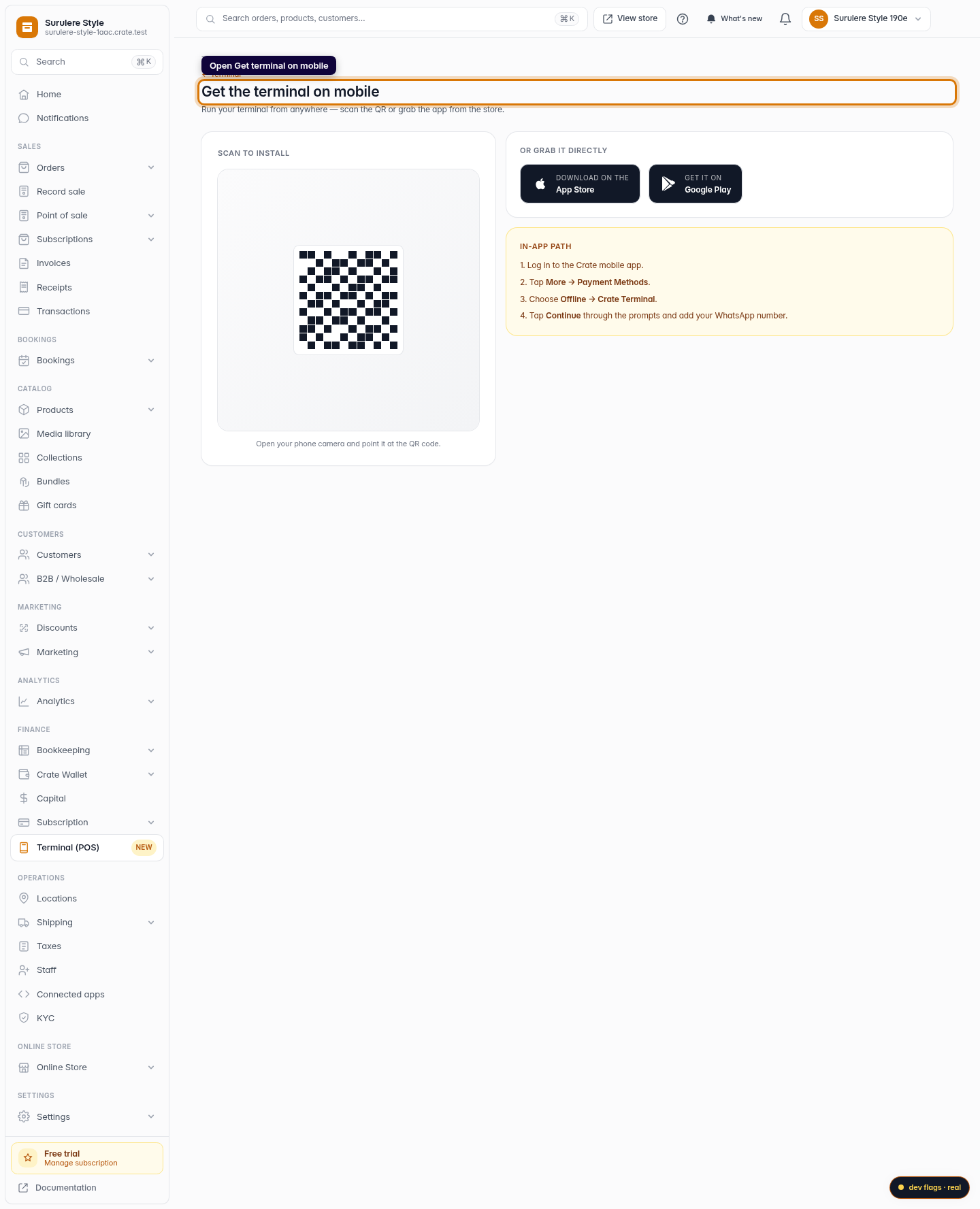
Open "Get terminal on mobile"
On the Terminal hub, click Get terminal on mobile. This screen has everything you need to install and set up Terminal on your phone.
Web 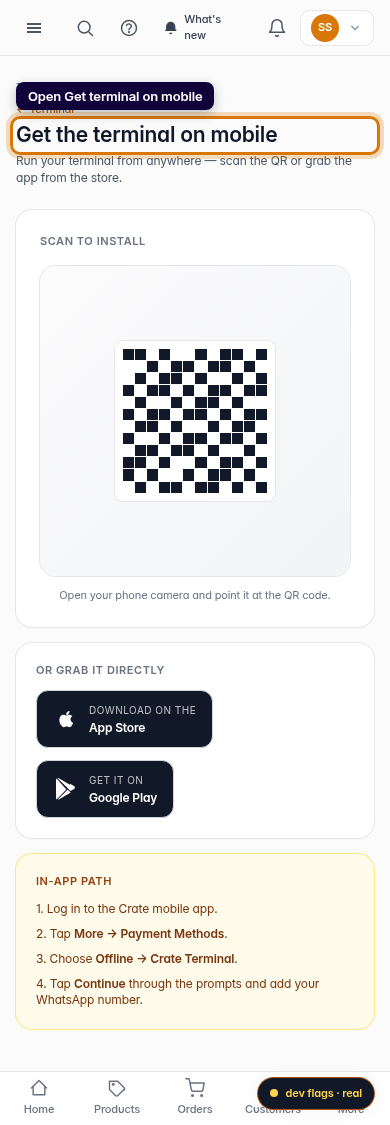
Mobile -
3
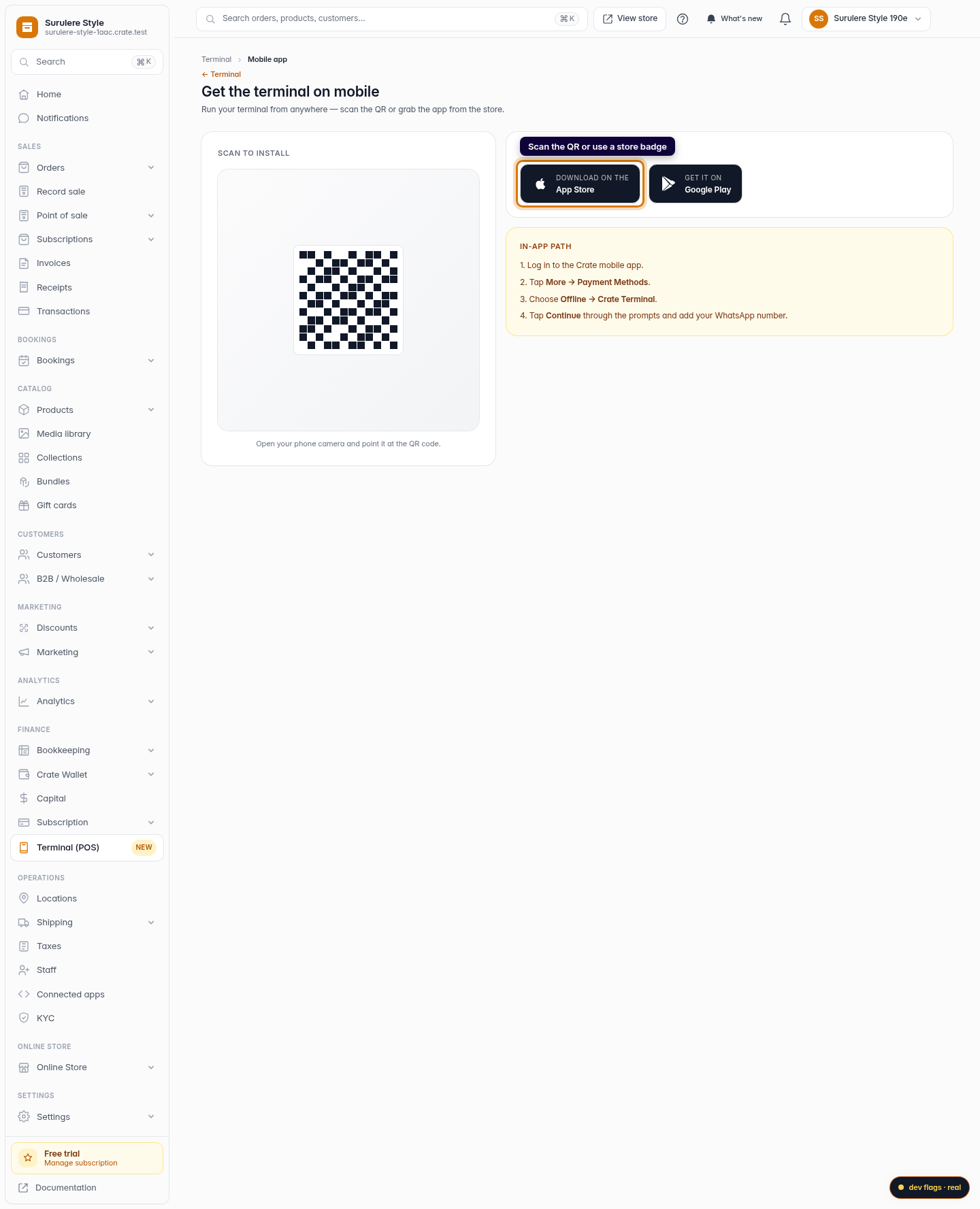
Scan to install
Open your phone's camera and point it at the QR code to jump straight to the app listing. Prefer the store? Use the App Store or Google Play badge instead.
Web -
4
Follow the in-app path
Once installed, log in and follow the on-screen path to Payment Methods → Offline, choose Terminal, tap Continue through the prompts, and add your WhatsApp number for alerts.
Web 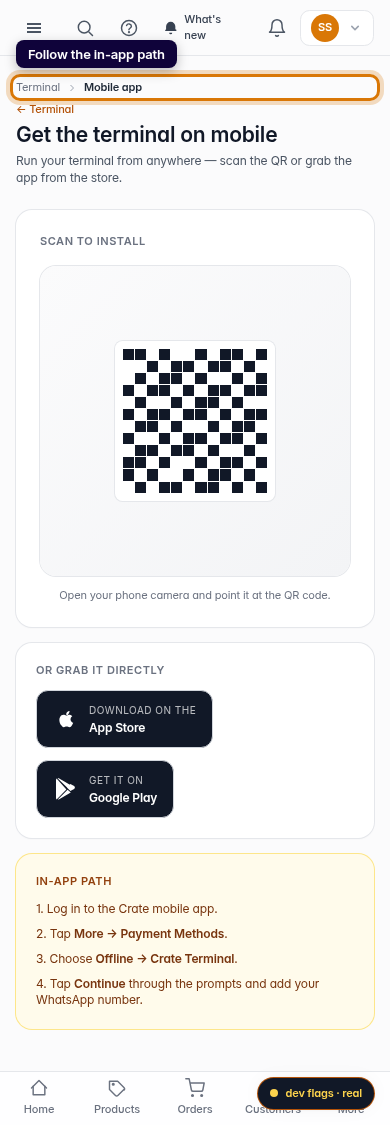
Mobile