Track a shipment
Follow an order from dispatch to delivery, update its tracking number and delivery stage, and keep your customer informed.
Once an order is on its way, the Shipment tracking page is where you and your customer follow it. It pulls together everything about the delivery in one place: the courier, the tracking number, the current delivery stage, and a timeline of what's happened so far.
Finding the tracking page
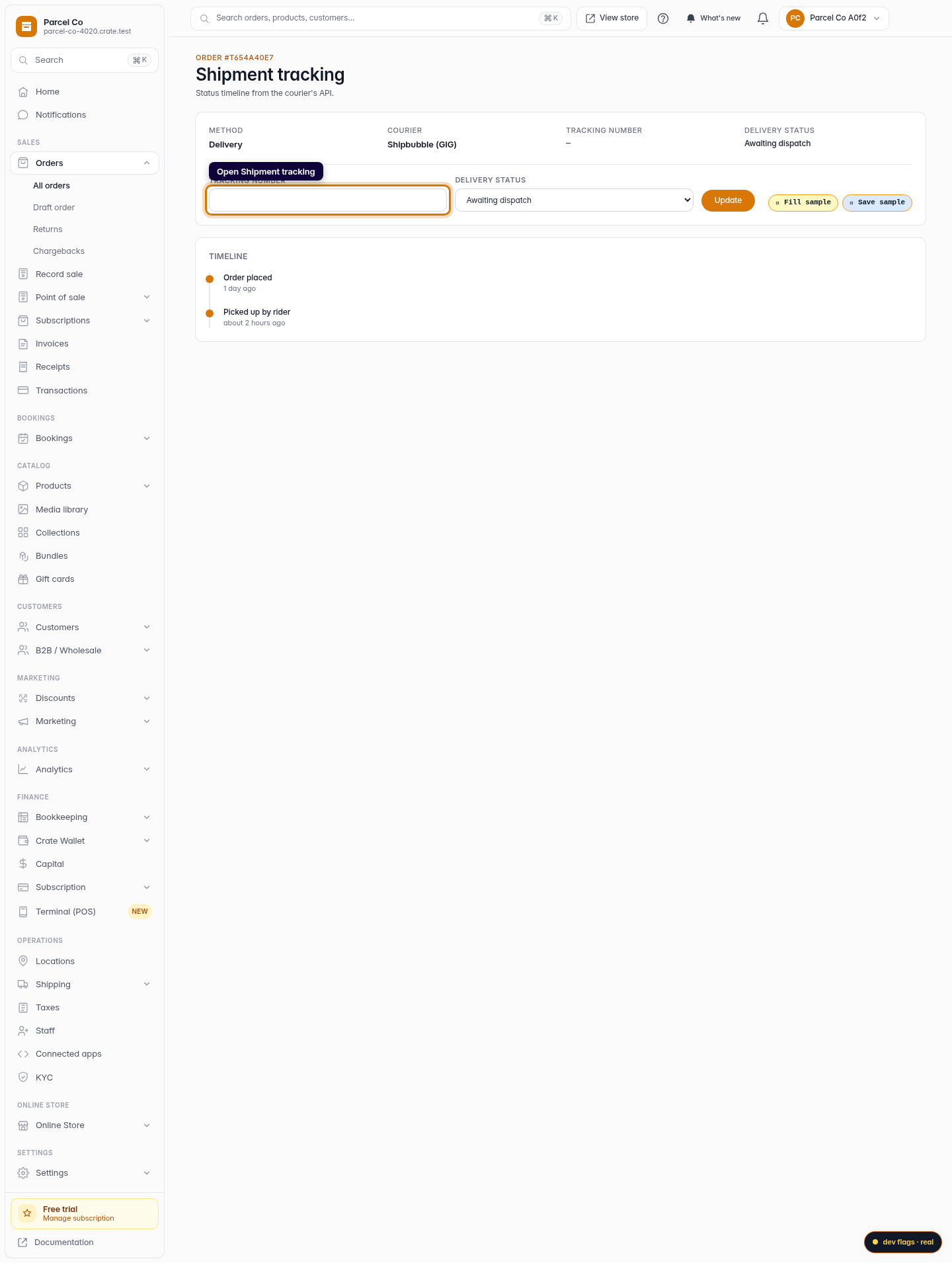
Open the order from Orders, then go to its Shipment tracking page. At the top you'll see the delivery method (delivery or pickup), the courier handling it, the tracking number, and the current delivery status. Below that is a timeline that fills in as the order moves — placed, picked up by the rider, and delivered.
Updating tracking
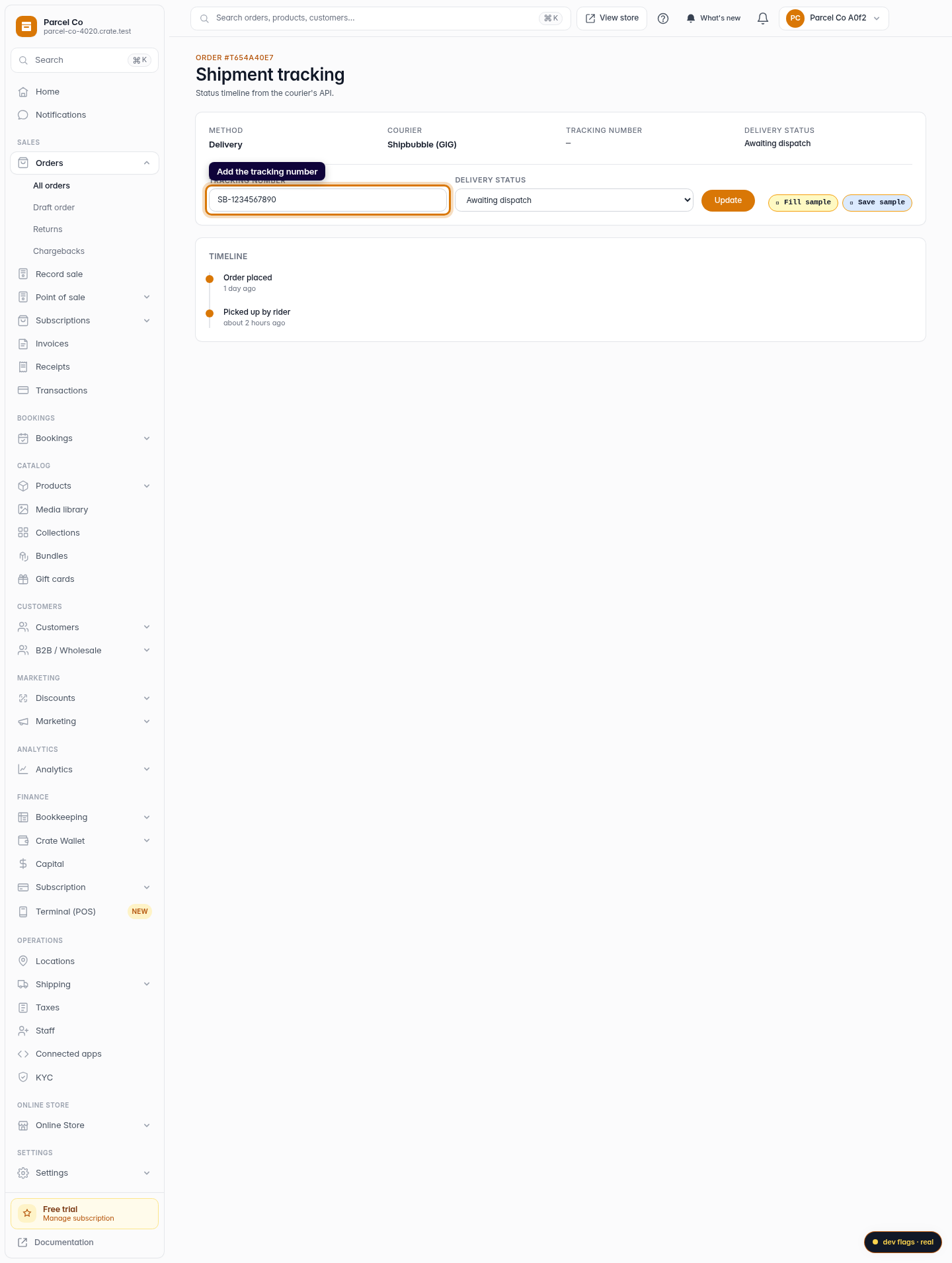
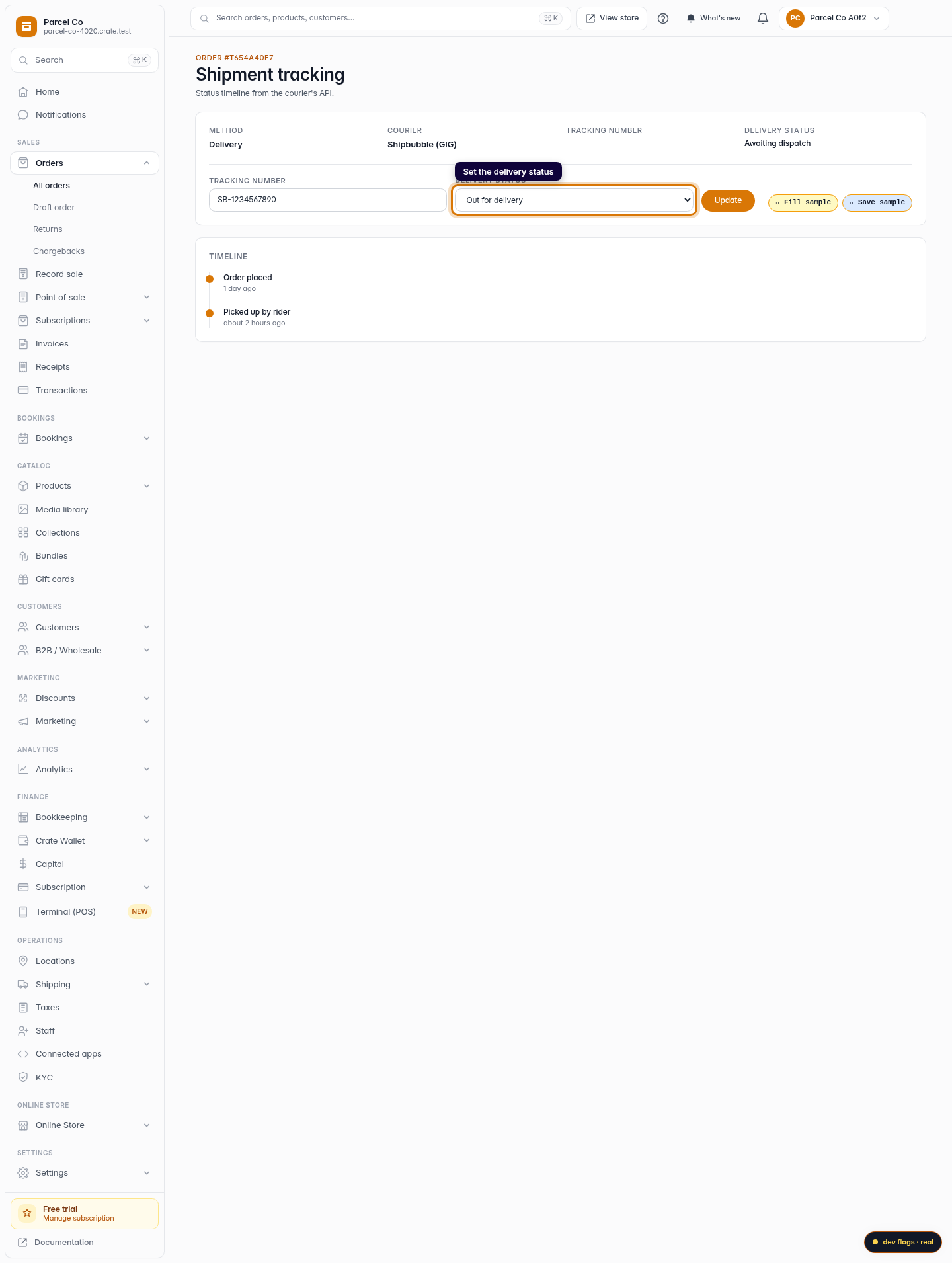
Got a tracking number from your courier? Type it into the Tracking number field. Then set the Delivery status to match where the parcel actually is — Awaiting dispatch, Picked up, In transit, Out for delivery, Delivered, or Failed — and click Update.
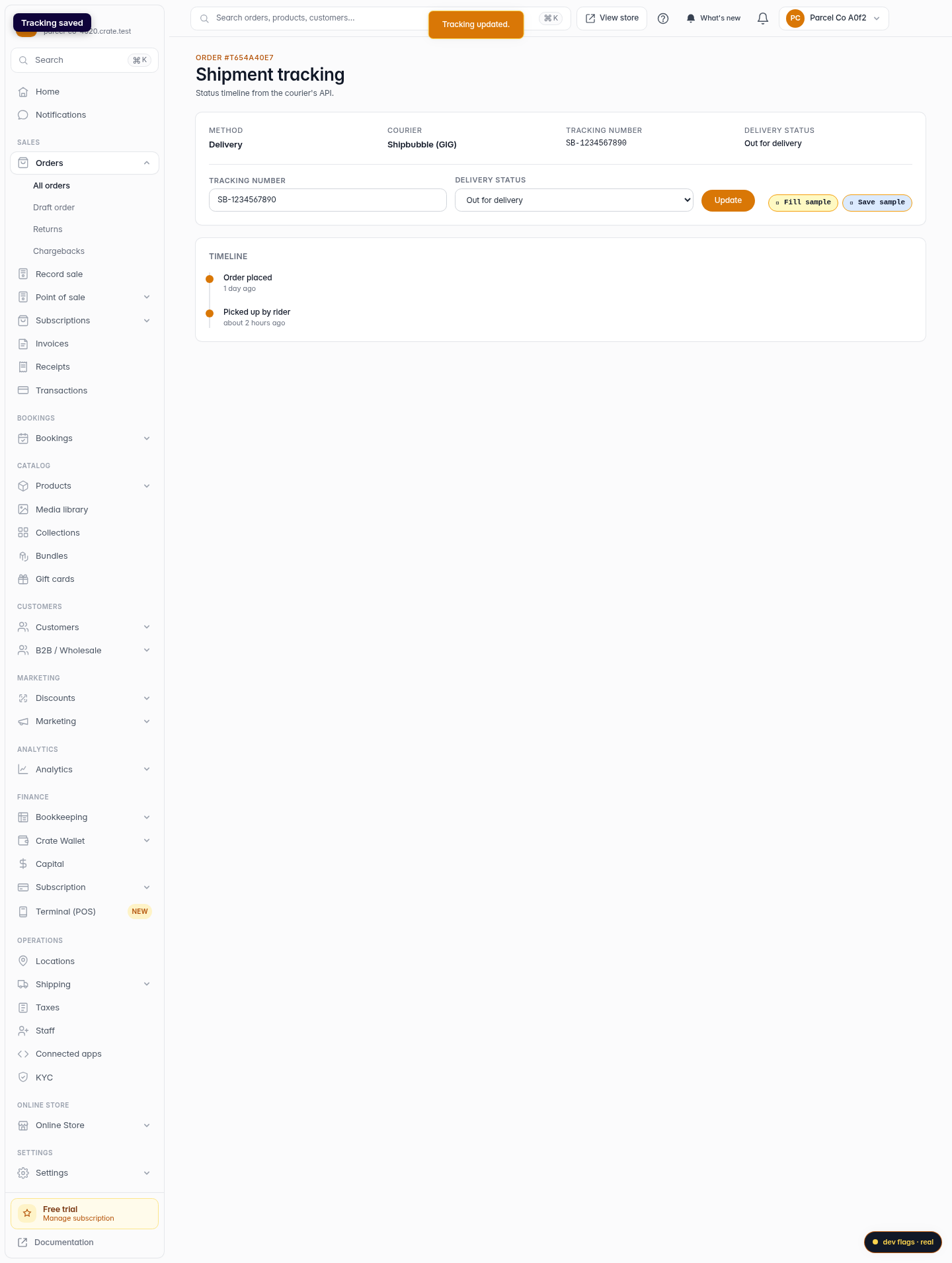
Crate saves the change immediately and moves the timeline forward. Keeping the status current means your customer always sees an accurate picture of their delivery.
Note: Past orders keep the price and shipping details they were charged. Updating tracking only changes the delivery status and number — it never alters what the order cost.
-
1
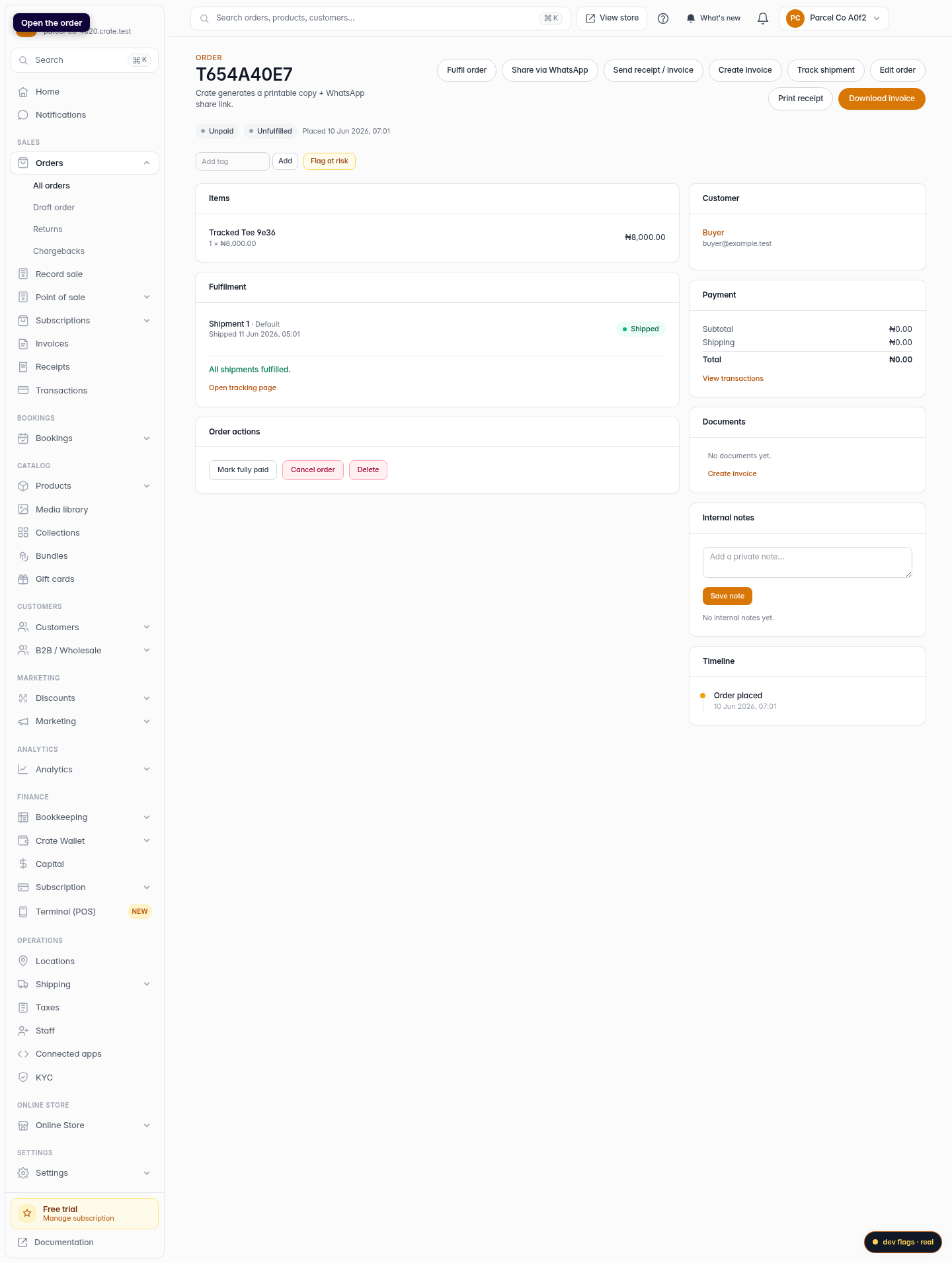
Open the order
From Orders, open the order you want to track. Each order with a shipment has its own tracking view.
Web 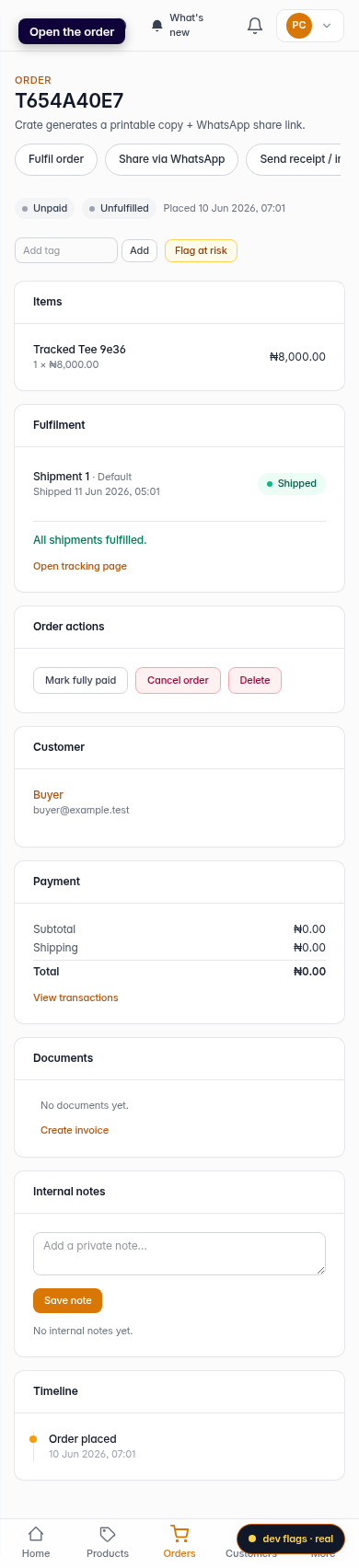
Mobile -
2
Open Shipment tracking
Go to the order's Shipment tracking page. It shows the courier, the tracking number, the delivery status, and a timeline of events.
Web 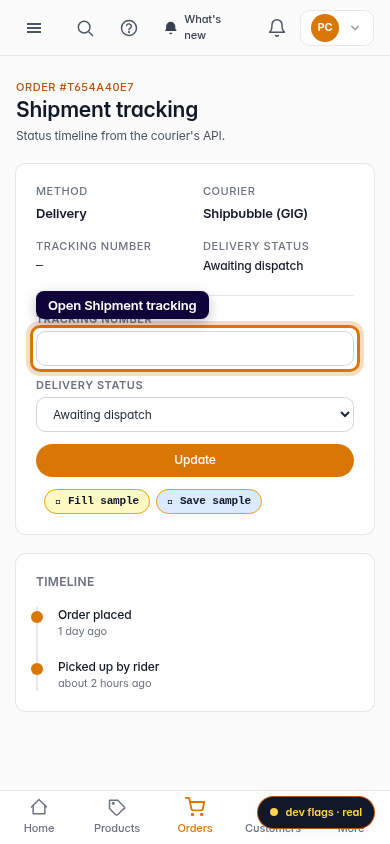
Mobile -
3
Add the tracking number
Enter the tracking number from your courier so you and your customer can follow the parcel.
Web -
4
Set the delivery status
Choose the current delivery status — for example Out for delivery — to reflect where the parcel is.
Web -
5
Update — the timeline moves
Click Update. Crate saves the tracking number and status, and the timeline reflects the latest stage.
Web 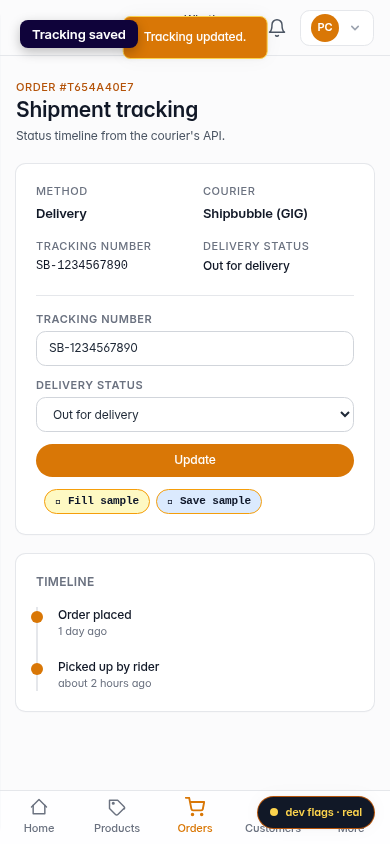
Mobile