Add a manual shipping price
Set your own flat shipping fee for a destination so buyers see a clear, fixed price at checkout — no carrier integration required.
A manual shipping price lets you decide exactly what a buyer pays to have an order delivered, instead of pulling a live quote from a courier. It's the simplest way to get shipping live: pick a destination, set one fixed fee, and you're done.
In Crate, every shipping rate is a zone — a named destination with a price attached. A "manual" price is just a zone set to a flat rate, so the buyer always sees the same fee for that area.
Before you start
You only need two things: the area you're charging for and the fee you want to charge. You can add as many zones as you like — a cheaper one for your city, a higher one for the rest of the country, and so on. Crate matches the buyer's delivery address to the right zone automatically.
Tip: Start with one zone for your home city and one for everywhere else. You can always split them into finer areas later from the same Shipping page.
What happens after you save
Crate creates the zone, attaches your flat rate, and links it to your store. From that moment, any buyer checking out to a matching address sees your fee — no extra switch to flip. To change the price later, open the zone from the Shipping page and edit it; see Delete or edit a shipping option.
-
1
Open Shipping
Go to Shipping in your Crate dashboard. This is where every shipping zone, rate, and pickup option lives.
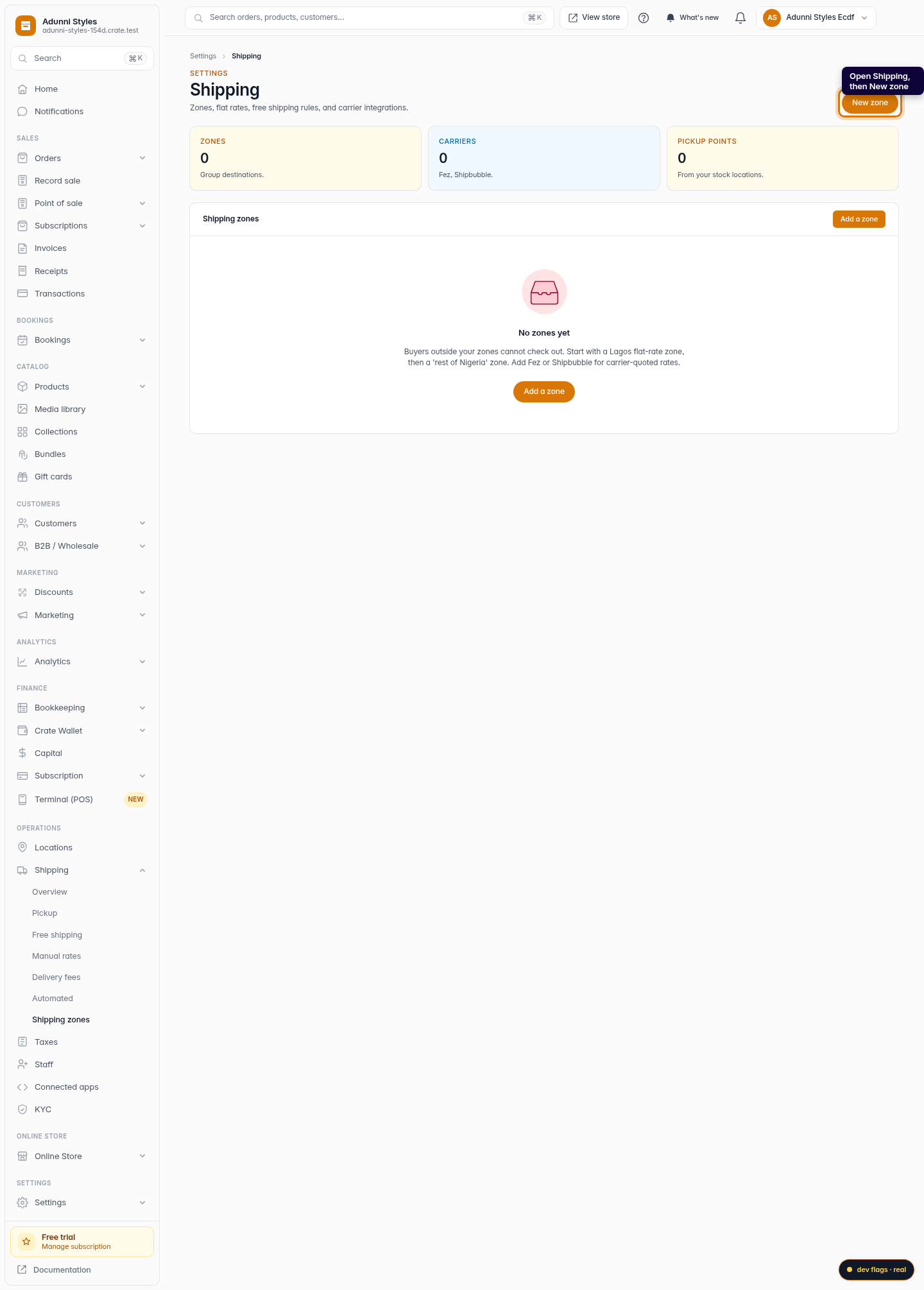
Web 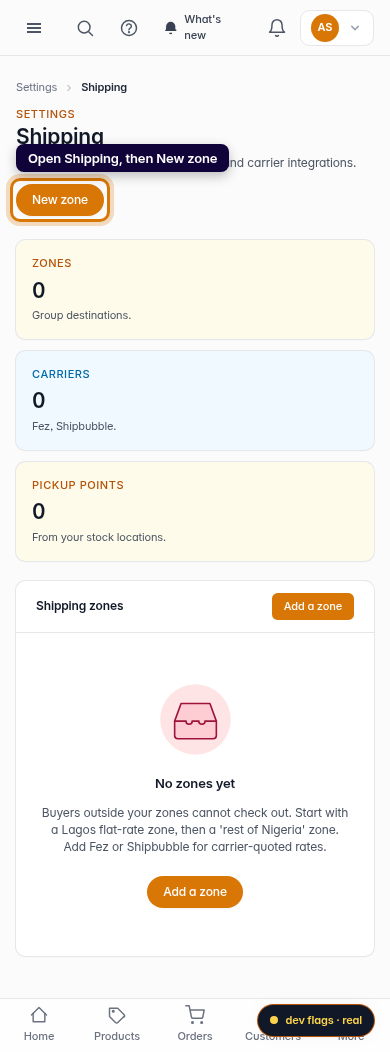
Mobile -
2
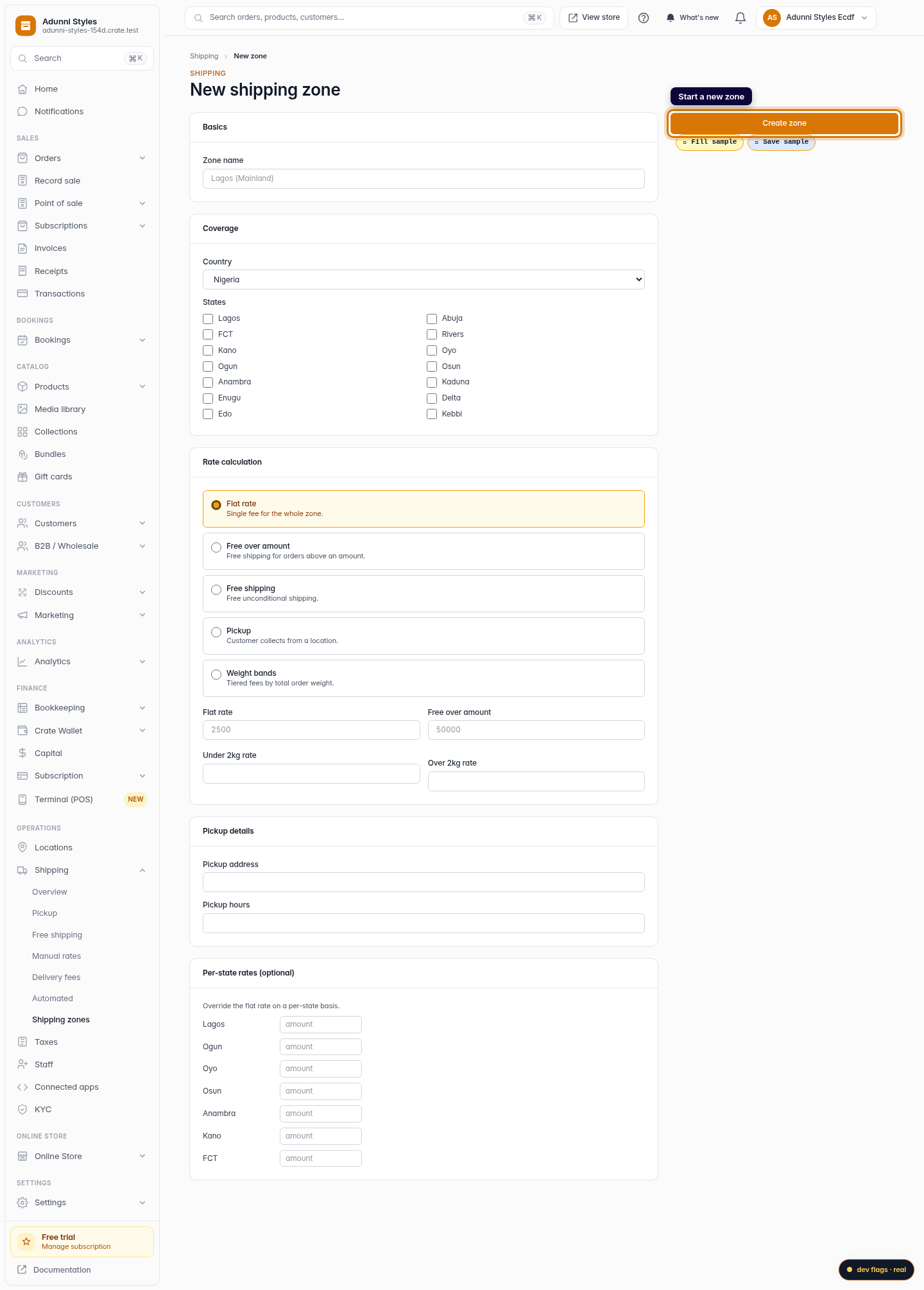
Add a new zone
Click New zone. A manual shipping price in Crate is simply a zone with a flat rate — you pick where it applies and what it costs.
Web -
3
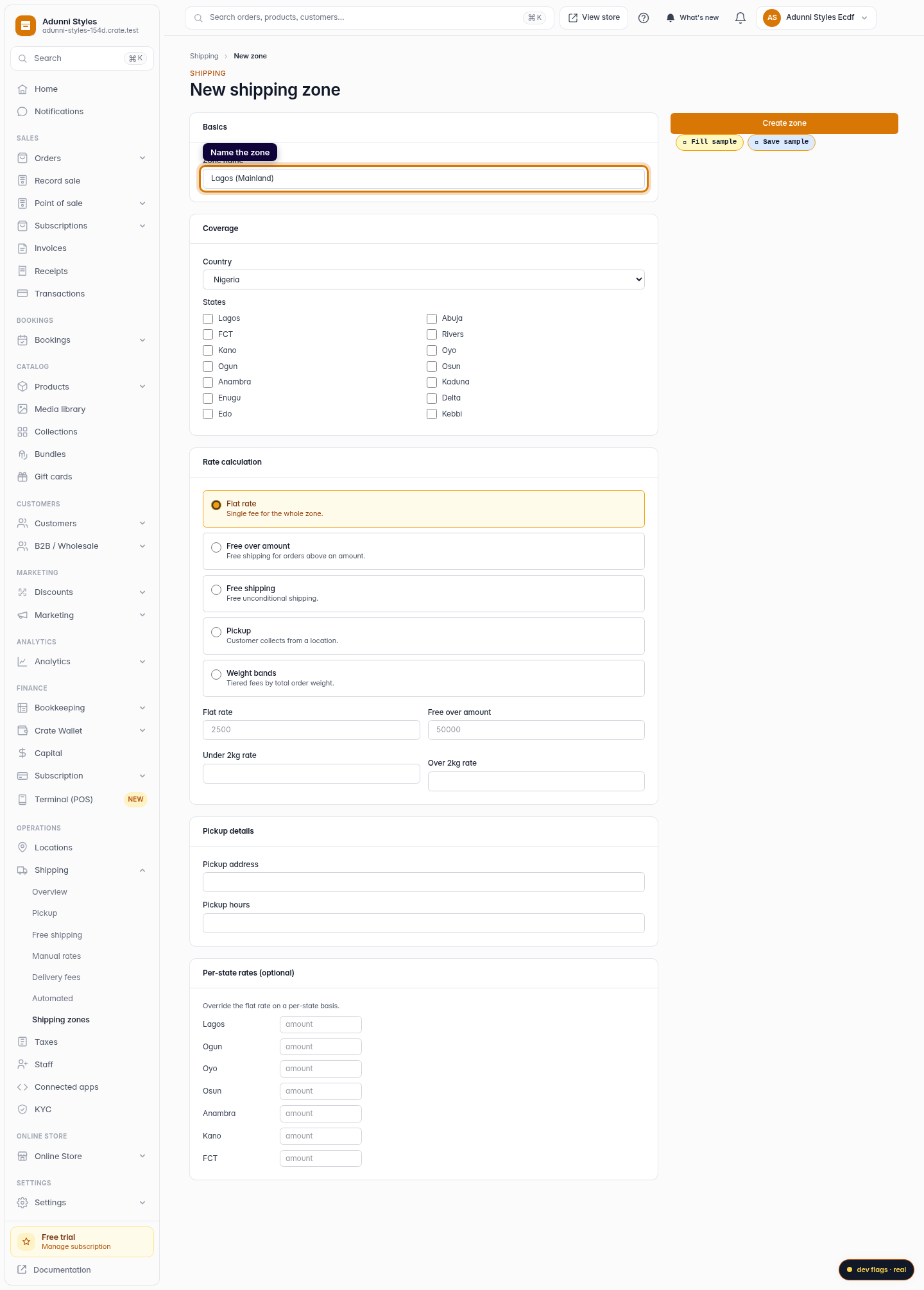
Name the zone
Give the zone a name buyers will understand at checkout — for example Lagos (Mainland).
Web 
Mobile -
4
Pick where it applies
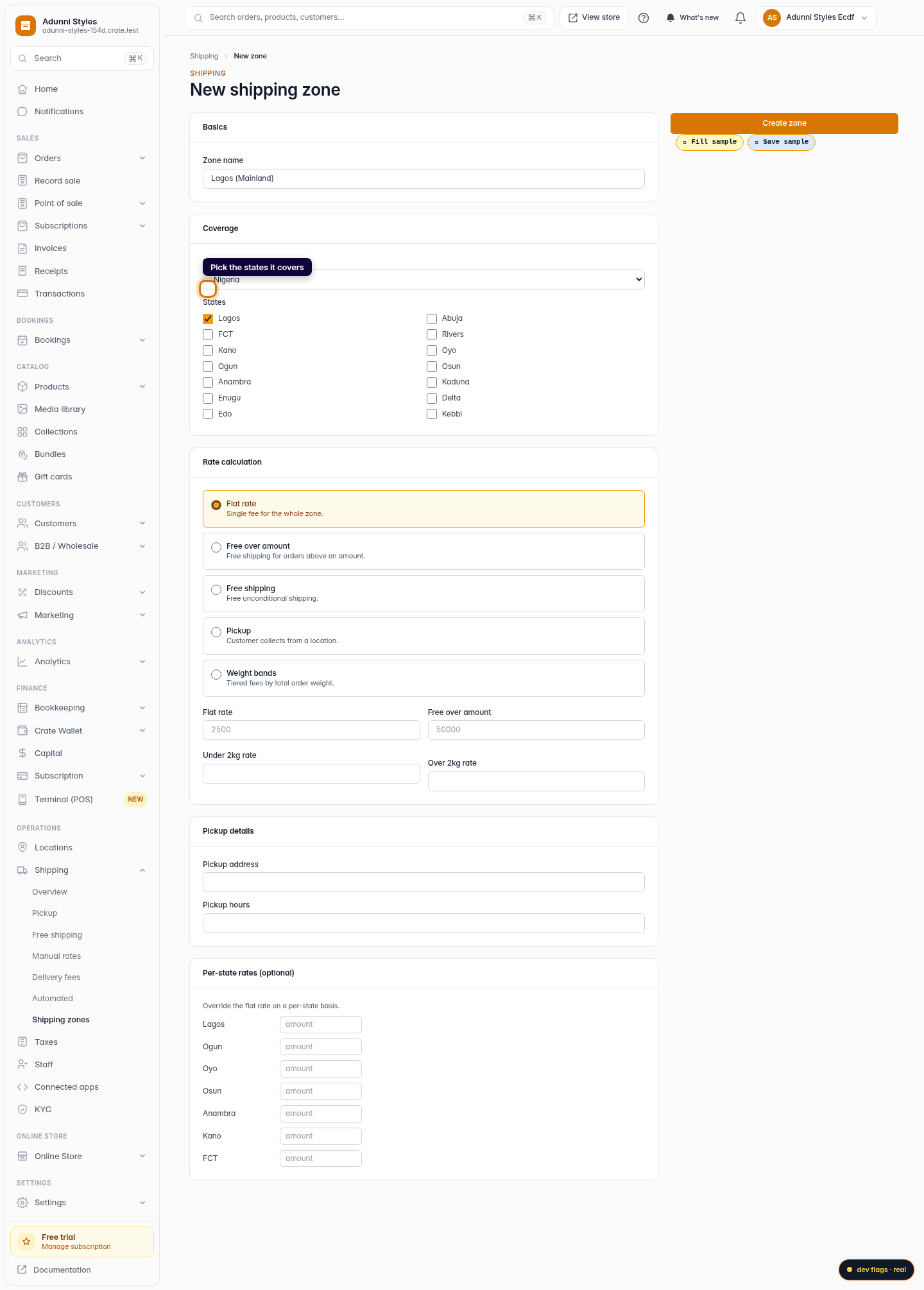
Choose the country and tick the states this rate covers. Crate only offers this price to buyers shipping to a matching address.
Web -
5
Set your flat rate
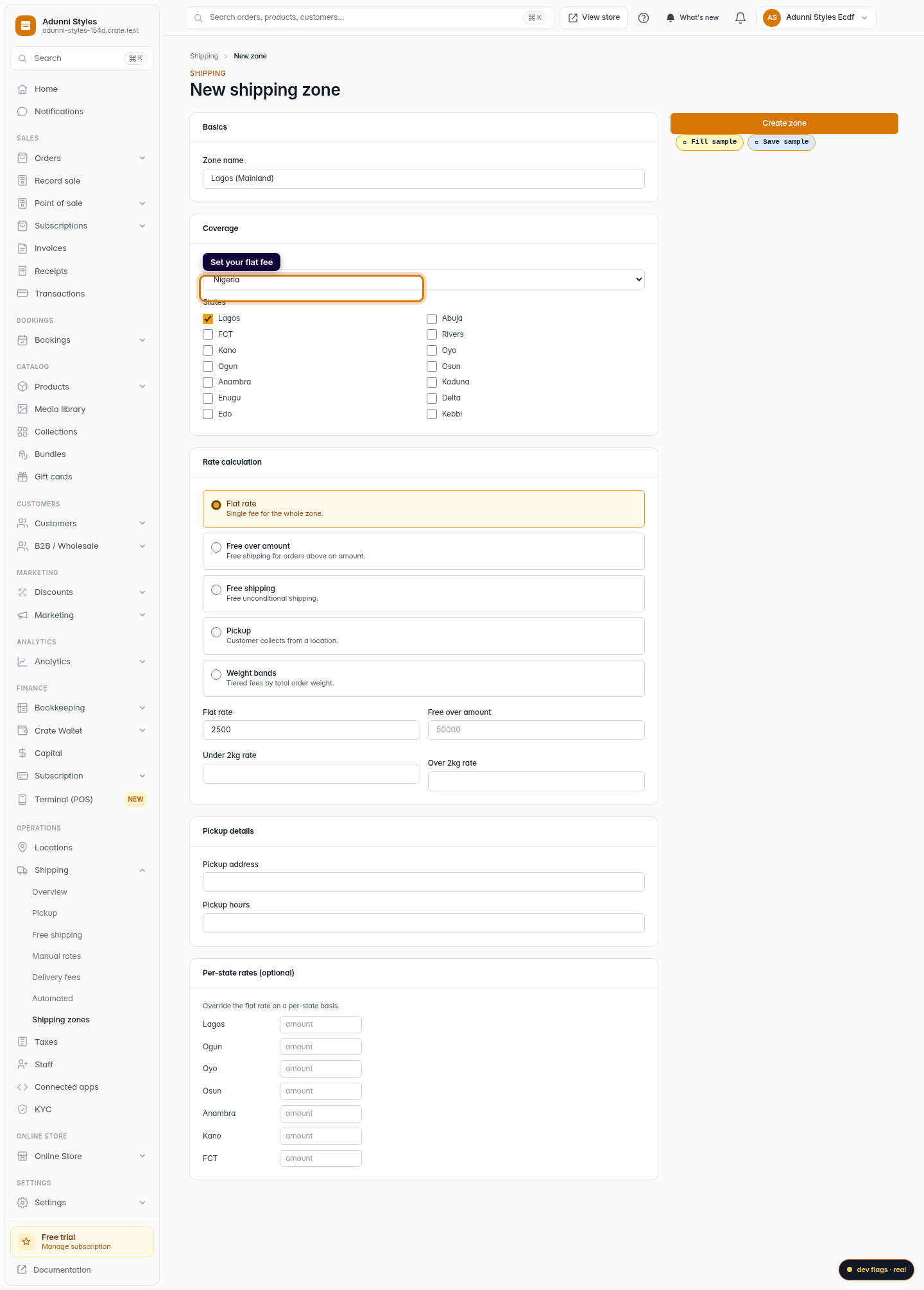
Leave the calculation on Flat rate and enter the fee you want to charge — for example 2500. That's the exact amount buyers pay for this zone.
Web -
6
Save — your price is live
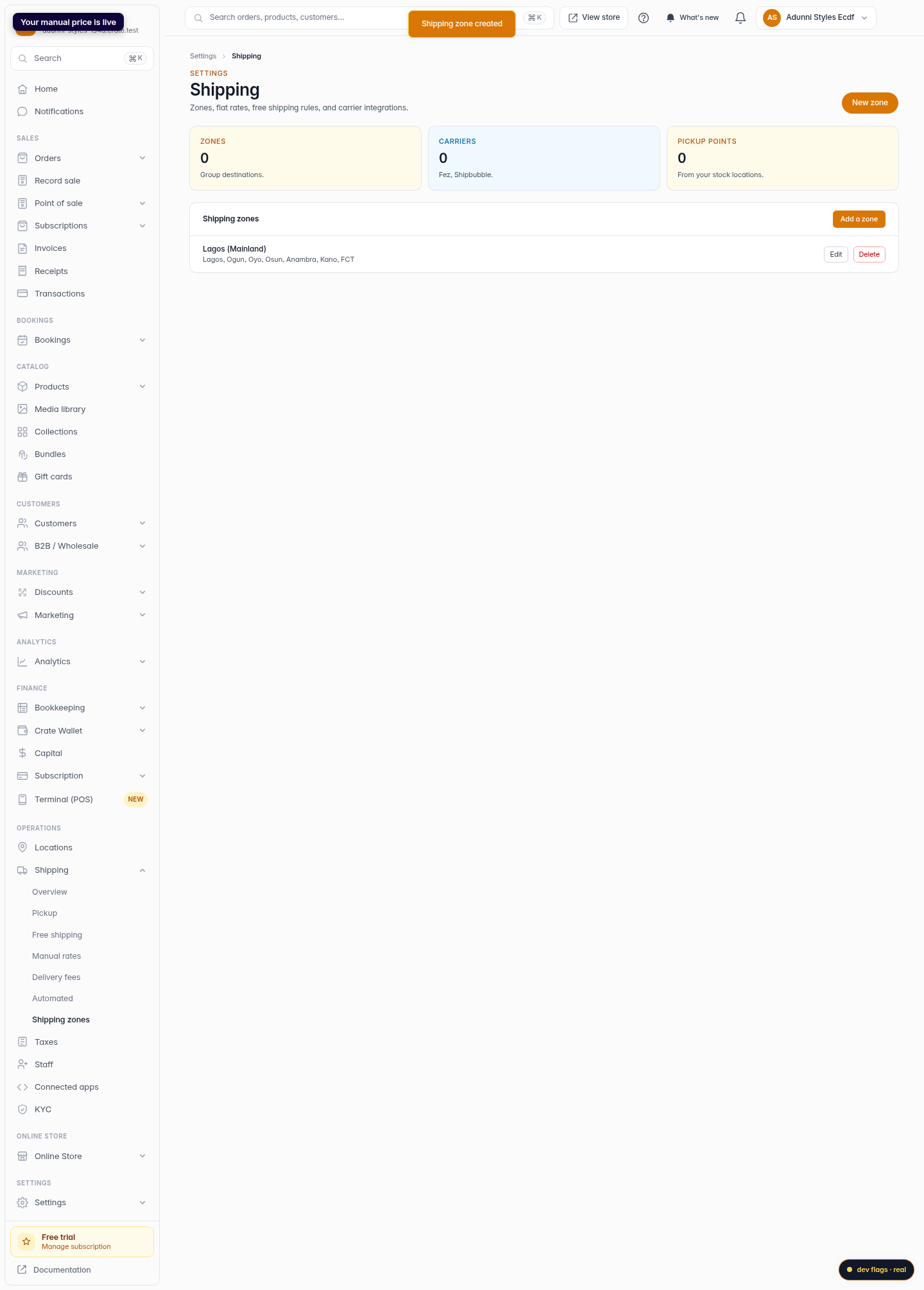
Click Create zone. Crate saves the rate and it's immediately offered at checkout to anyone in that zone.
Web 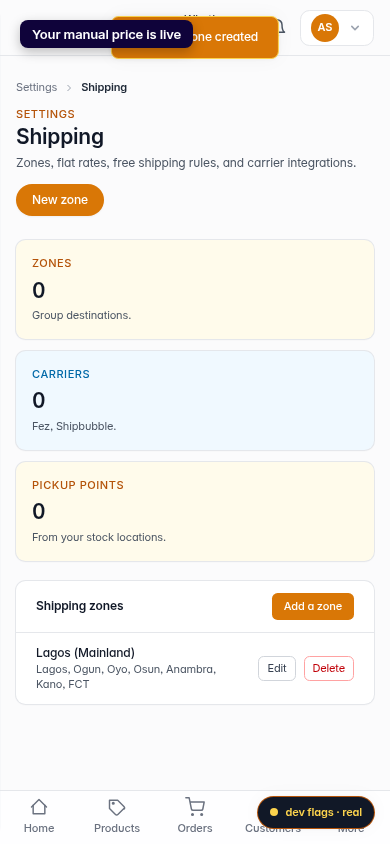
Mobile