How to Compare Analytics by Date Range
On any report, flip on Compare and Crate sets your chosen period next to the one immediately before it — so you can see at a glance whether the business is up or down.
Sometimes you don't want to type in two date ranges by hand — you just want to know "is this period better than the last one?" Crate's Compare to previous toggle answers that in one click, on the report you're already looking at.
How the comparison window is chosen
When you switch Compare on, Crate pairs your current period with the equal-length window directly before it. Looking at the last 30 days? The comparison is the 30 days before that. Looking at a custom fortnight? The comparison is the previous fortnight. You never have to work out the matching dates yourself — each column is labelled with the exact range it covers.
Reading the result
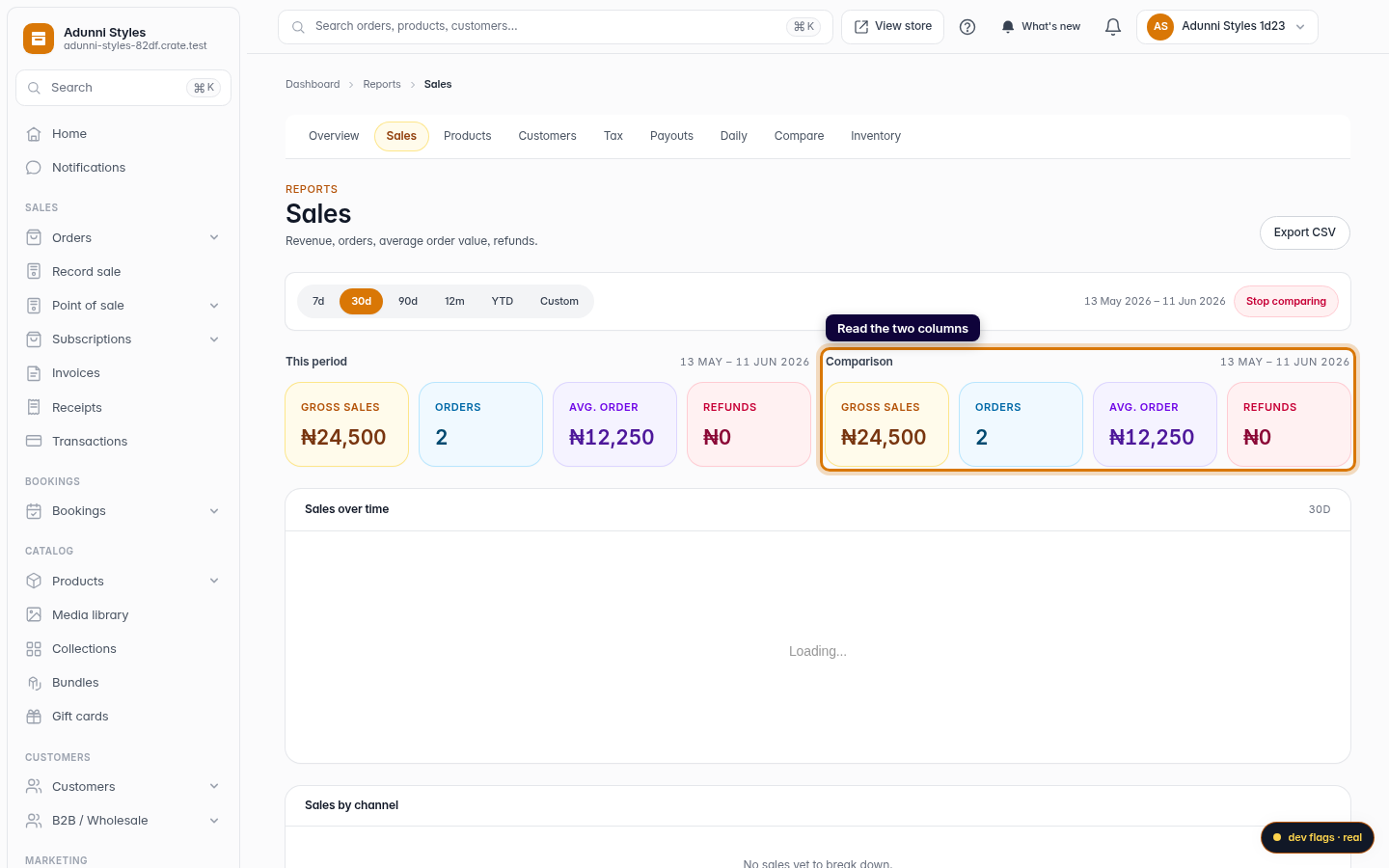
The report splits into two side-by-side columns, This period and Comparison, with the same tiles in each. Scanning across a row — gross sales now versus gross sales then, orders now versus orders then — tells you instantly whether you're growing.
Tip: Compare is available on the Sales and Customers reports, where a like-for-like previous window is the most useful read.
When you need two arbitrary ranges instead
Compare-to-previous always uses the immediately preceding window. If you want to pit two ranges that aren't adjacent — say this December against last December — use the dedicated Compare periods view, where you set Period A and Period B by hand.
-
1
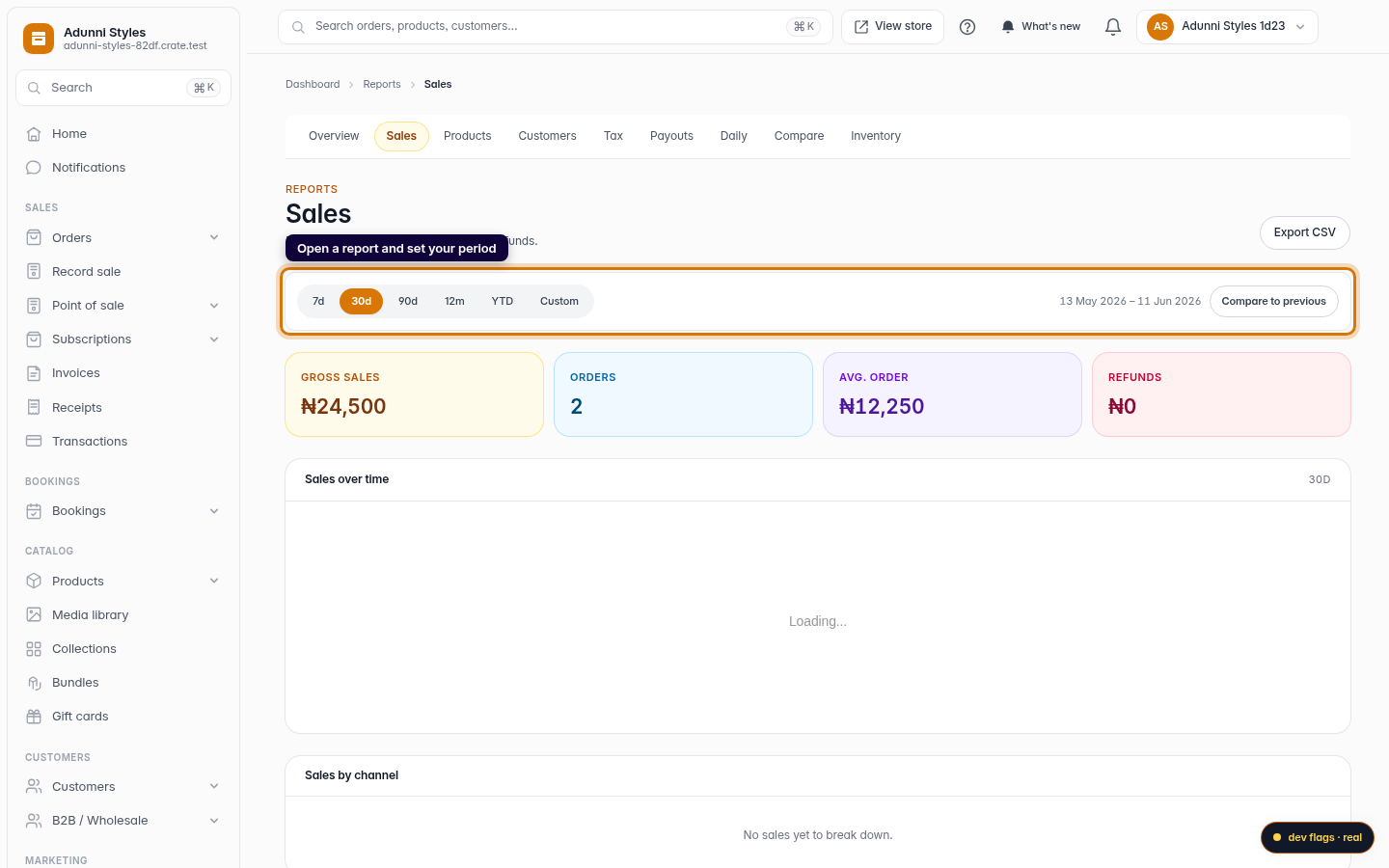
Open a report and set your period
From your Crate dashboard, open Reports → Sales (Customers works too). Choose the period you want to measure with the chips — for example 30d.
Web -
2
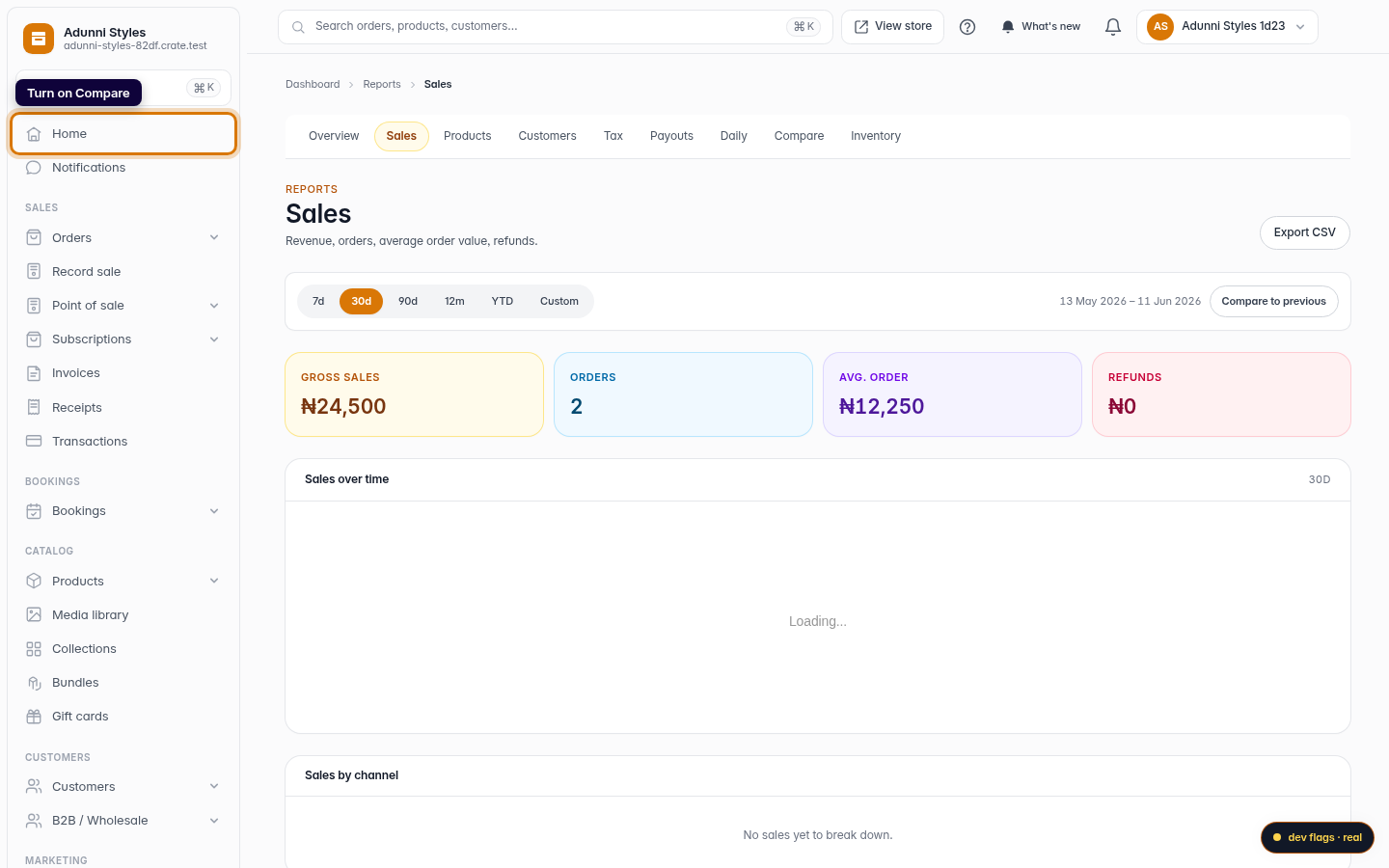
Turn on Compare
Click Compare to previous at the end of the period chip row.
Web -
3
Read the two columns
Crate splits the report into two columns — This period and Comparison — each labelled with its exact dates. The comparison is the equal-length window immediately before your chosen one.
Web -
4
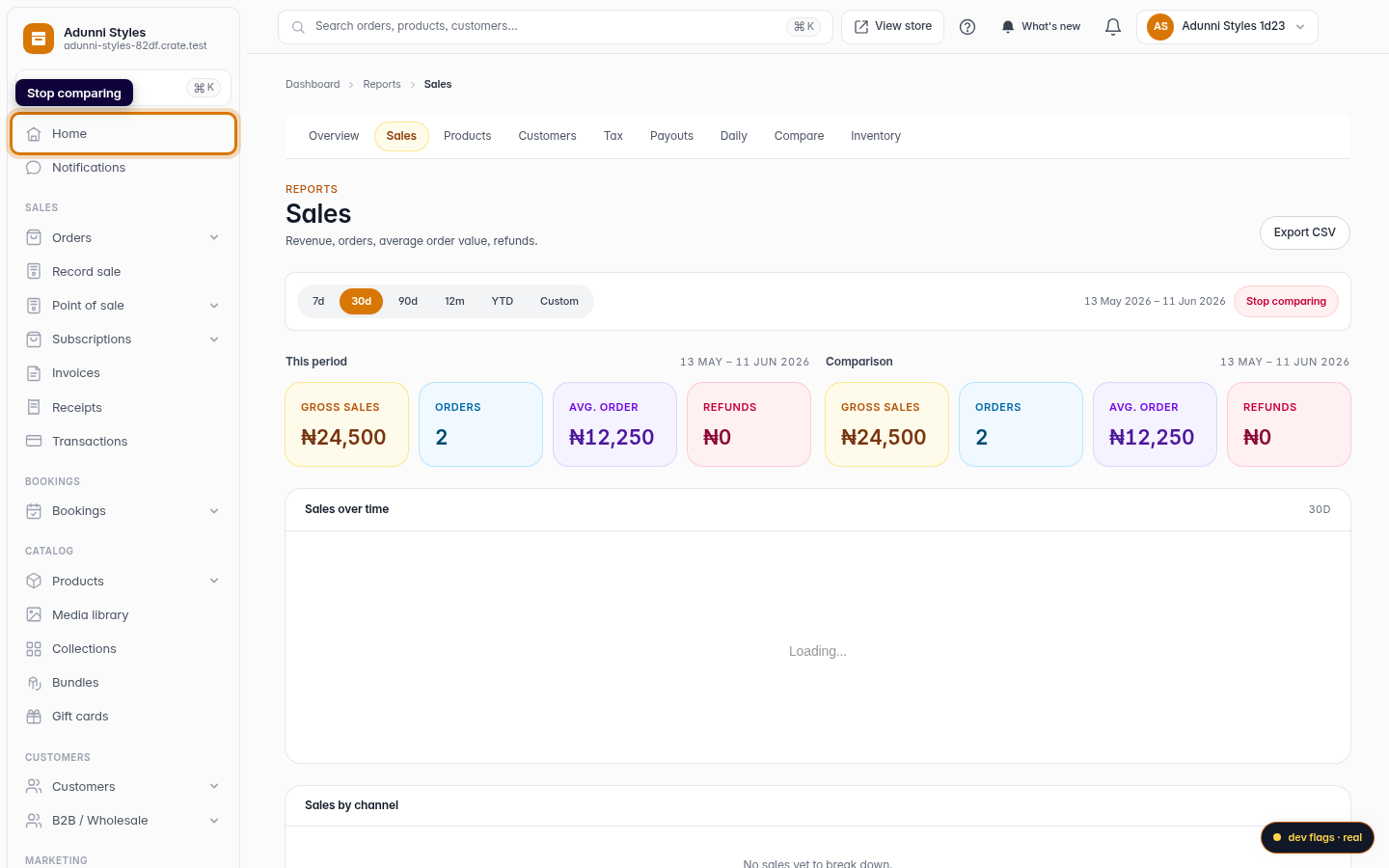
Stop comparing
Click Stop comparing to collapse back to a single column whenever you're done.
Web