Use your own Paystack keys
Already have a Paystack account? Connect it to Crate with your own public and secret keys — settle straight to your Paystack balance with no Crate fee.
If you already run Paystack — your own dashboard, your own settlement account — you can plug it straight into Crate instead of using Crate-managed payments. Bring your keys and every payment settles to your Paystack balance with no Crate fee on top.
This is the Merchant Account mode of Crate's Paystack setup. The trade-off versus Crate-managed is that you handle your own Paystack settlement and reconciliation; in return you keep your existing account and pay nothing extra to Crate.
Before you start
Grab your keys from your Paystack dashboard under Settings → API Keys & Webhooks. Use live keys (pk_live_… / sk_live_…) to take real payments; use test keys while you're trialling. Treat the secret key like a password — anyone with it can move money through your account.
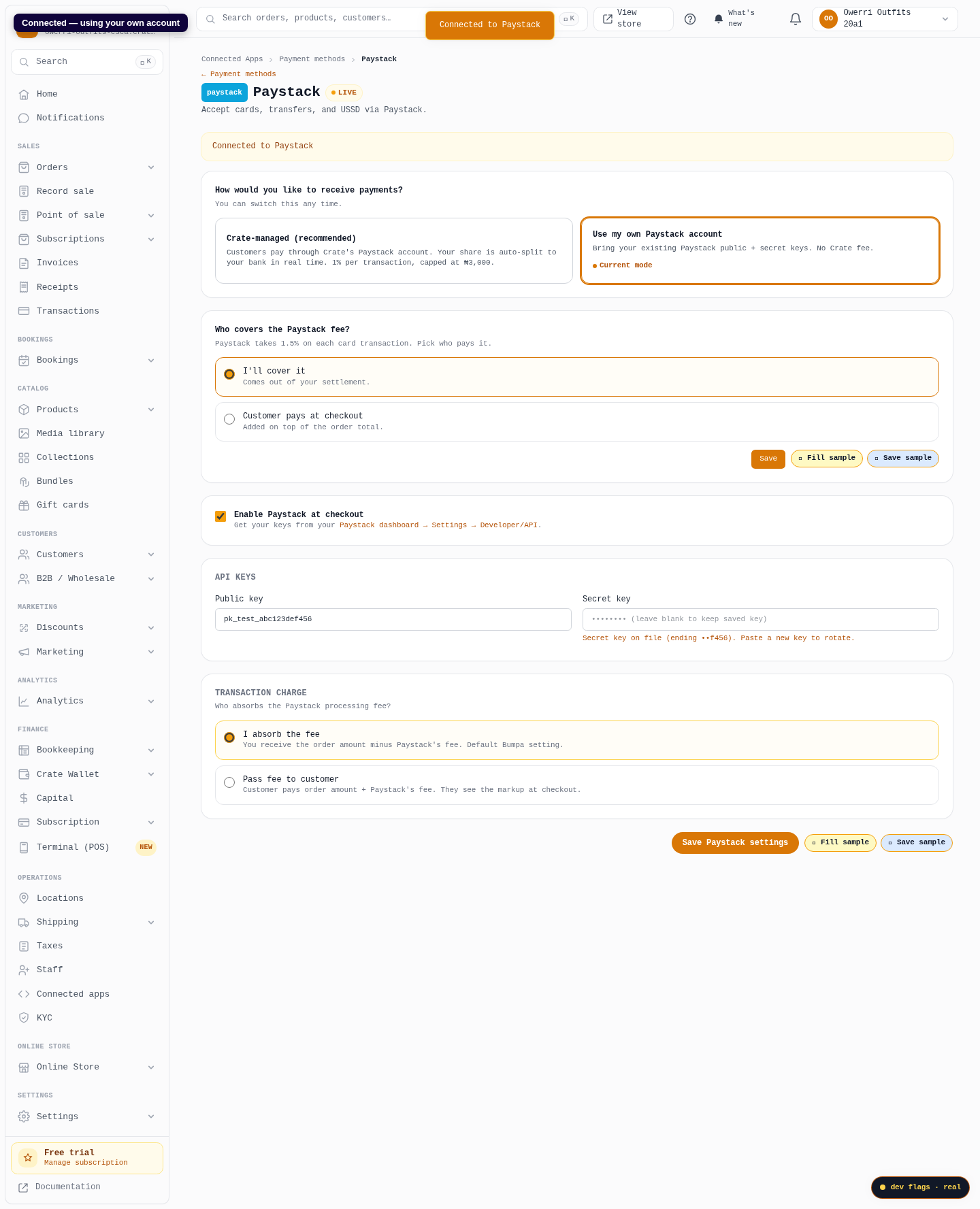
Tip: Your secret key is stored encrypted and is never shown again after you save it. To rotate it later, just paste a new key over the masked field; leave it blank and Crate keeps the key already on file.
After you connect
Paystack shows at checkout immediately, charging through your own account. Confirm a live order settles into your Paystack balance as expected. If a key is wrong, Crate flags it on save so you can correct it before customers hit a broken checkout.
-
1
Open Paystack settings
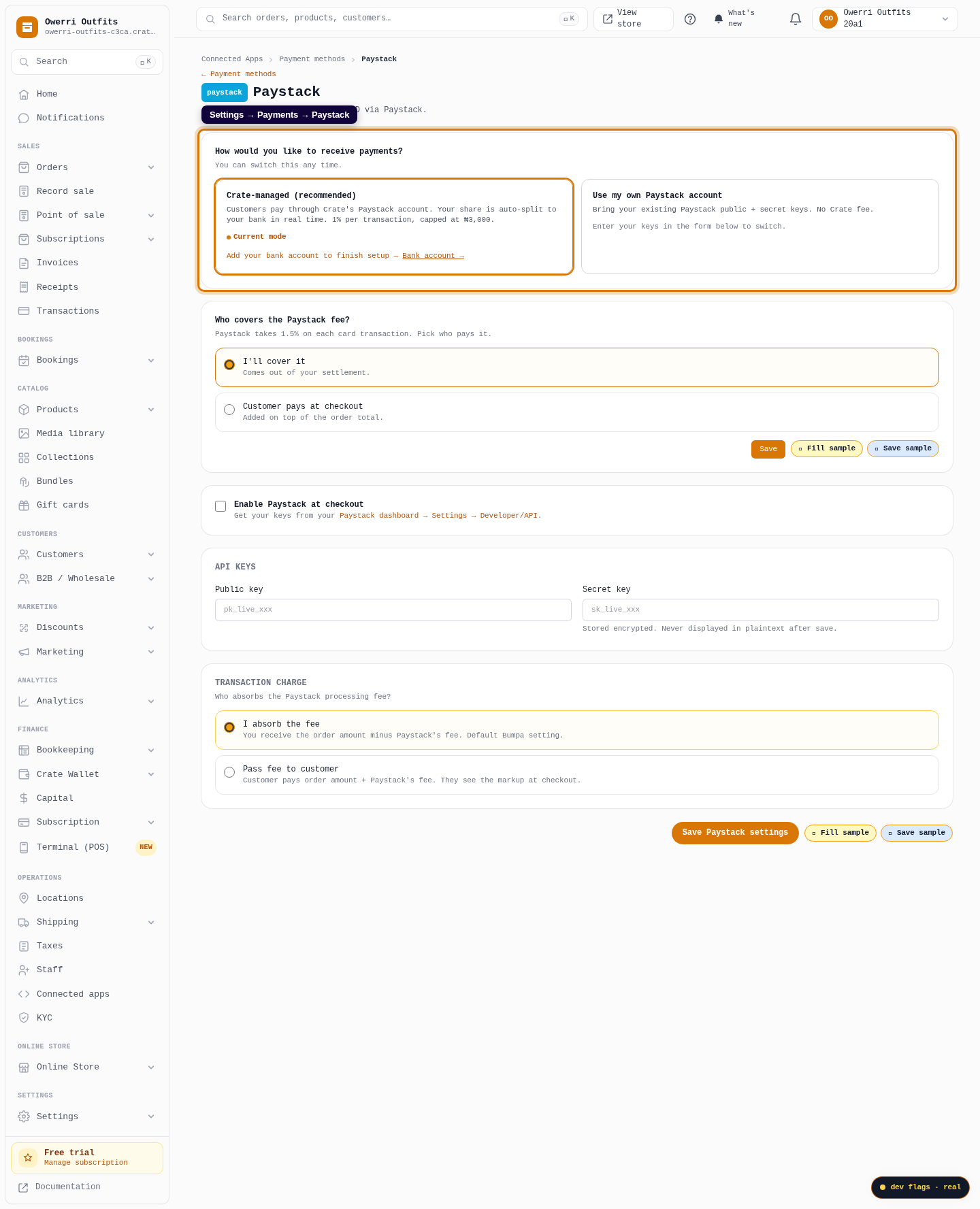
From your Crate dashboard, go to Settings → Payments → Paystack. This is where you connect your own Paystack account.
Web 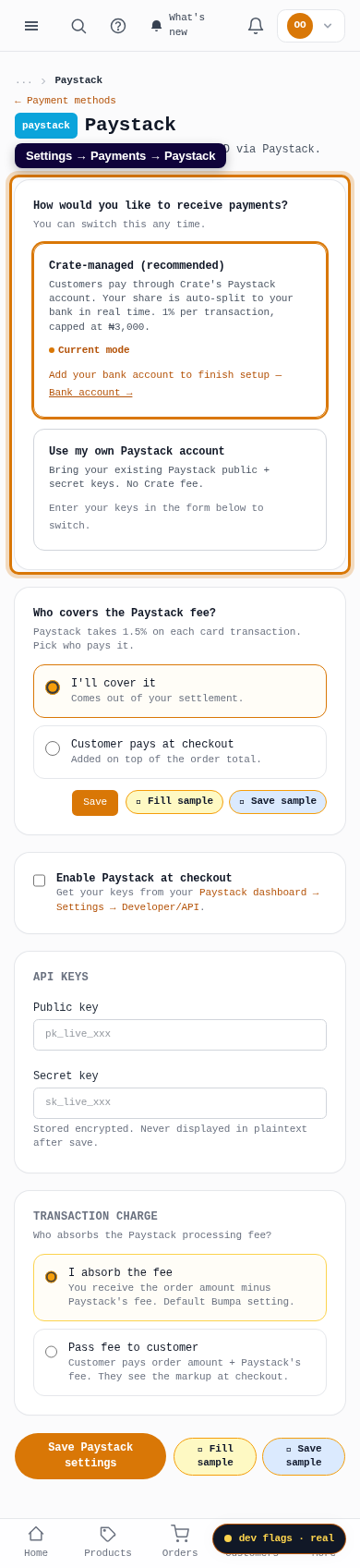
Mobile -
2
Choose your own Paystack account
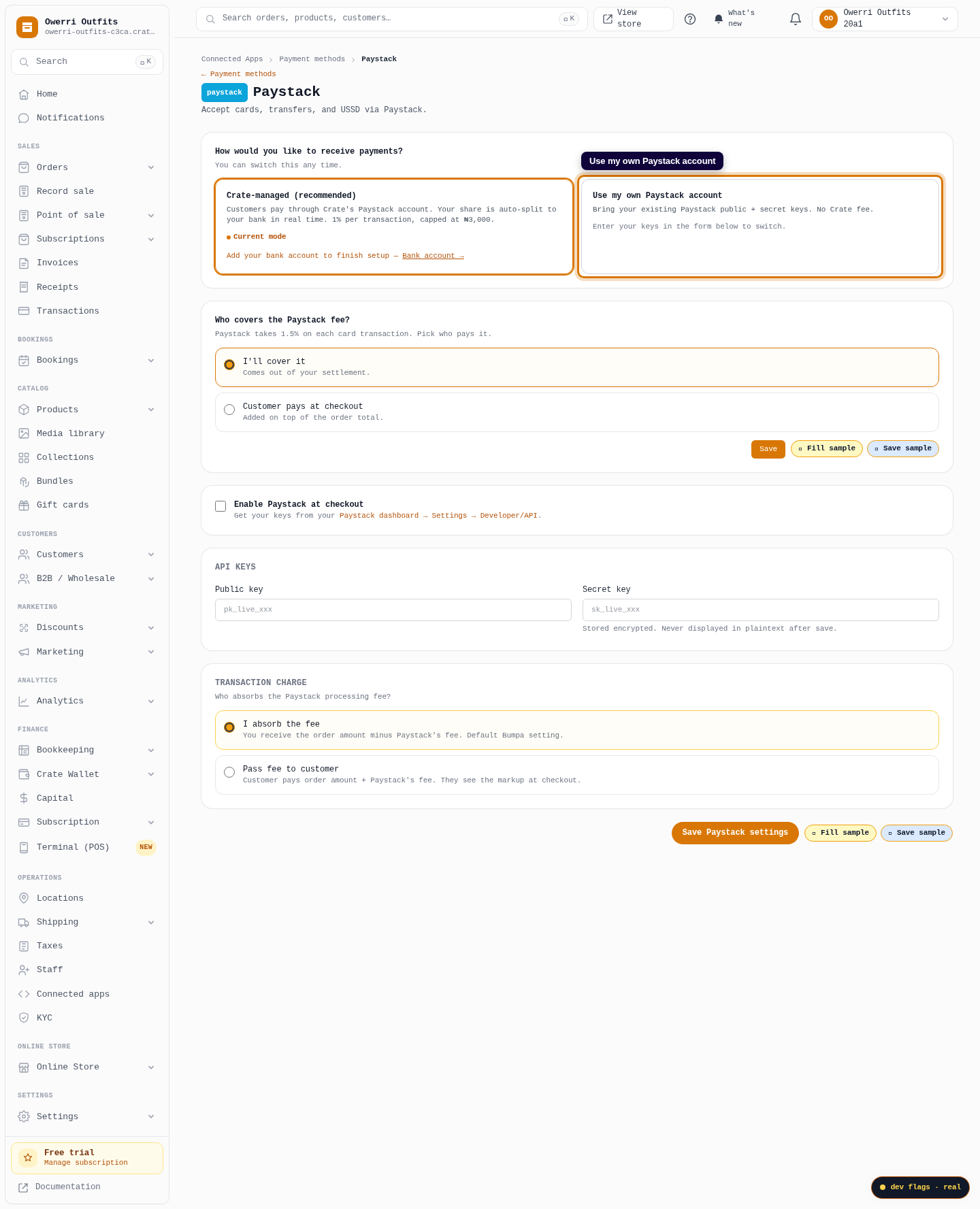
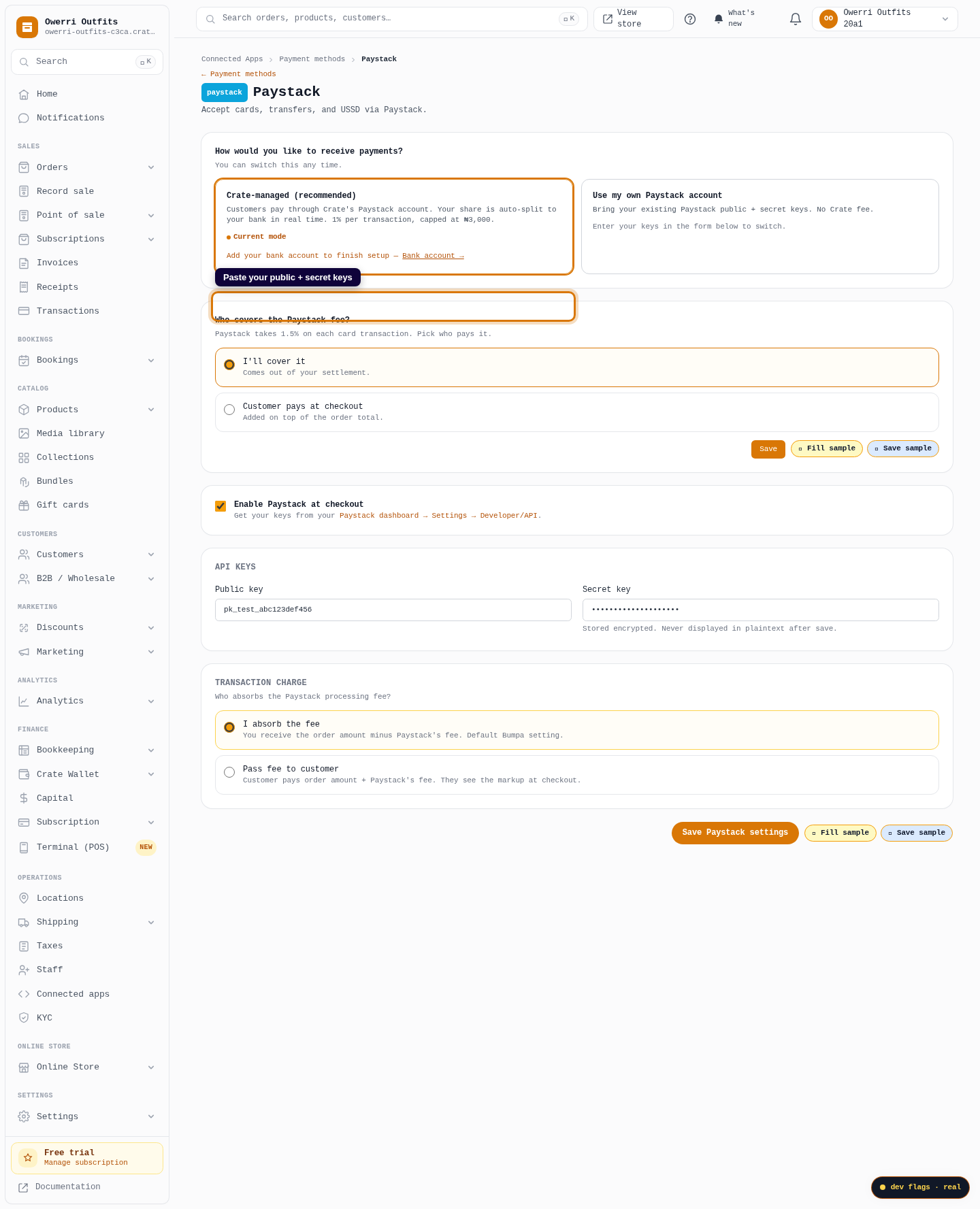
Pick Use my own Paystack account. Payments will settle straight to your Paystack balance and Crate takes no cut.
Web -
3
Enable Paystack at checkout
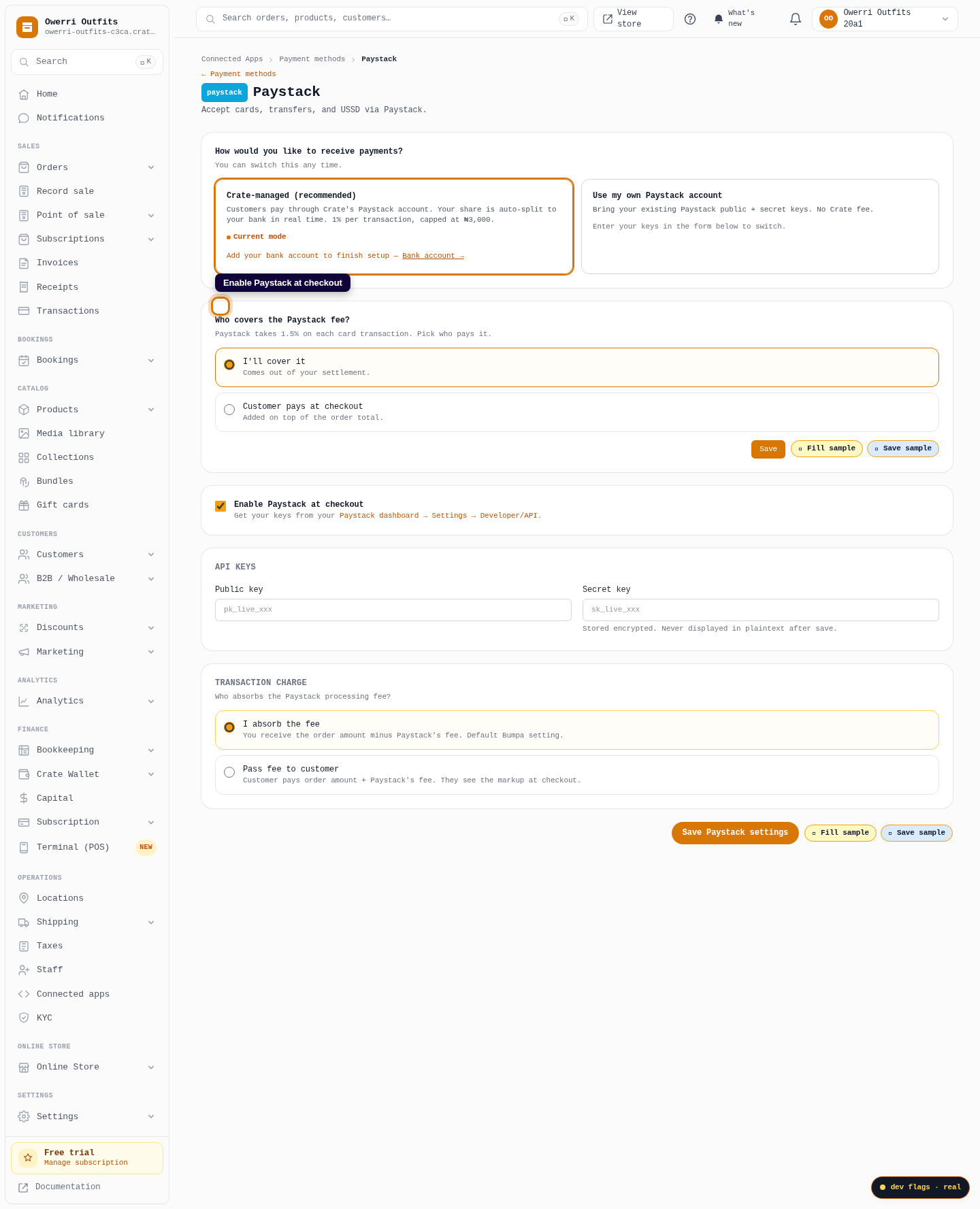
Tick Enable Paystack at checkout so the option shows on your storefront.
Web -
4
Paste your API keys
Copy your public key and secret key from your Paystack dashboard (Settings → API Keys & Webhooks) and paste them in. Crate stores the secret encrypted and never displays it again — you'll only ever see the last four digits.
Web -
5
Save the connection
Click Save to connect. Paystack is now live at checkout using your own account, with no Crate transaction fee.
Web