Add your Facebook Pixel
Paste your Meta (Facebook) Pixel ID into Crate and your storefront starts reporting page views and purchases back to Facebook Ads — no code editing.
The Meta (Facebook) Pixel is how Facebook Ads learns what's working. With it installed, Meta can see which products people view and which orders complete, so it can optimise your ads toward buyers and let you build retargeting audiences. Without it, you're advertising blind.
Crate installs the Pixel for you. You don't touch any code — you paste your Pixel ID once and Crate injects the tracking into every storefront page automatically.
Before you start
Get your Pixel ID from Meta Events Manager (business.facebook.com → Events Manager). It's the long numeric identifier for your data source — not the JavaScript snippet. If you manage several pixels, copy the ID of the one tied to the ad account you're running this store's campaigns from.
Tip: Running Google Ads too? The same Analytics section has a field for your Google Analytics measurement ID (the G-XXXXXXXXXX value). Paste both and Crate wires up each one.How to check it's working
After saving, open your live storefront and use Meta's Pixel Helper browser extension, or watch Events Manager for incoming PageView events. Place a test order and you should see a Purchase event land. If nothing shows, double-check you pasted the ID (digits only) and not the whole snippet.
-
1
Open Online Store preferences
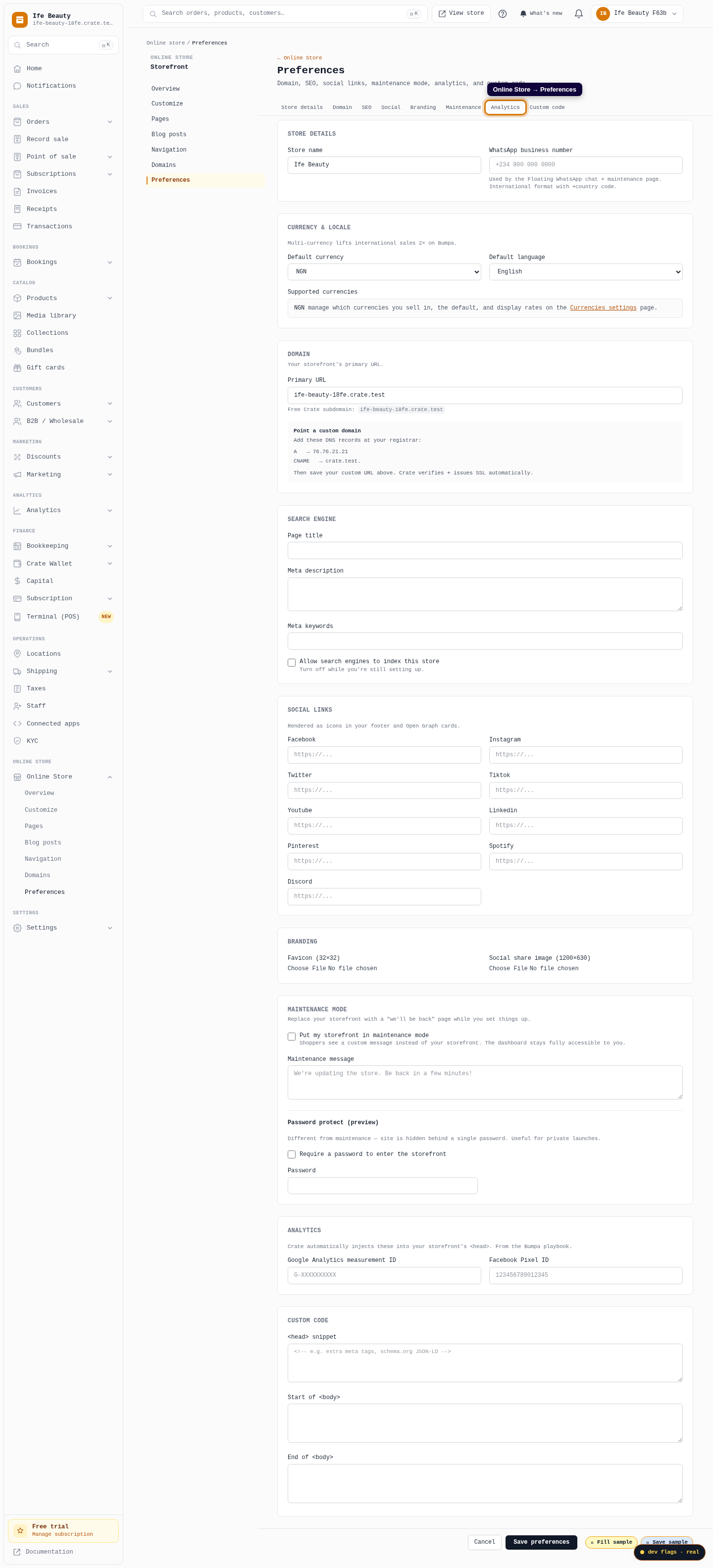
From your Crate dashboard, go to Online Store → Preferences. This page holds the storefront-wide settings — SEO, social links, and the analytics tags Crate injects for you.
Web 
Mobile -
2
Jump to Analytics
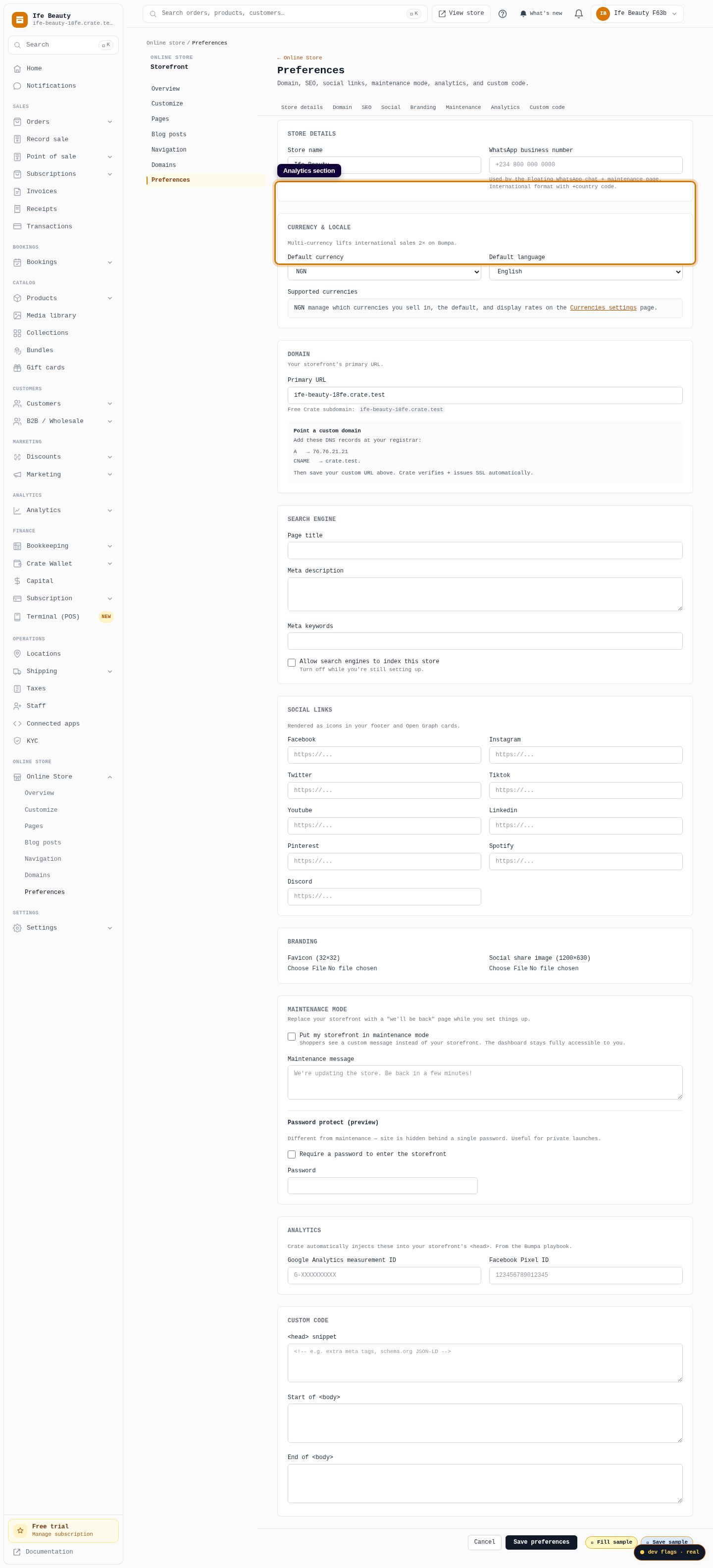
Use the tab bar at the top and click Analytics, or scroll to the Analytics section. This is where Crate keeps your Facebook Pixel and Google Analytics IDs.
Web -
3
Paste your Pixel ID
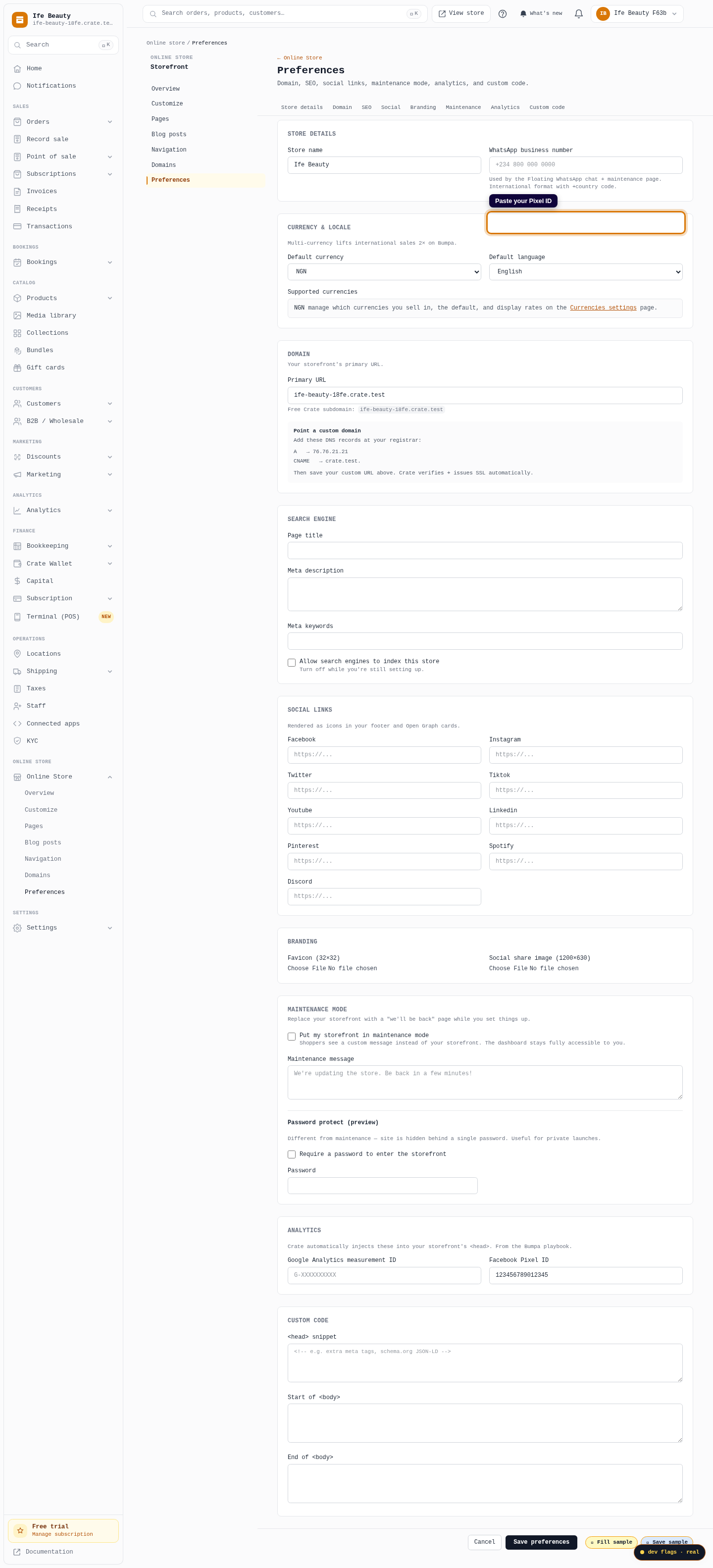
In Facebook Pixel ID, paste the numeric ID from Meta Events Manager — a 15- or 16-digit number like 123456789012345. You only need the ID itself, not a full code snippet.
Web -
4
Save preferences
Click Save preferences. Crate now injects the Pixel into your storefront's
<head>on every page, so Meta starts receiving traffic and purchase events right away.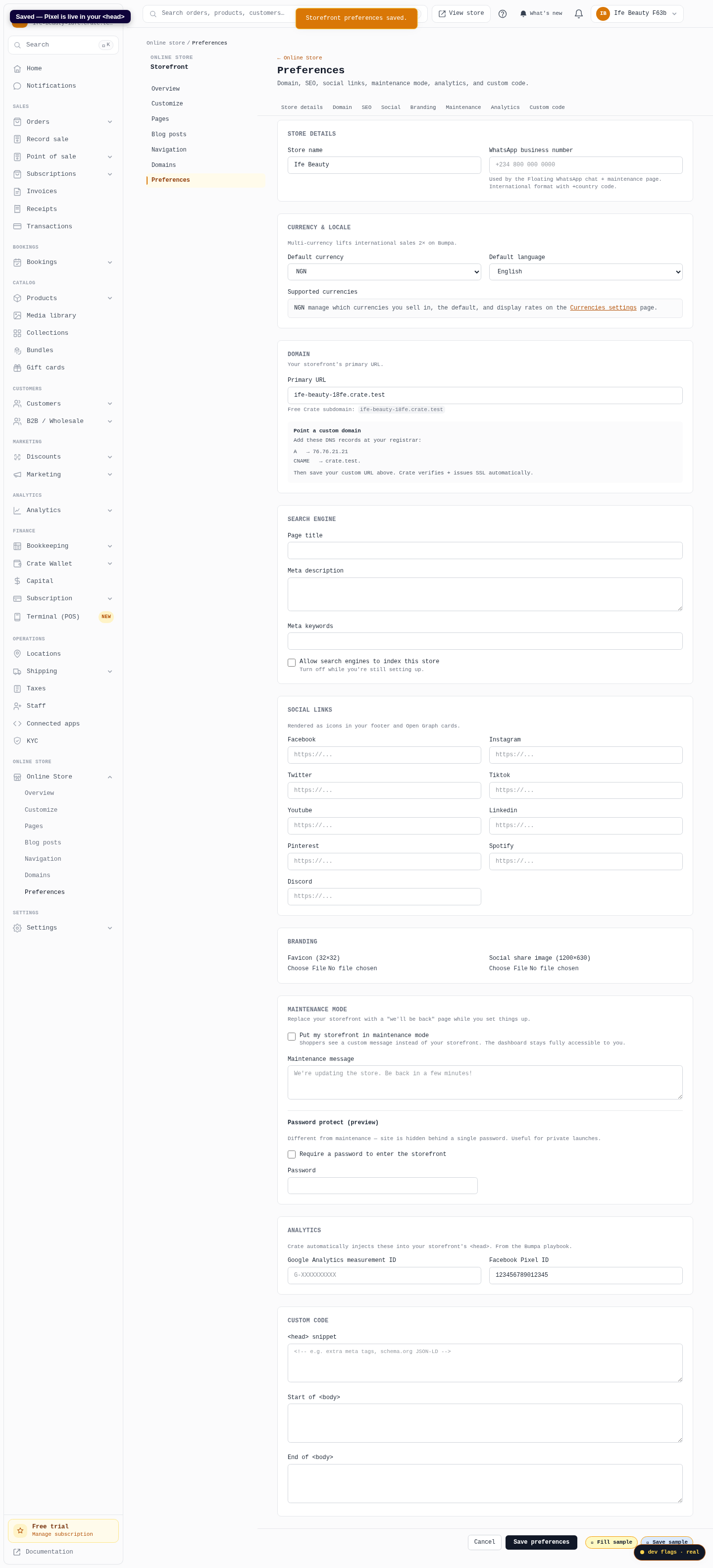
Web