Create an email campaign
Write one email and send it to a customer group in minutes. Crate shows the audience size and the credit cost up front, so you always know who you're reaching and what the send will cost before you hit send.
Email is the most direct way to bring customers back to your store. A campaign is one message — a launch, a sale, a restock — sent to a group of customers at once. Crate's composer keeps it honest: you see the audience size and the credit cost before you send, so there are no surprises.
Before you start
Email campaigns send to customers who have ordered from you and accepted marketing email. To reach people who signed up through a storefront form instead, use a newsletter broadcast.
Each email send costs 4 messaging credits per recipient. Check your balance on the Credits card in the composer, and top up any time from Messaging credits.
Tip: The internal name is private — it's just how you'll recognise the campaign later. Your customers only ever see the subject line and body.
Personalise with merge tags
Two merge tags work anywhere in the subject or body:
{{first_name}}— the customer's first name{{store_name}}— your shop's name
Crate fills these in per recipient at send time, so one email greets everyone by name.
What happens after you send
Crate resolves your audience, then queues one personalised email per reachable recipient. The confirmation tells you how many were queued, and breaks out anyone skipped — either because they had no email address on file, or because they'd opted out of marketing. Opted-out customers are never contacted, which keeps your sending reputation clean.
-
1
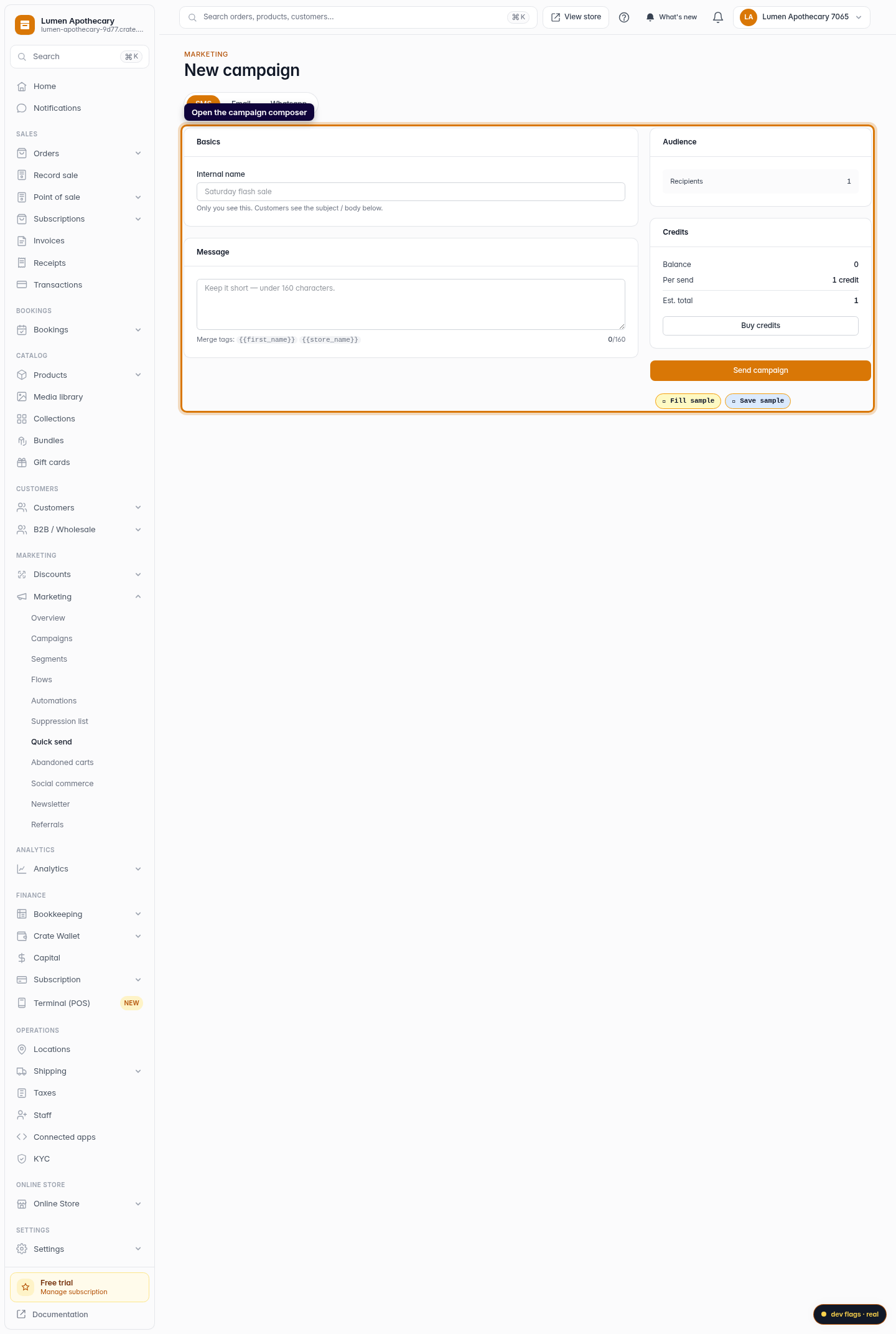
Open the campaign composer
From the dashboard, go to Marketing → Quick send. This opens the campaign composer, where you pick a channel, write your message, and send it to an audience.
Web -
2
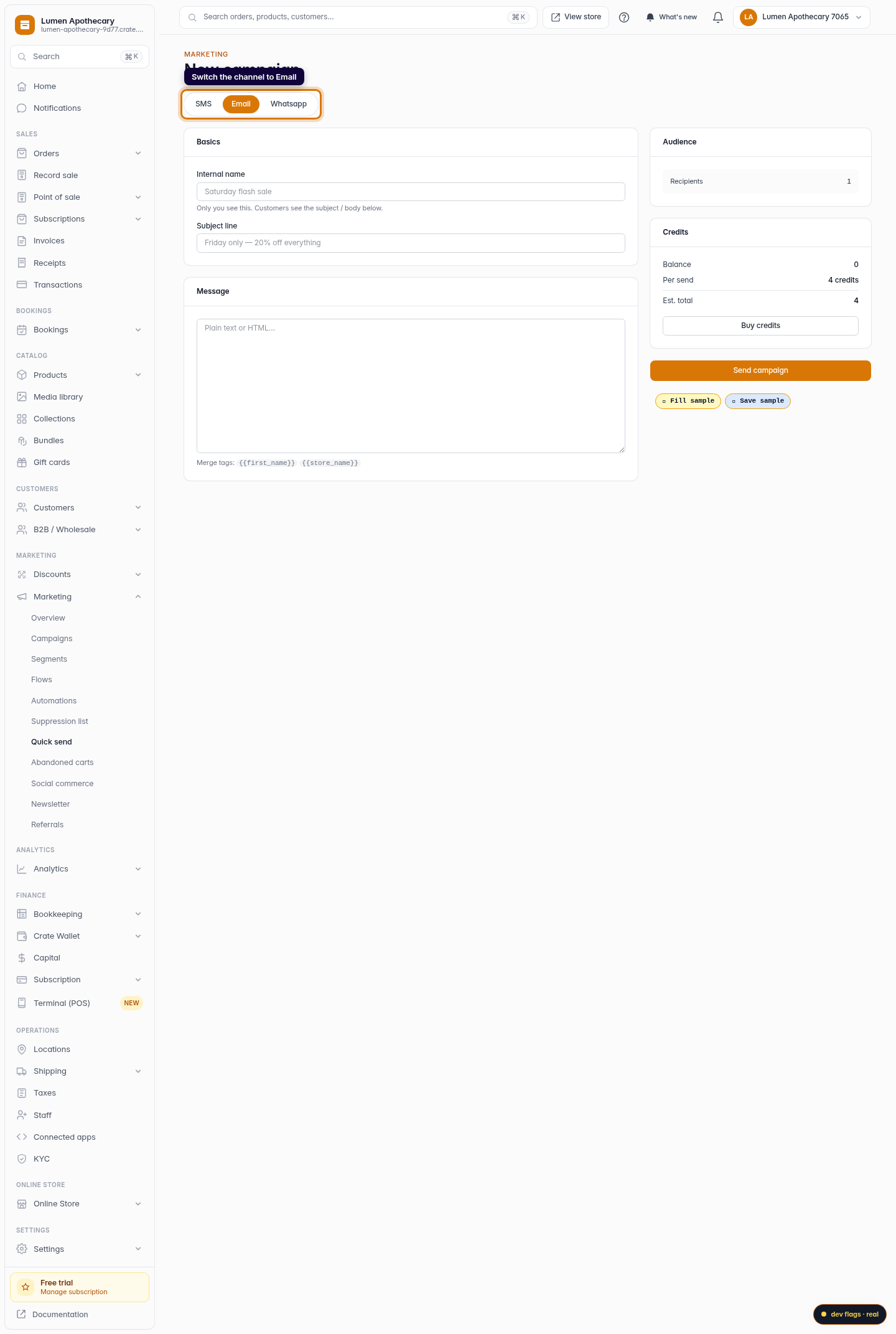
Switch the channel to Email
At the top of the composer is a channel switch. Click Email. The form updates to show an email Subject line field — SMS and WhatsApp don't have one.
Web -
3
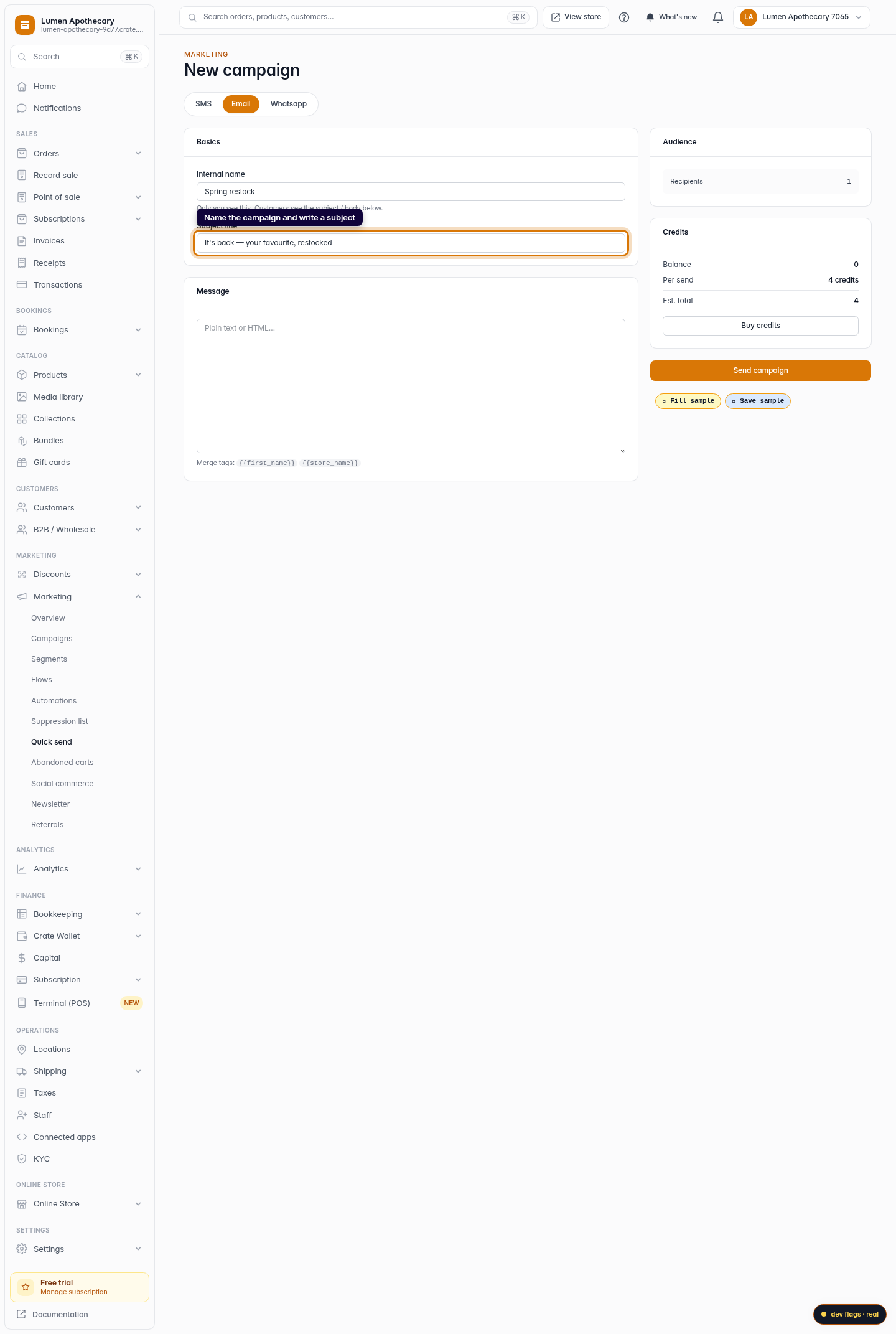
Name the campaign and write a subject
Give the campaign an internal name (only you ever see it — it keeps your sends organised) and a subject line, which is the first thing your customers read in their inbox. Keep the subject short and specific, like Friday only — 20% off everything.
Web -
4
Write your message
Write the email body. Use merge tags to personalise each message —
{{first_name}}drops in the customer's name and{{store_name}}drops in your shop's name. A personalised greeting consistently lifts opens and clicks.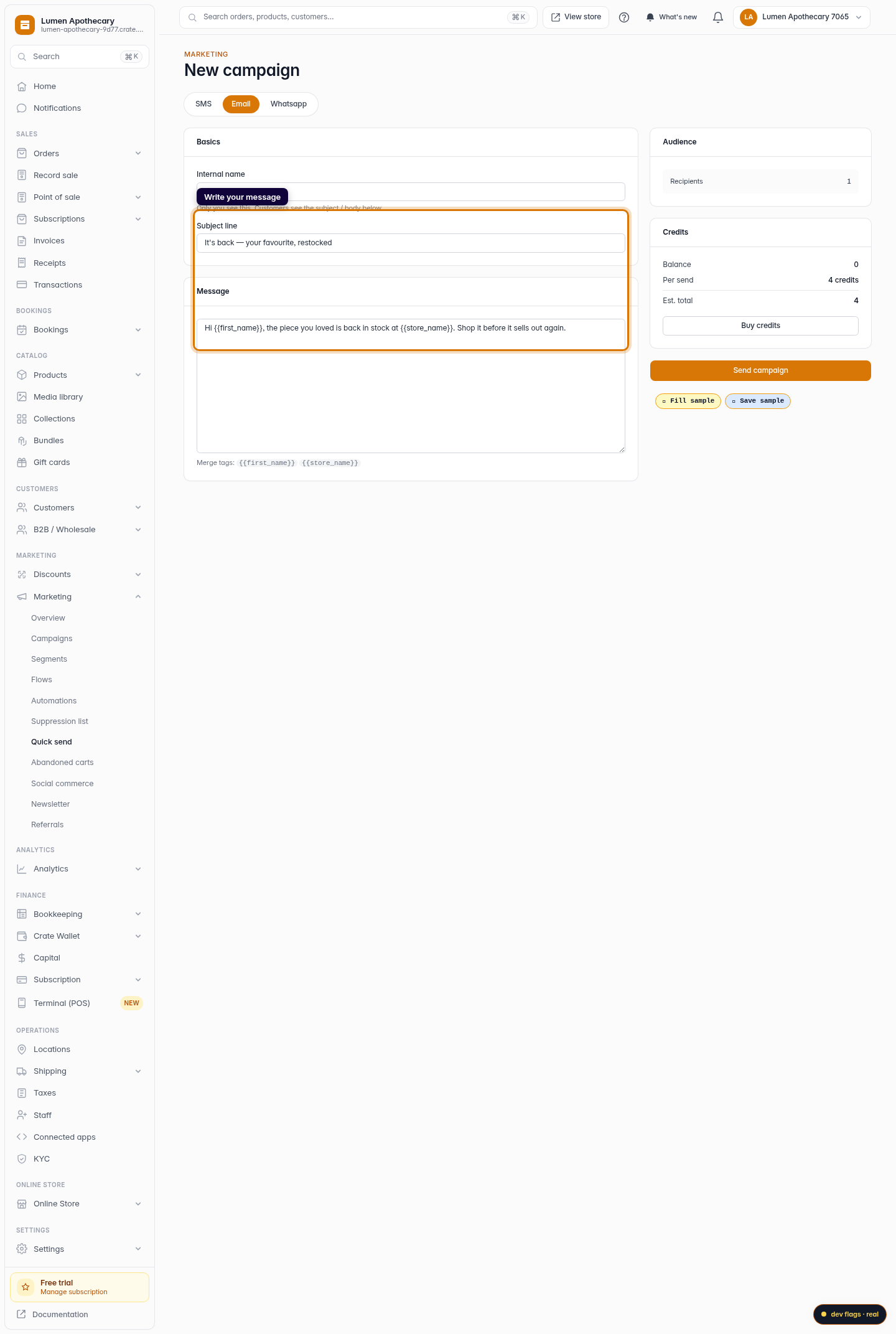
Web -
5
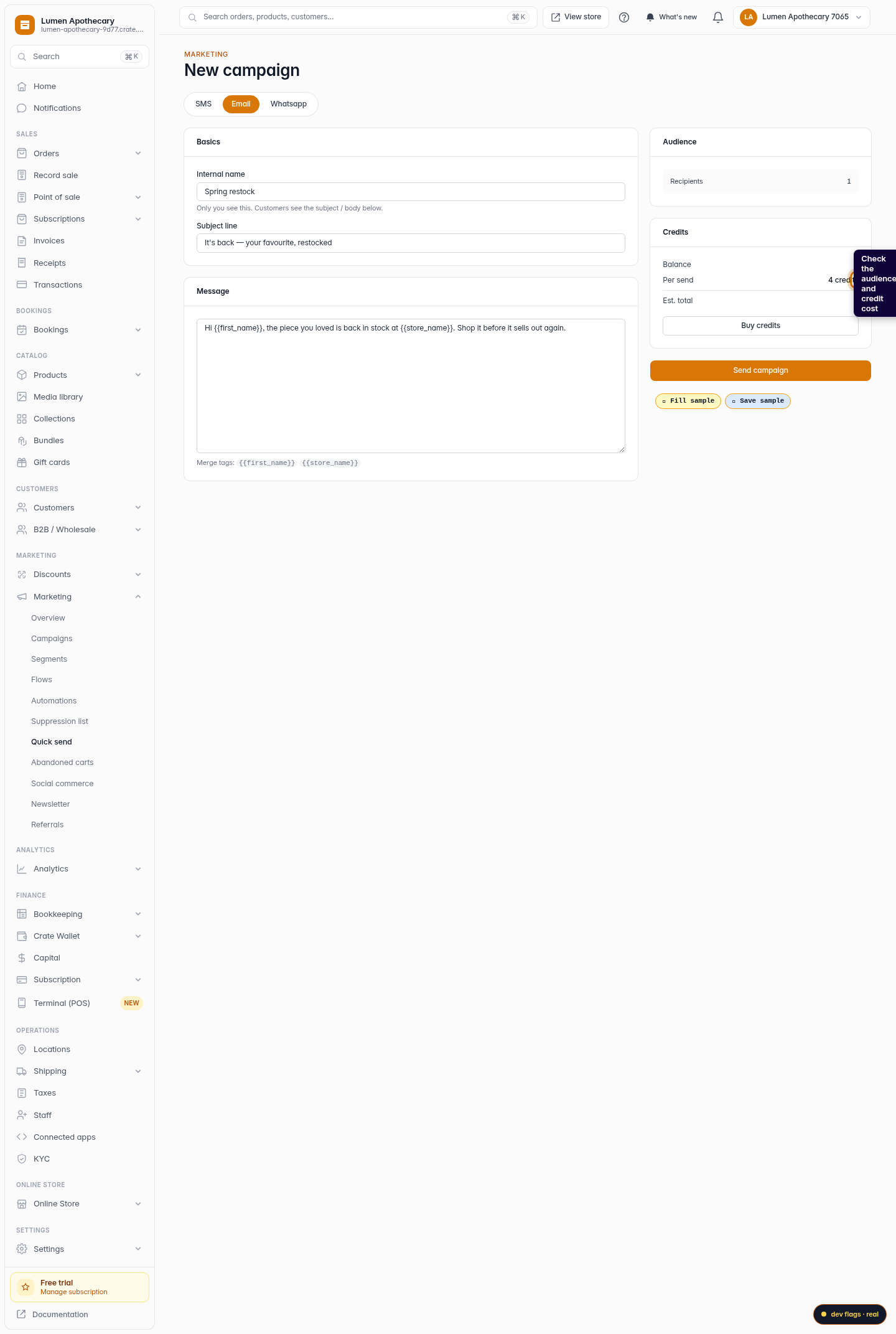
Check the audience and credit cost
The Audience card shows exactly how many recipients will get this email, and the Credits card shows the cost — email sends use 4 credits each, so the estimated total updates with your audience size. If your balance is low, Buy credits is one click away.
Web -
6
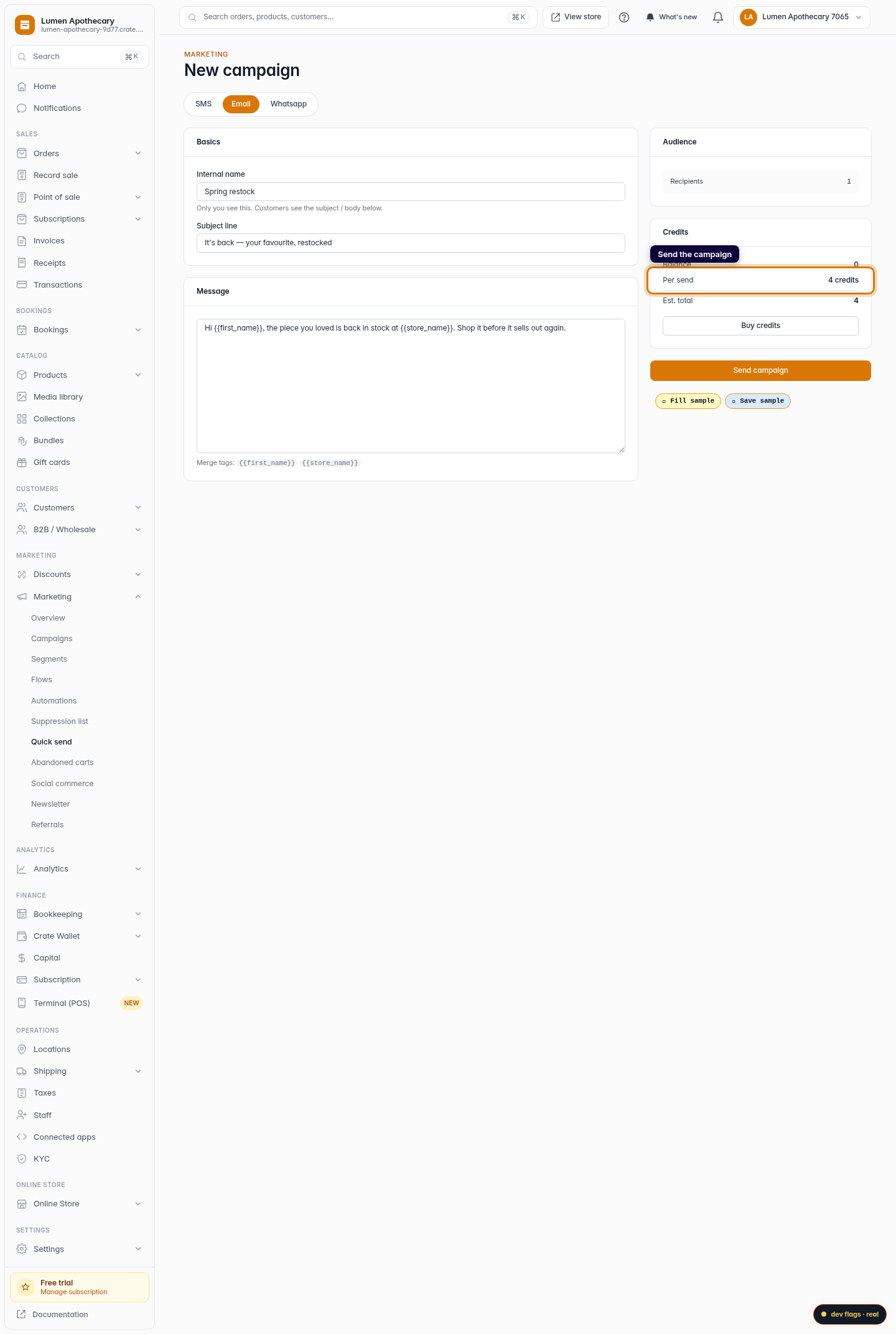
Send the campaign
When you're happy, click Send campaign. Crate queues a personalised email for every reachable recipient and tells you how many went out — plus any it skipped because they had no email on file or had opted out of marketing.
Web