How to create customer groups
Bucket your buyers into segments — a live rule-driven group or a hand-picked list — so your SMS, email and WhatsApp campaigns reach exactly the right audience.
Customer groups are how you stop blasting every message to everyone. By bucketing buyers into segments — your big spenders, your lapsed customers, everyone in a particular city — you can tailor each SMS, email or WhatsApp campaign to the people most likely to act on it.
Dynamic vs manual
Crate gives you two kinds of group:
- A Dynamic segment is defined by rules — total spent, order count, days since last order, location or tag — and Crate recalculates who belongs every time the segment is used. Build a VIP group once as total spent ≥ ₦100,000 and it stays accurate forever, no maintenance.
- A Manual list is a hand-curated set of customers you add yourself. Use it for groups that can't be expressed as a rule — a wholesale shortlist, a giveaway entry list.
Building rules
For a dynamic segment, add one or more rules in the builder and choose whether a customer must match all rules (AND) or any rule (OR). The available fields are total spent (₦), order count, last order (in days), location and tag — enough to express segments like returning Lagos buyers who've spent over ₦50k.
Tip: Start simple. A single rule like order count ≥ 2 (returning customers) or last order before 90 days (lapsed) already gives you a high-value audience to win back.
Putting groups to work
Once a group exists it feeds straight into your SMS, email and WhatsApp campaigns — pick it as the audience when you compose a broadcast. You can also enrol a customer into a manual group directly from their profile or via the Add to group bulk action on the customer list.
-
1
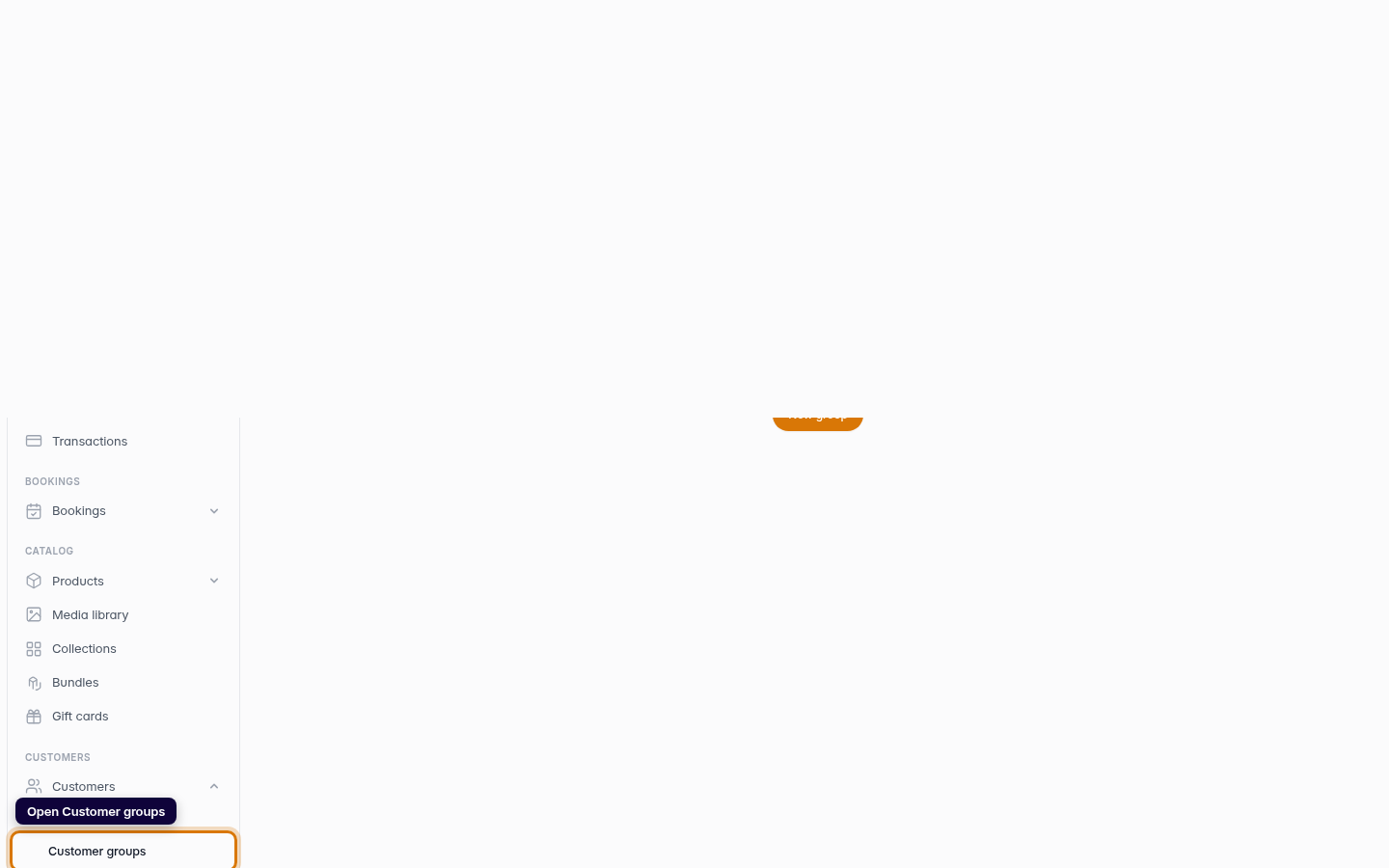
Open Customer groups
From the dashboard sidebar, open Customers and choose Customer groups. This is where your segments live.
Web -
2
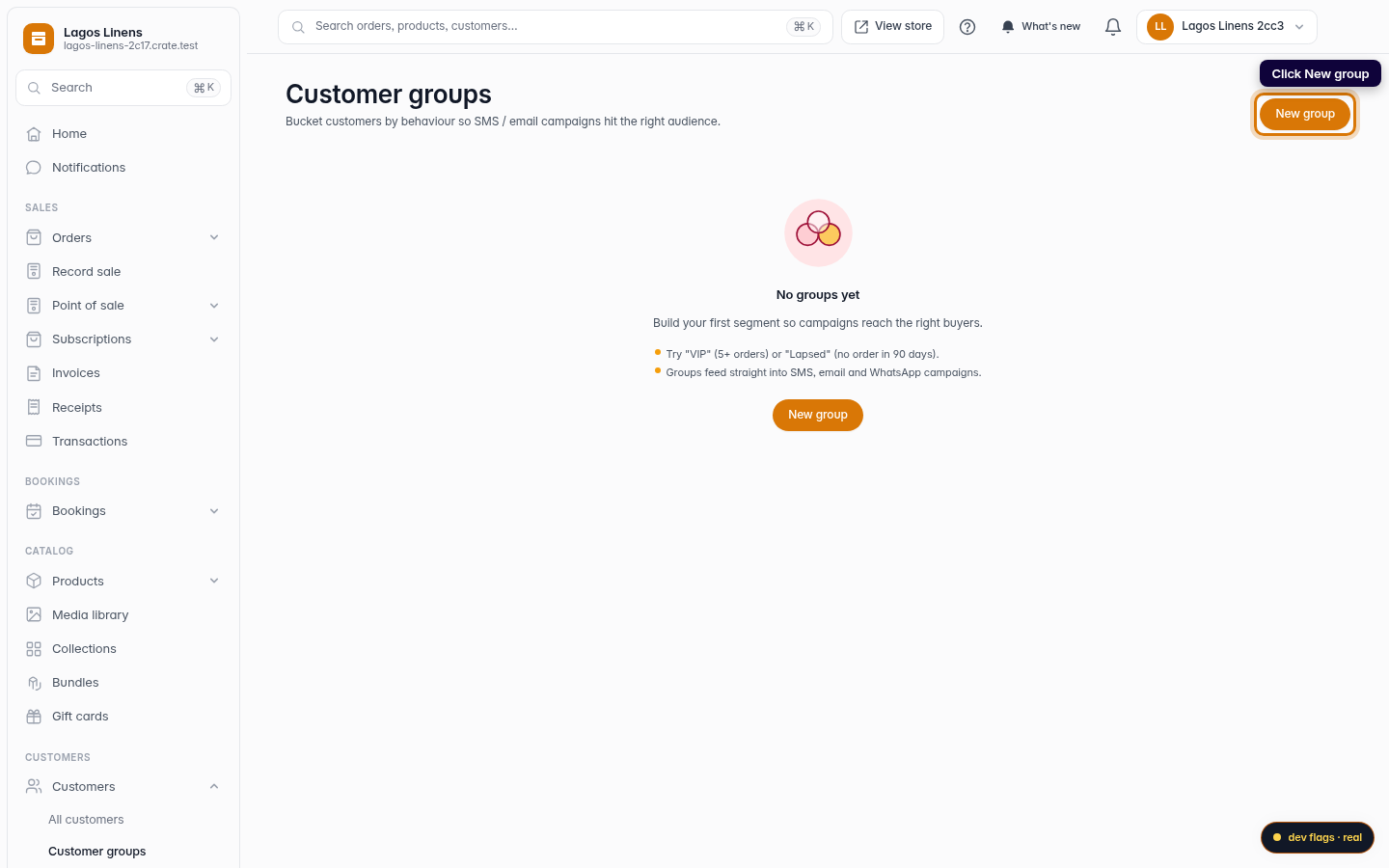
Start a new group
Click New group in the top-right corner to open the segment builder.
Web -
3
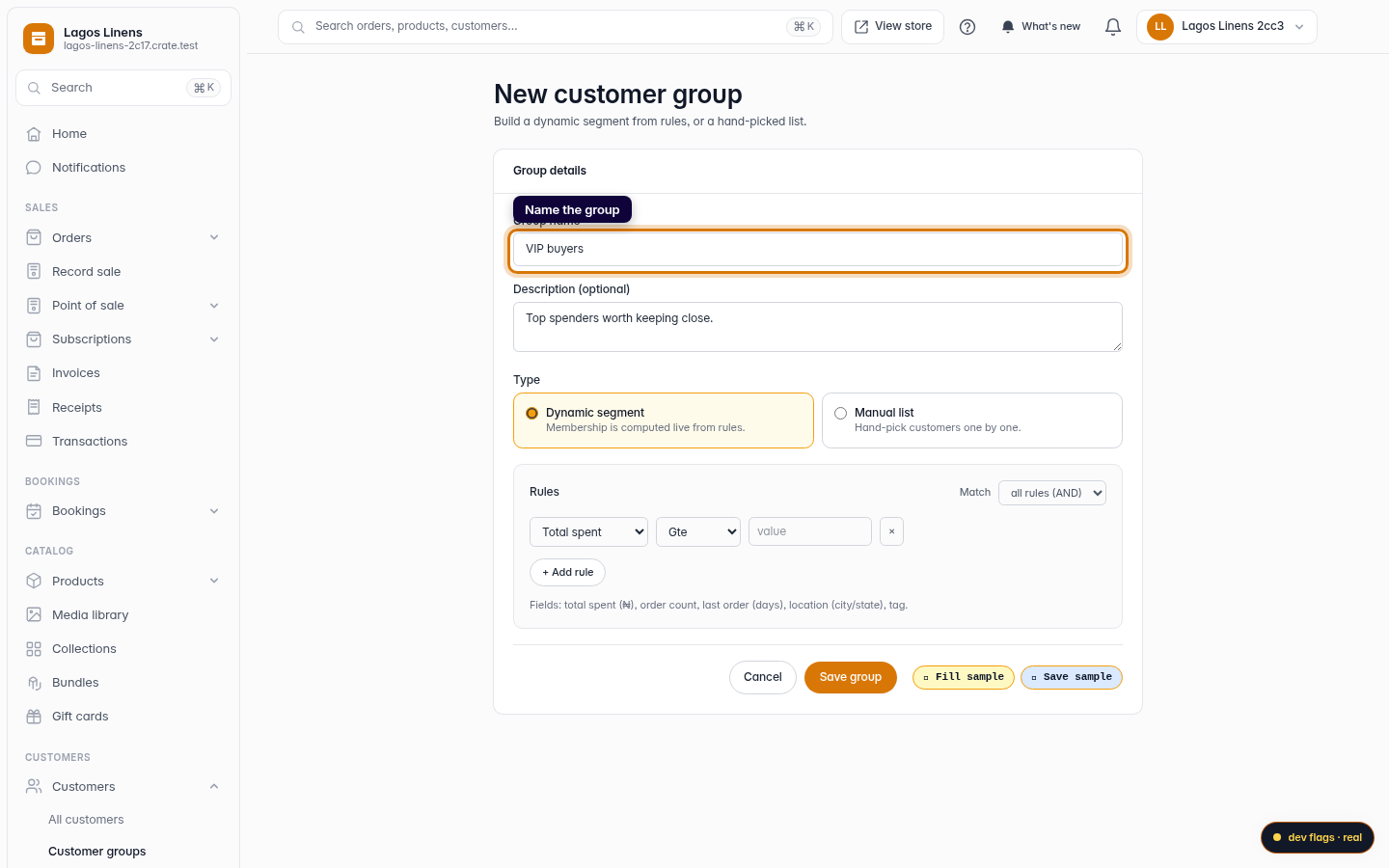
Name the group
Give the group a clear name — something like VIP buyers or Lagos regulars — and an optional description so your team knows what it's for.
Web -
4
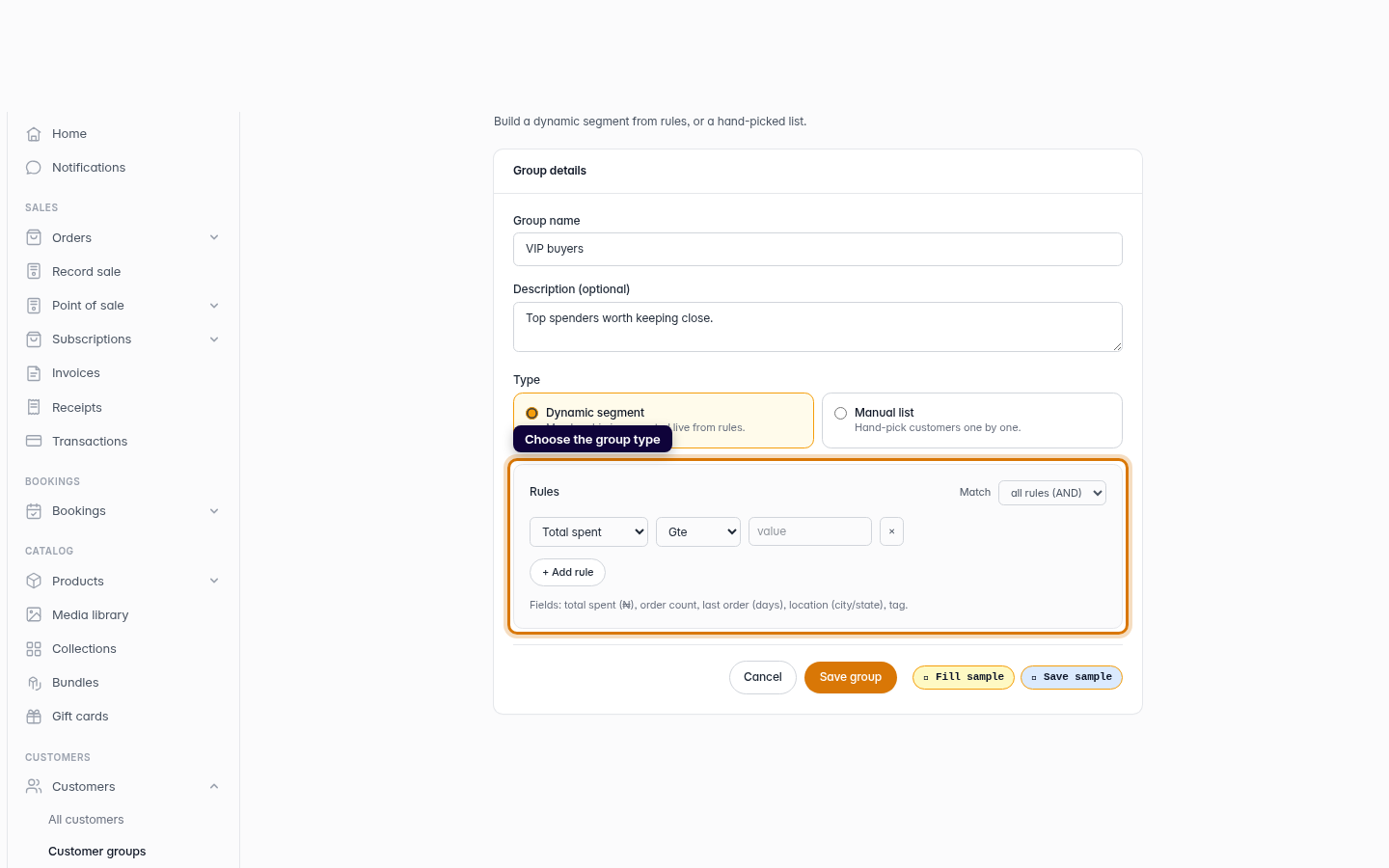
Choose the group type
Pick Dynamic segment to let Crate compute membership live from rules, or Manual list to hand-pick customers one by one. Dynamic is the powerful choice — set a rule like total spent ≥ ₦100,000 and the group updates itself as buyers cross the line.
Web -
5
Save the group
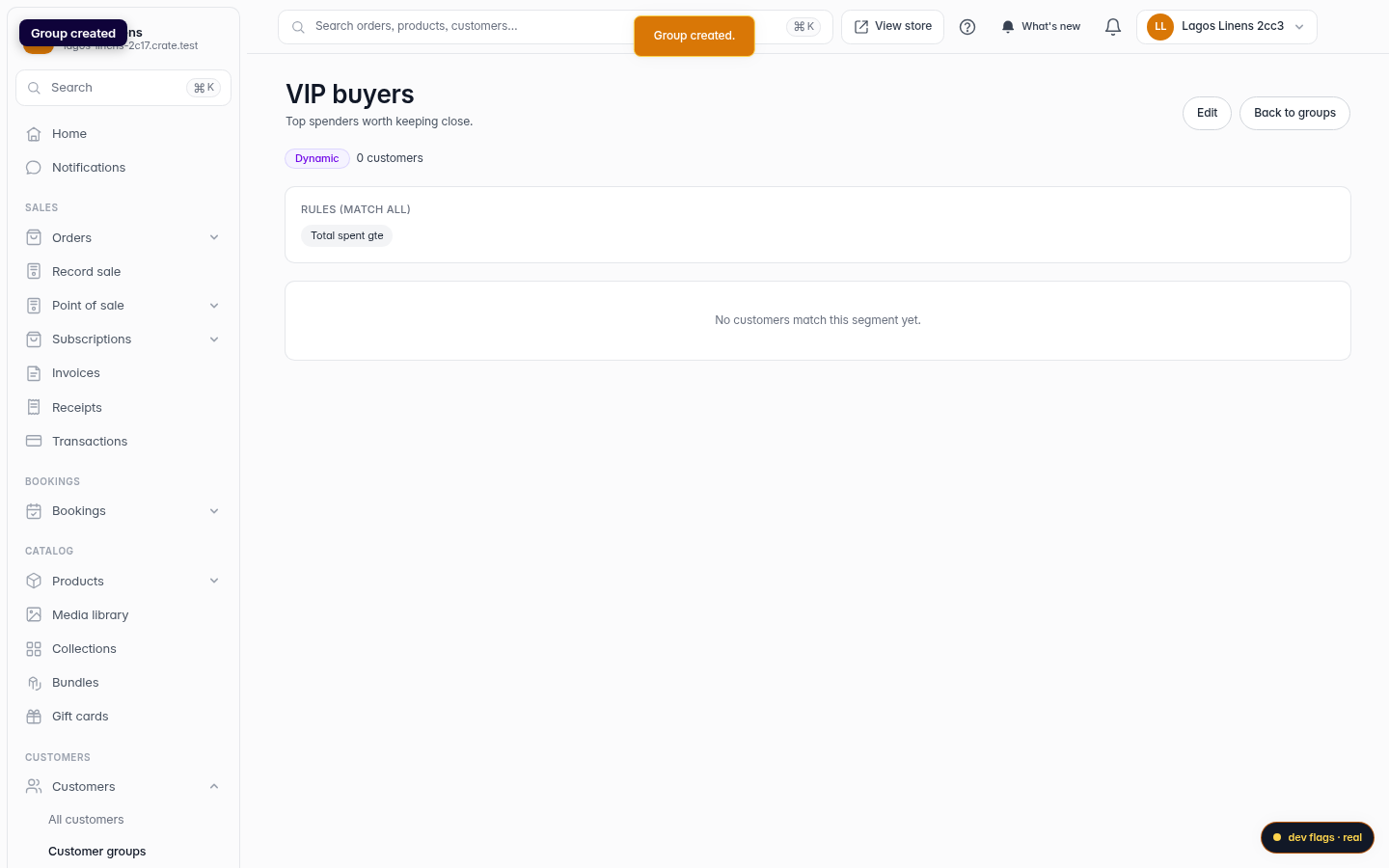
Click Save group. Crate creates the segment and opens it, ready to feed into your next campaign.
Web